
Online payments
With CaseFlow Payments set up, clients can pay invoices directly from the public invoice link with a credit or debit card. The money is deposited to your firm's bank account and the payment is recorded against the invoice in CaseFlow automatically.
Plan requirement
Available on the Growth plan and above.
CaseFlow Payments is built on Stripe Connect: your firm gets its own Stripe account, created and connected through CaseFlow in a few clicks. There are no API keys to copy, no webhooks to configure, and no separate Stripe integration to maintain. Card payments only; there is no PayPal, ACH, or other gateway exposed in the UI.
Setting up CaseFlow Payments
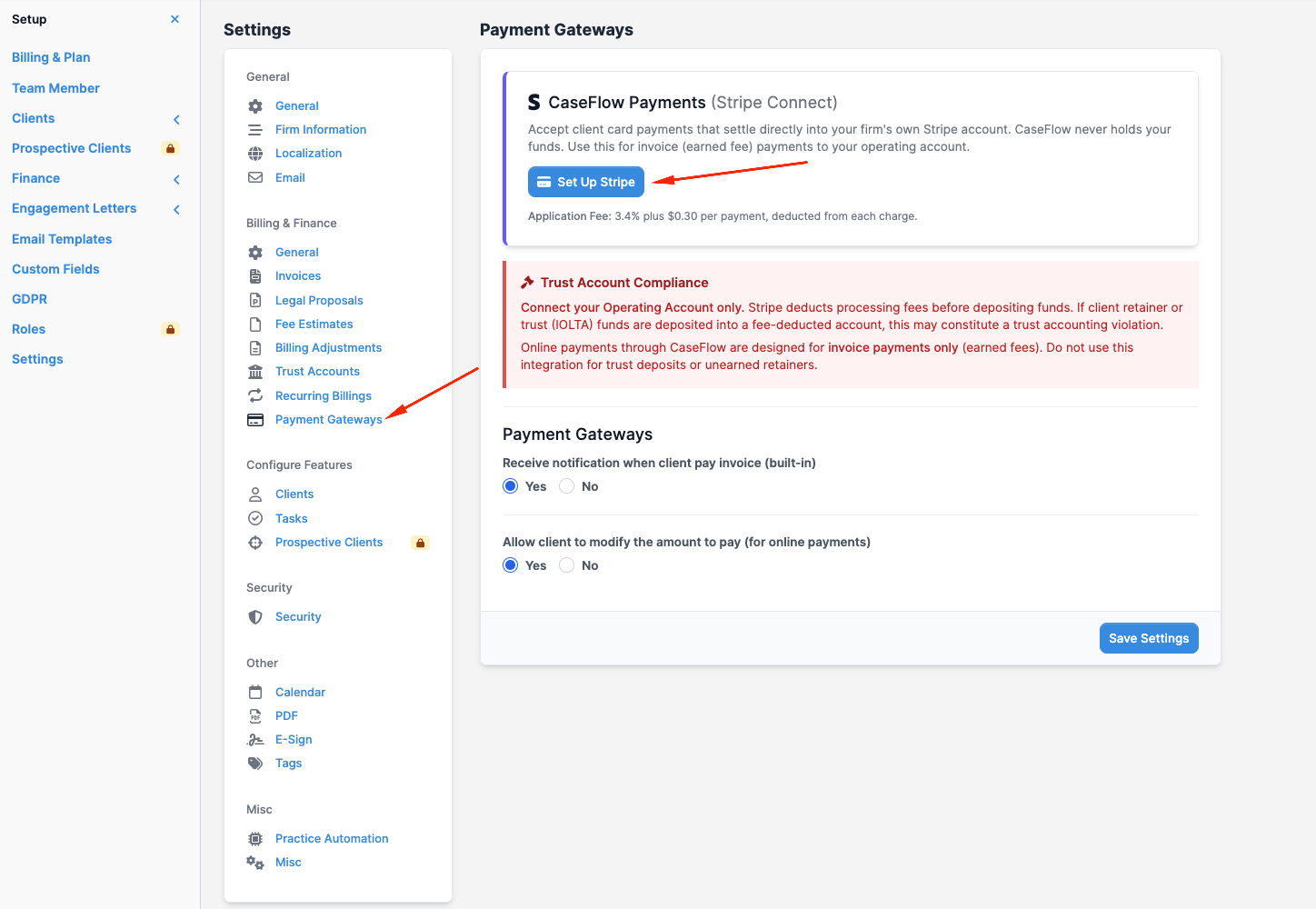
- Go to Setup > Settings > Billing & Finance > Payment Gateways.
- In the CaseFlow Payments panel, click Set Up Stripe.
- You are taken to Stripe's secure onboarding flow. Stripe asks for your business details (legal name, address, EIN or SSN depending on entity type) and the bank account that should receive payouts.
- When you finish, you land back in CaseFlow and the panel shows your live status.
The status badge tells you where you stand:
| Status | Meaning |
|---|---|
| Ready to accept payments | Onboarding complete; the Pay Now button is live on your invoices |
| Waiting for information | Stripe needs more details; the panel lists what is missing. Click Resume Setup to finish |
| Account restricted | Stripe has paused the account (usually unverified information); resume setup or contact support |
Once the status is Ready to accept payments, a Pay Now button appears on every public invoice link. Use Open Stripe Dashboard in the same panel to see your payouts, balance, and payment history at Stripe.
Processing fee
CaseFlow Payments charges 3.4% + $0.30 per successful charge. This covers Stripe's card processing cost and CaseFlow's platform fee, and it is deducted automatically before the money reaches your bank account. CaseFlow records the gross amount the client paid; the fee shows up in your Stripe payout reconciliation, visible from Open Stripe Dashboard.
Trust account compliance
The settings page itself carries this warning, and it is worth restating: connect your operating account, never your trust/IOLTA account. Processing fees are deducted before deposit, so funnelling client retainer or trust money through a fee-deducted account would constitute a trust accounting violation in most jurisdictions. CaseFlow Payments is designed for invoice payments (earned fees) only.
How clients pay
When a client opens an invoice link (from email or shared URL) they see the invoice details and a Pay Now button.
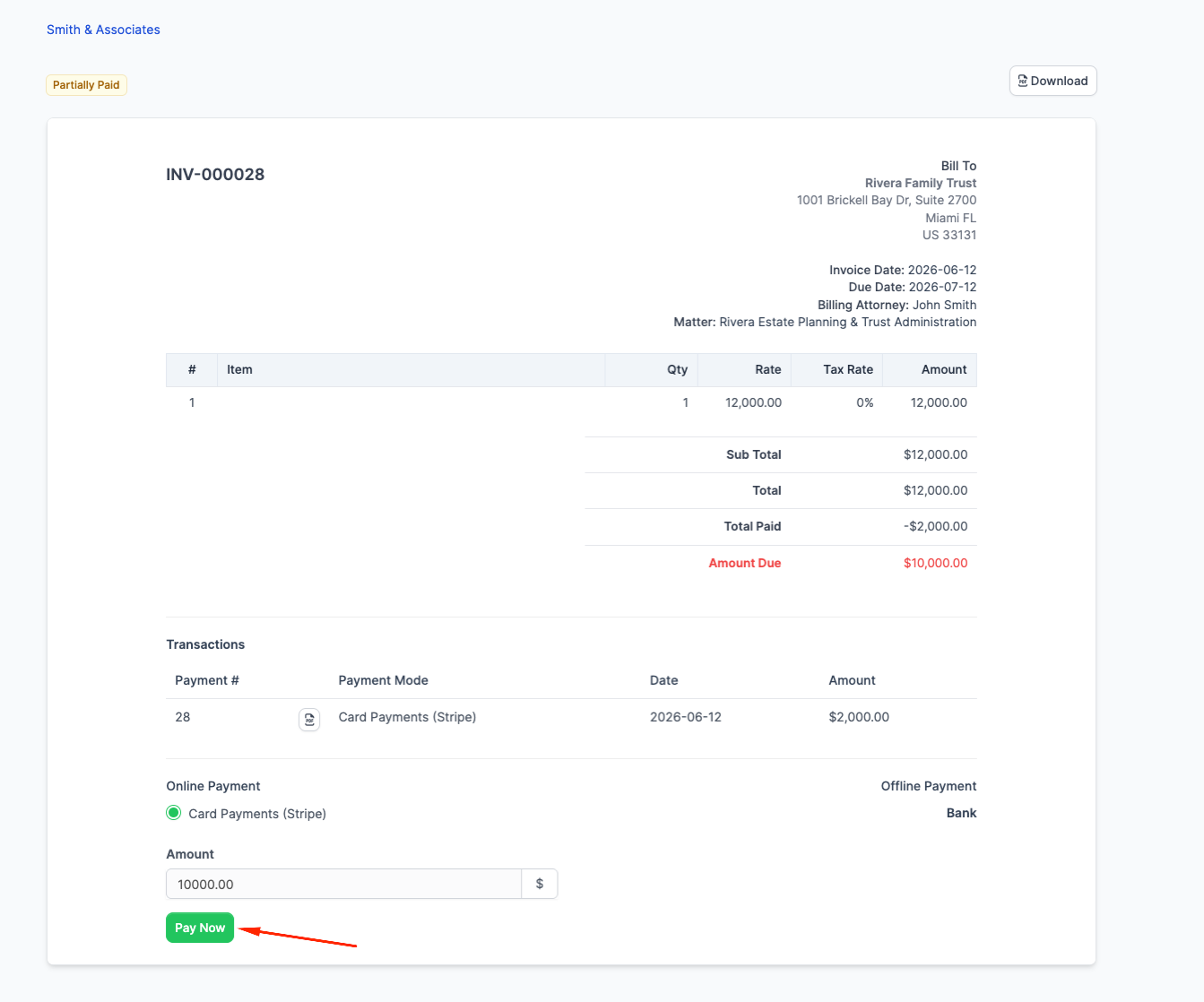
Clicking it opens a Stripe-hosted payment page where they enter card details. Card data is entered on Stripe's page and stored by Stripe; it never touches CaseFlow's or your firm's servers.
After a successful payment:
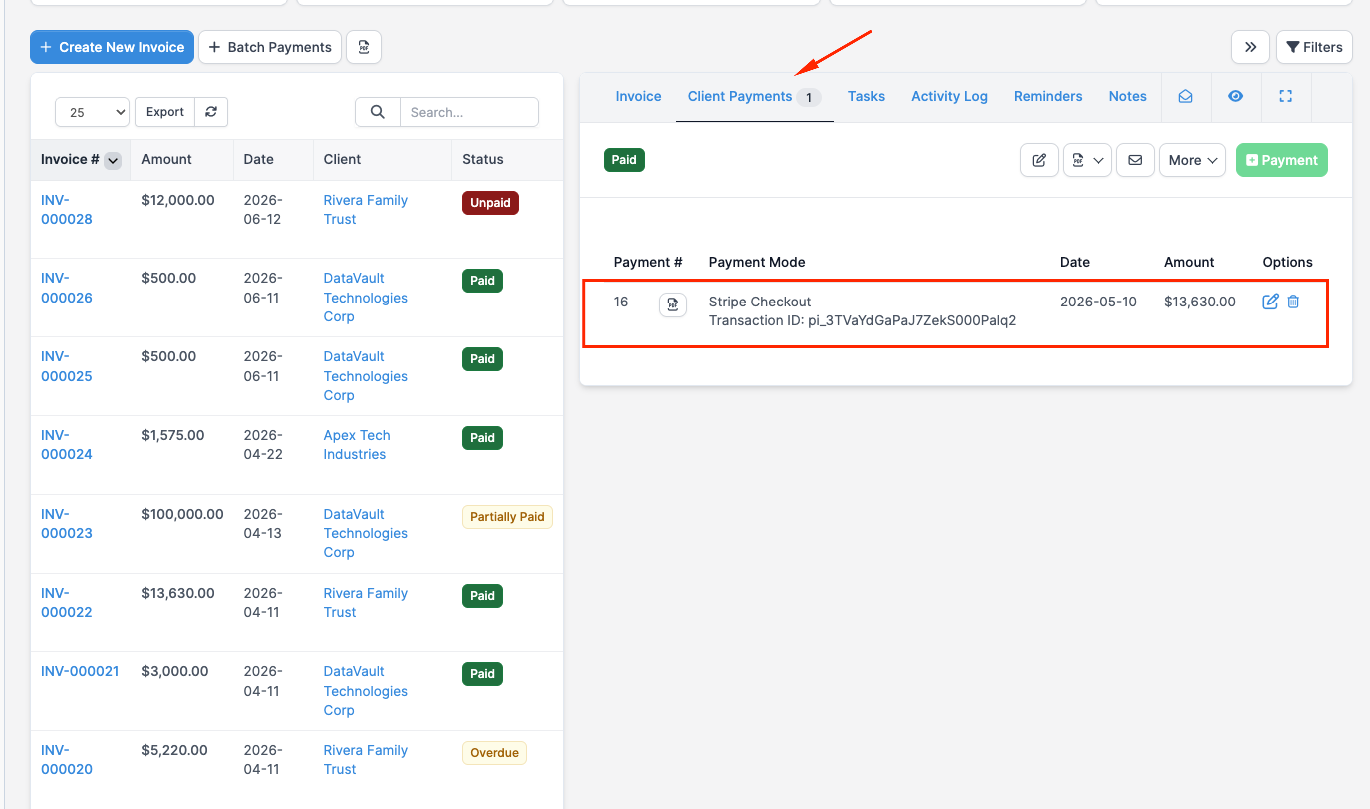
- CaseFlow records the payment automatically against the invoice
- The invoice status updates to Paid (or Partially Paid if they paid less than the full balance)
- The client sees a payment confirmation page
- A payment receipt email is sent (using the standard payment-recorded template)
Partial payments online
If Allow payment amount to be modified is on under the same Payment Gateways page, the client can edit the amount before paying. Otherwise the Pay Now flow charges the full balance. For instalment arrangements collected automatically on a saved card, use Recurring billing instead; for clients paying offline (bank transfer, cheque), record those payments manually as they come in; see Recording payments.
Failed payments
If a card is declined, the client sees an error message and can try again with a different card. No payment is recorded in CaseFlow for declined attempts; only successful charges appear.
Recurring billing
To split an invoice into automatic instalments, or to charge a retainer client the same amount each cycle on a saved card, set up a payment plan under Billing > Recurring Billing. See Recurring billing for the full guide.
Refunding online payments
Refunds for CaseFlow Payments charges are processed by the CaseFlow team. The two-step flow:
- Request the refund. Contact support@caseflow.law with the invoice number and the payment date or amount; full and partial refunds are both possible. The refund is returned to the client's card, and the processing fee handling is confirmed with you as part of the request.
- Record the matching billing adjustment in CaseFlow. Create a billing adjustment against the original invoice so your CaseFlow records and your payout history stay aligned.
Skipping step 2 leaves the invoice showing as paid in CaseFlow even though the money has gone back to the client.