
Billing management
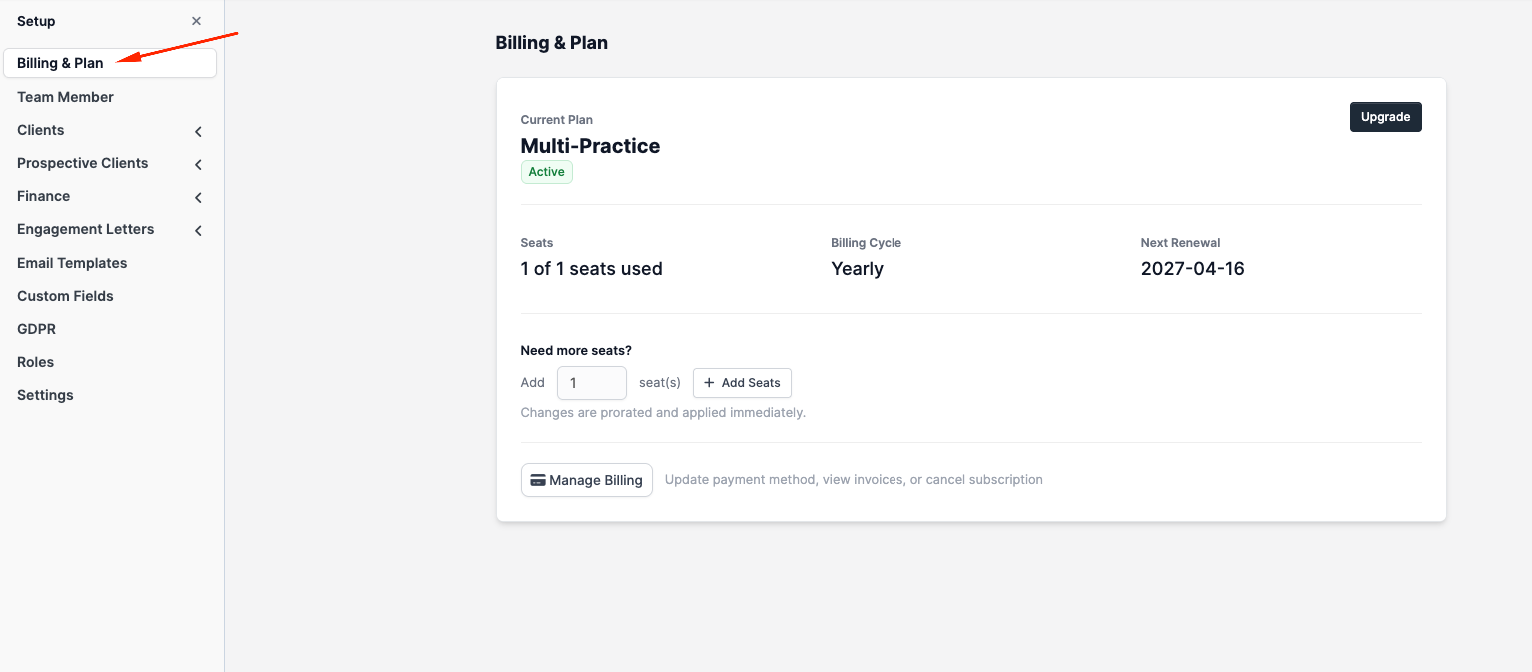
Manage your CaseFlow subscription payment details and view billing history from Setup > Billing & Plan.
The billing page
This page shows:
- Your current plan and billing cycle (monthly/annual)
- Number of active seats and seat limit
- Next billing date
- Payment method on file
- Quick links to change plan or update payment
Updating your payment method
Click Manage Billing. This opens Paddle's secure payment form where you can enter a new credit card or switch payment methods.
CaseFlow uses Paddle for subscription billing. Your card details are stored by Paddle, not on CaseFlow's servers.
Viewing invoices
Click Billing History to see past charges. Each entry shows:
- Date
- Amount
- Description (plan name, seats)
- Status (paid, failed, refunded)
- PDF receipt download
Trial lifecycle
Every new firm starts on a 14-day trial. The trial includes Growth-plan features and supports up to 5 seats. From the day you sign up, the trial countdown is visible at the top of your billing page; the firm owner also receives reminder emails as the trial nears expiry.
When you choose a plan and complete the first payment, your account converts to that plan immediately:
- The status flips from "Trial" to "Active"
- Your trial-end date is cleared
- A welcome email confirms the conversion
- Billing begins on the cycle (monthly or annual) you chose
If the trial expires without a payment, your firm's tenant is restricted from log in and your data is held safely on file. You can choose a plan and reactivate at any time from the upgrade page.
Failed payments
If your card is declined on a billing date, the recovery sequence is:
- Paddle automatically retries the charge over the next several days. Most retries succeed without any action from you.
- You receive a payment-failed email the moment the first attempt fails, addressed to the firm owner. The Paddle billing contact also receives the standard Paddle email; if those are different inboxes, both are notified.
- Account status moves to "Past Due" if Paddle gives up retrying without success. While in past-due, access is restricted until the next successful payment.
- Recovery is automatic. When you update your payment method and Paddle confirms the next charge, CaseFlow flips your status from "Past Due" back to "Active" and clears the past-due timestamp. You do not need to ask support to unlock the account.
Update your payment method as soon as you see a failed-payment email to keep the firm in good standing.
Receipts and tax invoices
Download PDF receipts from the billing history. Each receipt includes:
- Your firm name and address
- CaseFlow's billing entity details
- Amount charged
- Date
- Payment method (last 4 digits)
If you need a receipt with specific tax details (e.g. your VAT number), update your billing details in the Paddle customer portal (accessible from the billing page).
Who can access billing
Only the firm administrator can see and manage billing. Regular staff members (even those with full permissions) do not see the Billing & Plan section in Setup.
Paddle
CaseFlow uses Paddle as its payment processor. Paddle handles:
- Payment collection
- Tax calculation (VAT, sales tax)
- Receipt generation
- Subscription lifecycle (upgrades, downgrades, cancellations)
- Payment retries on failure
When you see charges on your bank statement, they may appear as "Paddle" rather than "CaseFlow."