
Document automation
Plan availability
Available on Growth and Multi-Practice plans. The Doc Automation menu item is hidden on Solo plans, and the Generate Document action on a matter is locked until the firm upgrades.
What it does
Document automation turns the documents your firm sends over and over, engagement letters, retainers, fee agreements, standard notices, into reusable templates. You upload your own Word document once, mark the places where client and matter details belong, and from then on CaseFlow fills a fresh copy in one click on any matter. Every generated document is saved to the matter as both a Word file and a PDF, and each one carries a verifiable authenticity certificate.
Because you upload your own Word file, the formatting, letterhead, fonts, and layout are exactly what your firm already uses. CaseFlow only fills in the blanks; it never reformats your document.
How it works
There are three steps, done in order the first time and then just the last one forever after:
- Build a template once: upload a Word document with merge tokens where the details go.
- Generate on a matter: pick the template, and CaseFlow produces a filled Word file and PDF on that matter's Documents tab.
- Rely on the certificate: every generated document has a one-page authenticity certificate proving exactly what was produced, by whom, and when.
Step 1: Build a template
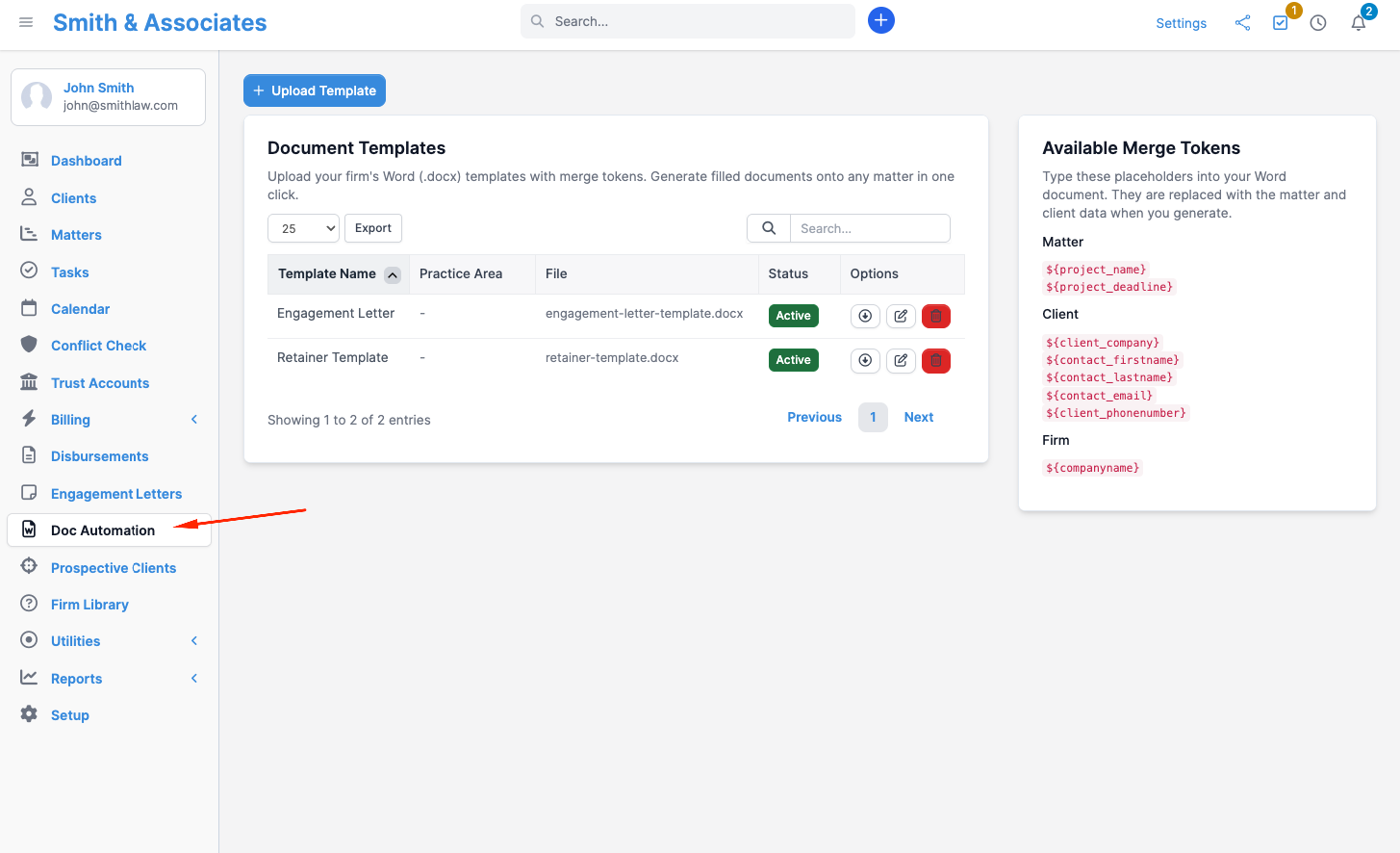
Open Doc Automation from the main menu and click Upload Template.
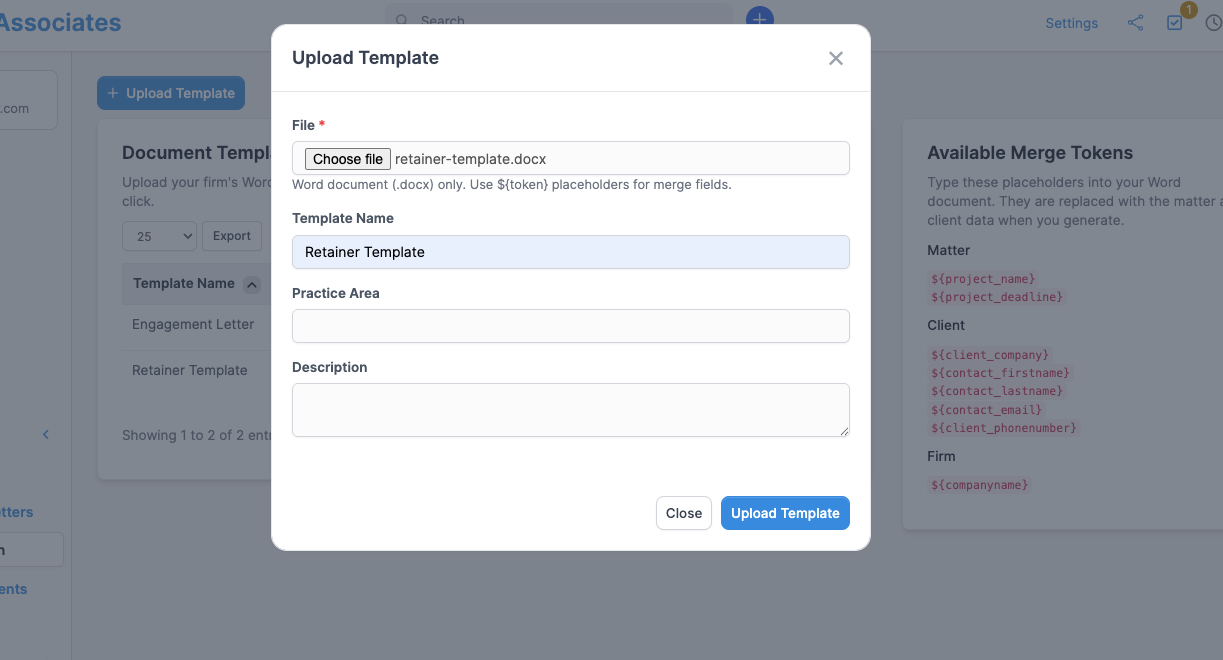
- Choose a Word document from your computer. Only
.docxfiles are accepted. - Give the template a clear name (for example, "Engagement Letter" or "General Retainer").
- Optionally set a practice area and description to help you find it later.
- Click Upload Template.
The template appears in the list with an Active badge. Active templates are the ones offered when you generate on a matter; you can switch a template to Inactive at any time to retire it without deleting its history. 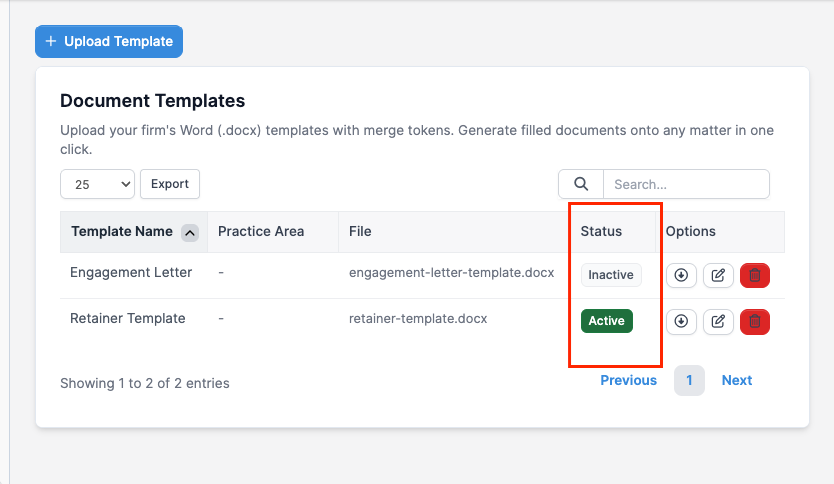
What makes a valid template
CaseFlow checks that the file is a genuine Word document, not just a file renamed to end in .docx. A file that is not a real Word document is rejected with a clear message and nothing is added to the list. For your firm's safety, documents containing macros are also rejected.
Merge tokens
A merge token is a short placeholder you type into your Word document where a detail should appear. When you generate, CaseFlow replaces each token with the real value from the matter and client. Type tokens exactly as shown, including the ${ } wrapper.
The Available Merge Tokens panel on the right of the Document Templates page lists every token you can use:
| Token | Fills in |
|---|---|
${project_name} | The matter name |
${project_deadline} | The matter deadline |
${client_company} | The client's company or organisation name |
${contact_firstname} | The primary contact's first name |
${contact_lastname} | The primary contact's last name |
${contact_email} | The primary contact's email address |
${client_phonenumber} | The client's phone number |
${companyname} | Your firm's name |
For example, an engagement letter might open with:
Dear
${contact_firstname}${contact_lastname},Thank you for retaining
${companyname}in connection with${project_name}.
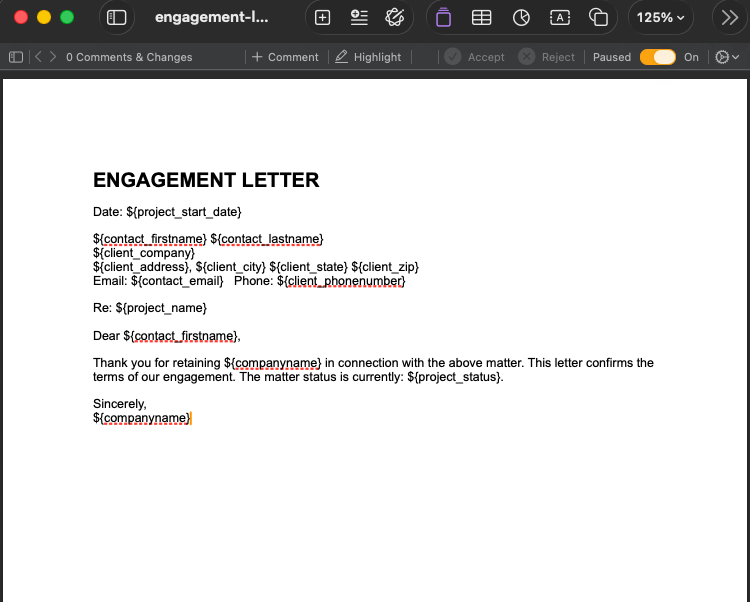
When generated on a matter for James Hartwell of Hartwell Industries, that becomes "Dear James Hartwell," and "Thank you for retaining Smith & Associates in connection with Hartwell v. Pacific Logistics." 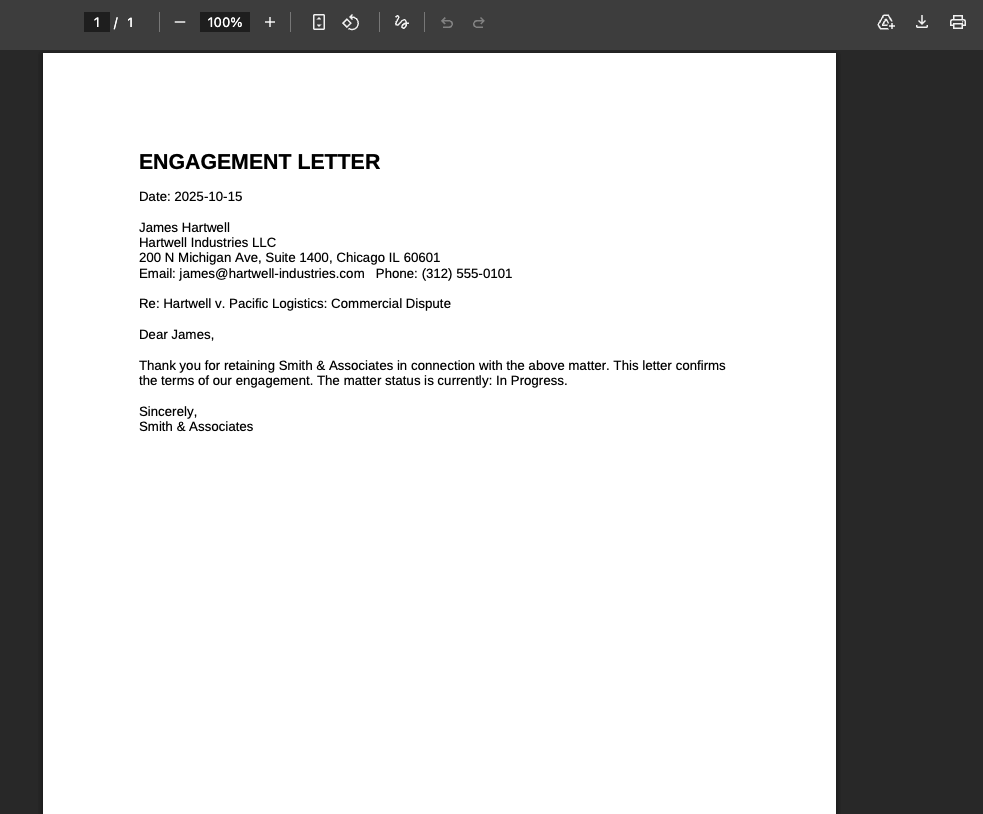
TIP
A token that does not match a real matter or client value is simply left as you typed it, so it is easy to spot and correct. Always generate a test document on a real matter and read it through before sending anything to a client.
Managing the library
Each template row has actions to:
- Download the original Word file you uploaded, with its tokens intact, so you can edit and re-upload it.
- Edit the name, practice area, or active status.
- Delete the template when it is no longer needed.
Step 2: Generate on a matter
Open any matter and go to the Documents tab. Above the file list you will see a Generate Document button. Generating adds files to the matter, so the button is there for the people who can add files: the matter's own team and anyone whose role can edit matters. 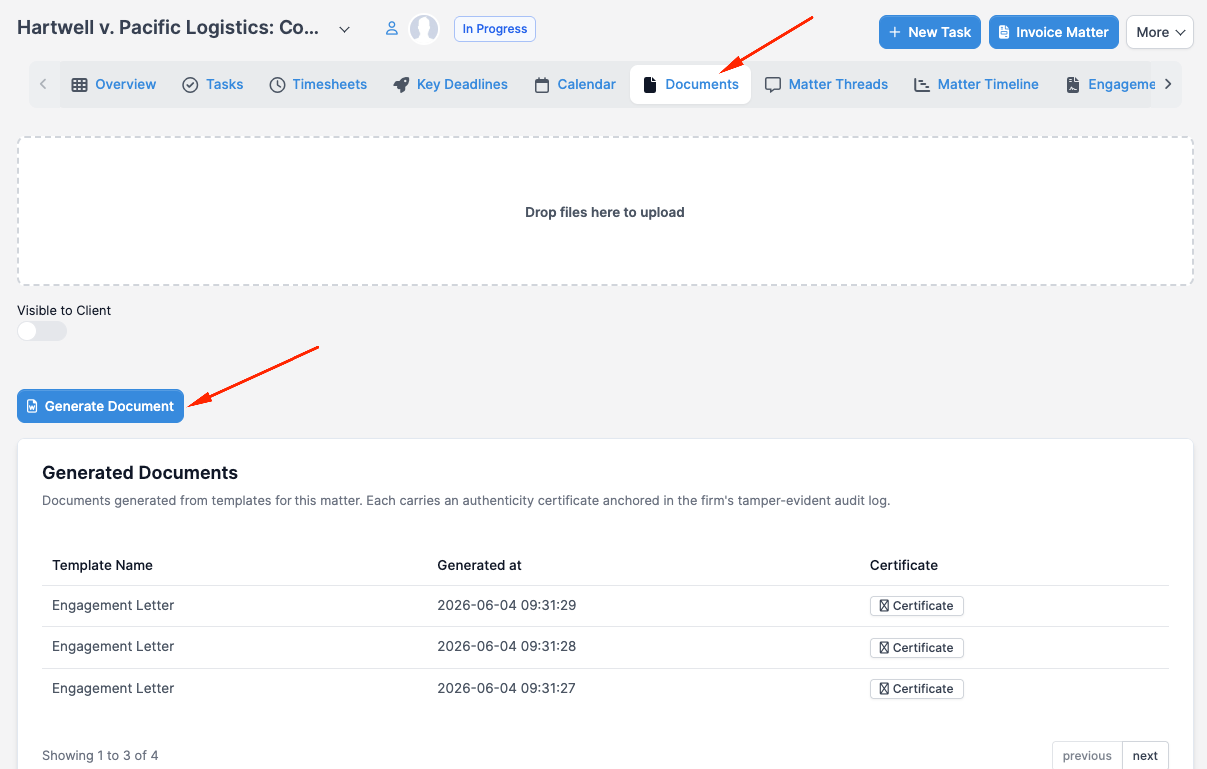
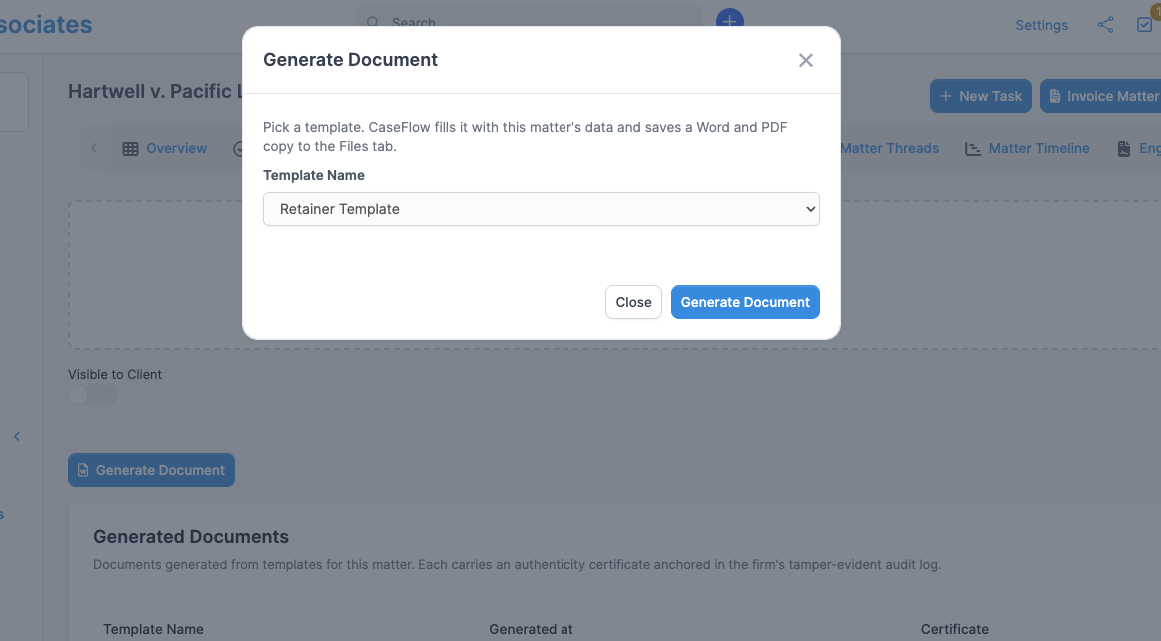
- Click Generate Document.
- Choose one of your active templates from the list.
- Click Generate Document.
After a brief pause, the page refreshes and two new files appear in the matter's Documents list: a filled Word document and a PDF, both named after the template and the matter. The tokens are replaced with this matter's real details, and your original formatting is preserved.
You can generate as many times as you like; each run produces a fresh Word and PDF pair. 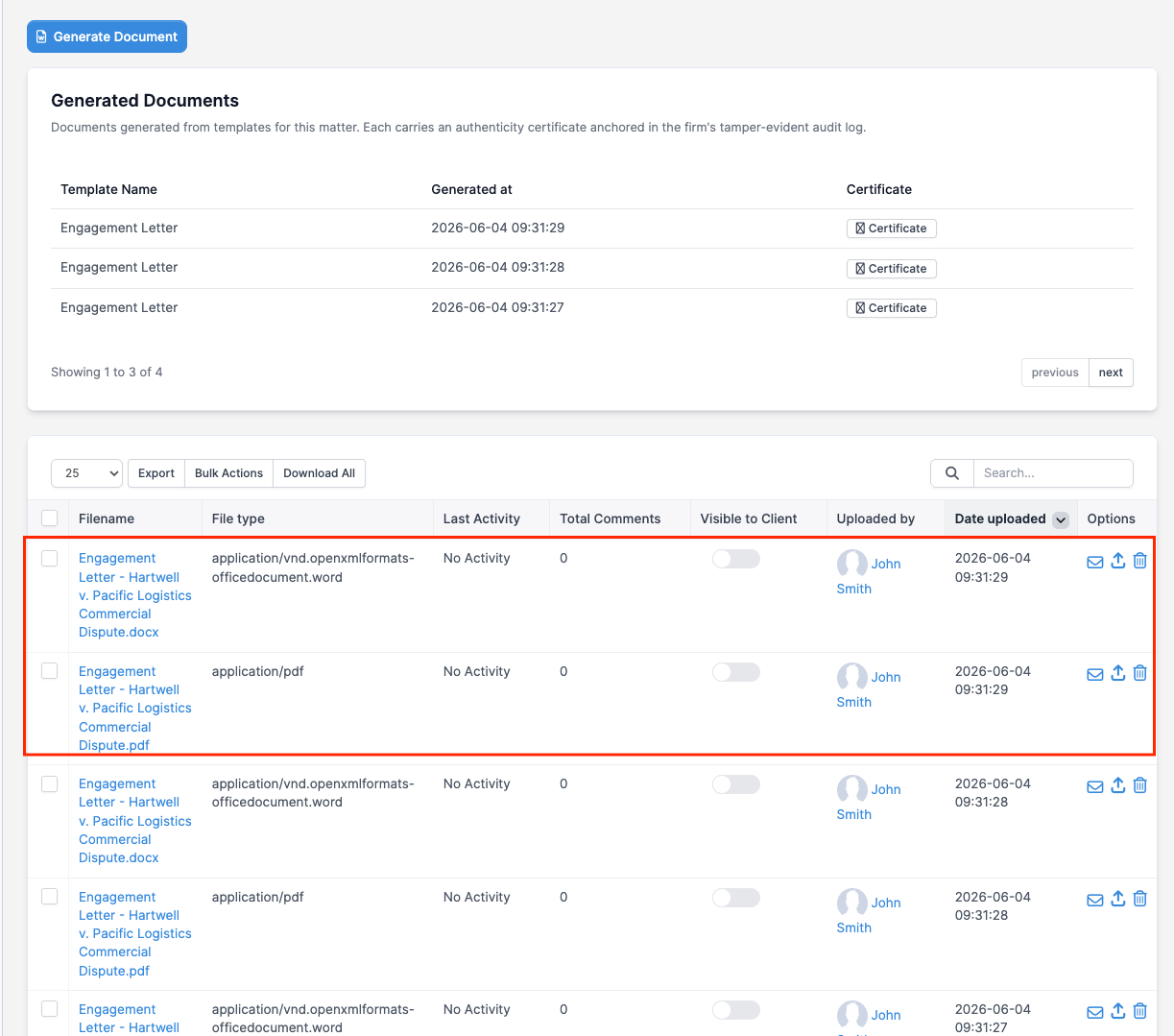
Client visibility
Generated documents are not marked visible to the client by default. A drafted engagement letter will not appear in the client portal until you deliberately choose to share it. This keeps work-in-progress private until you are ready.
Step 3: The authenticity certificate
This is what sets CaseFlow apart. Every generated document is fingerprinted and recorded in your firm's tamper-evident audit log at the moment it is created. Below the Generate Document button, the Generated Documents panel lists each document produced on the matter, newest first, with a Certificate button. The list pages three at a time so it stays tidy no matter how many documents a matter accumulates. 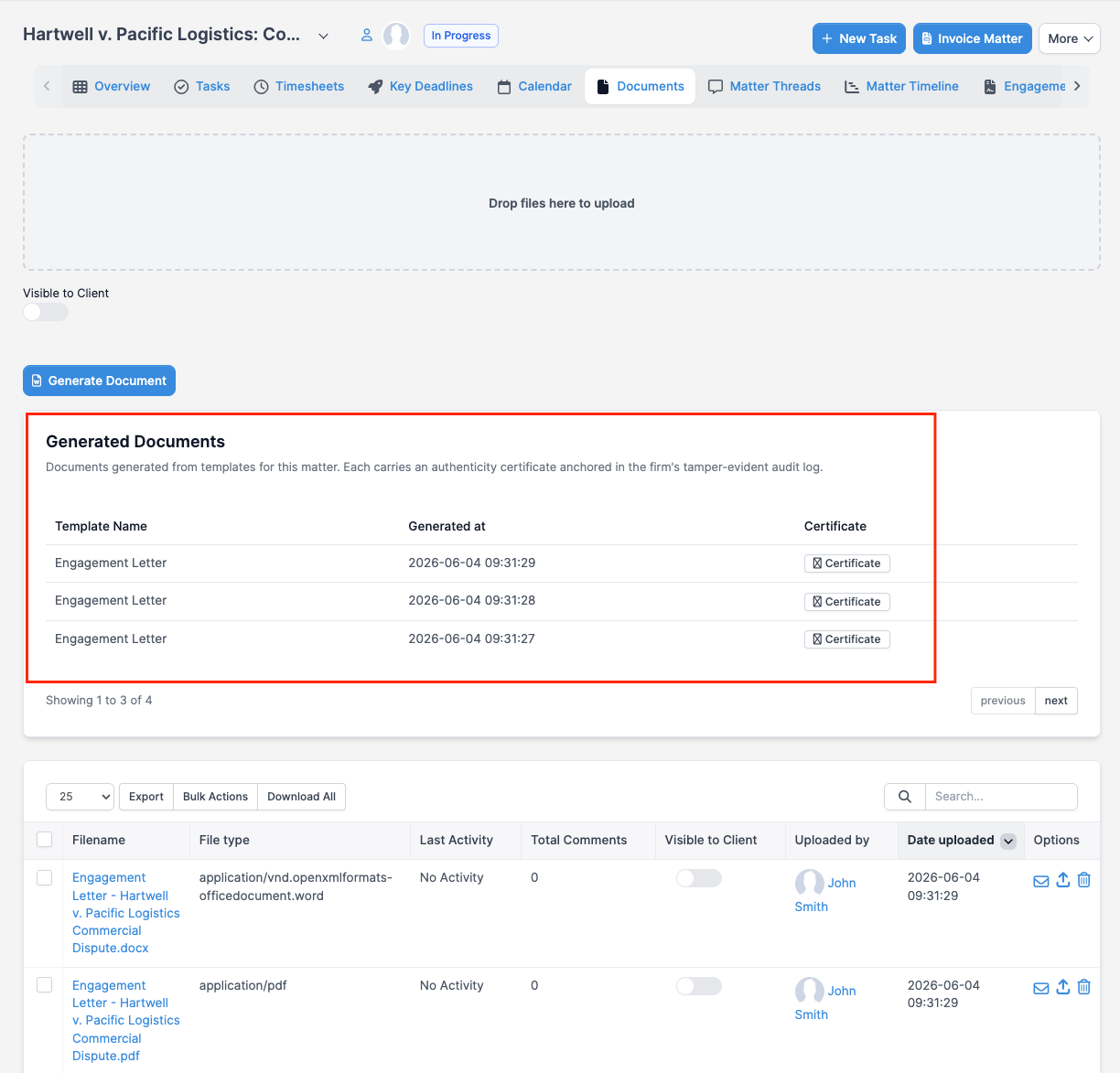
Click Certificate to download a one-page Document Authenticity Certificate showing:
- Your firm's name, the template used, and the matter
- Who generated the document, and the exact date and time in UTC
- A reference to the entry in your firm's audit log that anchors the record
- The SHA-256 fingerprint of both the Word file and the PDF
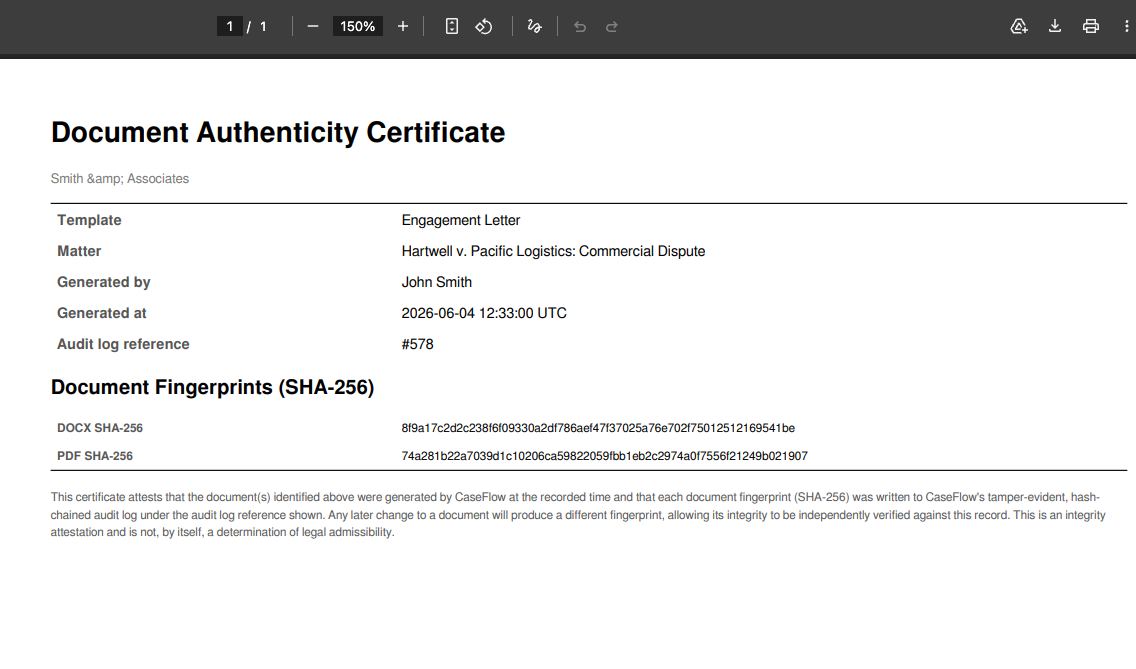
The fingerprint is a unique signature of the exact bytes of the file. If a single character of the document changes, the fingerprint changes completely. That lets anyone confirm, later, that a document is the genuine original and has not been altered: compute the fingerprint of the file in hand and compare it to the one on the certificate. They will match only if the file is unchanged.
The certificate makes a careful, defensible integrity statement. It does not assert formal courtroom self-authentication; it provides a clear, independently verifiable record that this specific document was produced by your firm on this matter at this time.
Plans and availability
Document automation is part of the Growth plan and is included on Multi-Practice as well. On Solo plans the feature is hidden, and on a matter the Generate Document button appears locked. Templates, generated documents, and their certificates are private to your firm and isolated from every other firm on CaseFlow.