
Key deadlines
Key deadlines (also called milestones in some views) are date-anchored markers within a matter. Use them for court dates, filing deadlines, statute of limitations dates, or any other date you need to track.
Each deadline has two dates: the Deadline itself (the date you must hit) and an optional Tracked From date (when work toward that deadline began). The Tracked From date drives the Matter Timeline; the Deadline is the single date that shows on the calendar and in reminders.
Adding a key deadline
Open a matter and click the Key Deadlines tab. Click New Key Deadline.
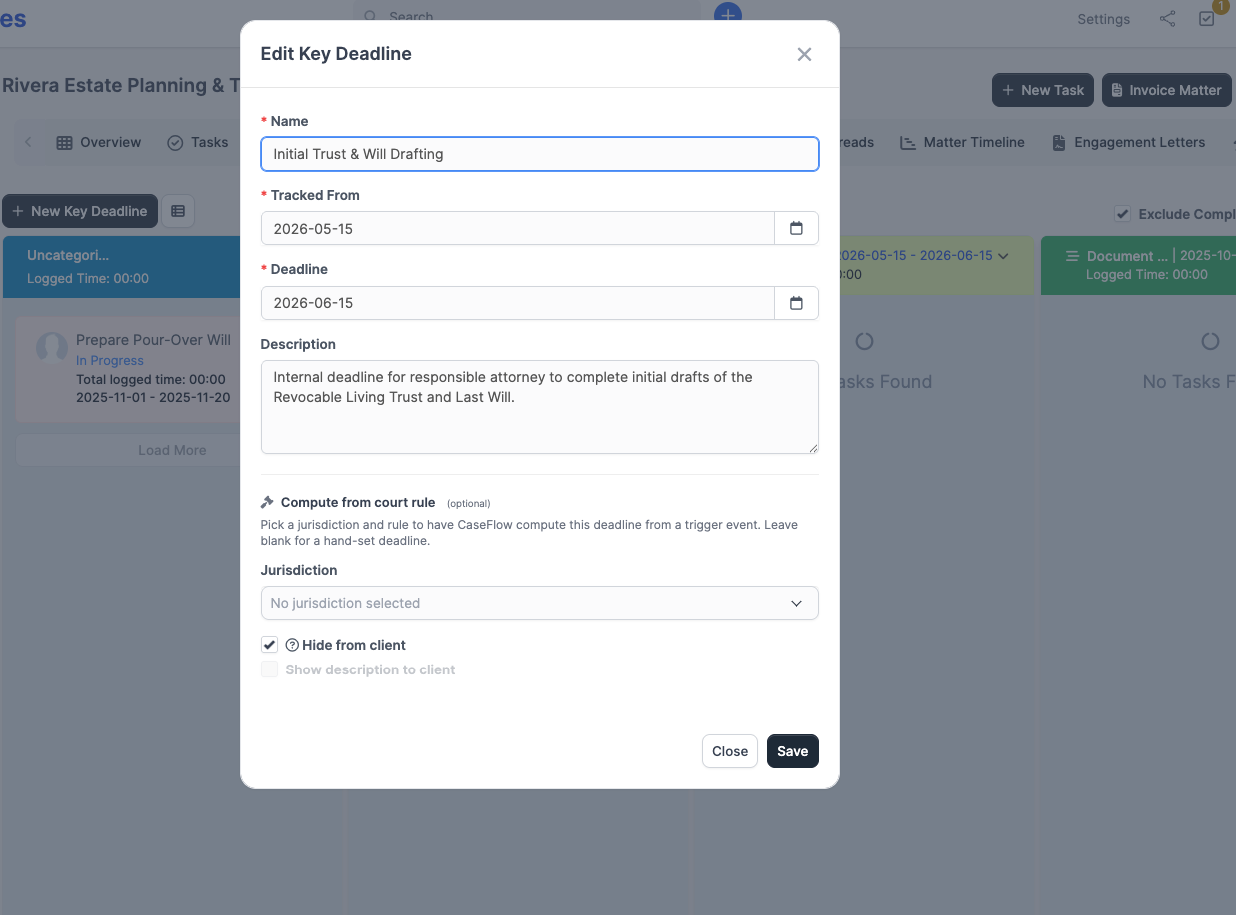
Fill in:
- Name (required): What the deadline is (e.g. "Discovery cutoff", "Trial date", "Response due").
- Tracked From (optional): When work on reaching this deadline began. Defaults to today. Used to draw the bar on the Matter Timeline.
- Deadline (required): The date you need to hit. This is the date that shows on the calendar and on reports.
- Description (optional): Details, context, or citations.
- Hide from client: Turn this on if the deadline should not appear in the client portal at all.
- Show description to client: Turn this on to let the client read the description text in the portal. Only available when the deadline is visible to the client.
Click Save.
Visibility rules
The two visibility checkboxes are deliberately coupled:
| Hide from client | Show description | What the client sees |
|---|---|---|
| Off | Off | Deadline name + date, no description |
| Off | On | Deadline name + date + description |
| On | (any) | Nothing. The deadline is not visible in the client portal. |
When Hide from client is on, the Show description checkbox is disabled because it has no effect.
Viewing key deadlines
The Key Deadlines tab has two views. Switch between them using the view toggle button (next to New Key Deadline).
Board view
The default view. Each key deadline becomes a coloured column with a header showing the name and date range, and tasks associated with that deadline sit inside the column. Drag tasks between columns to reassign them to a different deadline. Drag the column headers left or right to change the deadline order.
This view is most useful when you have tasks associated with specific deadlines (e.g. "Draft motion" under the "Response due" deadline) and want to see the work grouped by milestone.
Tick Exclude Completed Tasks in the top right to hide tasks that are already done.
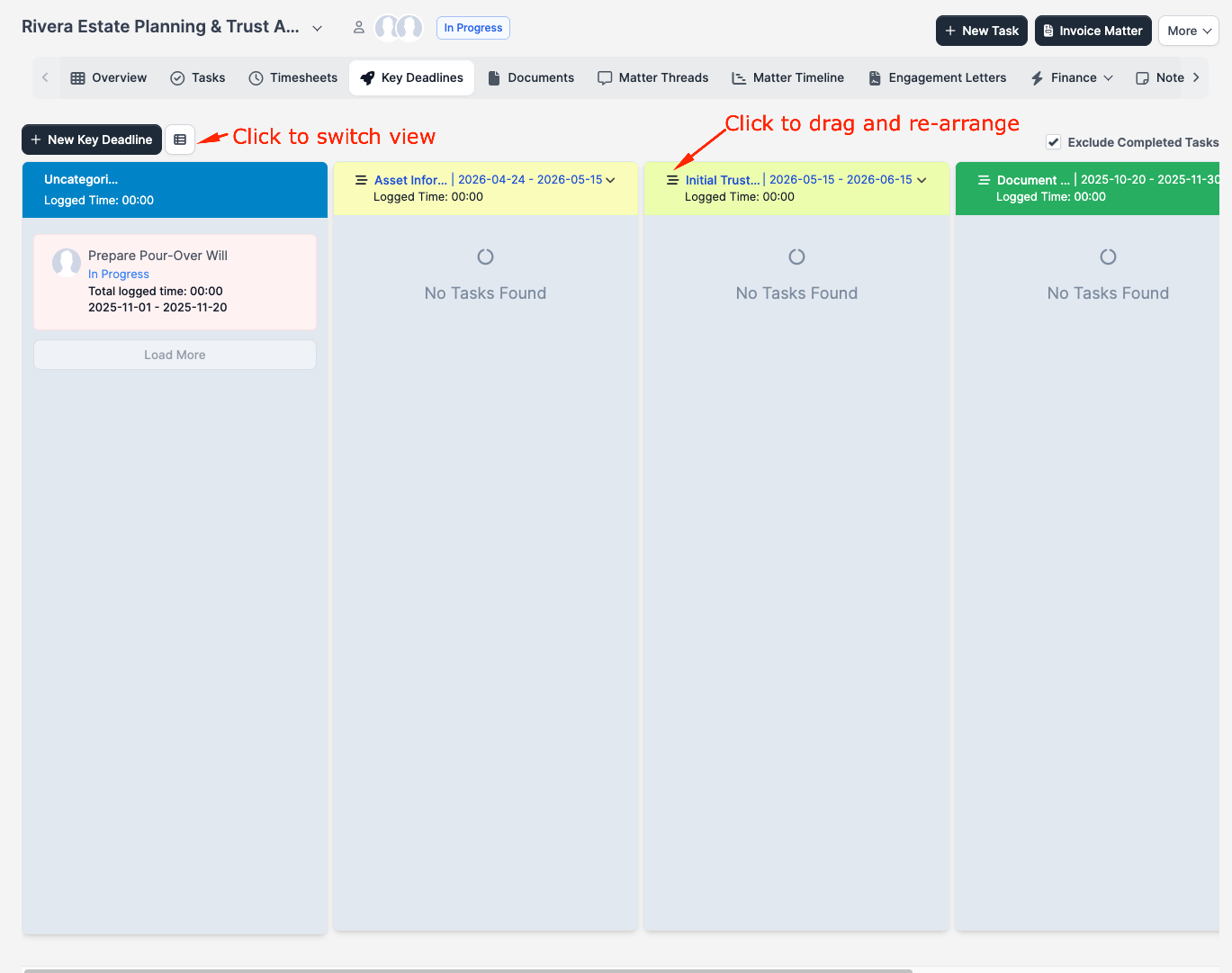
Table view
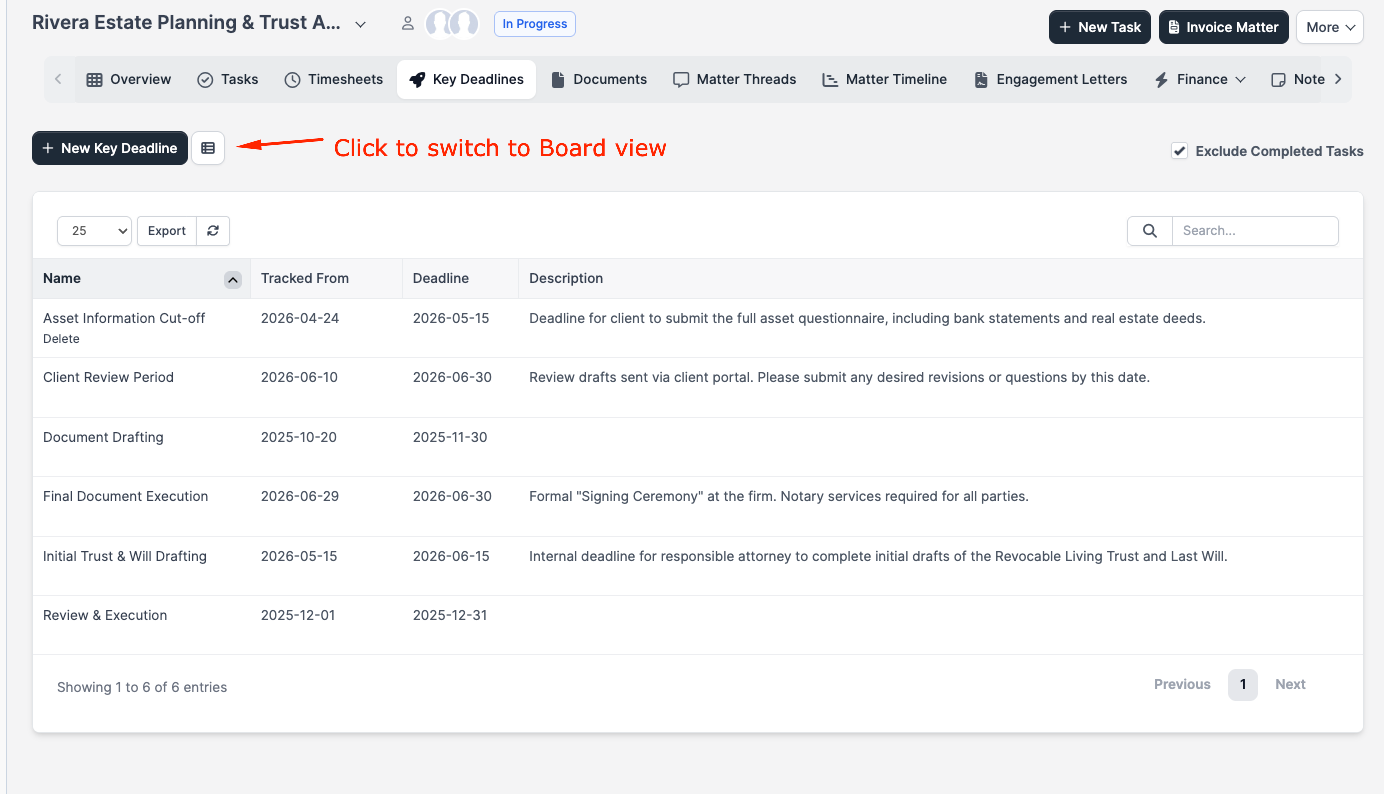
Click the view toggle to switch to a table. Every key deadline appears as a row with columns for Name, Tracked From, Deadline, and Description. Sortable, searchable, and exportable (to CSV via the Export button). Best for quickly scanning a long list of deadlines or finding one by name.
Ordering
New deadlines are appended to the end of the list. To reorder, switch to the board view and drag the column headers left or right. The new order saves automatically and applies to both views.
How deadlines differ from tasks
Tasks are things to do. Deadlines are dates to hit. A deadline does not have an assignee or a completion status; it is a marker on the timeline with work optionally tracked toward it.
If you need someone to do something by a certain date, create a task with a due date and assign it to the responsible person.
Deadlines on the calendar
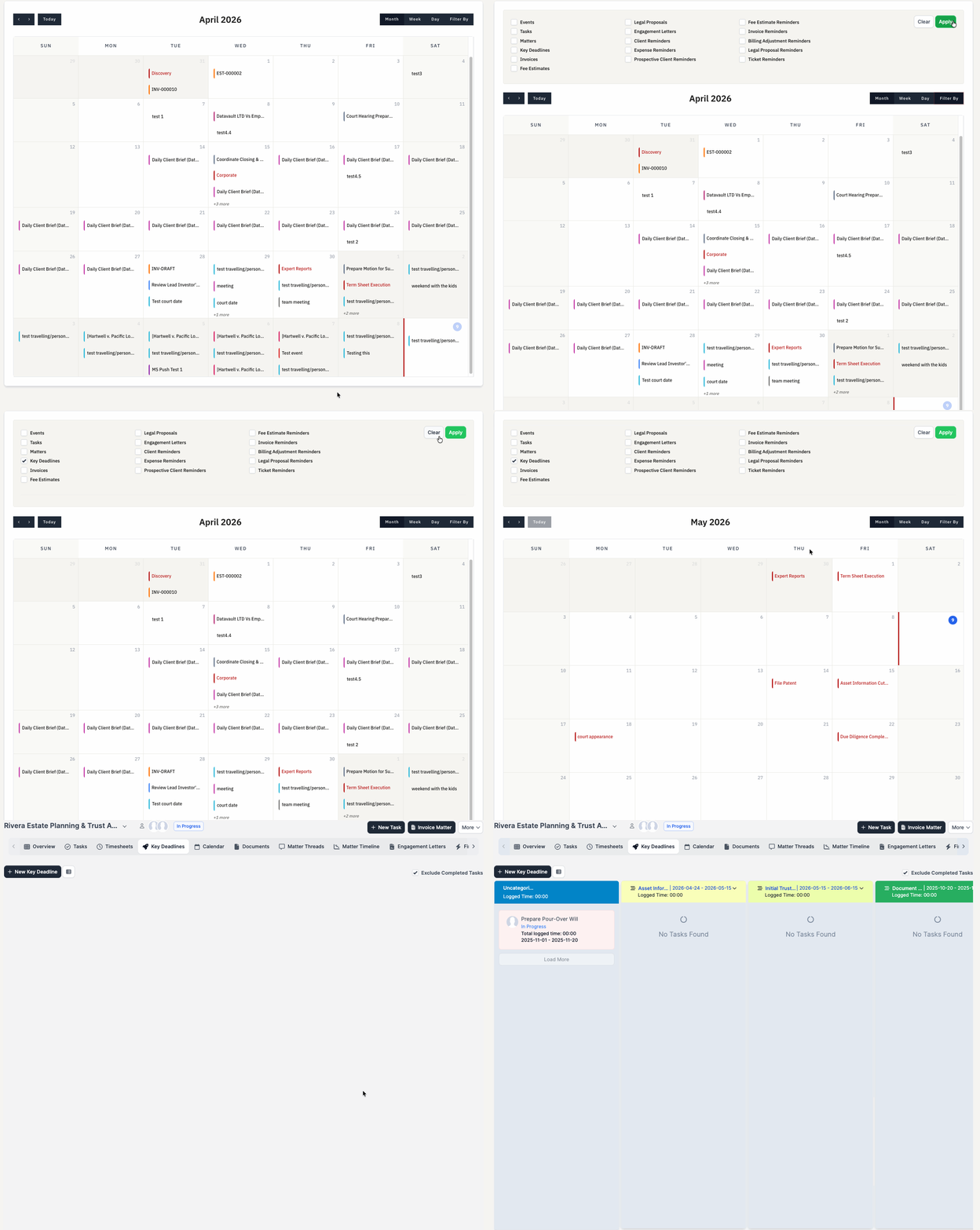
Key deadlines appear on the Calendar (in the sidebar) on the Deadline date. The Tracked From date is not shown on the calendar; only the Deadline. Click an entry on the calendar to jump to the matter's Key Deadlines tab.
Who sees which deadlines
Calendar visibility follows the same rules as the matter list:
- Staff with the View (all) matter permission see every key deadline in the firm.
- Staff without that permission see only key deadlines on matters they're assigned to (matter Members).
- Ethical-wall restrictions are honored — a deadline on a walled matter never appears on the calendar of a staff member outside the wall.
How to hide deadlines from the calendar
- Firm-wide: Setup > Settings > Calendar > Show on calendar > Key Deadlines. Turning this off suppresses key-deadline entries on every staff and client calendar in the firm.
- Per session: open the Filter panel on the calendar page and uncheck Key Deadlines. Affects only your current view.
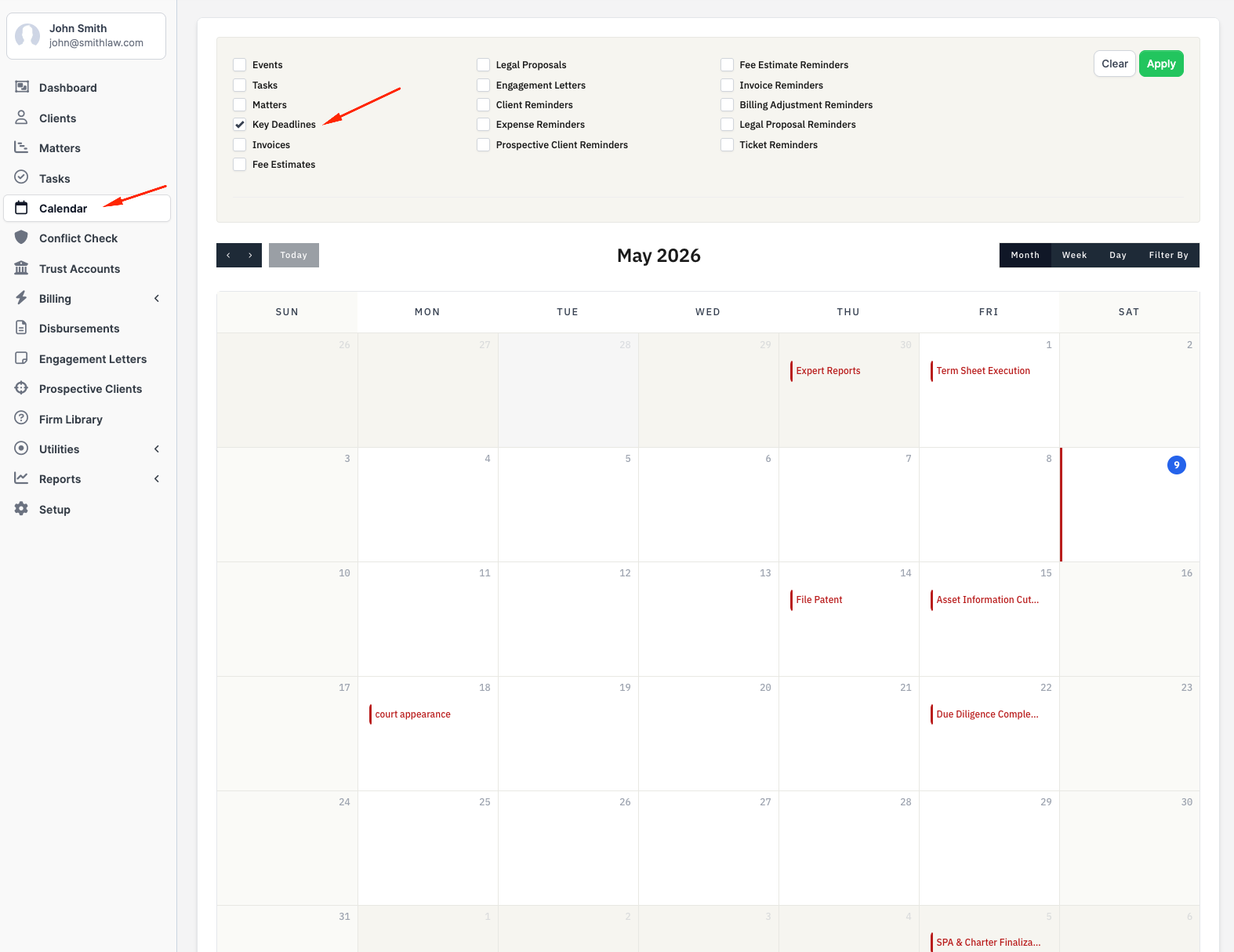
For the client portal, key deadlines also follow the per-deadline Hide from client flag and the matter-level Show milestones to client setting (both described above). A deadline that's hidden from the client never appears on a client portal calendar even when the firm-wide setting is on.
Deadlines on the Matter Timeline
The Matter Timeline tab on the matter shows each key deadline as a group row spanning from Tracked From to Deadline, with the matter's tasks for that deadline grouped beneath it. If you left Tracked From at the default (today), the row starts at whenever you created the deadline. See Matter Timeline for the full guide.
Editing and deleting
To edit a deadline, click its name. The edit form opens with the same fields as New Key Deadline. 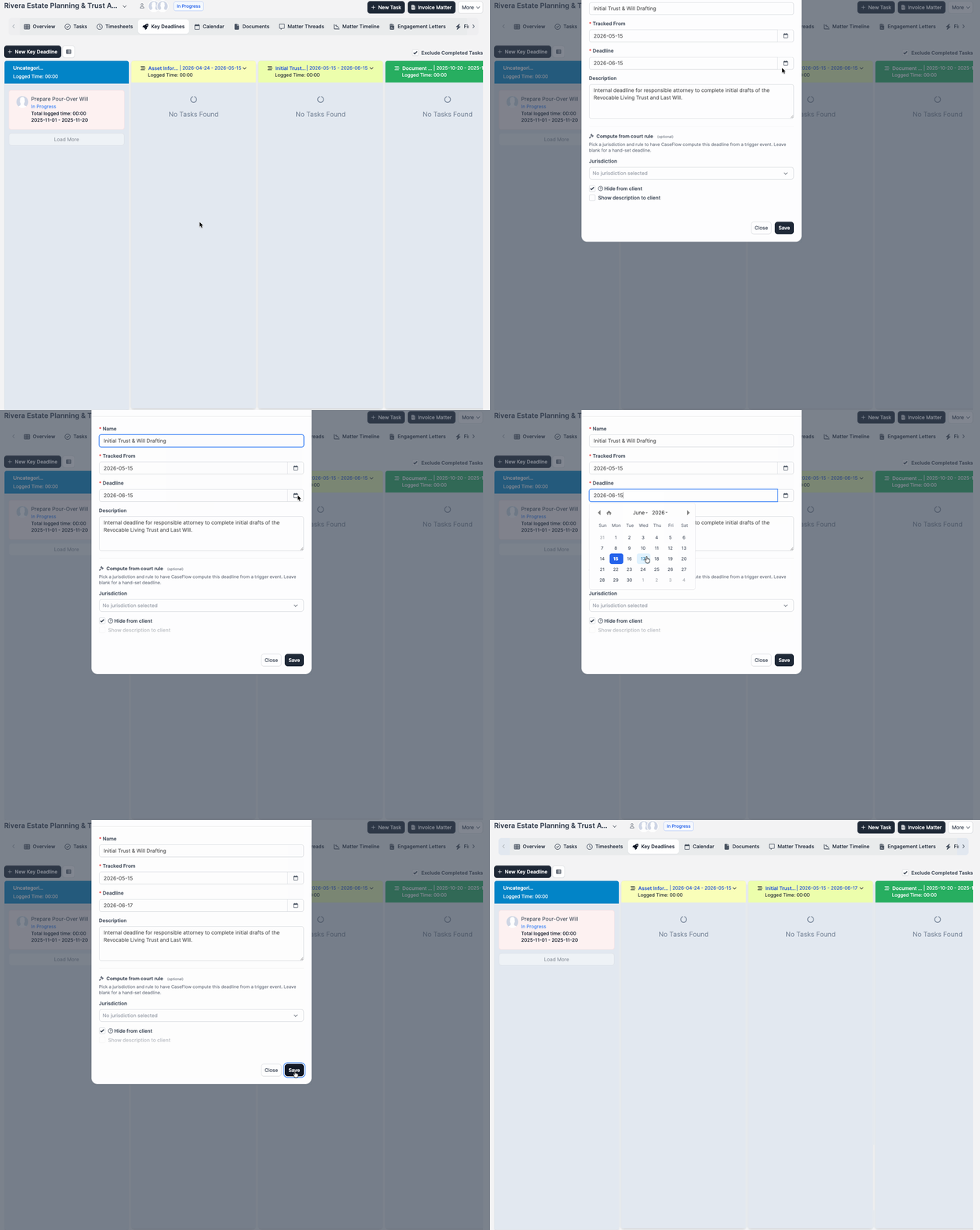
To delete a deadline, switch to Table view (the toggle next to New Key Deadline), hover over the deadline's name, and click Delete beneath it. Deletion is not available from the board view. 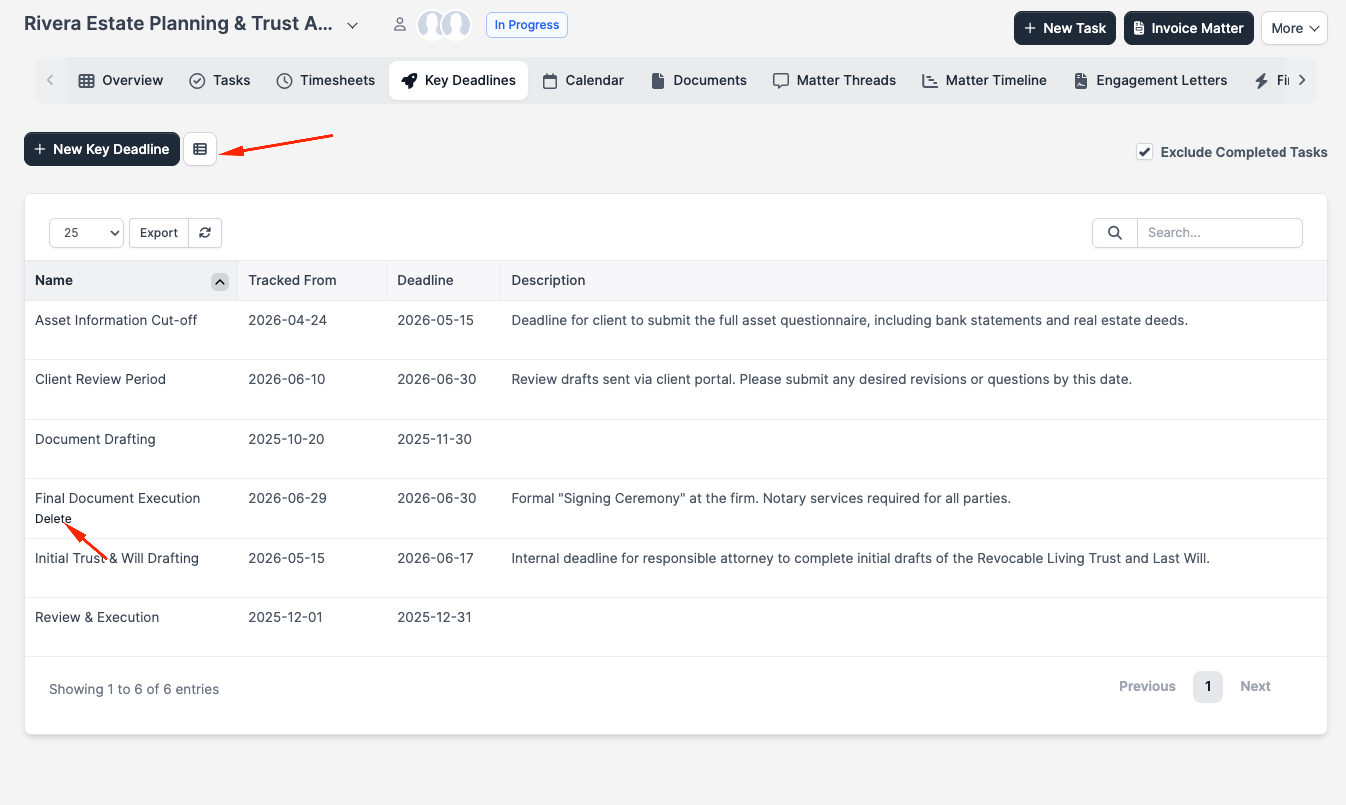
Deleting a deadline does not affect any linked tasks or invoices.
Notifications
CaseFlow does not send automatic reminders for key deadlines. If you need a reminder before a deadline, create a task with a due date a few days earlier and assign it to the responsible person.