
Two-factor authentication
Two-factor authentication (2FA) adds a second step to login. After entering your password, you also enter a 6-digit code from an authenticator app on your phone. This means even if someone gets your password, they still cannot access your account.
Setting up 2FA
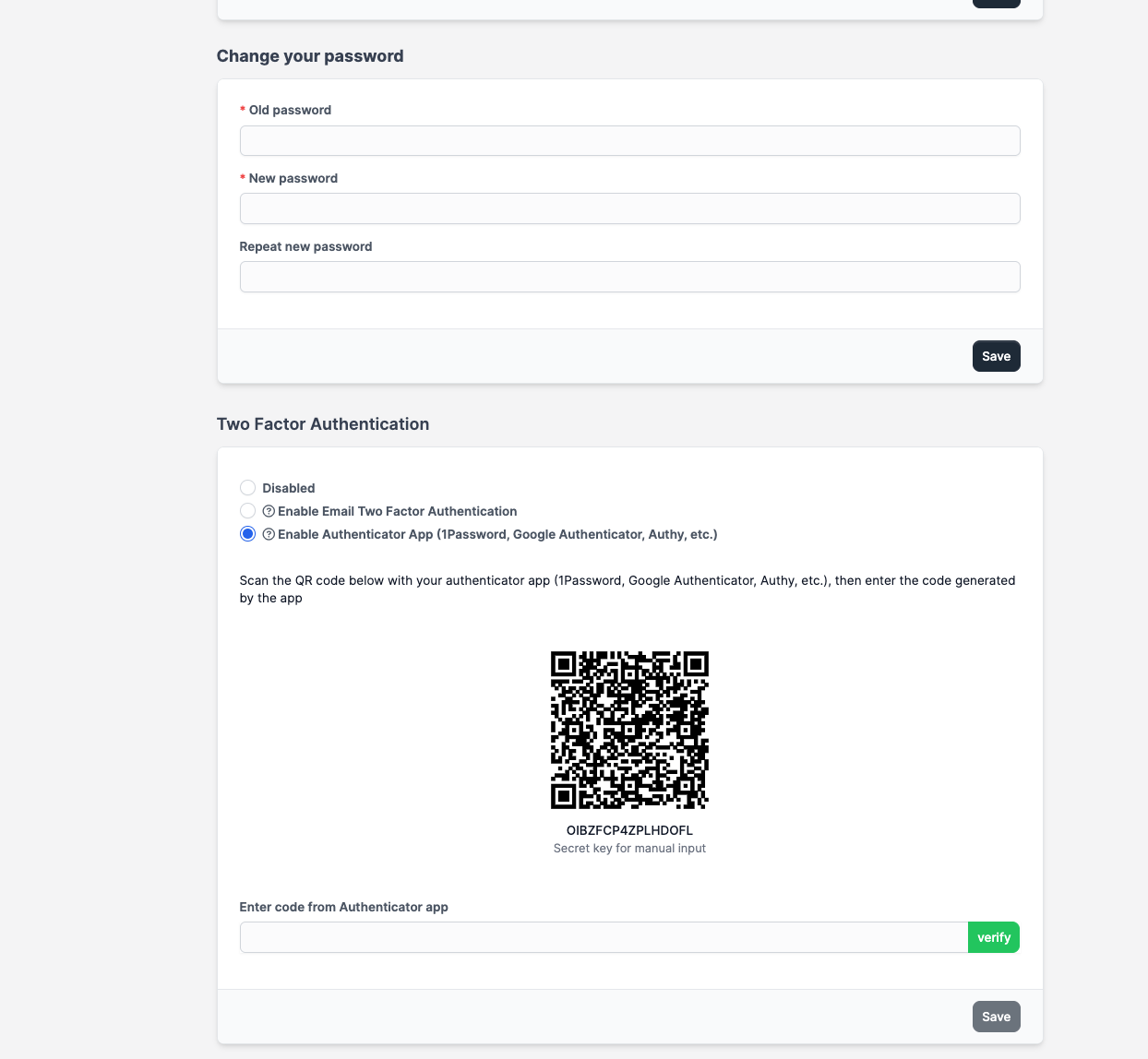
- Log in to CaseFlow and go to your profile (click your name in the top left, then Edit Profile)
- Scroll to the Two-Factor Authentication section
- Click Enable 2FA
- CaseFlow shows a QR code
- Open your authenticator app (Google Authenticator, Authy, 1Password, etc.) and scan the QR code
- The app starts generating 6-digit codes that change every 30 seconds
- Enter the current code in CaseFlow to verify it works
- Click Save
2FA is now active on your account.
Logging in with 2FA
- Enter your email and password as normal
- CaseFlow shows a second screen asking for your 6-digit code
- Open your authenticator app, find the CaseFlow entry, and enter the current code
- Click Verify
If the code is correct, you are logged in. If not, try the next code (they rotate every 30 seconds).
What 2FA also unlocks
With 2FA turned on, the Keep me signed in option on the sign-in page becomes available to you, which trusts the device you are using for 7 days so you do not retype your password every morning. Without 2FA, ticking that box does nothing except tell you where to turn 2FA on.
This is deliberate rather than an incentive: skipping the password for a week makes the browser profile on that machine the only thing between someone and your client files, which is only a reasonable trade when a second factor is also in play. See Automatic sign-out.
Before enabling 2FA
CaseFlow does not generate one-time backup codes. Before you turn 2FA on, make sure you have your authenticator app set up on a device you will not lose, preferably with the authenticator account backed up through the app's own sync (Authy cloud backup, Google account sync, 1Password vault, etc.).
If your phone is lost or reset, recovering access depends on that backup; there is no emergency code you can keep in a drawer.
Disabling 2FA
Go to your profile, scroll to Two-Factor Authentication, and click Disable 2FA. You will need to enter a current 6-digit code to confirm. After disabling, login requires only your password.
Who controls 2FA
Each staff member sets up their own 2FA, and the firm administrator cannot see whether a specific staff member has it enabled.
A firm administrator can, however, require it. In Setup → Settings → Security, turning on Require two-factor authentication for team members means anyone who has not set it up is sent to their profile to do so on their next sign-in, and cannot get to the rest of CaseFlow until they have. There is a matching setting for client-portal contacts.
Turning either requirement on or off is recorded in your audit log, showing who changed it and when.
Locked out
If you lose your phone and your authenticator app is not backed up anywhere, contact CaseFlow support. The support team can verify your identity and disable 2FA on your account so you can log in and set it up again.
Firm administrators cannot reset another staff member's 2FA from within CaseFlow; this is handled at the platform level by support to prevent an attacker from bypassing 2FA simply by getting access to an admin account.
Authenticator apps
Any TOTP-compatible authenticator app works:
- Google Authenticator (iOS, Android)
- Authy (iOS, Android, Desktop)
- 1Password (built-in authenticator)
- Microsoft Authenticator
- Bitwarden (built-in authenticator)
Do not use SMS-based 2FA; CaseFlow uses app-based TOTP codes only.