
Creating events
Calendar events are the core unit on the calendar. Use them for court hearings, depositions, client meetings, and any other date-and-time entry your firm needs to track. Each event can be tied to a matter, marked confidential, shared with a client, or kept internal.
Adding an event
Open the calendar and click any date cell on the grid. The Add new event modal opens with that date pre-filled in the Start Date field.
To create an event scoped to a specific matter, open the matter and click the Calendar tab. If the matter has no events yet, click New event for this matter on the empty-state card. The modal opens with the matter pre-selected.
Fill in the fields described below, then click Save.
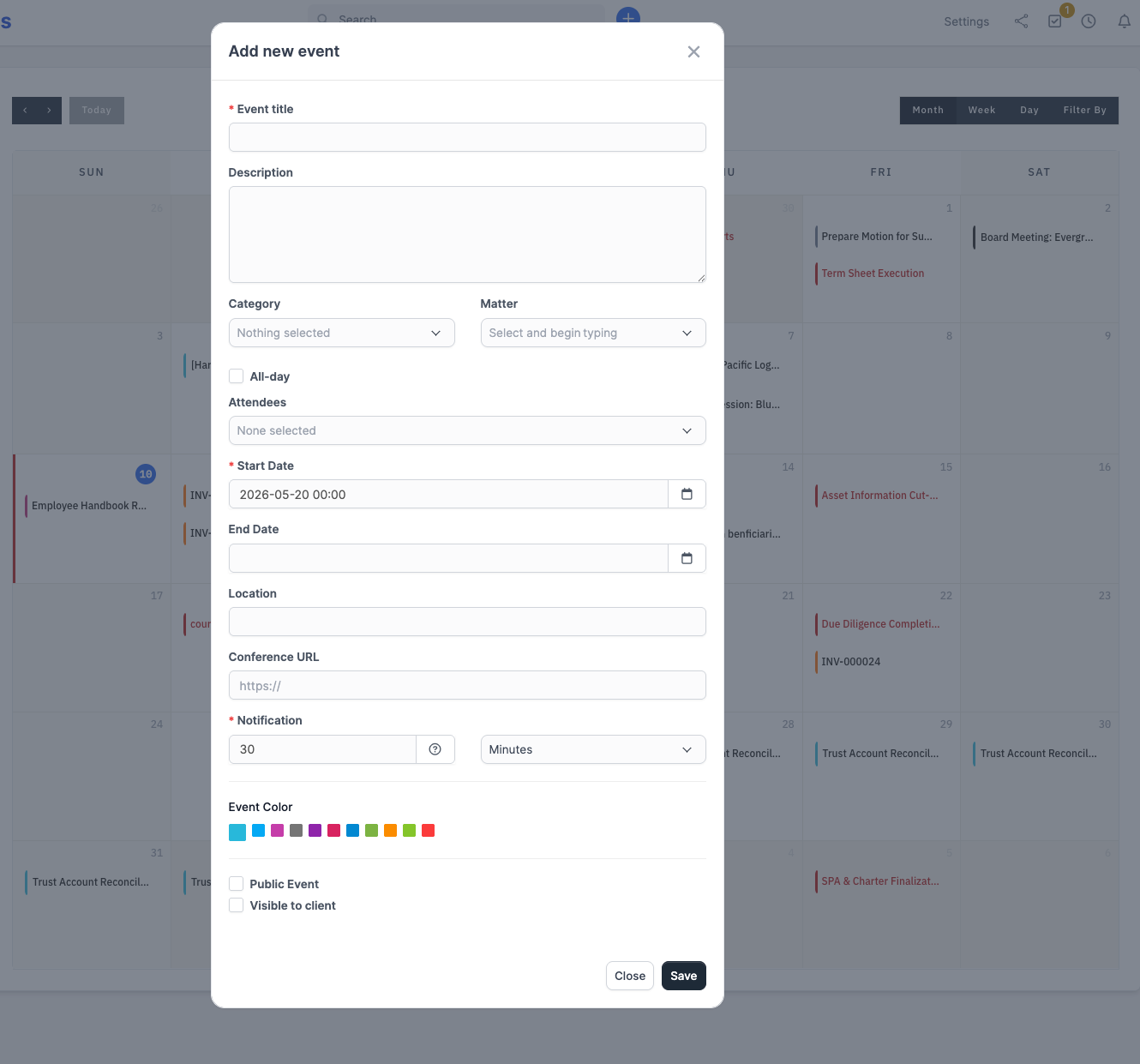
Fields
Title
Required. The name shown on the calendar entry. Keep it short. Long titles truncate in the month view.
Description
Optional rich text. Supports formatting, lists, and pasted Word content (Office formatting is stripped automatically). The description shows in the event modal and in the matter Calendar tab.
Category
Optional. Categories drive the event's color and a default for the Visible to client toggle. Eleven categories ship out of the box:
| Category | Color | Default visible to client |
|---|---|---|
| Court Date | red | Yes |
| Hearing | orange | No |
| Deposition | purple | No |
| Filing Deadline | deep red | No |
| Statute of Limitations | near-black | No |
| Client Meeting | blue | Yes |
| Internal Meeting | grey | No |
| Conference Call | green | No |
| CLE | amber | No |
| Travel | light grey | No |
| Personal | lighter grey | No |
Picking a category sets the Visible to client checkbox to its default; you can still override it for a specific event.
Matter
Optional. Link the event to a specific matter so it appears on that matter's Calendar tab and in the matter timeline. When a matter is selected, the Key Deadline dropdown unlocks.
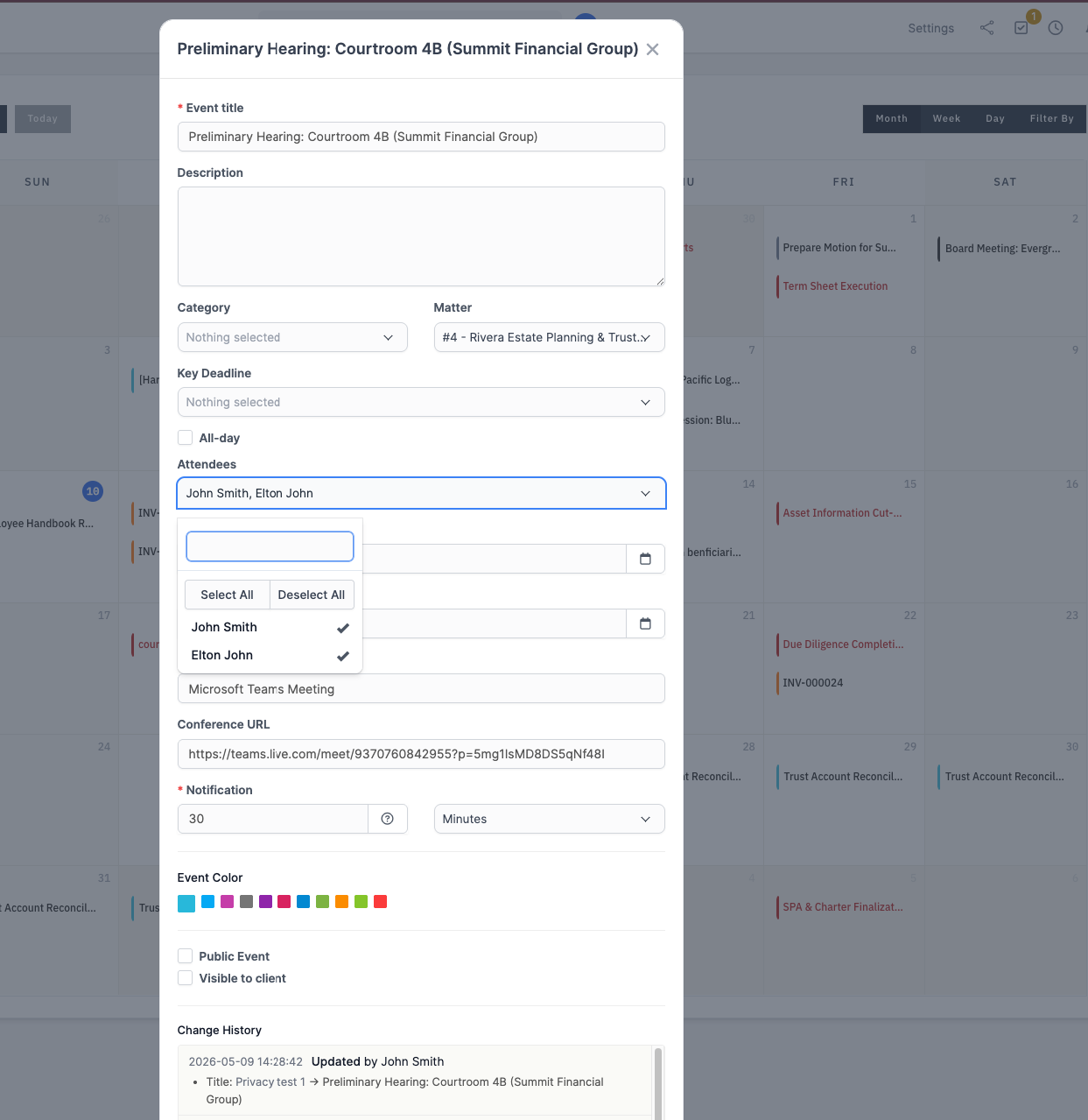
Key Deadline
Optional. Visible only after a matter is selected. Picks one of that matter's existing key deadlines and binds the event to it. If the deadline does not belong to the selected matter, it is silently dropped on save.
All-day
If checked, the event ignores the time portion of the start and end and renders as an all-day band on the grid.
Attendees
Optional. Multi-select of staff to invite. Each newly added attendee receives an in-app notification linking back to the event. The current user is not notified of their own invite.
Start Date / End Date
Required pair. The end must be after the start; otherwise the form rejects with "Event end date and time must be after the start."
Location
Optional. Free text up to 255 characters. Examples: "SDNY Courtroom 14B", "1 Park Avenue, Suite 1200".
Conference URL
Optional. Up to 500 characters. The URL must start with http or https. Other URL types are rejected silently to keep the rendered link safe to click.
Notification
Optional. If your firm has the event-notification email template active, you can configure how far in advance the attendees should be reminded. Pick a number and a unit (minutes, hours, days, weeks).
Event Color
Picks a color independent of the category. Useful when you want a category but a non-default color, or no category at all.
Public Event
If checked, every staff member can see this event regardless of who created it. Otherwise only the creator and any selected attendees see it.
Visible to client
If checked, the event appears on the client portal calendar for the linked matter's contacts. The default comes from the chosen category but can be overridden per event.
Editing and deleting
Click any event on the grid to open it. The same modal renders in edit mode for the event creator (and admins) or in read-only mode for everyone else. Click Save to apply changes, or Delete to remove the event entirely.
Deleting an event also removes its attendee links, but the audit trail (see below) is retained.
Change History
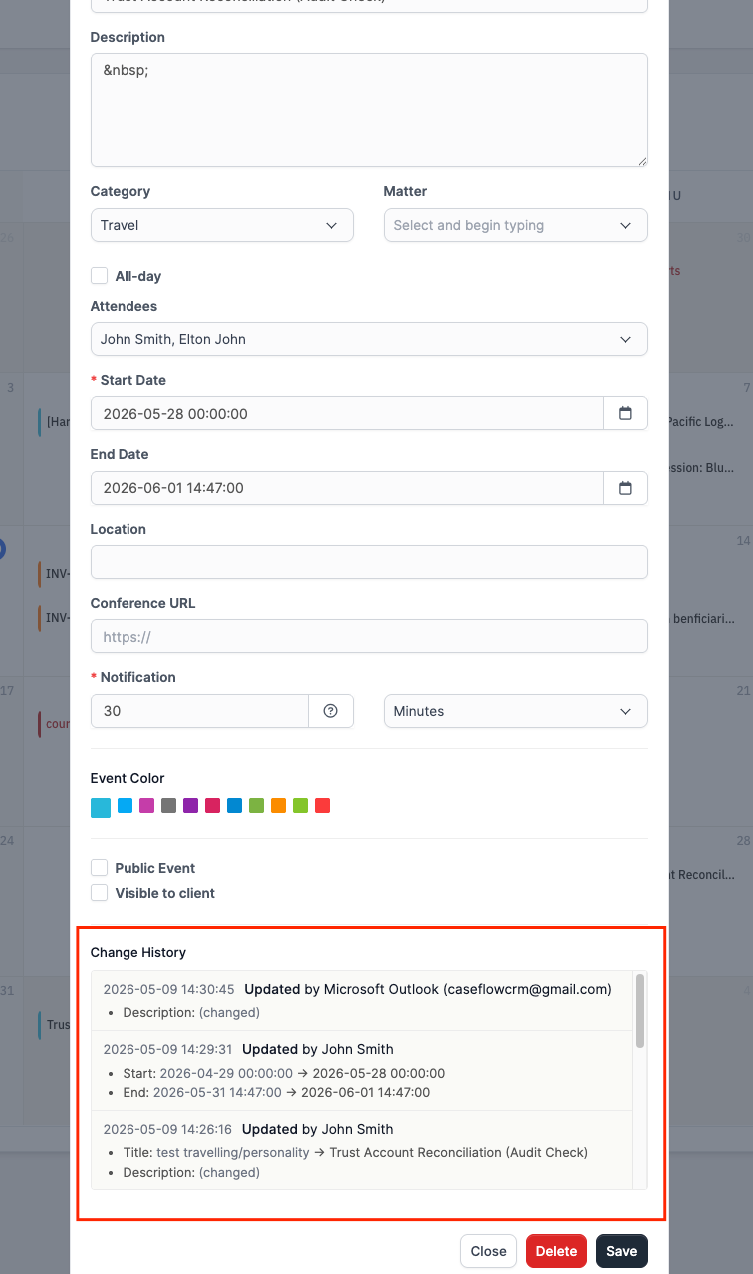
Every event keeps an immutable audit trail of who changed what and when. Open any event to see the Change History section at the bottom of the modal.
Each row shows:
- A timestamp
- The action (Created, Updated, or Deleted)
- Who made the change. For staff edits, this is the staff member's full name. For changes pulled in from external calendars, this reads as "Google Calendar (account@email)" or "Microsoft Outlook (account@email)".
- A list of the field deltas. Most fields show the old and new values; the description field shows (changed) instead of the full text to keep the panel readable.
- Attendee changes show as separate "Attendees added" / "Attendees removed" lines.
The audit trail is append-only. There is no way to edit or delete a row from the UI.
Privacy on synced events
When an event is linked to a matter or assigned a protected category (Court Date, Hearing, Deposition, Filing Deadline, or Statute of Limitations by default), CaseFlow treats it as privileged before pushing to Google Calendar or Outlook:
- The description is stripped from the outbound copy
- The event is marked Private on Google or Confidential on Outlook
This prevents matter details from leaking through a synced calendar that family members, assistants, or other staff might see.
For the narrower set of protected-category events (Court Date, Hearing, Deposition, Filing Deadline, Statute of Limitations), CaseFlow goes one step further: bidirectional edits within the same sync window never silently overwrite. They write to a sync-conflict log for a partner to resolve by hand, on the principle that a moved Statute of Limitations date is the kind of error that ends careers.
The protected-category list is editable. Firms can add (for example) Discovery Cutoff, Bar Application, or any other sensitive category through the event categories settings.
For more detail, see Google Calendar sync and Outlook sync.
Plan availability
Plan requirement
Calendar events are available on all plans. Two-way sync with external calendars (Google, Outlook) is on Growth and Multi-Practice respectively.
Next steps
- Key deadlines - Set milestone dates within a matter
- Google Calendar sync - Two-way sync with Google
- Outlook sync - Two-way sync with Outlook
- Court rules - Compute deadlines from a trigger date