
Staff and roles
Managing Team Members
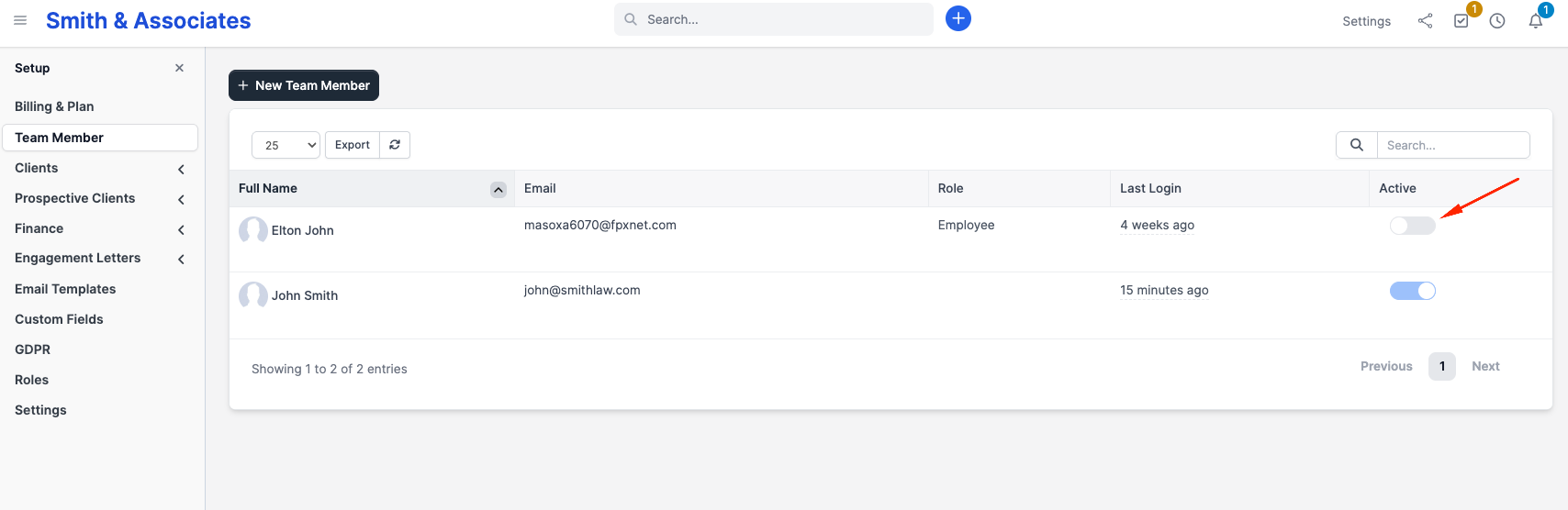
Go to Setup > Team Member to see all team members at your firm.
Each team member has:
- Name and email (used for login)
- Department
- Hourly rate (used for time tracking calculations)
- Status (Active or Inactive)
- Role (Multi-Practice plan only)
Adding Team Members
See Adding your team for full instructions.
Editing a team member
Click their name in the staff list. You can change any field except their email address (which is their login identifier). If someone's email changes, you need to contact support.
Deactivating
Set status to Inactive. They can no longer log in but their history (time entries, notes, matter assignments) remains. Inactive staff do not count toward your seat limit.
Departments
Click the Departments tab in the staff section. Departments are optional groupings (e.g. "Litigation", "Corporate", "Administration").
Create a department by clicking New Department and entering a name. Assign staff to departments from their individual profile pages.
Departments show up as filters in reports and staff lists.
Roles and permissions (Multi-Practice plan)
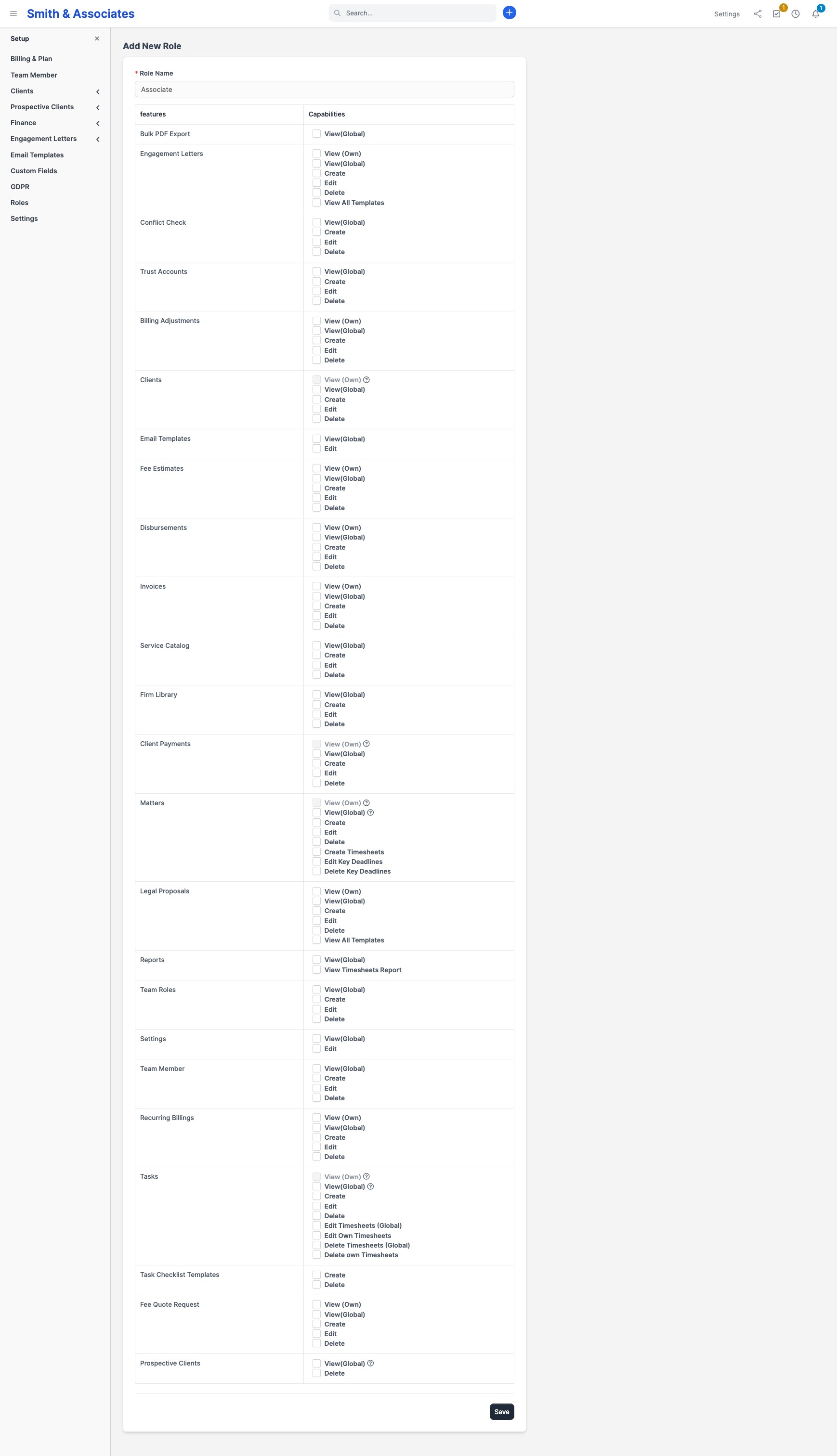
On the Multi-Practice plan, go to Setup > Roles to create custom permission sets.
How roles work
Each role defines what a staff member can do across the system. Permissions are grouped by module:
| Module | Permissions |
|---|---|
| Clients | View, View Own, Create, Edit, Delete |
| Invoices | View, View Own, Create, Edit, Delete |
| Proposals | View, View Own, Create, Edit, Delete |
| Estimates | View, View Own, Create, Edit, Delete |
| Expenses | View, View Own, Create, Edit, Delete |
| Contracts | View, View Own, Create, Edit, Delete |
| Tasks | View, View Own, Create, Edit, Delete |
| Reports | View, View Timesheets |
| Settings | View |
| Staff | View |
| Knowledge Base | View |
| Billing Adjustments | View, View Own, Create, Edit, Delete |
| Conflicts | View |
| Trust | View |
"View" means see all records. "View Own" means see only records you created or are assigned to.
Creating a role
Click New Role, give it a name (e.g. "Associate", "Paralegal", "Billing Clerk"), and check the permissions that role should have.
Assigning roles
Edit a staff member's profile and select their role from the dropdown. A staff member can have one role. Administrators bypass all role restrictions.
Default behaviour (Solo and Growth plans)
On Solo and Growth plans, all staff have full access to everything except the Setup area, which is admin-only. There are no granular permission controls; everyone sees everything.
The administrator
The person who registered the firm is the administrator. They always have full access to all features and settings, regardless of role assignments. You cannot remove admin access from this account.
To add additional administrators, edit a staff member's profile and check "Administrator." Only existing administrators can promote others.