
Recurring invoices
If you bill a client the same amount on a regular schedule (e.g. a monthly retainer), turn the invoice into a recurring invoice. CaseFlow generates a fresh invoice automatically at each interval.
Turning an invoice into a recurring invoice
Recurring is a property of a regular invoice, not a separate type — there is no "New Recurring Invoice" button.
Create or open the invoice you want to repeat, then on the invoice form:
| Field | What to set |
|---|---|
| Recurring Invoice? | Pick the interval (e.g. Every 1 month, Every 3 months) or pick Custom to define a "Repeat every N day/week/month/year" interval. Leave on No for a one-off invoice. |
| Total Cycles | How many times to repeat. Tick the Infinity checkbox for indefinite. |
The first invoice in the chain is the one you are creating or editing right now; CaseFlow uses its Date as the start of the schedule and computes the next renewal from there.
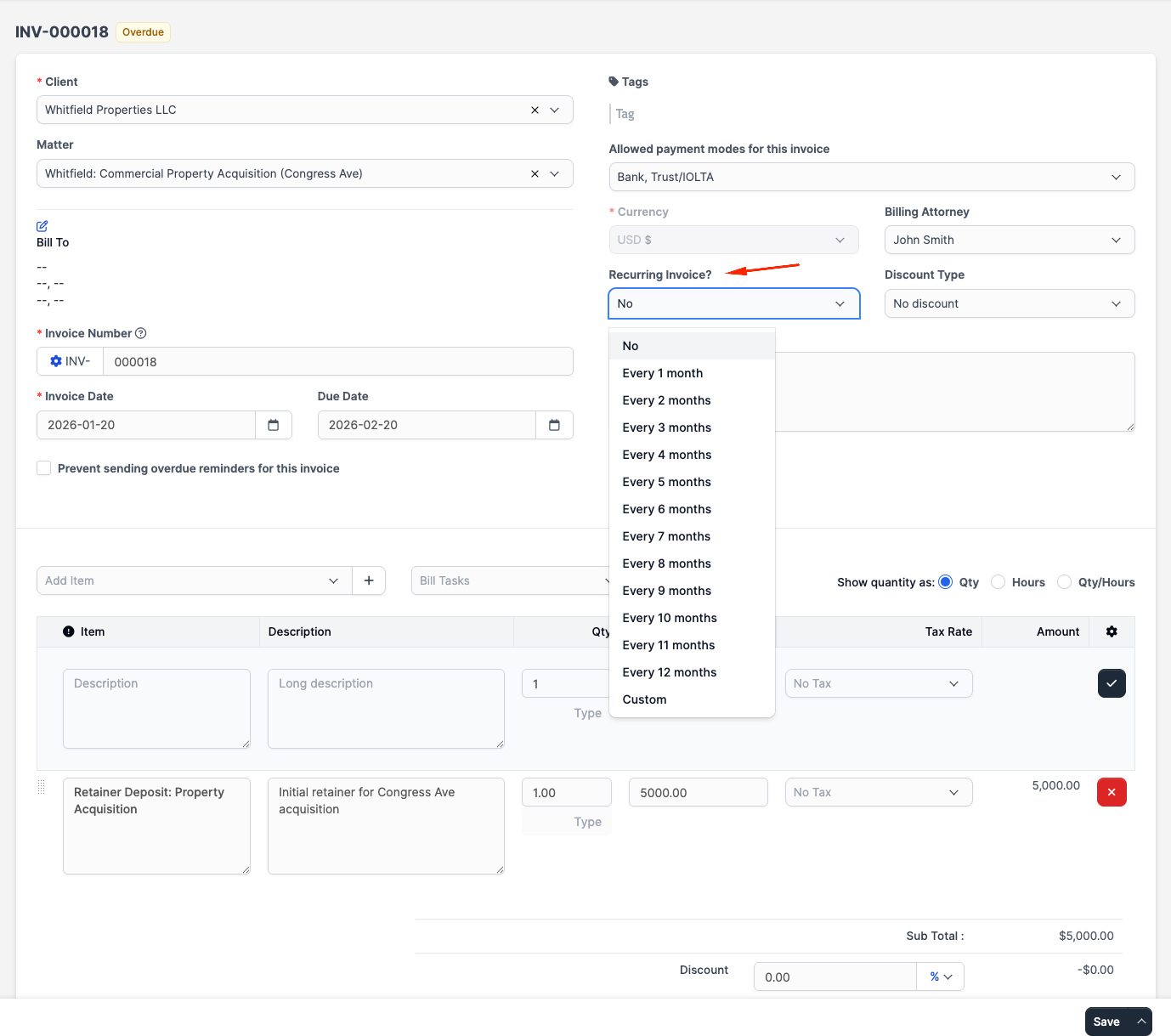
Click Save. From this point on, CaseFlow generates a fresh invoice at every interval.
How renewals work
CaseFlow checks recurring invoices on a regular schedule. When a recurring invoice's next renewal date has passed, it copies the invoice's line items, totals, currency, tags, and custom fields into a brand-new invoice and ticks the parent's Total Cycles counter up by one.
What status the new invoice starts in — and whether it gets emailed to the client immediately — depends on a single firm-wide setting under Setup > Settings > Misc > Practice Automation:
- Generate a Draft Invoice — new invoices land in Draft status; you review and send manually.
- Generate an Unpaid Invoice — new invoices land in Unpaid status; nothing is emailed.
- Generate and autosend the renewed invoice to the client — new invoices land in Unpaid status and are emailed to the client right away, using the same recipient rules as a manual send.
There is no per-invoice "auto-send" toggle; the firm-wide setting governs every recurring invoice.
Viewing recurring invoices
Open Billing > Invoices. At the top of the list, click Recurring Invoices → to switch to the recurring-only view. Each row shows the parent invoice, client, amount, frequency, last renewal date, and number of cycles completed.
From a single invoice's page, the Recurring tab (visible only on a recurring invoice) lists all the child invoices that have been generated from it.
Editing
Open the recurring invoice and edit the Recurring Invoice? interval, Total Cycles, line items, or any other field. Changes apply to invoices generated after the edit; child invoices that were already created stay as they are.
Stopping
To stop a recurring invoice, open it and set Recurring Invoice? back to No (and save). No more child invoices will be generated. Existing invoices remain in the system.
Recurring invoices vs. recurring billing
Recurring invoices are basic scheduling: CaseFlow copies the same invoice on a timer; the client still pays each one manually. Recurring billing (under Billing > Recurring Billing, Growth plan and above) collects the money itself by charging the client's saved card automatically each cycle, with failed-payment retries and a self-service card-update link. Use recurring billing when you want the payment to just happen; use recurring invoices when you prefer manual or offline payment collection. See Recurring billing.