
Adding your team
You can invite other people at your firm to use CaseFlow. Each person you add counts as one seat on your plan.
Seat limits by plan
| Plan | Maximum seats |
|---|---|
| Solo Practitioner | 2 |
| Growth | 10 |
| Multi-Practice | Unlimited |
| Trial | 5 |
If you have reached your seat limit, you will need to upgrade your plan before adding more staff.
Adding a new staff member
Go to Setup > Staff and click New Staff Member.
Fill in:
- First name and Last name
- Email address: They will use this to log in. It must be unique across your firm.
- Role (Multi-Practice plan only): Assign a permission role. On Solo and Growth plans, all staff share the same base permissions.
CaseFlow does not ask you to type a password for the new staff member. When you click Save, the system emails them a secure "set your password" link. They click it, choose their own password, and only they know it.
The link is valid for 48 hours. If it expires before they use it, ask an admin to save the staff record again (which regenerates the link) or have them click "Forgot password" on the sign-in page.
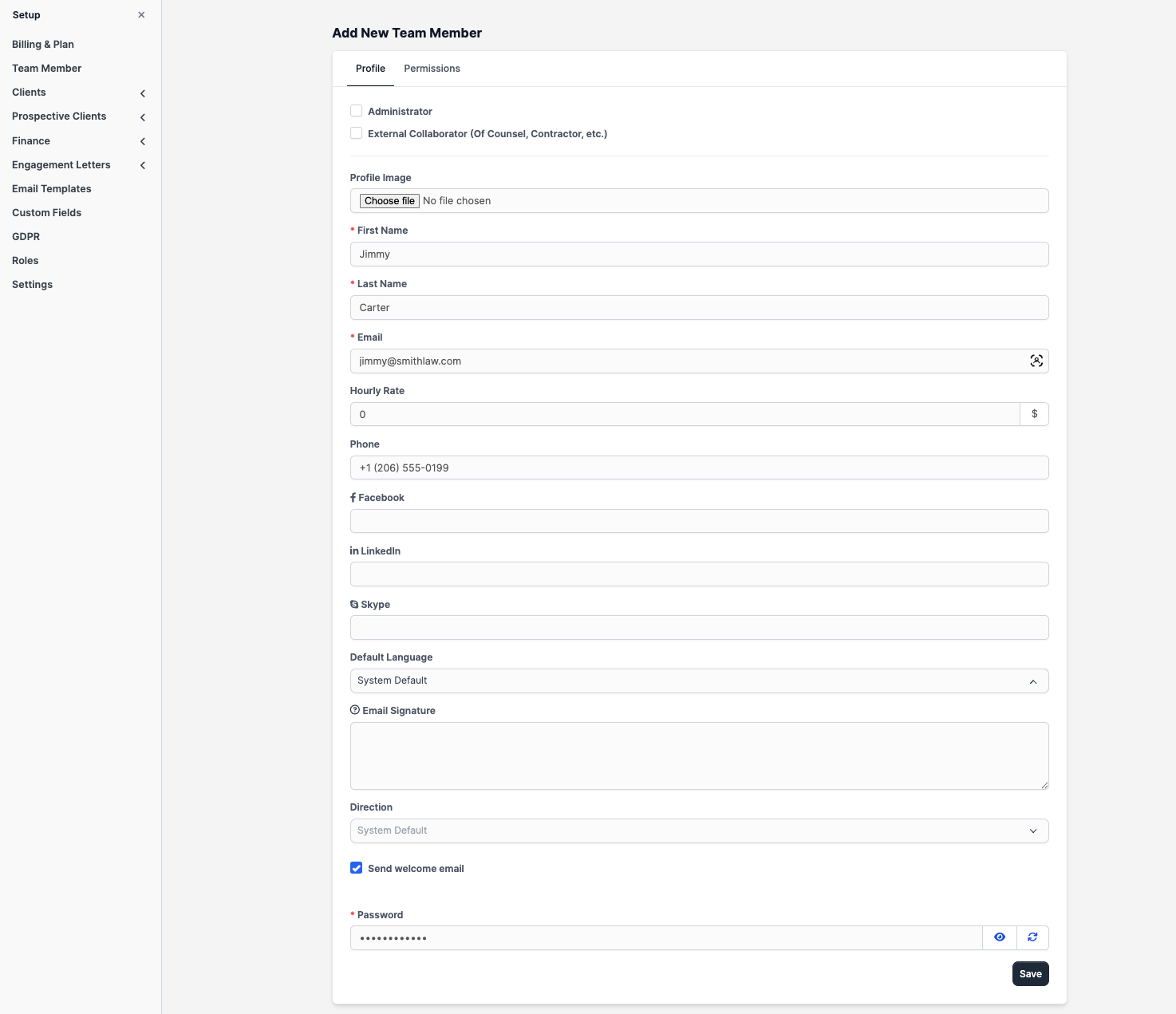
Click Save. The new staff member can now log in at your firm's subdomain.
Permissions
On the Solo and Growth plans, all staff members have access to everything except the Setup area, which is admin-only.
On the Multi-Practice plan, you get granular control. Go to Setup > Roles to create custom permission sets. Each role defines what a staff member can view, create, edit, or delete across modules like clients, invoices, contracts, and reports.
The firm administrator (the person who registered) always has full access and cannot be restricted.
Departments
You can organise staff into departments (e.g. "Litigation", "Corporate", "Family Law"). Go to Setup > Staff and use the Departments tab.
Departments are optional. They show up as filters on reports and can be used when assigning matters.
Deactivating a staff member
If someone leaves the firm, do not delete their account. Instead, open their profile and set their status to Inactive. This preserves their history (time entries, notes, matter assignments) while revoking their login access.
Inactive staff do not count toward your seat limit.
Two-factor authentication
Each staff member can enable 2FA from their own profile. As an admin, you cannot force 2FA for everyone; it is opt-in per user. See Two-factor authentication for setup instructions.