
Sharing documents with clients
By default, documents uploaded to CaseFlow are visible only to your staff. To let a client see a document through their portal, you need to share it explicitly.
How to share a document
- Go to the client's profile or the matter's Documents tab
- Find the file you want to share
- Click the share icon (or toggle "Visible to client" on the file)
The document now appears in the client's portal under their Documents section. They can view it and download it.
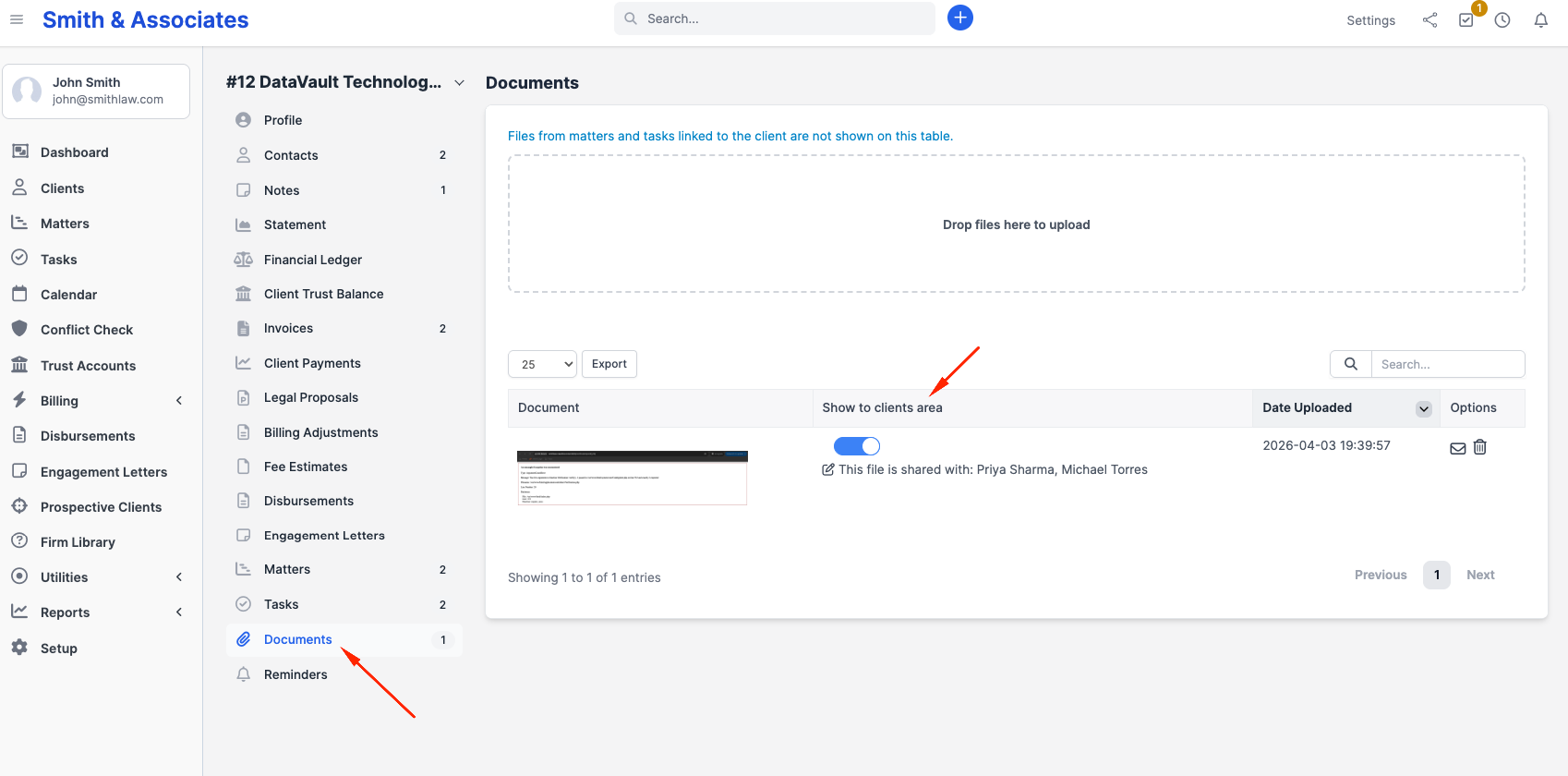
Sharing from a matter
If you are on a matter's Documents tab, sharing a file makes it visible to that matter's client. The client sees it in their portal under Documents, labelled with the matter name.
Bulk sharing
To share multiple files at once, select them using the checkboxes and click Share Selected. All selected files become visible to the client.
Unsharing
Click the share icon again (or toggle "Visible to client" off) to remove access. The file disappears from the client's portal immediately. They cannot access it again unless you re-share.
What clients can do with shared documents
Clients can:
- View the file name, size, and upload date
- Preview files in the browser (PDFs and images)
- Download files to their computer
Clients cannot:
- Delete shared files
- Upload files back to you
- Edit files
- Share files with others
Document vault vs. regular sharing
Regular sharing puts documents in the client's Documents section. The vault (Vault tab on the client profile) is a separate encrypted storage area for particularly sensitive files.
Use regular sharing for case documents, invoices, correspondence. Use the vault for passwords, financial records, or anything that needs extra protection.
Notifications
When you share a document, the client does not get an automatic notification. If you want them to know a new document is available, send them an email manually or mention it in your next correspondence.