
Adding clients
Creating a client manually
Go to Clients in the sidebar and click New Client.
Required fields
- Client Name: The client's business name or, if the client is an individual, their full name (e.g. "Jane Doe").
Optional fields
| Field | Purpose |
|---|---|
| VAT Number | Tax identification number; appears on invoices |
| Phone | Main phone number |
| Website | Client's website URL |
| Address | Street, city, state/province, postcode, country |
| Billing address | If different from the main address; used on invoice PDFs |
| Default currency | Override the firm's default currency for this client |
| Default language | Invoice and portal language for this client |
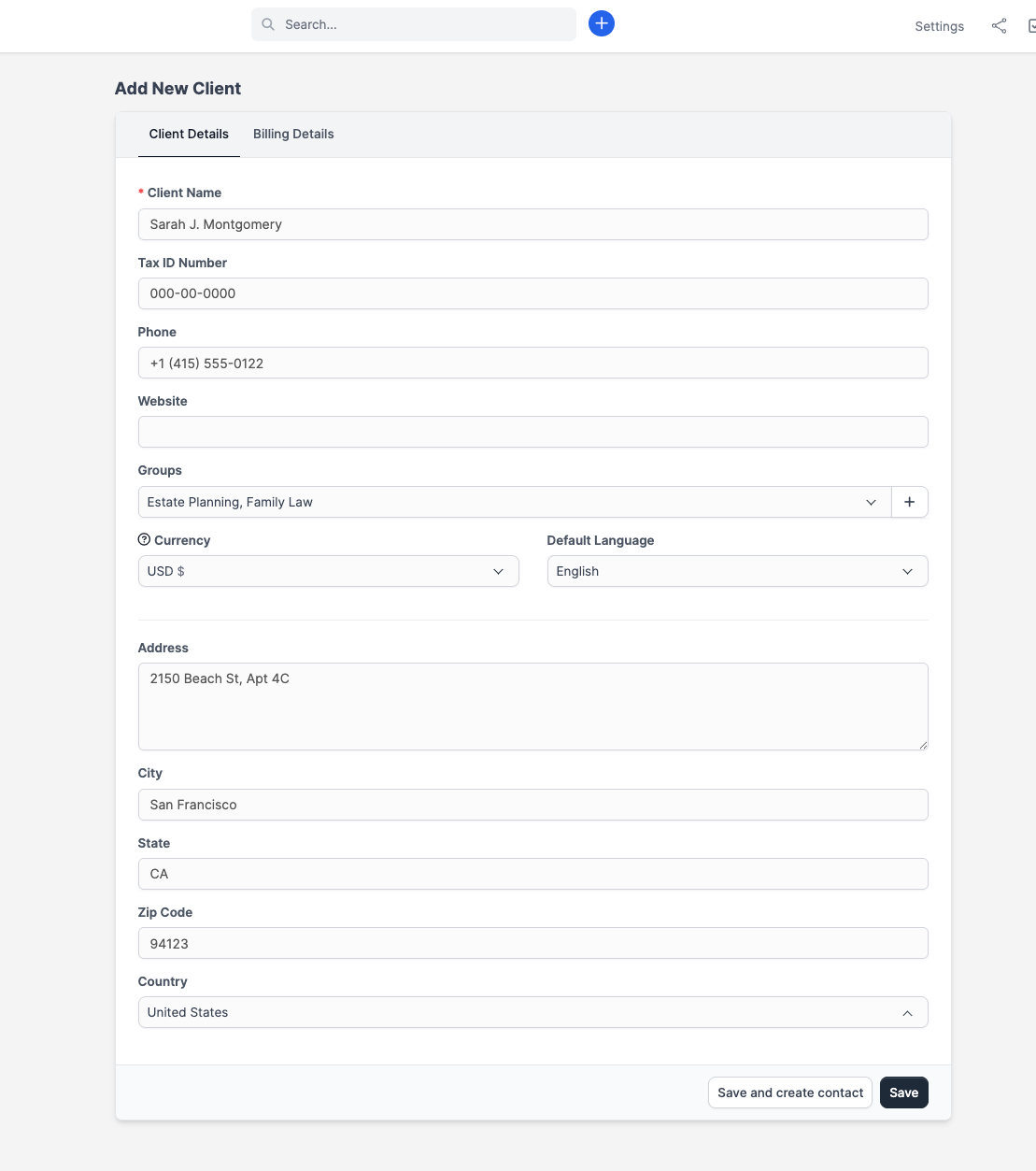
Click Save to create the client.
After saving
You land on the client's profile page. From here you can:
- Add contacts (people at the client company)
- Assign them to a group
- Start a matter for them
- Attach a note or document
Individual clients
For individual clients (not businesses), enter the person's full name in the Client Name field. CaseFlow uses this name on invoices, proposals, and the client portal. There is no separate toggle; the Client Name field works for both business and individual clients.
Custom fields
If you need to track extra data (e.g. "Referral source" or "Bar number"), your admin can create custom fields at Setup > Custom Fields > Customers. These appear on the client form and are searchable from the client list.
Duplicates
CaseFlow does not prevent duplicate client names. Before creating a new client, search the existing list to avoid creating a second record for the same organisation. If you do end up with duplicates, you will need to manually move matters and invoices to the correct record and delete the extra one.