
Turning on CaseFlow Intelligence
Only firm administrators can turn on CaseFlow Intelligence. It is off by default, and no features are active until you enable them.
Plan requirement
CaseFlow Intelligence features are available on the Growth and Multi-Practice plans.
Where to find the settings
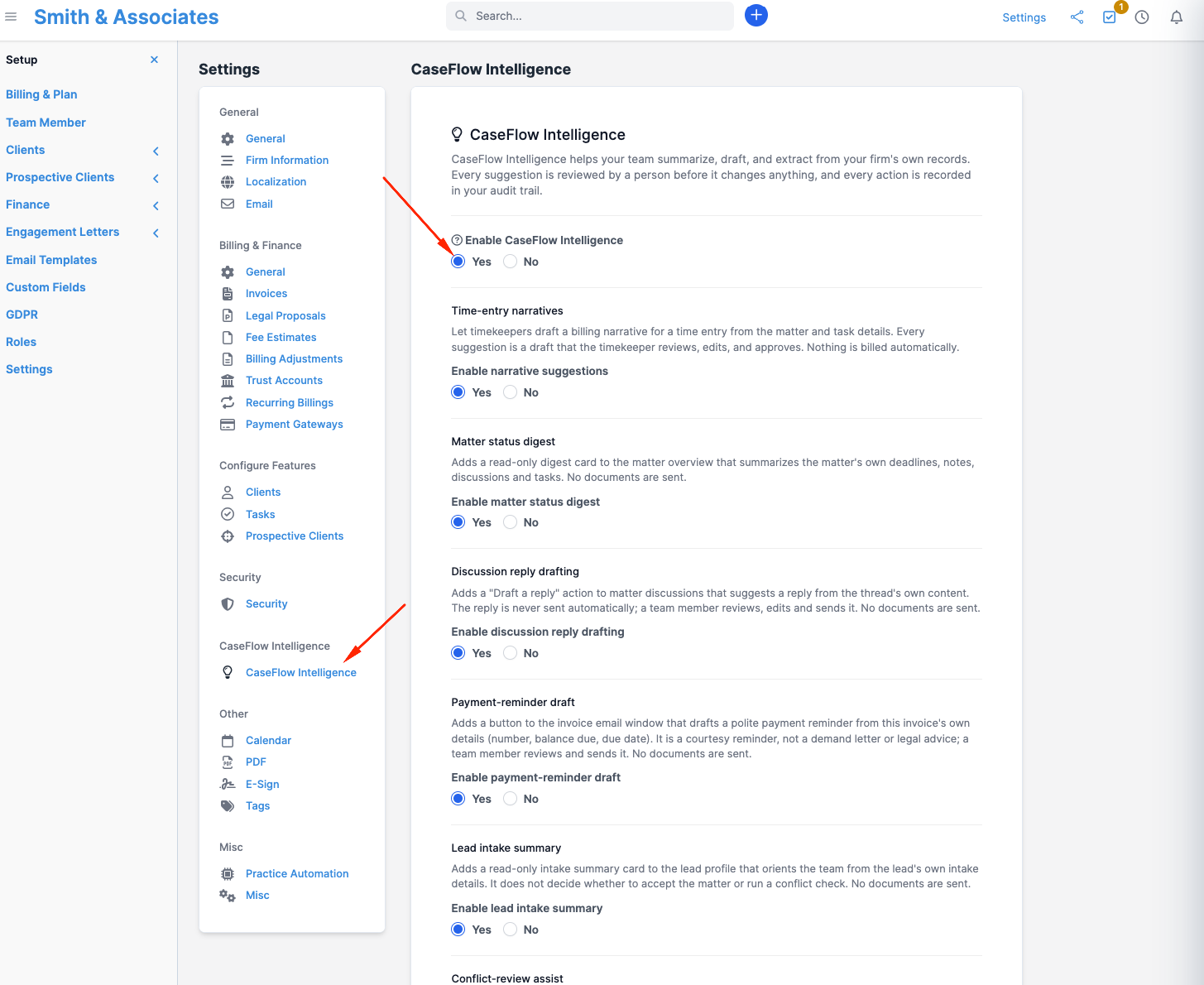
Open Setup (the gear icon in the top corner of the sidebar), go to Settings, and choose CaseFlow Intelligence.
Turn it on, step by step
- Turn on the master switch, labeled Enable CaseFlow Intelligence.
- Turn on each capability you want to use. Only the capabilities included in your plan appear here.
- To pause everything at once, turn the master switch back off. This hides every feature, including product help in Ask CaseFlow, and sends nothing.
Document features need an extra step
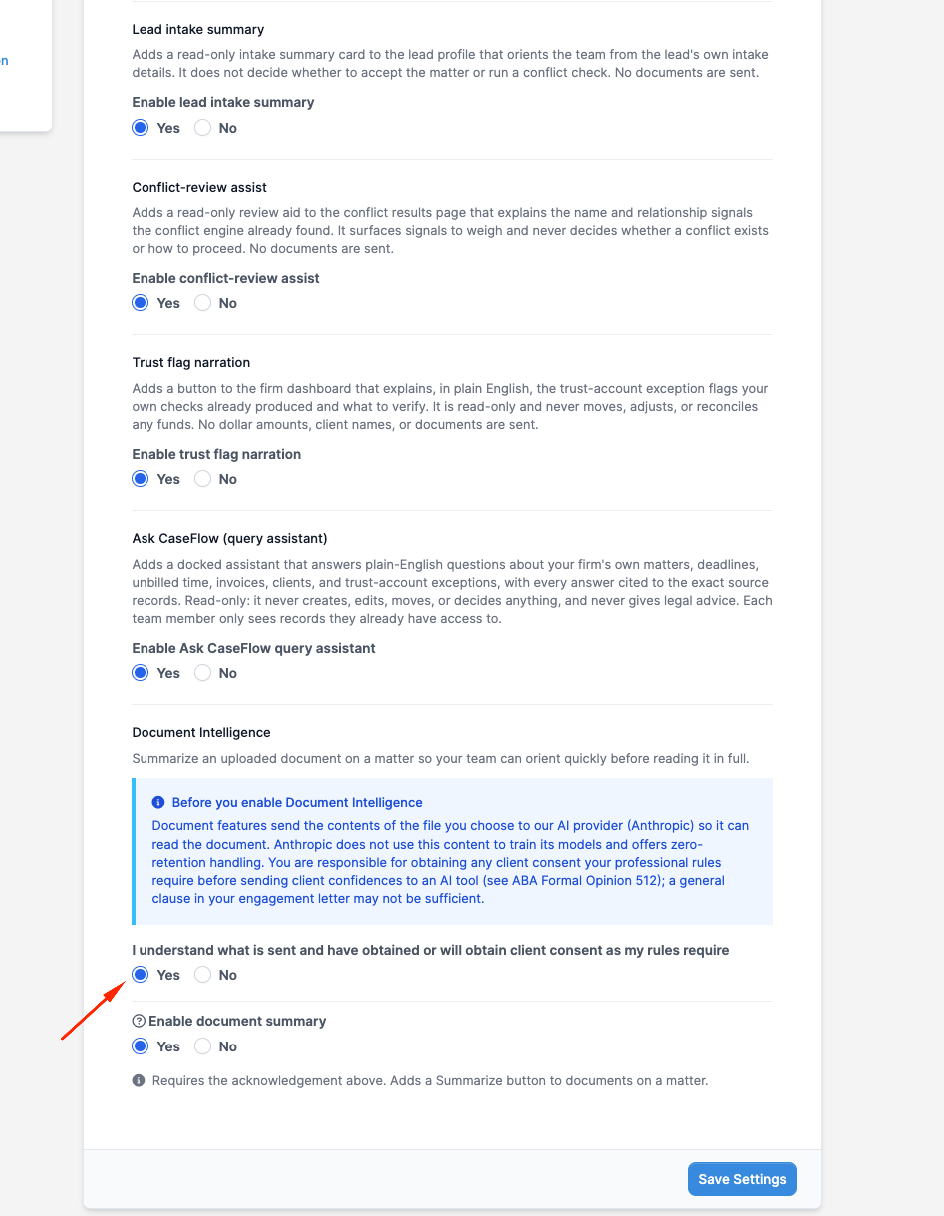
Document summary and Deadline extraction read the contents of a file you choose, so they require one additional confirmation before you can enable them.
Before turning on either of these features, you must read the on-screen notice and tick the acknowledgement:
"I understand what is sent and have obtained or will obtain client consent as my rules require."
The notice was updated in October 2026. If your firm acknowledged the earlier version, document features stay off until someone ticks the acknowledgement again.
Here is what the notice explains in plain terms:
- When you use one of these features, the contents of the file you select are sent to CaseFlow's AI provider (Anthropic) so it can read the document.
- The same switch covers bank statements for the monthly trust close. A statement uploaded as a PDF is sent to Anthropic so it can read the transaction lines. A statement uploaded as a CSV or OFX file is read by CaseFlow alone, and nothing is sent.
- Anthropic does not use this content to train its models. To see how long Anthropic keeps it, ask us for Anthropic's commercial terms.
- You are responsible for obtaining any client consent your professional rules require before sending client confidences to an AI service. ABA Formal Opinion 512 addresses this, and a general clause in your engagement letter may not be sufficient.
What is recorded
Every time a CaseFlow Intelligence feature runs, CaseFlow writes it to your firm's tamper-evident audit trail, noting who asked and that it happened. The wording of questions, answers, drafts, and document contents is not stored. When CaseFlow Intelligence is off, nothing is sent.
To apply the monthly limit below, CaseFlow also counts each request: which feature made it and how large it was. The count holds no wording either.
Monthly limit
Each firm's use of CaseFlow Intelligence has a monthly limit. It starts again at the beginning of each month, at midnight UTC, which is the evening before in the United States.
- From 80% of the limit, the conveniences pause: product help and your-records answers in Ask CaseFlow, the dashboard summary, Draft a reply, Matter status digest, Time-entry narratives, Payment-reminder drafts, and Document summary.
- The work CaseFlow does for your firm carries on until the limit is reached: reading PDF bank statements for the monthly trust close, Deadline extraction, Lead intake summary, Conflict-review assist, and Trust-flag narration.
- A paused request asks you to carry on by hand. A bank statement can always be uploaded as a CSV or OFX download instead of a PDF. Each paused request is written to your firm's audit trail.
- If CaseFlow cannot check your firm's use, it pauses the request too, rather than send it uncounted, and the audit trail says the use could not be checked. A request that never left CaseFlow is not counted.
- One document at a time. CaseFlow reads one document for your firm at a time. If a second one is sent while the first is still being read, it waits up to 20 seconds, then asks you to try again.
If your firm needs a higher limit, contact CaseFlow support.
If CaseFlow Intelligence is unavailable
If CaseFlow's AI provider stops accepting its requests, your dashboard shows a notice. Every feature that uses CaseFlow Intelligence still works by hand while it shows: upload bank statements as a CSV or OFX download, and enter deadlines yourself. CaseFlow sends no requests for 15 minutes, then tries again.