
Matter threads
Matter threads are focused discussions that live inside a matter. Each thread holds an ordered list of comments from your team and, when you choose to share, the client. Use threads to discuss strategy, flag issues, ask questions, or capture decisions without leaving CaseFlow.
A thread can be internal (staff only) or client-visible (staff plus the client's portal contacts) — set per thread when you create it.
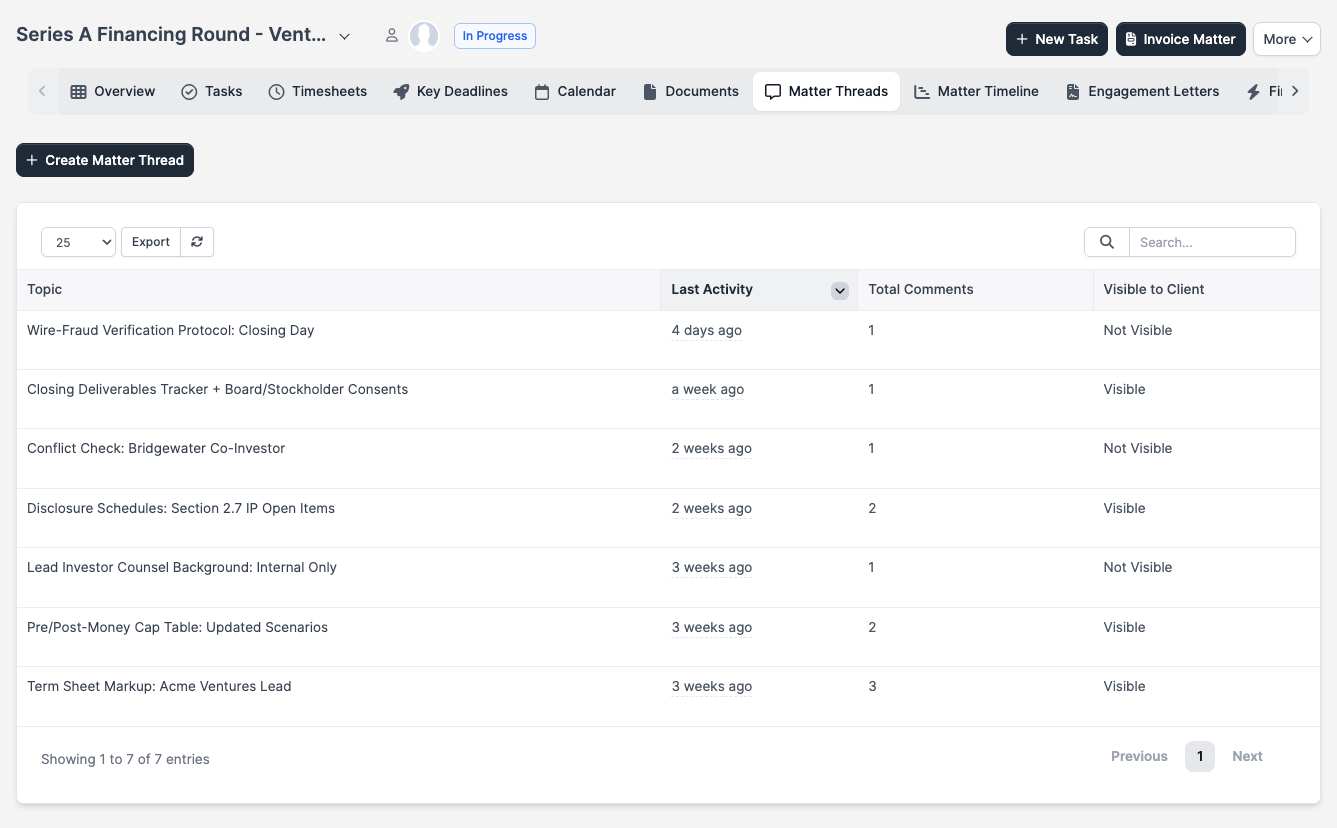
Starting a thread
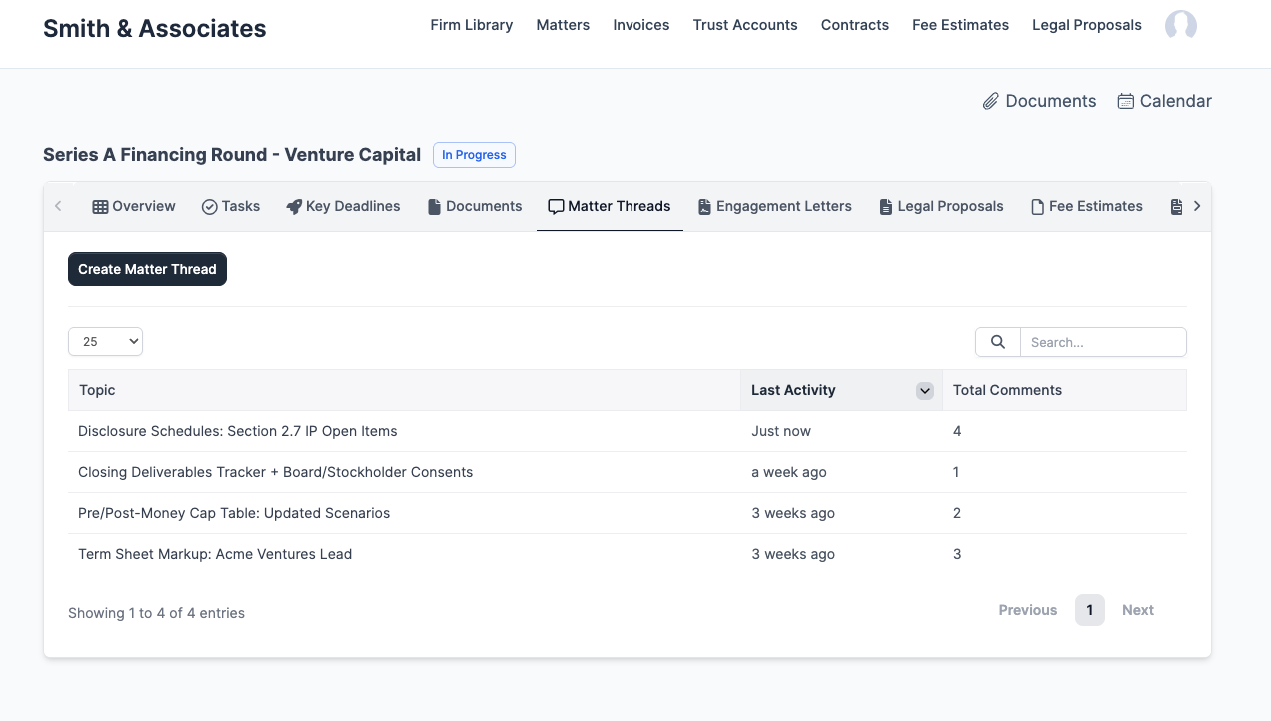
Open a matter and click the Matter Threads tab. Click Create Matter Thread.
Give the thread a subject and write its first comment. Decide whether the thread should be visible to the client using the Show to customer checkbox (on by default). Click Save.
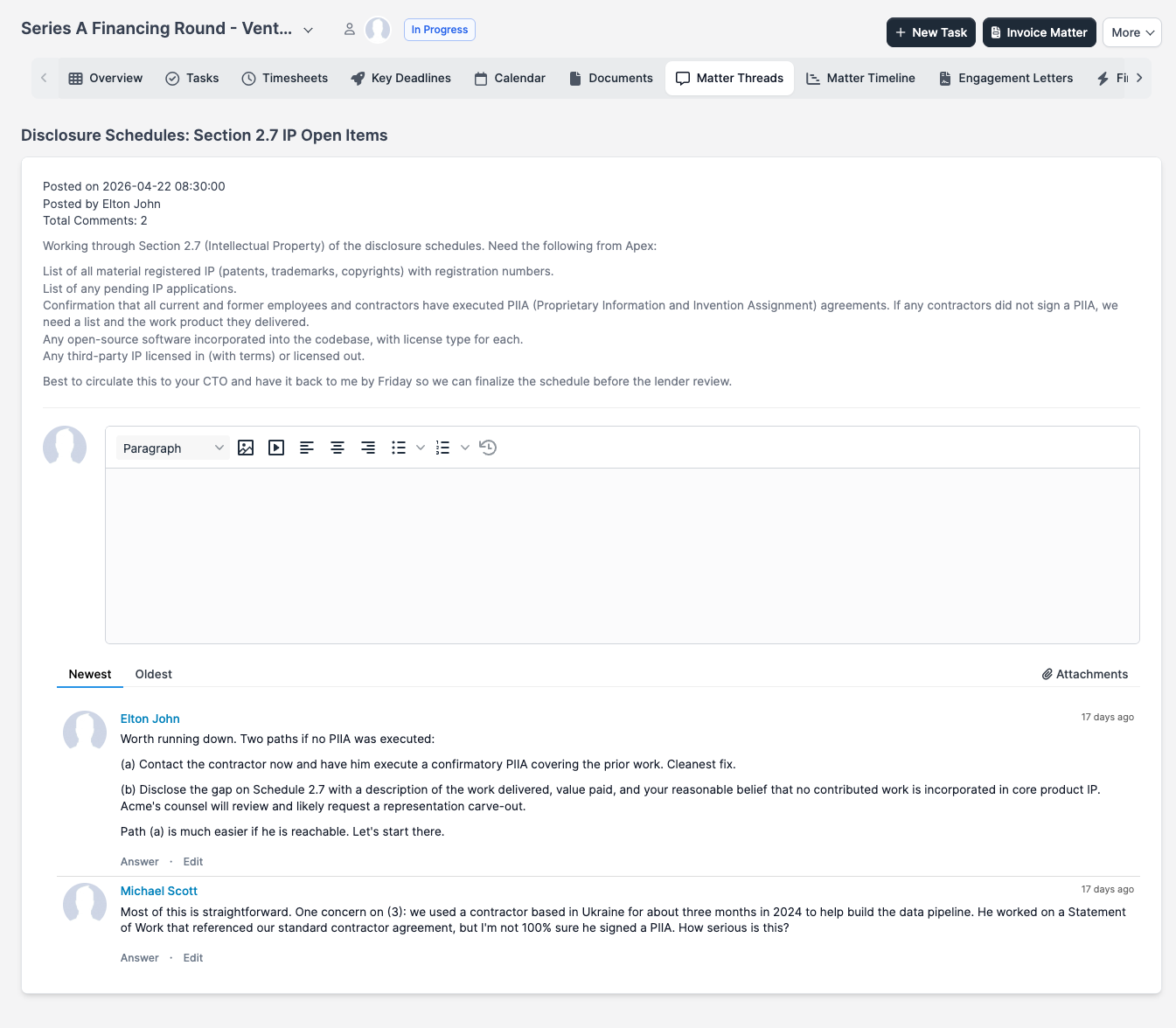
Posting in a thread
Open a thread by clicking its subject in the list. The thread page shows the original post at the top, then a rich-text composer for adding a new comment, then the existing comments below.
Adding a new comment
Type into the composer at the top of the thread and click Send. The composer supports formatting (bold, italic, lists, links), inline images, and file attachments (paperclip icon next to Send). Use @ to mention a staff member on the matter — mentioned staff get a CaseFlow notification and an email. 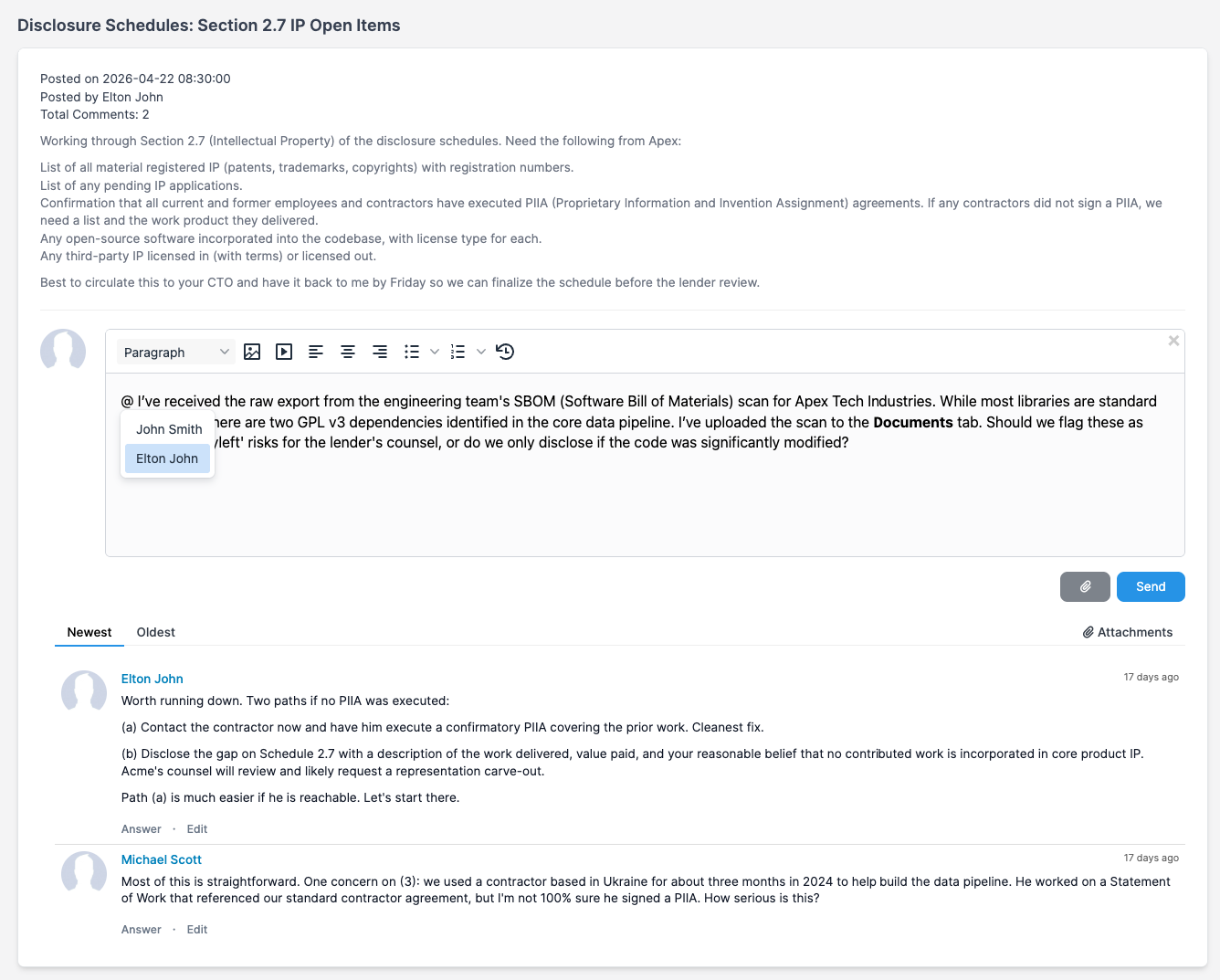
You can sort the comment list with the Newest / Oldest tabs above the first comment, and use the Attachments link on the right to filter to comments that include a file.
Replying to a specific comment
Each comment has an Answer link beneath the author and timestamp. Clicking Answer opens an inline composer directly under that comment. Type your reply and click Send. Replies appear indented under the parent comment so the back-and-forth stays readable. 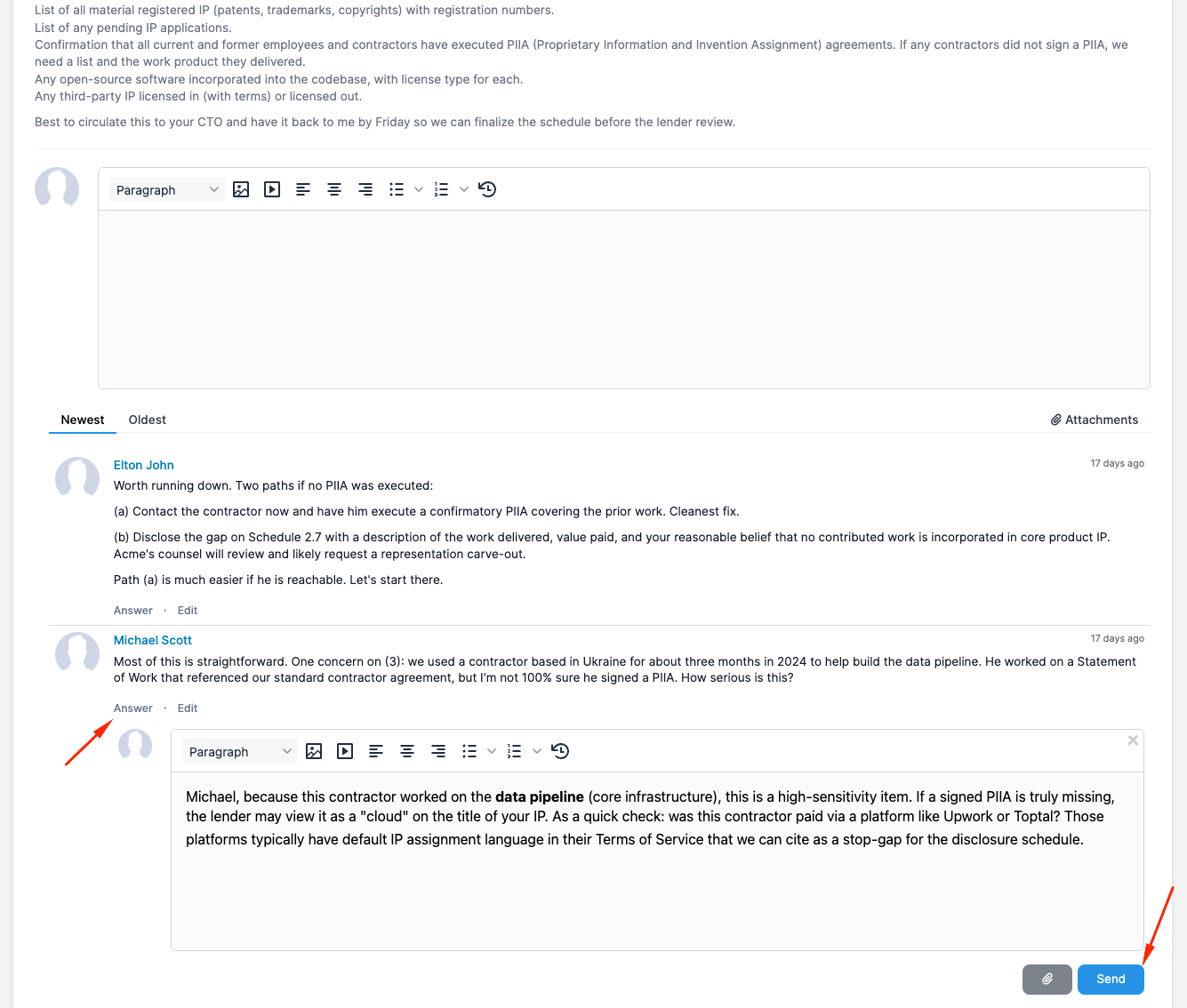
Use Answer when you're responding to a specific point. Use the top composer when you're raising something new in the same thread.
Editing your own comments
Each comment also has an Edit link beneath it (visible only on your own comments). Edited comments are flagged so others can see they've been changed. 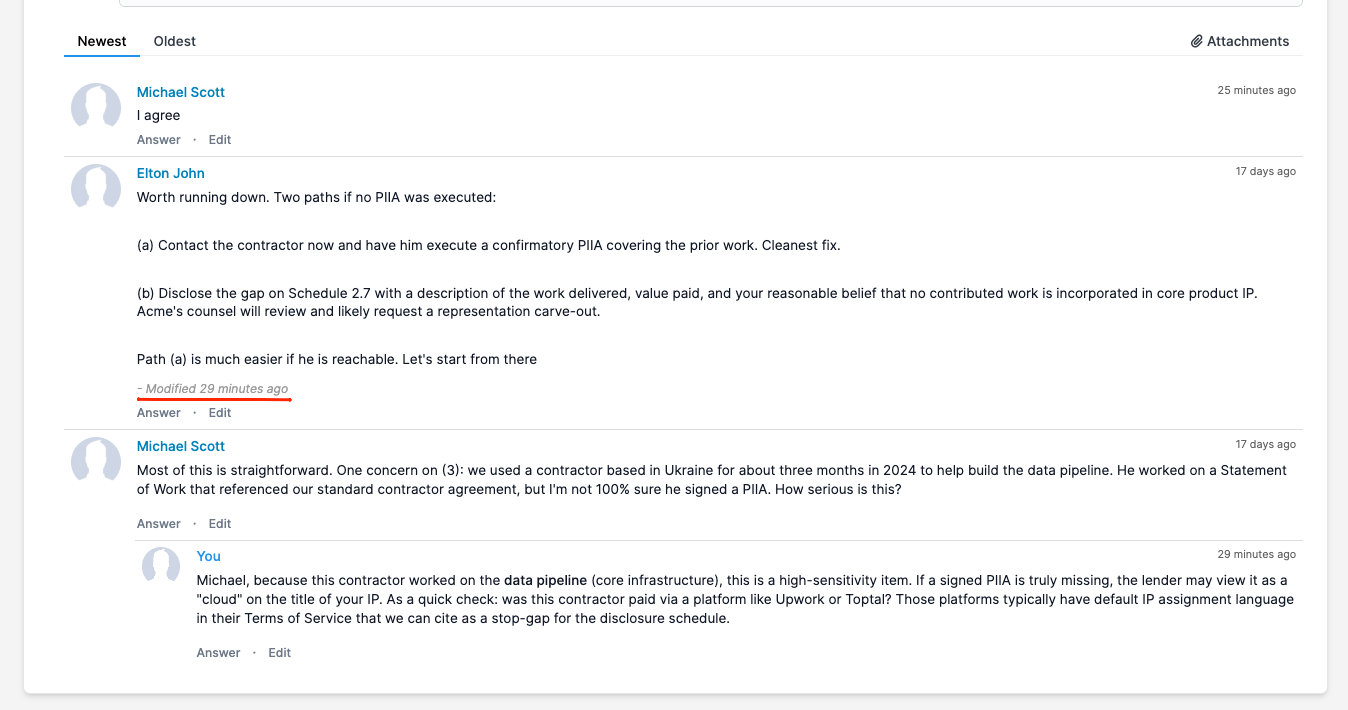
Who can see and post
Visibility and posting rights depend on whether the thread is marked Visible to Client when being created (this can be toggled on or off later on):
- Internal threads (Show to Client is off): visible only to staff with access to the matter, i.e. staff with the View (all) matter permission, or staff listed on the matter's Members. Only those staff can post and reply.
- Client-visible threads (Show to Client is on): visible to the same staff plus any client contact with portal access to the matter. Both staff and client contacts can post and reply.
You can set Show to Client when you create the thread and change it later by editing the thread.
Formatting and attachments
Comments support basic formatting (bold, italic, bullet lists, numbered lists, links) and inline images. You can attach a file to any comment using the paperclip icon next to the Send button — useful when you want the file inline with the discussion rather than buried in the matter's Documents tab.
Notifications
When someone adds a comment to a thread, the recipients depend on whether the comment includes any @-mentions:
- No mentions: every other member of the matter receives a CaseFlow notification (the bell icon in the top right) and an email. If the thread is client-visible, the client contacts also receive an email.
- One or more
@-mentions: only the mentioned staff receive a notification and email. Other matter members do not get pinged for that comment.
The poster never gets a notification for their own comment.
Deleting threads
Any staff member with the Delete matter permission can delete a thread, regardless of who started it. The Trash icon appears next to threads in the list view.
Deleting a thread permanently removes it and all of its comments — there is no archive or undo.