
Disbursements
A disbursement is any out-of-pocket cost the firm incurs while working on a matter — court filing fees, expert-witness fees, deposition transcripts, courier charges, online research, travel. You may occasionally see the older label Expenses used interchangeably; both refer to the same feature.
CaseFlow distinguishes two related but separate concepts:
| Concept | Where it lives | Purpose |
|---|---|---|
| Disbursement (this section) | Sidebar > Disbursements | Firm-paid cost, optionally passed through to a client on an invoice. The firm's money goes out first. |
| Trust disbursement | Sidebar > Trust Accounts > Trust Ledger | Money leaving the client's trust balance to pay a cost or transfer earned fees. The client's money goes out first. |
If you're paying a court fee from the operating account and want to bill the client back, that's a disbursement here. If you're paying it directly from the client's IOLTA balance, that's a trust disbursement — see Deposits and disbursements under Trust Accounts.
What you can do
- Record a disbursement with category, date, amount, currency, and tax
- Attach a receipt (image or PDF) via drag-and-drop
- Mark it billable to pass the cost to a client on an invoice
- Link to a specific matter when a client has matters
- Repeat regularly via recurring schedules (weekly, monthly, custom intervals, with optional total cycles)
- Auto-create and optionally auto-email a draft invoice on each recurring cycle
- Bulk-edit category, payment mode, date, or amount across many records
- Filter the list by category, client, date range, payment mode, or invoiced state
Where disbursements live
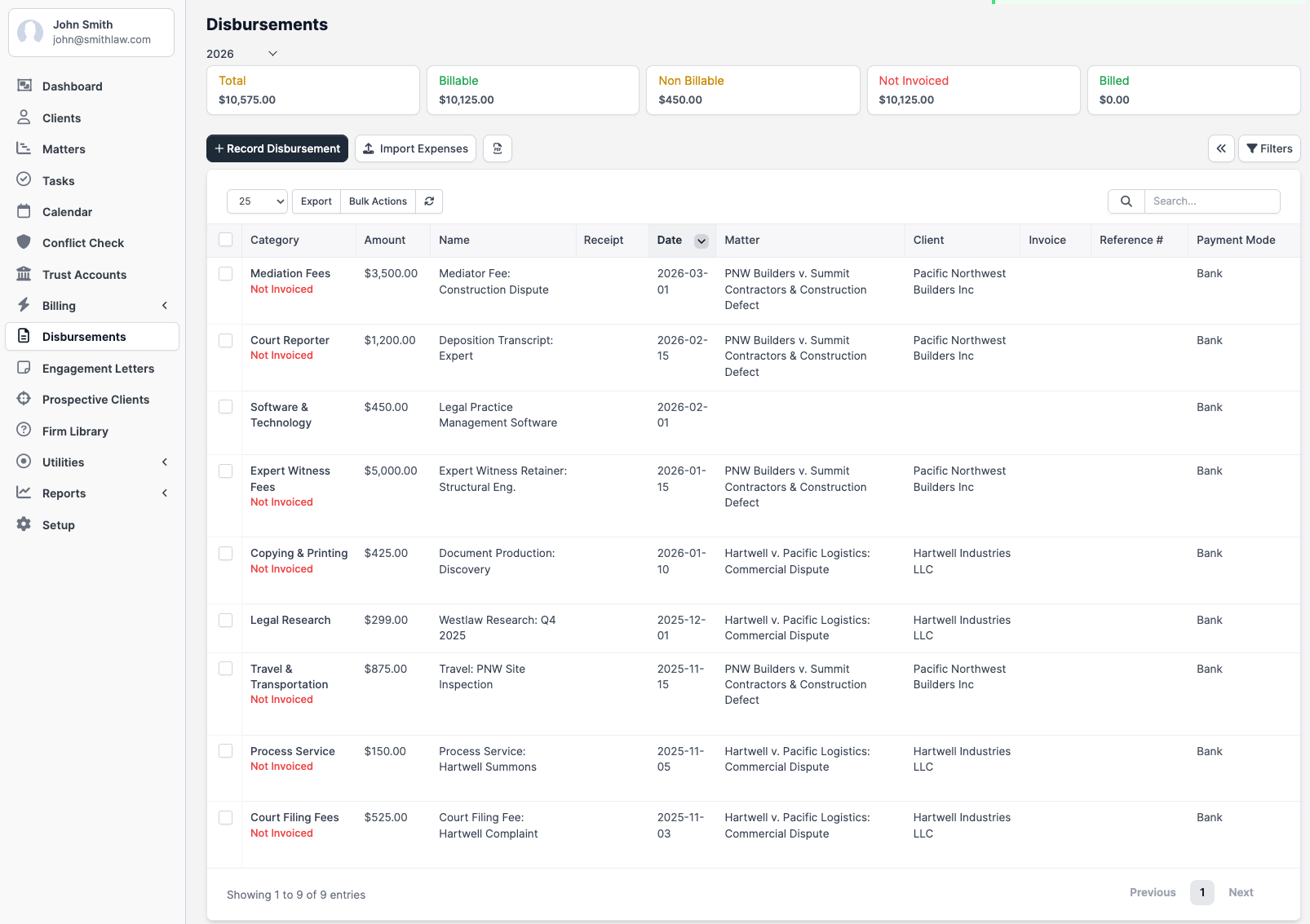
In the sidebar, click Disbursements. The list shows every record across the firm with columns for Category, Amount, Name, Reference #, Payment Mode, Client, Project, Invoice, Date, and Recurring. Filters and saved views are available from the toolbar.
Billable vs. non-billable
Each disbursement has a Billable checkbox. The checkbox only appears once you pick a client on the form.
- Billable — the cost gets passed to the client. The disbursement appears in the Expenses available to bill panel when you create an invoice for that client.
- Non-billable — the firm absorbs the cost. It still appears in the disbursements list and in reports, but never goes on a client invoice.
A disbursement that has been added to an invoice locks its Billable flag (un-ticking it would orphan the invoice line). Other fields stay editable on the admin side, but changing the amount on a billed disbursement does not retroactively update the invoice — keep records in sync by deleting and re-creating instead.
Plans and availability
Disbursements are available on all plans (Solo, Growth, Multi-Practice).