
Client groups
Groups let you categorise clients however makes sense for your firm. Some common uses: practice area ("Corporate", "Family", "Immigration"), fee arrangement ("Retainer", "Hourly", "Flat Fee"), or client type ("Individual", "Business", "Government").
Creating a group
Go to Setup > Clients > Groups and click New Client Group.
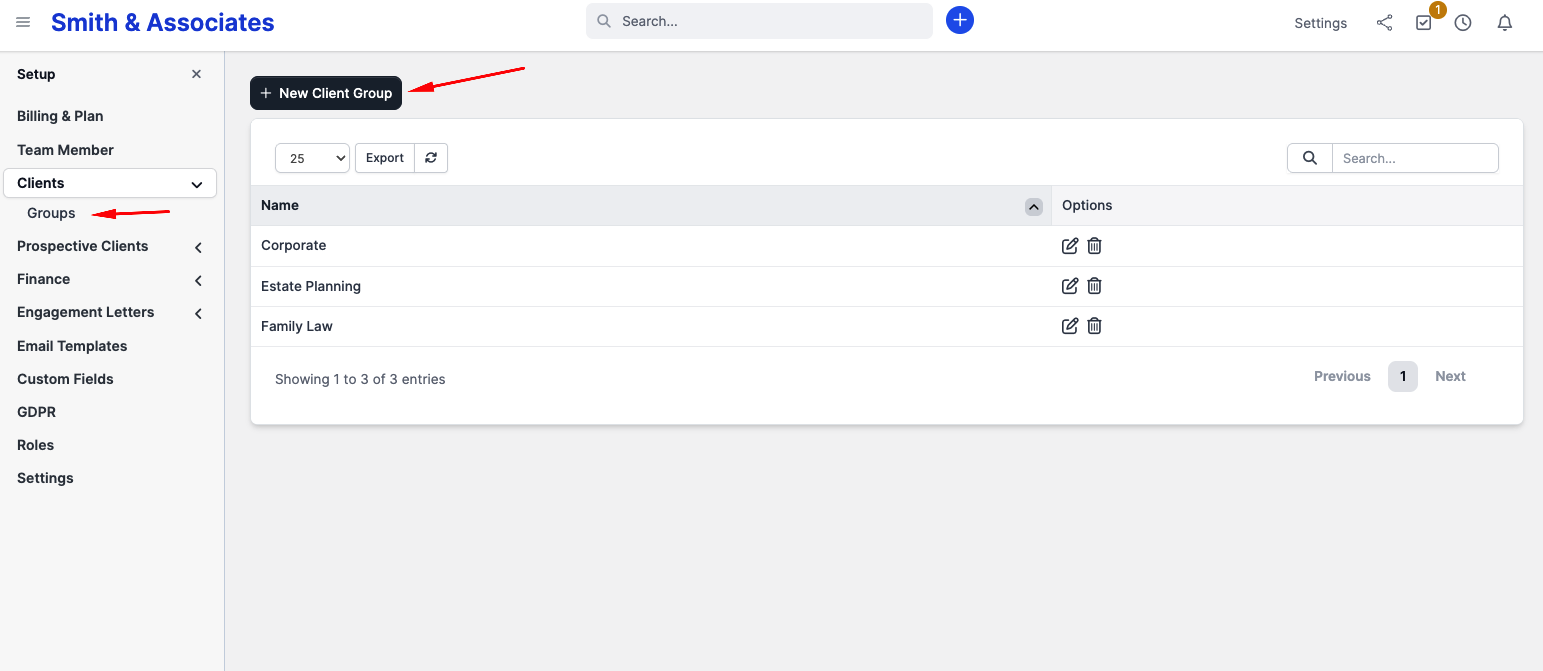
Enter a name and click Save. That is all; groups have no other settings.
Assigning clients to groups
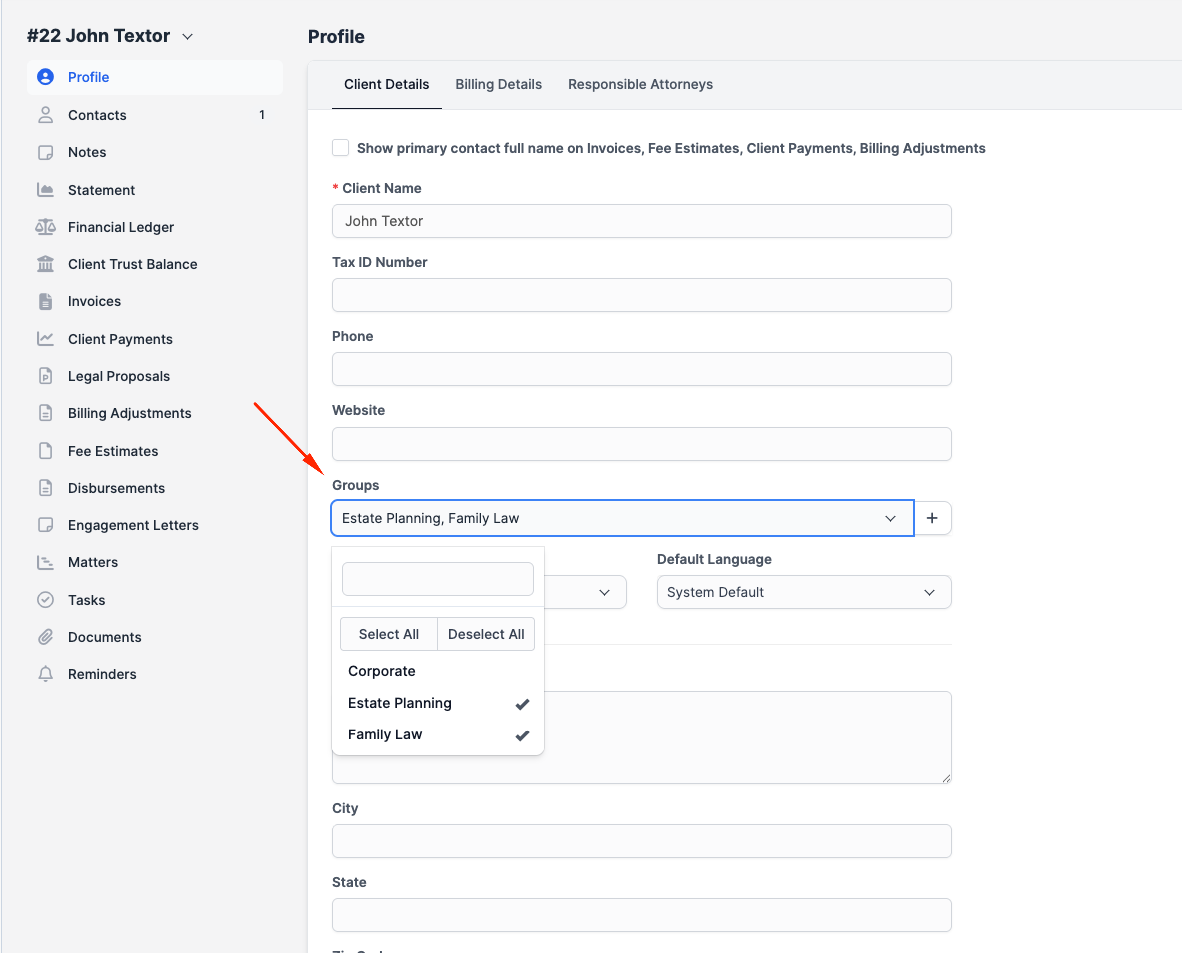
Open a client's profile and look for the Groups field on the Client Details tab. Click it and select one or more groups from the dropdown then hit on the Save button to save the changes made.
A client can belong to multiple groups at the same time.
Filtering by group
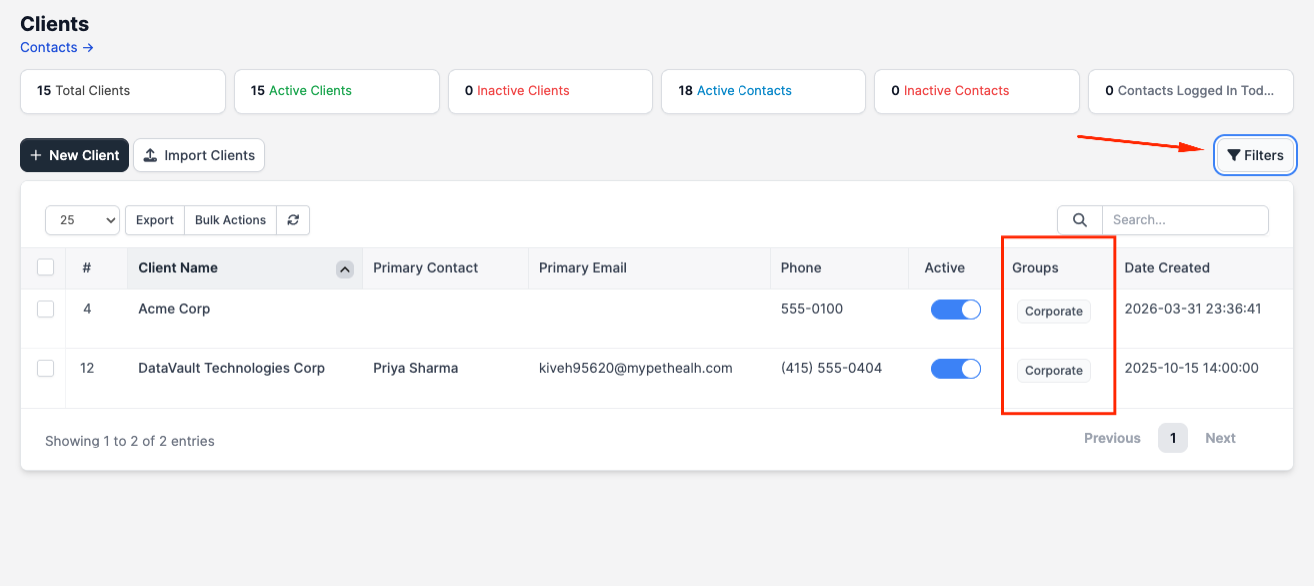
On the Clients list page, you can use the Filters feature create a filter rule that filters clients based on the group they are in.
Bulk assignment
There is no built-in way to assign multiple clients to a group at once. If you are importing clients from CSV, you can include a group column and it will be applied during import.
Deleting a group
Go to Setup > Clients > Groups, find the group, and click the delete icon. Clients that were in that group will not be deleted; they just lose that group tag.