
Deposits and disbursements
Open the trust account ledger by clicking Trust Ledger on a trust account card. The ledger toolbar has a primary + New Transaction dropdown grouping the five transaction types under two headings (Credits: Add Deposit, Add Interest; Debits: Add Disbursement, Add Transfer, Add Bank Fee), plus a Trust Statement button and a Back link.
Recording a deposit
A deposit is money received into trust on behalf of a client (e.g. a retainer payment, settlement funds, escrow payment).
From the + New Transaction dropdown, choose Add Deposit. The deposit modal opens with the trust account already selected. Fill in:
- Client (required): Which client this deposit belongs to
- Amount (required): How much was deposited
- Reference: The bank reference, wire ID, or other audit identifier. If left blank, CaseFlow auto-generates a reference using your firm's trust prefix and number format. If your firm has Require reference on trust transactions turned on, this field becomes mandatory.
- Check Number: Cheque number, if applicable
- Description: What the deposit is for (e.g. "Retainer for Smith v. Jones"). Mandatory if your firm has Require description on trust transactions turned on.
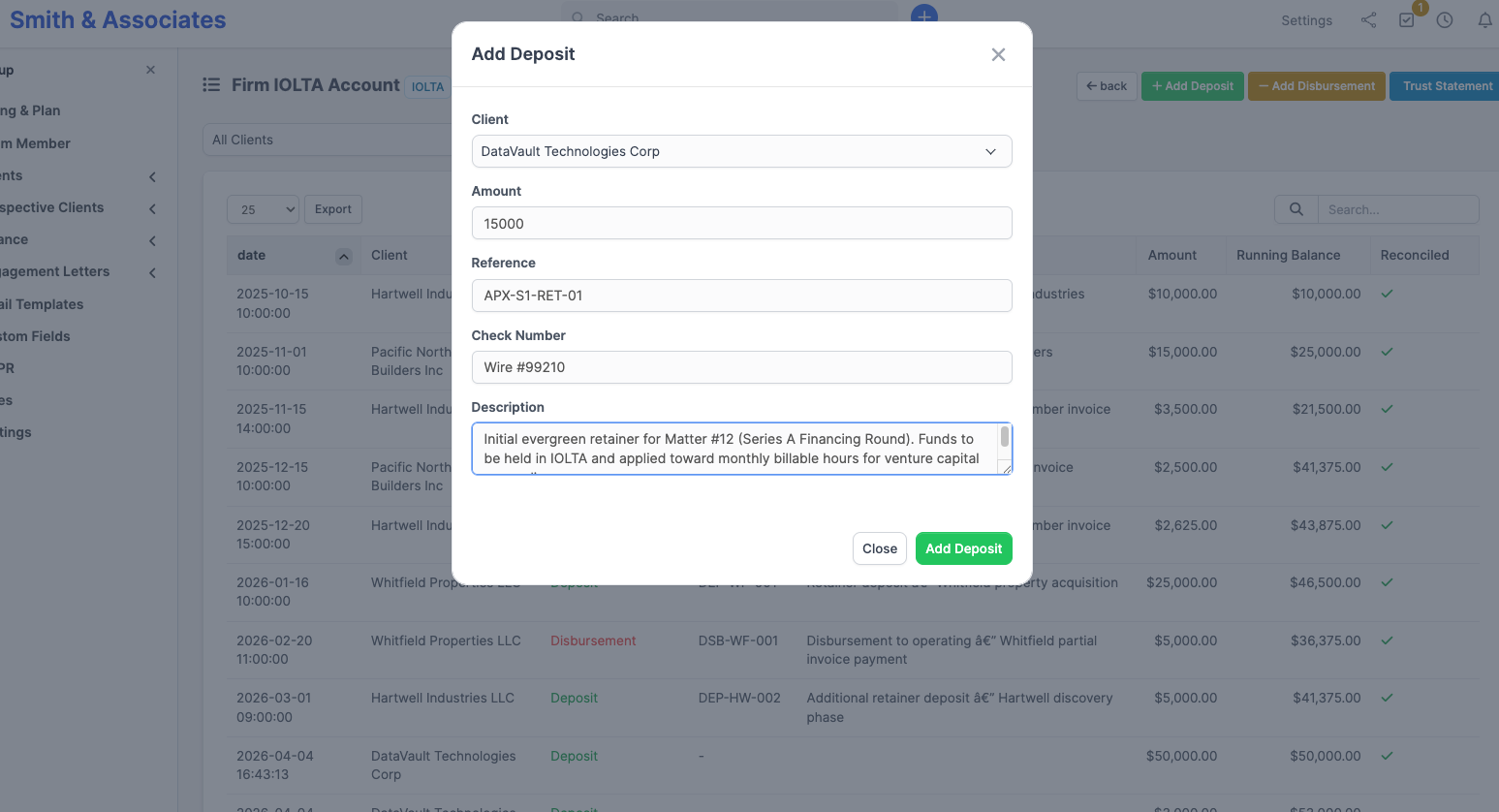
The transaction is dated automatically when you save; there is no separate "Date" field on the form. If you are backfilling historical entries when first setting up the firm, record them in chronological order so the running balance reads correctly.
Click Add Deposit. The account balance increases, the client's ledger shows the new entry, and if Auto-send notification email to client on trust transactions is turned on, a deposit confirmation goes to client contacts who have Receive invoice emails ticked.
Recording a disbursement
A disbursement is money leaving trust. Common reasons: paying costs on a client's behalf, transferring earned fees to your operating account, or refunding unused funds to the client.
From the + New Transaction dropdown, choose Add Disbursement. Fill in:
- Client (required): Which client's funds you are drawing from
- Amount (required): How much to disburse
- Payee: Who the money went to (e.g. "Smith & Associates Operating Account", "County Clerk", client name for refunds)
- Reference: Audit identifier; auto-generated if blank (subject to the same Require-reference setting as deposits)
- Check Number: Cheque number, if applicable
- Apply to Invoice: Optional. The dropdown shows the selected client's outstanding invoices (Unpaid, Partially Paid, Overdue). Picking one tells CaseFlow to record this disbursement as a payment against that invoice, using the Trust/IOLTA payment mode, and update the invoice's status accordingly. Leave at None (no invoice) for any disbursement that is not a fee transfer (e.g. paying a court filing fee).
- Description: Reason for the disbursement; mandatory if Require-description is on
Click Add Disbursement. The account balance decreases, the client's ledger reflects the withdrawal, and if Auto-notify is on, the client receives a disbursement notification email. 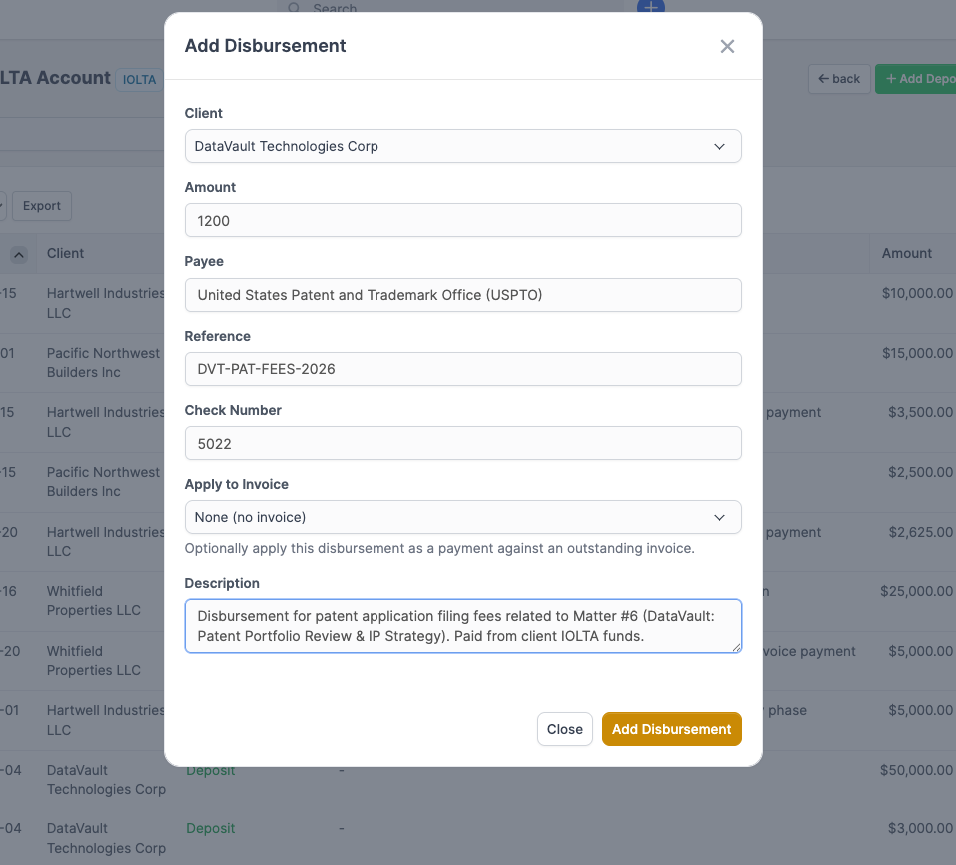
Recording a transfer
A transfer moves funds out of trust to another account. The most common use is moving earned fees from the trust account to the firm's operating account once an invoice has been paid out of trust. You can also use transfers to send funds to a third-party account (a wire to closing counsel, a refund issued from your operating account, and so on). Use a disbursement instead if you are paying a vendor directly from trust.
From the + New Transaction dropdown, choose Add Transfer. Fill in:
- Client (required): Which client's funds are being moved
- Amount (required): How much to transfer
- Transfer to (required): The destination account or entity (for example, "Operating Account", "Smith & Associates Main Account", or an external bank account name). This field answers the bar examiner's question about where the trust funds went.
- Reference: Audit identifier; auto-generated if blank
- Check Number: Cheque number, if applicable
- Description: Plain-English reason for the transfer (for example, "Earned fees per engagement agreement, Invoice INV-0123")
Click Add Transfer. The account balance decreases by the amount transferred, the client's ledger shows the new entry, and the transfer is recorded as a separate event type in the trust audit log so it can be distinguished from a disbursement when a bar examiner reviews records.
Posting interest
Use Interest to credit interest into the trust account. The most common use is to record the periodic interest payment that an IOLTA account generates and remits to the state bar foundation; in non-IOLTA jurisdictions or for non-IOLTA accounts, this is also where you record any interest the bank credits to the account.
Firms typically attribute IOLTA interest to a designated "house" pseudo-client (often named "State Bar Foundation" or "Firm Operations") rather than to a specific real client, since IOLTA interest belongs to the bar foundation and is not attributable to any one client's funds. Set up that pseudo-client once in Clients before recording interest, then use it for every interest entry.
From the + New Transaction dropdown, choose Add Interest. Fill in:
- Client (required): The pseudo-client representing the interest recipient (your house client or bar-foundation client)
- Amount (required): The interest credit amount
- Reference: Audit identifier; auto-generated if blank
- Description: For example, "IOLTA interest, January 2026"
Click Add Interest. The account balance increases by the interest amount, the entry appears in the ledger with the Interest type, and it is recorded in the trust audit log.
Recording a bank fee
Use Fee to record a bank service charge debited from the trust account. Common examples: monthly maintenance fees, wire transfer fees, minimum-balance fees, NSF fees on a returned client deposit.
Firms attribute these to a "house" pseudo-client (the same one used for interest postings) since bank fees are firm overhead and are not chargeable to any one client's funds. Posting bank fees against a real client's ledger is a bar-discipline violation in most jurisdictions; the pseudo-client pattern keeps the trust accounting clean.
From the + New Transaction dropdown, choose Add Bank Fee. Fill in:
- Client (required): The pseudo-client representing the firm (your house client)
- Amount (required): The fee amount
- Reference: Audit identifier; auto-generated if blank
- Description: For example, "Wire transfer fee, $25", "Monthly maintenance fee, March 2026"
Click Add Bank Fee. The account balance decreases by the fee, the entry appears in the ledger with the Fee type, and it is recorded in the trust audit log. Overdraft protection applies: if a fee would overdraw the account, CaseFlow refuses it and records the attempt as an overdraft event the bar examiner can see.
Overdraft prevention
CaseFlow does not allow a disbursement that would take a client's ledger below zero. The check happens inside a transaction with a set lock against that client's balance, so concurrent disbursements cannot both succeed against the same funds. If a disbursement would cause an overdraft, the form returns an error showing the current available balance, and nothing is recorded.
This is the primary safeguard against accidentally using one client's funds for another.
Viewing the ledger
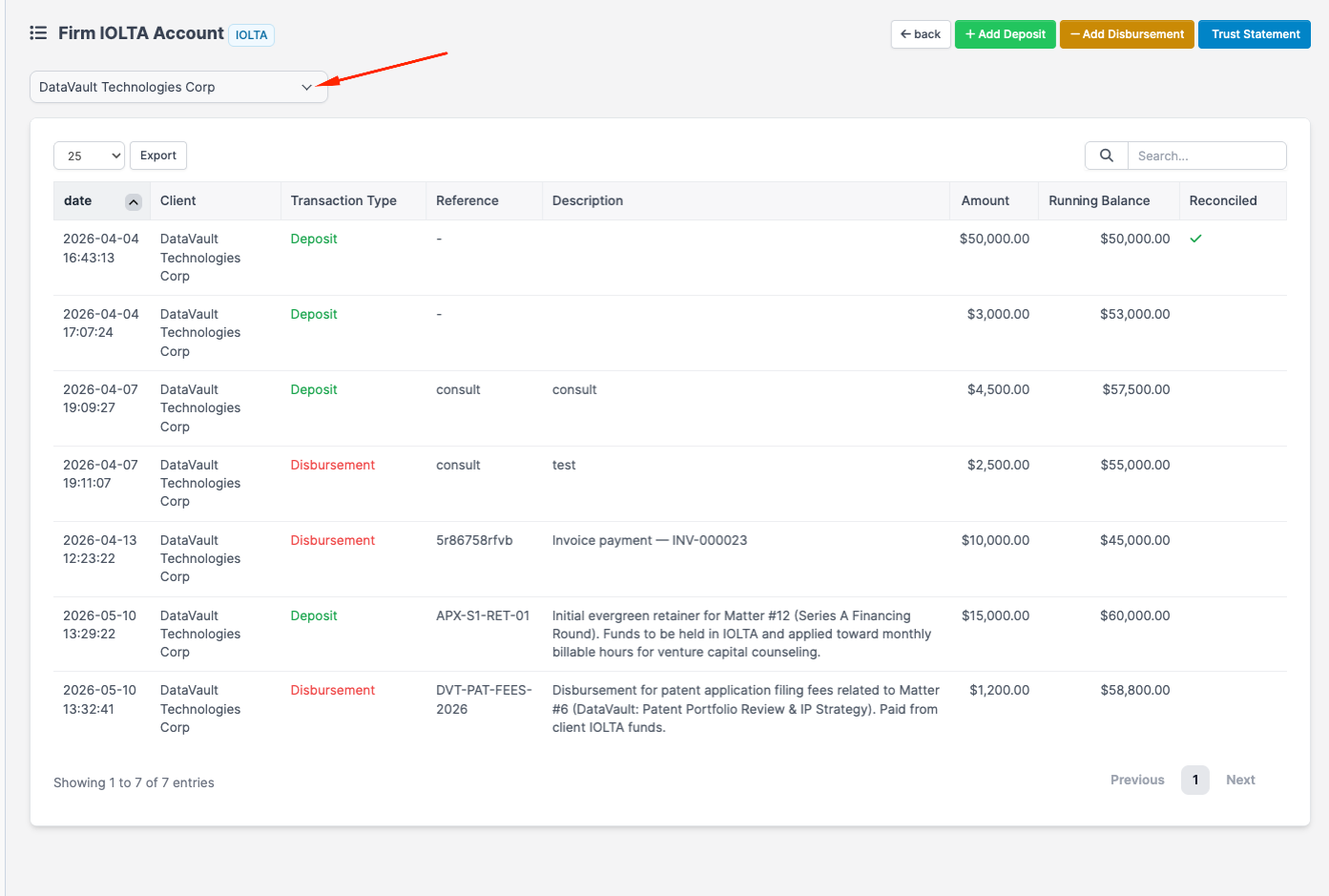
The ledger lists every deposit and disbursement for the account in chronological order, with columns for Date, Client, Type (deposit / disbursement / transfer / interest / fee), Reference, Description, Amount, Running Balance, and Reconciled status.
To see only one client's transactions, use the All Clients dropdown at the top of the ledger to filter by client. The same view then shows just that client's running balance.
You can also see a client's full trust position from their client profile: open the client and switch to the Trust tab. That tab shows the client's total trust balance across all accounts and a per-account breakdown with the same transaction list.
Editing transactions
The firm administrator can correct the Reference, Description, Check Number, or Payee on an existing trust transaction. Click the pencil icon in the rightmost column of any ledger row. Every edit writes a row in the trust audit trail capturing the field that changed, the value before, the value after, who made the change, and when. The original transaction stays in place; the edit is forensic, not silent.
The financial fields, Amount, Type, Client, Matter, and Trust Account, cannot be changed once a transaction is posted. Those fields determine the running balance and the per-client ledger position; rewriting them in place would cascade-corrupt every later transaction's balance, which a bar examiner would never accept.
If the amount or type is wrong, post a corresponding reversing entry (a disbursement against an erroneous deposit, or a deposit against an erroneous disbursement) with a description explaining the correction. Both entries stay in the ledger; the net balance is correct, the audit history is complete, and the chronology of what the firm recorded and when stays accurate.
Trust transactions can never be hard-deleted. The bar requires the full record, including any error and its correction, to remain available for examination.
Tips
- Record deposits and disbursements on the same day they happen in the bank. Falling behind makes reconciliation harder.
- Use Reference as your bank-statement matching key. When you reconcile, the reference is how you tie a CaseFlow entry to a bank entry.
- For fee transfers (moving earned fees from trust to operating), use the Apply to Invoice dropdown. CaseFlow records both the trust disbursement and an invoice payment in one step, with the matching
TRUST-{id}transaction reference on the invoice payment so an auditor can trace the two sides.
Learn more
Every transaction posted from the ledger is recorded in a separate, bar-mandatory audit log. See Trust audit trail for the full event list, retention, and how to produce records for a bar audit.