
Logging time
Every time entry in CaseFlow is attached to a task on a matter. There is no way to log time against a matter without picking a task. If the work you want to record does not have a task yet, create one first; it takes ten seconds and gives you better reporting downstream.
Manual time entry
Open the matter and go to the Timesheets tab. Click + Timesheet. The form has these fields:
- Tags (optional): Free-form labels for filtering and reporting later.
- Start Time and End Time: When you started and stopped. CaseFlow calculates duration from the difference.
- Or click Enter time duration instead to type a duration like
2:30(2 hours 30 minutes),:15(15 minutes), or5:5(5 hours 5 minutes). The form switches to a single duration field and works backward from now. - Task (required): Which task the time was spent on. Pick from the matter's task list.
- Member: Which staff member did the work. Defaults to you. Admins (or anyone with the right permission) can log time on someone else's behalf.
- Note: What you did. Useful on invoices and at month-end review. Optional but strongly recommended.
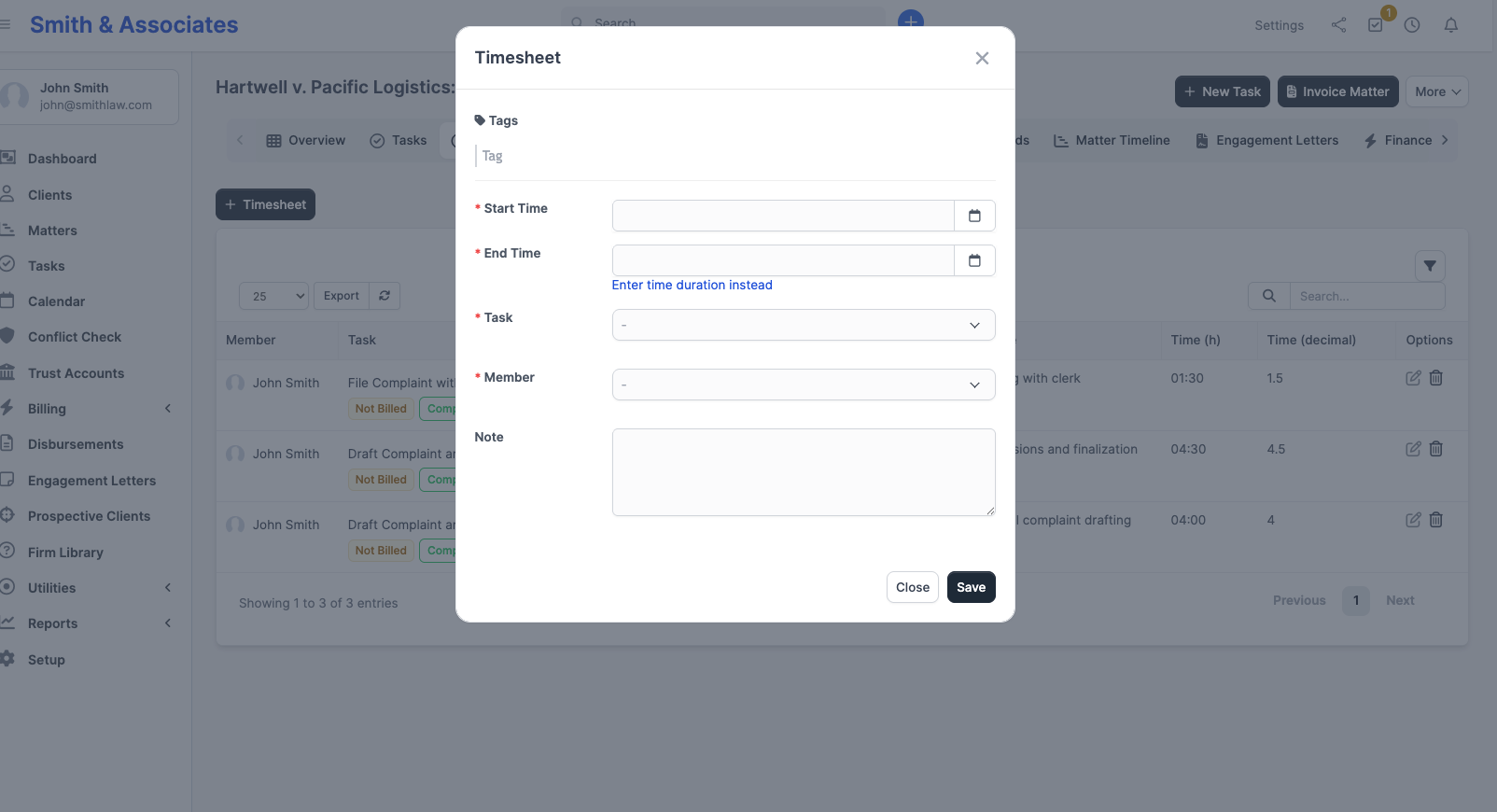
Click Save. The entry appears on the matter's Timesheets tab and on the linked task.
Note that the form has no billable toggle. Billable status is inherited from the task you pick.
Editing a time entry
Click the pencil icon next to any entry to change its start/end times, the linked task, the member, or the note. Only the person who logged the entry (or an admin) can edit it.
To change whether an entry is billable, edit the underlying task and tick or untick its Billable checkbox. The change applies to every entry on that task.
Deleting a time entry
Click the trash icon. Once deleted, the time is gone from reports and cannot be recovered. If the entry was already included on an invoice, deleting it does not change the invoice; invoices are independent once created.
Hourly rate
Each staff member can have an hourly rate set in their profile (Setup > Staff > [name] > Hourly Rate). When a time entry is created, CaseFlow captures the staff member's current rate and stores it on the entry. Multiplying hours by that captured rate gives the billable amount.
The rate is captured at the moment the entry is saved, so if you raise a staff member's rate later, existing entries keep their old rate; only new entries pick up the new one.
If a staff member has no hourly rate set, the entry stores zero; you will need to enter amounts manually when invoicing.
Non-billed time alerts
CaseFlow can notify you when billable time entries have not been invoiced after a certain period. If you see a notification about unbilled time, open the matter's Timesheets tab and use the Bill button to add those entries to a new or existing invoice.