
Recurring billing
Recurring billing charges a client's saved card automatically on a schedule. Firms that offer payment plans collect significantly more of what they bill, because a client who cannot pay $12,000 today can almost always pay $1,000 a month.
Plan requirement
Available on the Growth plan and above, and requires CaseFlow Payments to be set up (status Ready to accept payments).
There are two kinds of plan, managed from the same screen at Billing > Recurring Billing:
| Type | What it does | Ends |
|---|---|---|
| Invoice payment plan | Splits an existing unpaid invoice into automatic instalments. Each charge is recorded as a partial payment on that invoice | Automatically, when the invoice balance reaches zero |
| Recurring retainer | Charges a fixed amount each cycle and records a fresh paid invoice for every charge | When you cancel it |
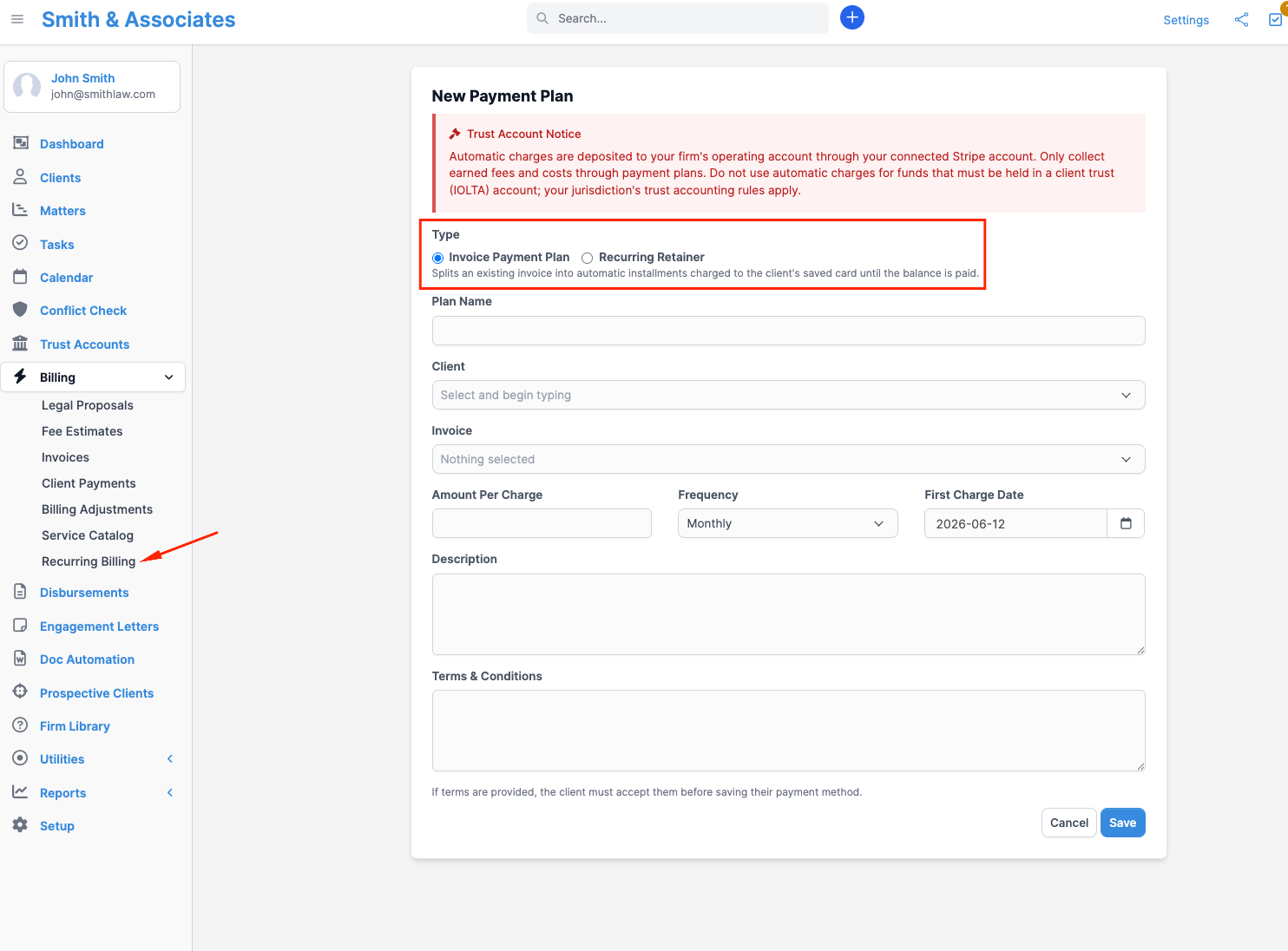
The client approves the plan once and saves their card on a secure Stripe page. After that, every charge is automatic: no client login, no chasing, no manual card entry. Your firm never sees or stores the card number.
Creating a plan
Go to Billing > Recurring Billing and click New Payment Plan (also available from the quick-create + menu).
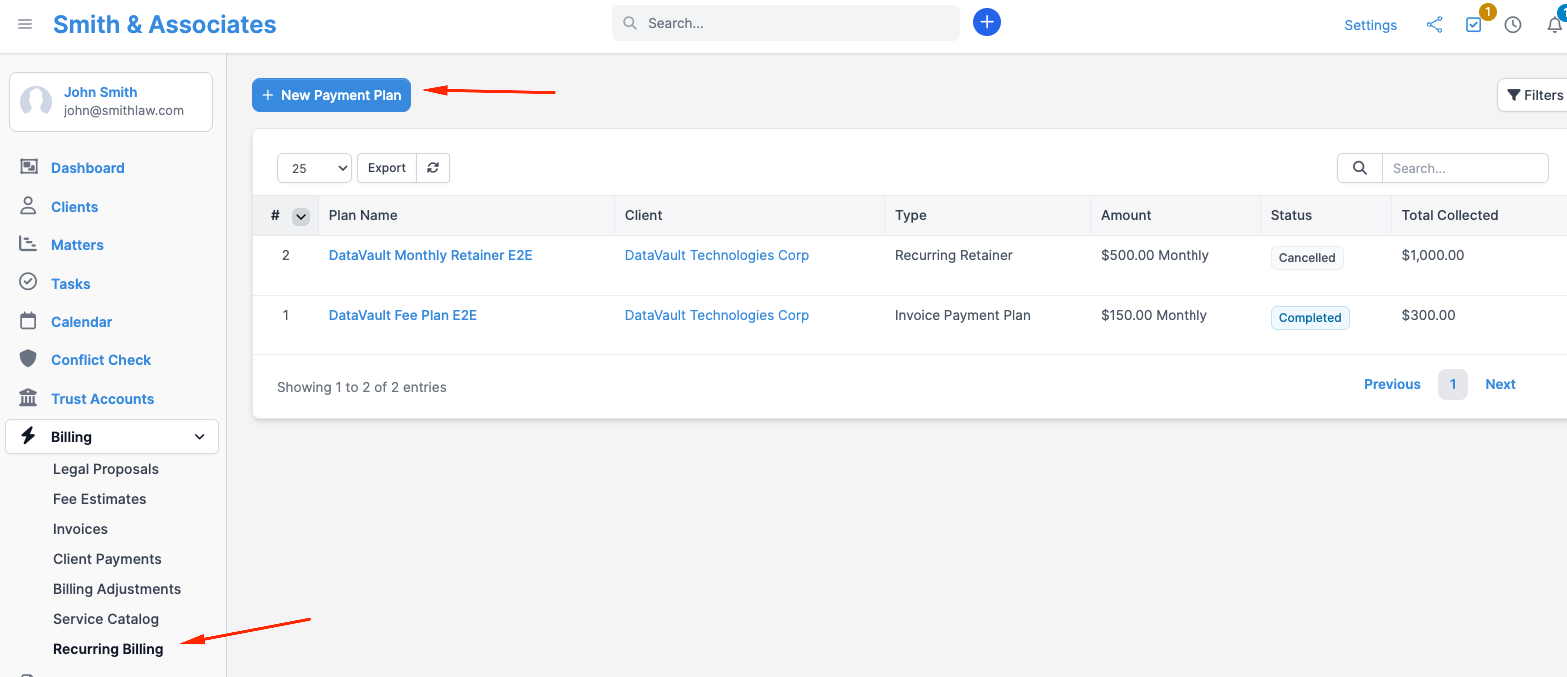
| Field | Notes |
|---|---|
| Type | Invoice payment plan or recurring retainer |
| Plan name | What the client sees on the review page and in emails (e.g. "Smith matter fee agreement") |
| Client | The client to charge. The proposal email goes to their primary contact |
| Invoice | Invoice plans only: pick from the client's unpaid invoices you can open; the remaining balance is shown next to each |
| Amount per charge | For invoice plans the final instalment clamps to the remaining balance automatically, so you do not need the amounts to divide evenly |
| Frequency | Weekly, every 2 weeks, or monthly |
| First charge date | When the first charge fires. Monthly plans then repeat on that day of the month (a plan anchored on the 31st bills Feb 28, then Mar 31) |
| Description | Shown to the client on the review page |
| Terms | Optional. If provided, the client must accept them before saving their card |
A live schedule preview shows the charge dates and amounts as you type. The new plan starts in Draft; nothing is sent or charged yet. 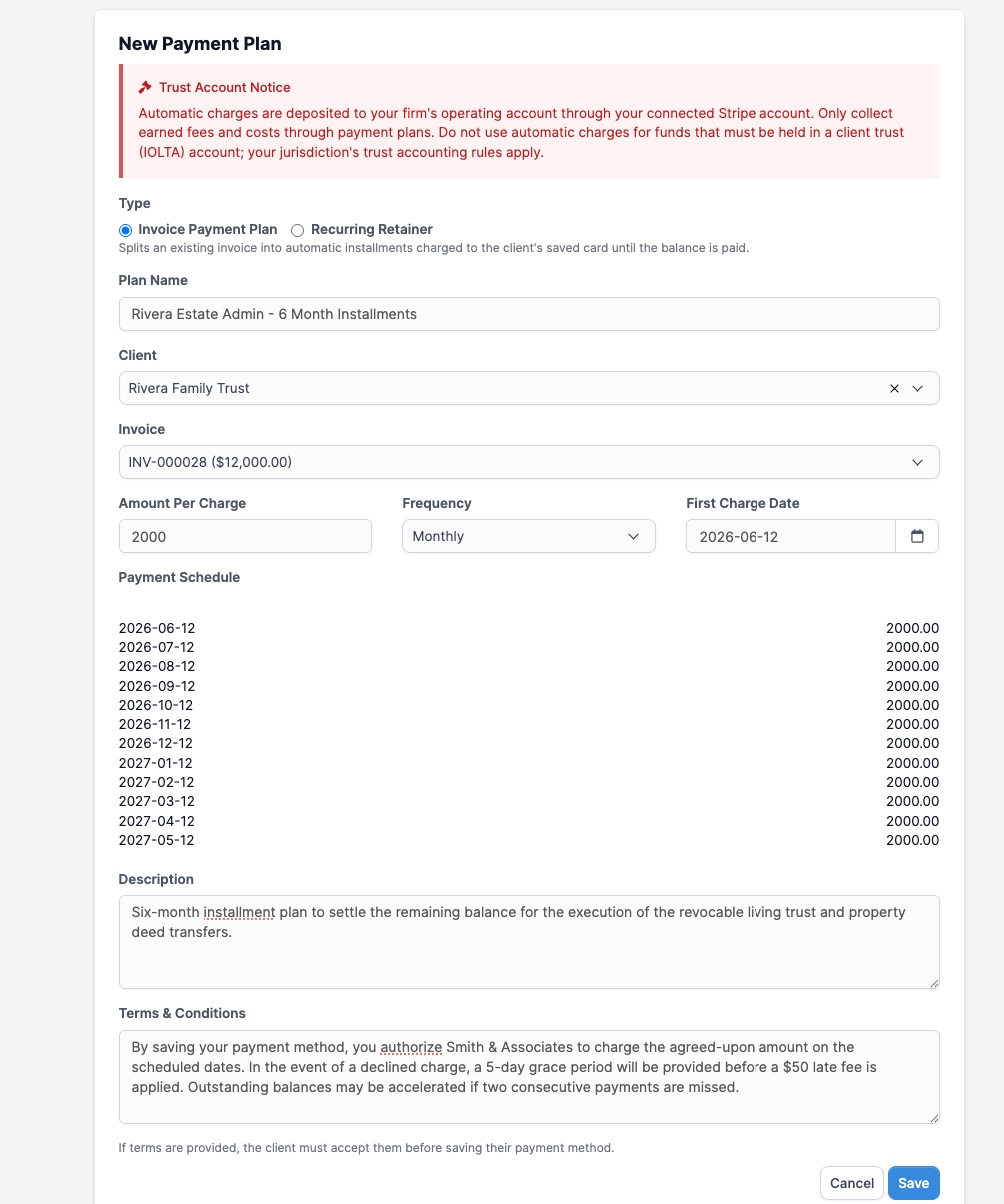
Sending the plan to the client
Open the plan and click Send to Client. CaseFlow emails the client's primary contact a proposal with a secure review link, and the plan moves to Awaiting Client Setup. You can also copy the client link from the plan page and send it yourself.
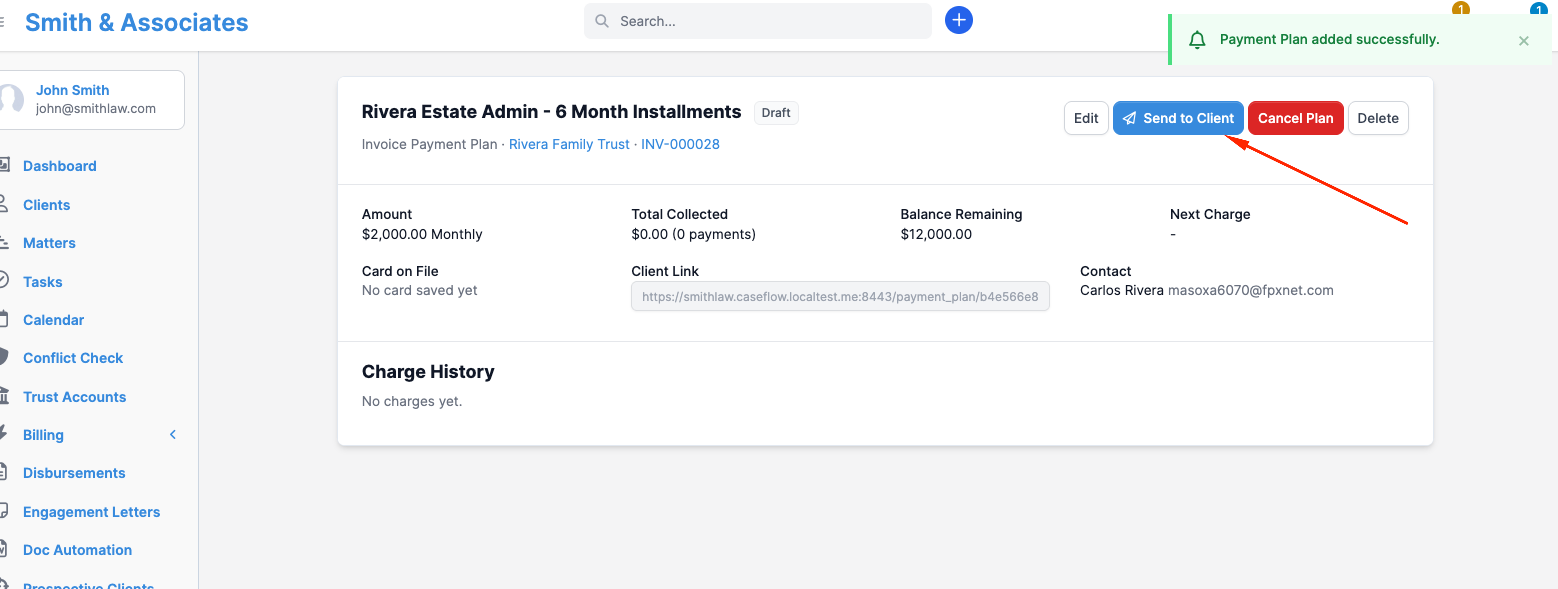
While a plan is in Draft or Awaiting Client Setup you can still edit it. Once the proposal is sent, the plan's type, client and invoice stay as they are, because that client already has the link; if you picked the wrong client, cancel the plan and create a new one. Once the client approves, the billing terms (amount, frequency, dates) are locked; to change them, cancel the plan and create a new one. 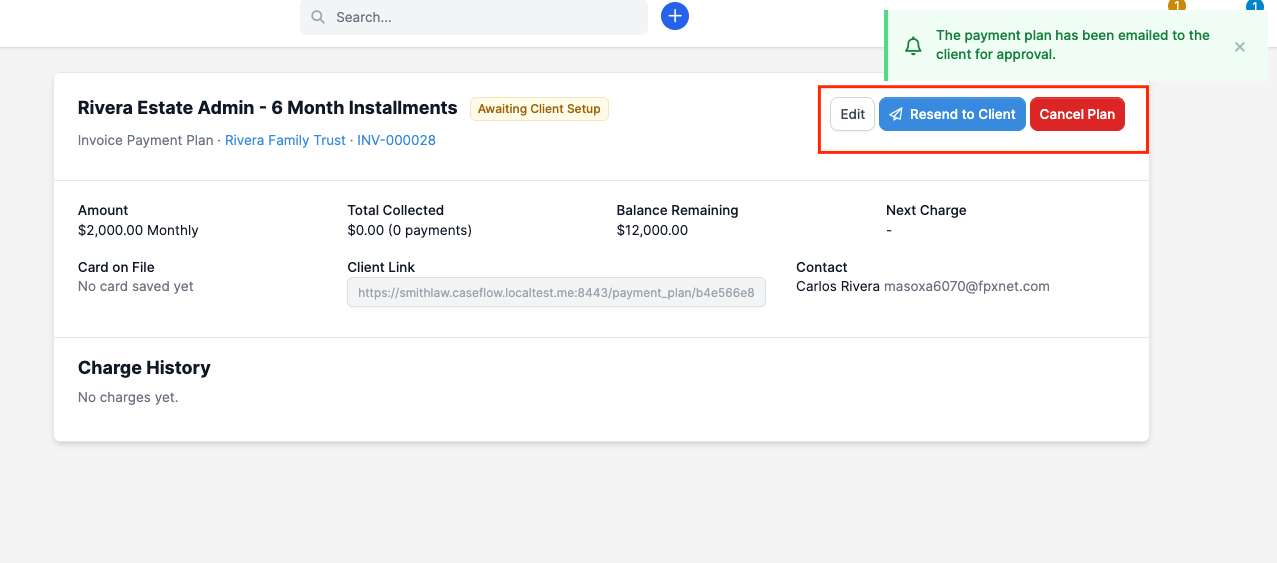
How the client approves
The client opens the link (no portal login needed) and sees the plan summary, the payment schedule, and your terms.
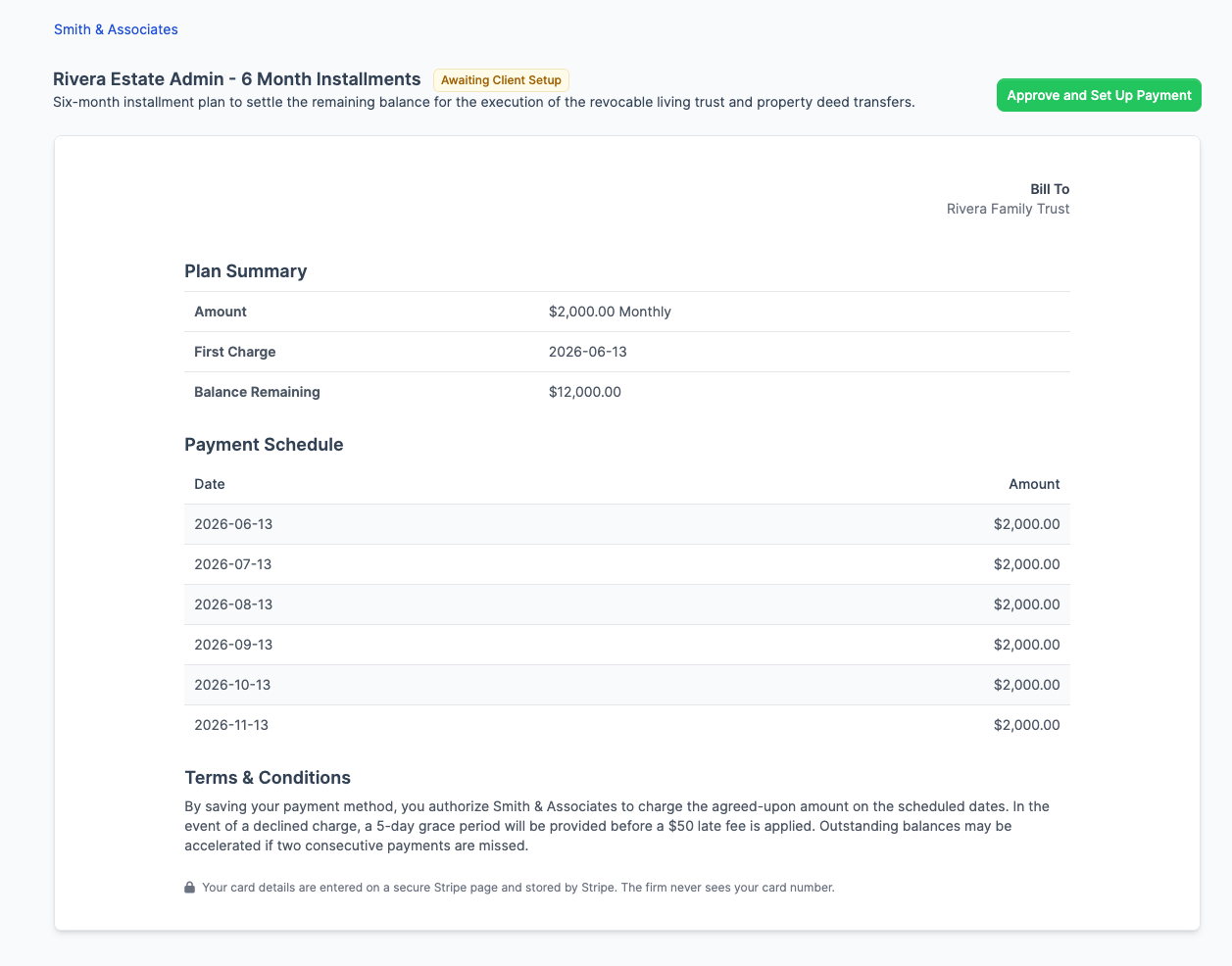
Clicking Approve and Set Up Payment takes them to a Stripe-hosted page to enter their card. 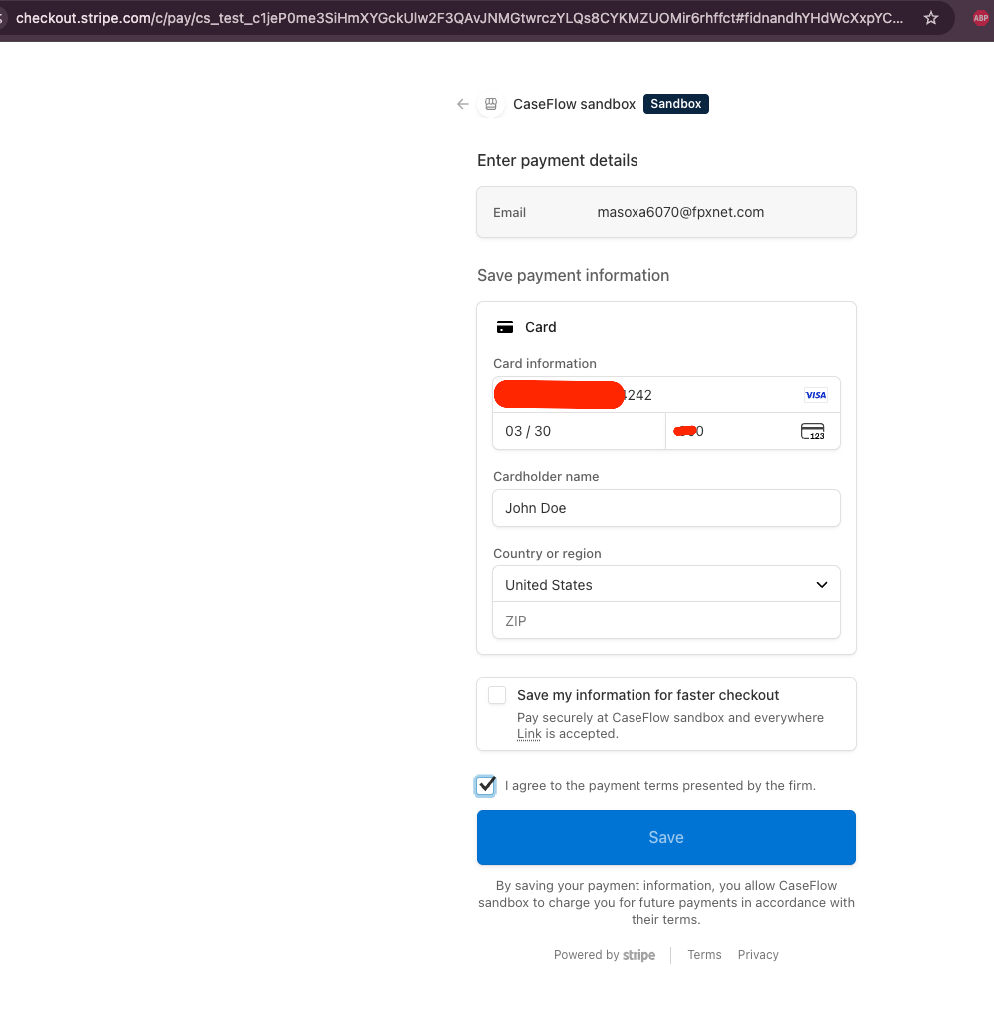
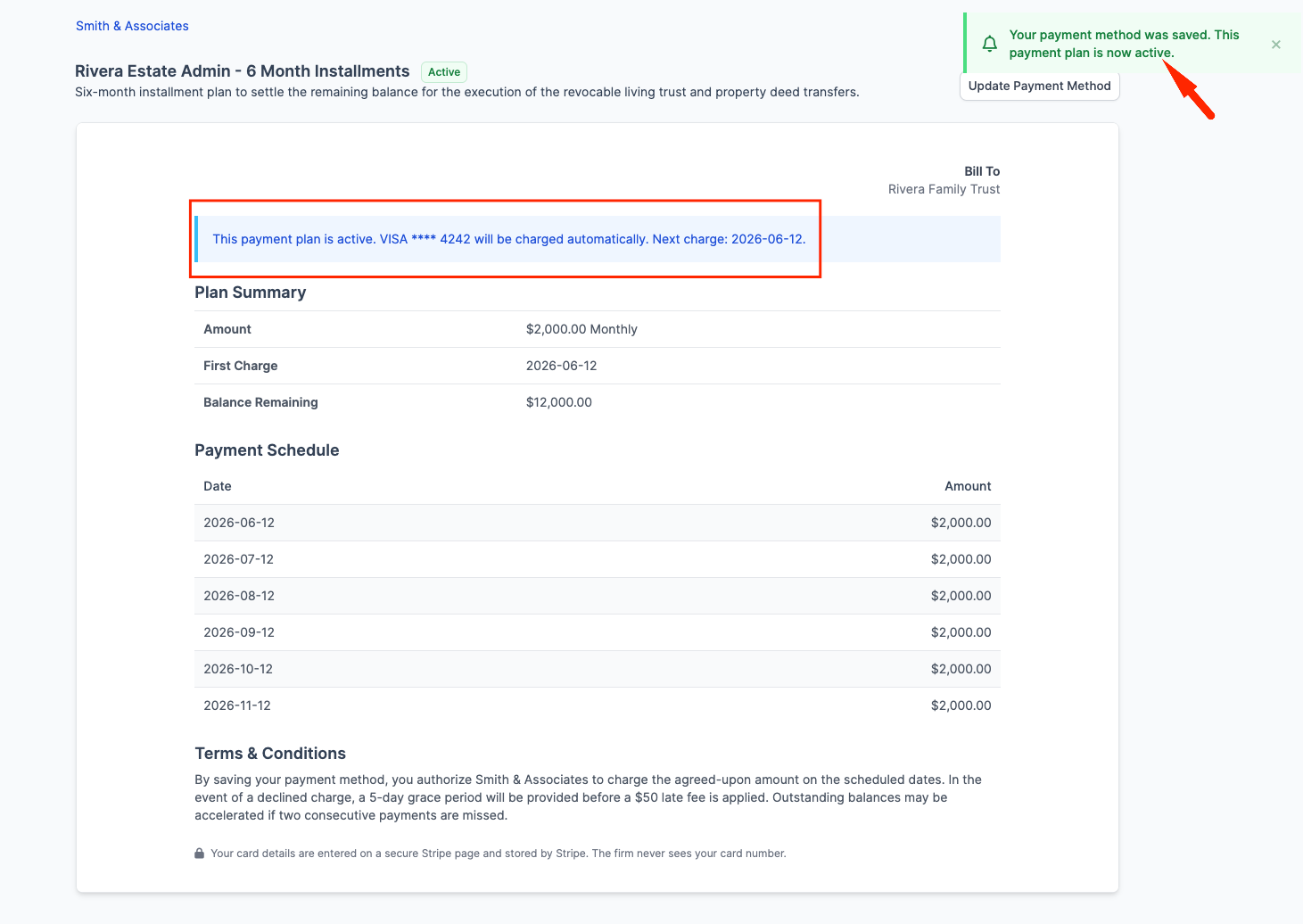
The card is stored by Stripe; CaseFlow and your firm only ever see the brand and last four digits. When the card is saved:
- The plan becomes Active
- The client gets a confirmation email with the schedule
- You get an activation email and an in-app notification
- The first charge fires on the first charge date (or immediately, if that date has already passed)
What happens on each charge
On the due day, CaseFlow charges the saved card automatically.
- Invoice plans record the charge as a partial payment on the linked invoice. When the balance reaches zero the plan completes itself. If you record a manual payment in the meantime (say the client mails a cheque), the next instalment shrinks to the remaining balance automatically, and the plan completes early once the invoice is paid off.
- Retainers create a new invoice for the cycle and record it as paid in the same step, so your revenue reports always reconcile.
Each successful charge sends the standard payment-received receipt to the client. The plan page shows the full charge history: dates, amounts, statuses, and links to the recorded payments. 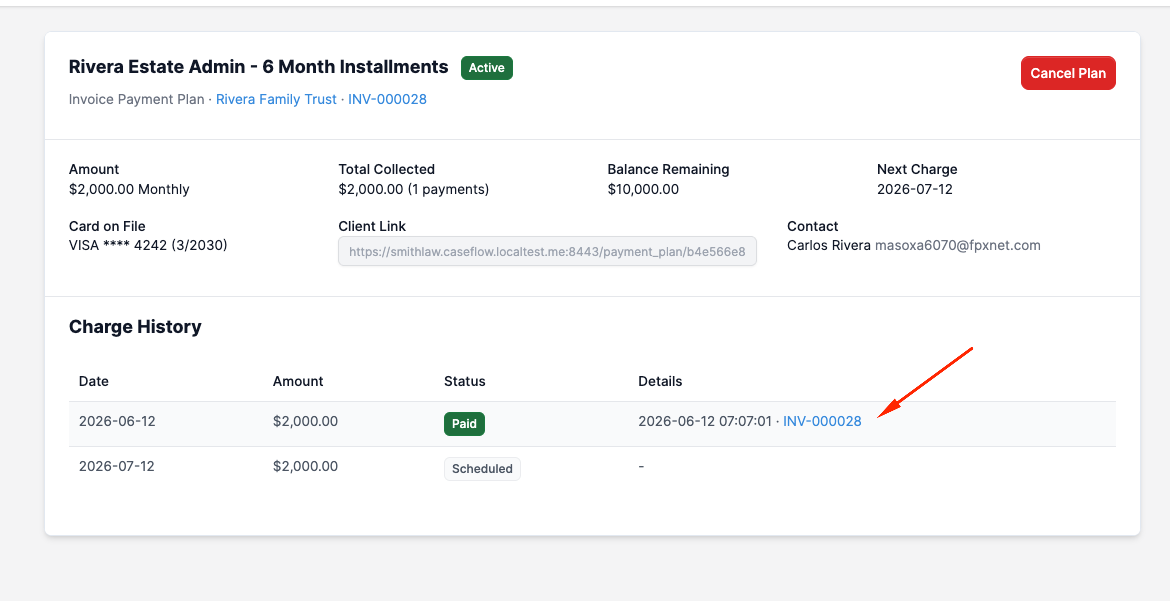
Failed charges and retries
If a charge is declined, CaseFlow retries automatically: once about 2 days later, and once more about 3 days after that. Each failure emails the client a secure link to update their card, and emails you the decline reason.
If the final retry also fails, the plan moves to Past Due and charging pauses. Nothing is cancelled: as soon as the client saves a working card through their link, the failed charge retries the same day and the plan returns to Active.
Expired or reissued cards usually never reach this point: the card networks push replacement card details to Stripe automatically, so routine card turnover does not interrupt a plan.
Plan statuses
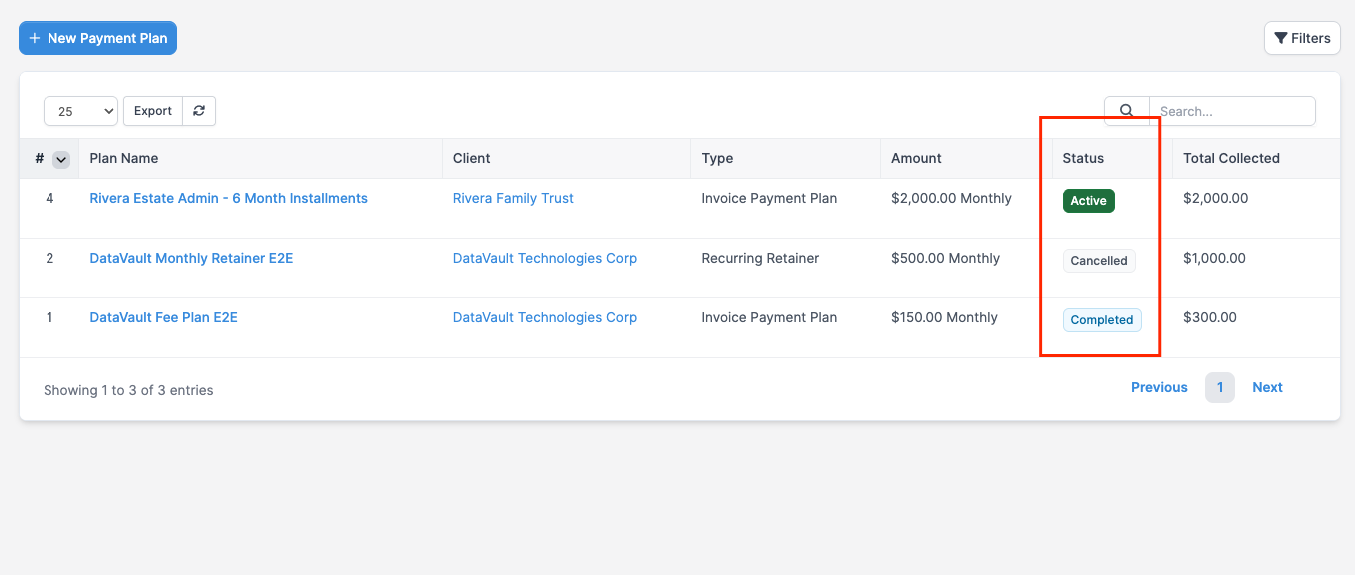
| Status | Meaning |
|---|---|
| Draft | Created but not yet sent; fully editable |
| Awaiting Client Setup | Proposal sent; waiting for the client to approve and save a card |
| Active | Card on file; charging on schedule |
| Past Due | All retries on a charge failed; paused until the client updates their card |
| Completed | Invoice paid off (invoice plans); no further charges |
| Cancelled | Stopped manually; no further charges |
Cancelling a plan
Open the plan and click Cancel Plan. You can record a cancellation note. All remaining scheduled charges are cancelled, and if the client had already approved the plan they receive a cancellation email. Cancelling never refunds past charges; for refunds see Refunding online payments.
A plan whose linked invoice is cancelled, or moved to another client, stops itself automatically, and the client's link to it no longer opens.
Fees
Each charge carries the same CaseFlow Payments fee as a one-off invoice payment: 3.4% + $0.30 per successful charge, deducted before payout. Failed attempts cost nothing.
Trust account compliance
Automatic charges are deposited to your operating account through CaseFlow Payments. Only collect earned fees and costs through recurring billing. Do not use automatic charges for funds that must be held in a client trust (IOLTA) account; your jurisdiction's trust accounting rules apply. The plan creation form carries this same notice.
Recurring billing vs. recurring invoices
Recurring invoices generate a fresh invoice on a timer but do not collect money; the client still has to pay each one. Recurring billing collects the money itself from a saved card. Use recurring billing when you want the payment to just happen; use recurring invoices when the client pays manually or offline each cycle.