
Email templates
CaseFlow sends emails for invoices, payment reminders, contract notifications, proposals, and other events. Each email uses a template that you can customise.
Accessing templates
Go to Setup > Email Templates. You see a list of all templates grouped by category:
- Client emails
- Invoice emails
- Client Payment emails
- Engagement Letters emails
- Legal Proposals emails
- Fee Estimate emails
- Task emails
- Prospective Clients emails
- Team Member emails
There are 87 templates in total. Each one has a name describing when it is sent (e.g. "Invoice Sent to Client", "Payment Receipt", "Contract Expiry Reminder").
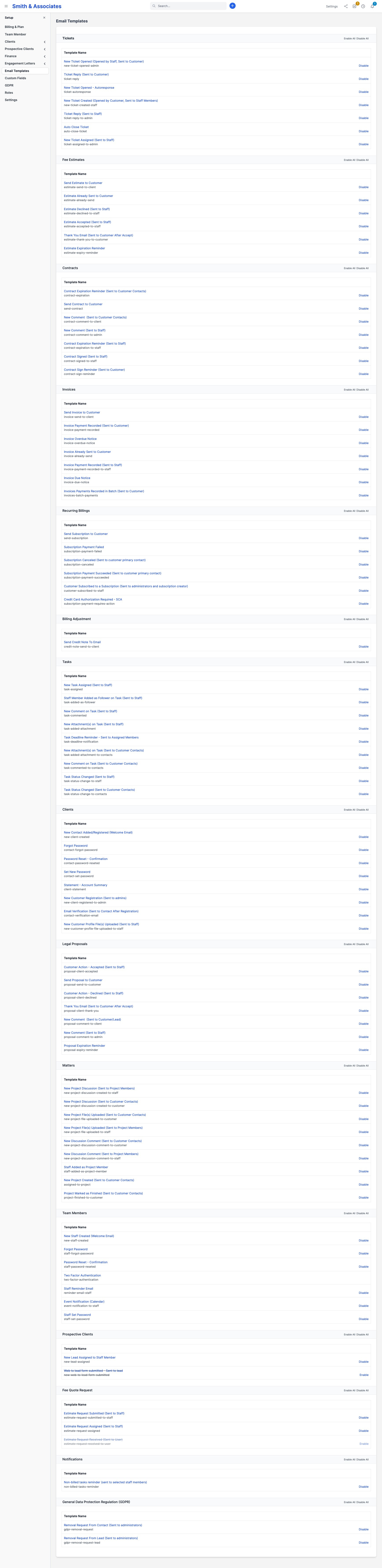
Editing a template
Click any template to open the editor. You see:
- Subject: The email subject line
- Body: The email content (rich text editor with HTML support)
- Enabled: Toggle to disable a specific email entirely
Merge fields
Templates use merge fields that get replaced with actual data when the email is sent. Common ones:
| Field | Replaced with |
|---|---|
{client_company} | Client's company name |
{contact_firstname} | Contact's first name |
{invoice_number} | Invoice number |
{invoice_amount} | Invoice total |
{invoice_due_date} | Invoice due date |
{invoice_link} | URL where client can view/pay the invoice |
{contract_subject} | Contract title |
{proposal_subject} | Proposal title |
{staff_name} | Staff member's name |
Each template shows its available merge fields in a panel to the right of the editor. Click a field to insert it at your cursor position.
Customising content
You can change anything in the template: the subject line, the greeting, the body text, the sign-off. Just keep the merge fields intact so the correct data gets inserted.
Example edit: changing "Dear {contact_firstname}" to "Hi {contact_firstname}" for a less formal tone.
Disabling emails
If you do not want a specific email to be sent (e.g. you do not want automatic payment receipt emails), open the template and toggle Enabled off. The system skips sending that email.
The confidentiality disclaimer
CaseFlow appends a legal confidentiality disclaimer to every outgoing email, after your custom footer. The text is controlled by the Confidentiality disclaimer field on the Setup > Settings > Email tab. Edit it to match your jurisdiction, or clear the field to suppress the disclaimer entirely. You cannot vary it per individual template.
Email header and footer
For content that should appear on every email (like your firm logo or a standard sign-off), go to Setup > Settings > Email and set the header/footer HTML. These wrap around all template content.
Previewing
After editing a template, click Preview to see how it looks with sample data filled in. This helps catch formatting issues before a real email goes out.
Resetting to default
If you have made changes and want to go back to the original template, click Reset to Default on the template editor. This overwrites your customisations with CaseFlow's original version.