
Sending and tracking proposals
Sending a proposal
Open the proposal and click the envelope icon in the top toolbar (tooltip: Send to Email). 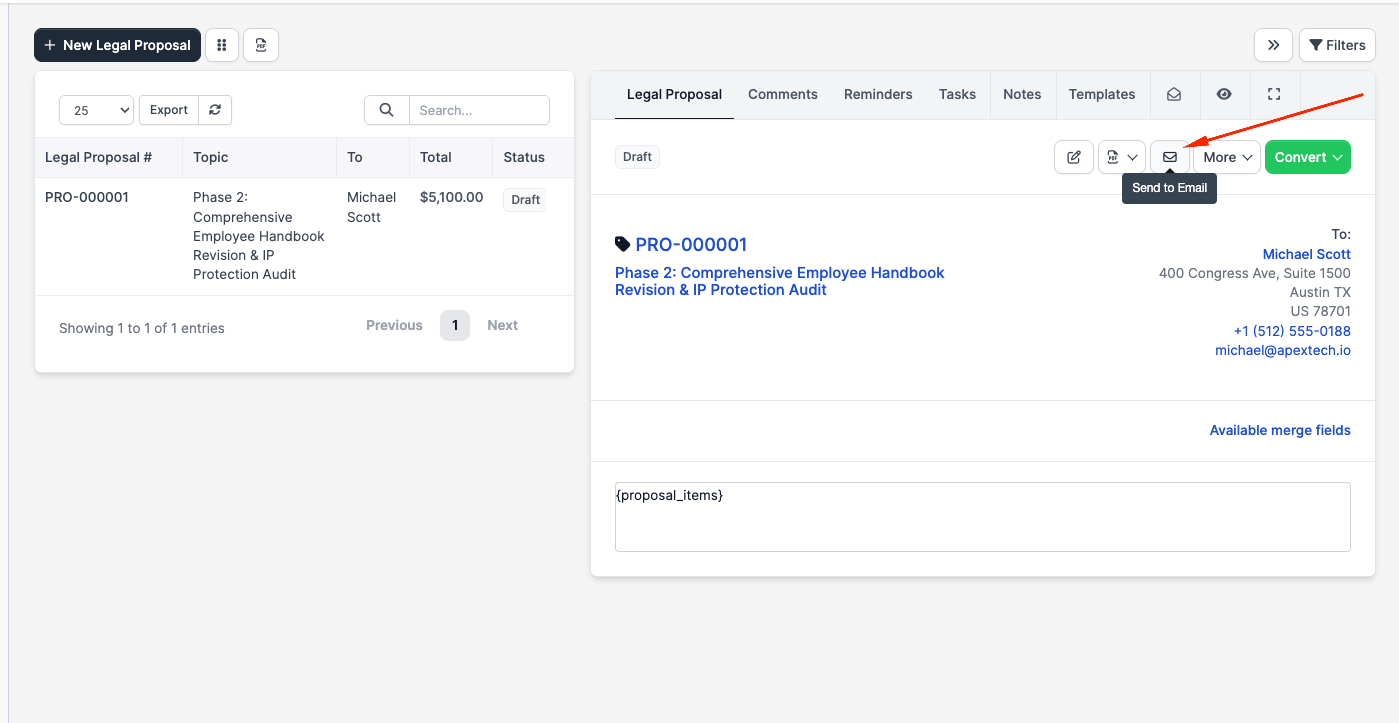
A modal opens with:
- Attach PDF checkbox — sends a PDF copy of the proposal as an email attachment. On by default.
- CC field — extra email addresses to copy on the message.
- The email body — pre-rendered from the firm's Proposal Send to Customer email template, with merge fields already resolved. Edit the body inline if you want to add a personal note for this send.
- Include attachments to email — if the proposal has file attachments marked visible to the customer, you can opt in here to attach them as well.
The recipient is the Email field on the proposal itself (not the client's primary contact). When you pick a client or lead on the proposal form, CaseFlow auto-fills that email; edit it on the proposal if you need a different recipient.
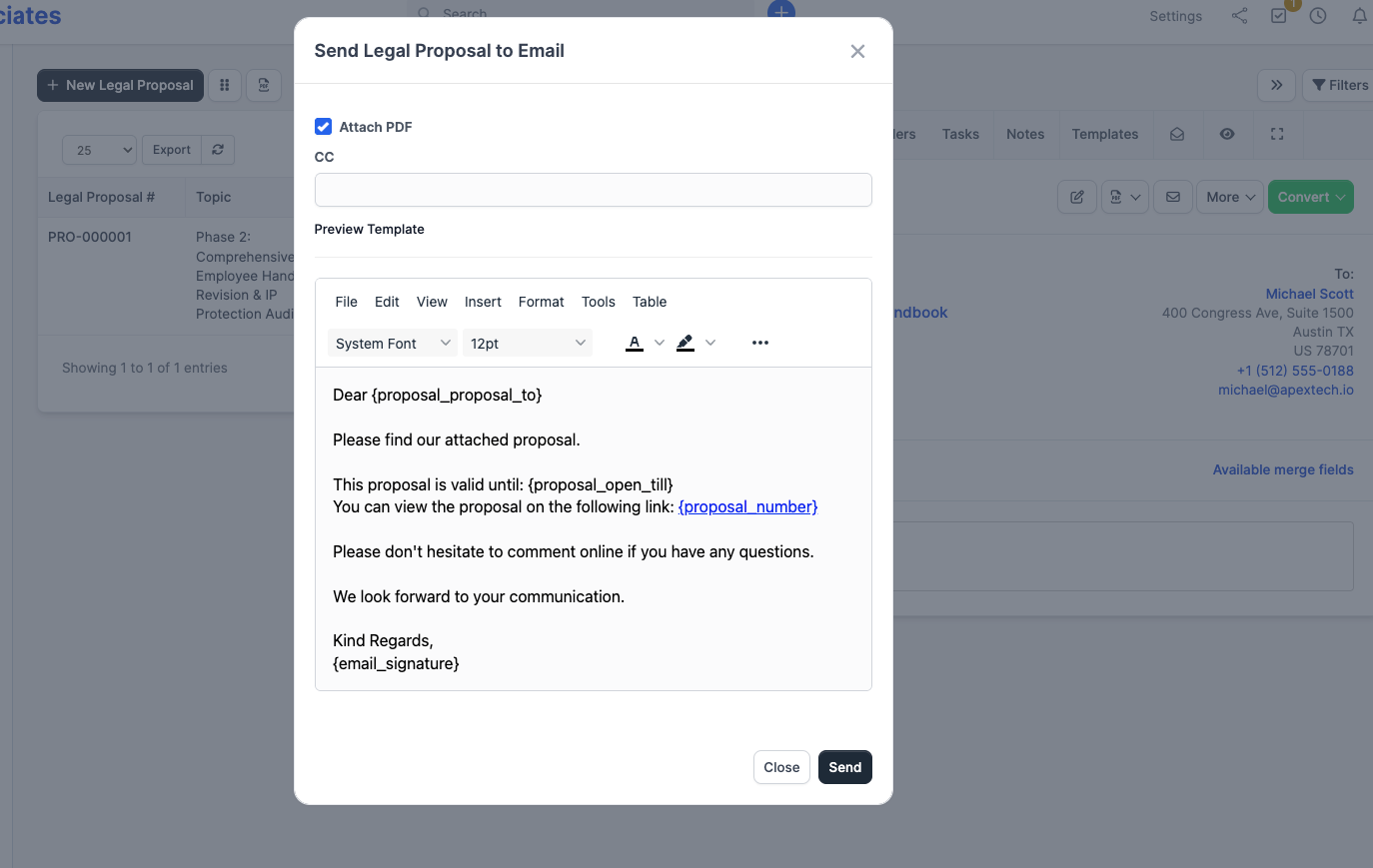
Click Send. The recipient gets the email, the proposal status flips from Draft to Sent, and the activity log records the send.
The email subject comes from the email template, not from the modal. To change it permanently, edit the Proposal Send to Customer template under Setup > Email Templates.
You can resend at any time — the same envelope icon opens the modal again. The status stays at Sent (or whatever it currently is). Resending does not flip the status to Revised; that's a manual marker you can apply via More > Mark as Revised.
What the recipient sees
The link goes to /proposal/{id}/{hash} — a public web view. No login required. The page shows:
- Your firm name, logo, and contact details
- The proposal content (your engagement terms, including any line items rendered from
{proposal_items}) - A summary panel with status, date, Open till, and currency-formatted total
- File attachments you marked visible to the customer
- Two action buttons in the toolbar: Accept and Decline
- A Comments tab if you turned on Allow Comments on the proposal
- A Download button for the PDF
If your firm has the Growth plan or above and the Accept Identity Confirmation and Signature setting is on (Setup > Settings > E-Sign), Accept opens an identity-confirmation form: first name, last name, and a drawn signature. The signature, name, IP, and date are saved permanently with the proposal.
On the Solo plan the e-signature form is hidden even if the setting is on — Accept goes through with a single click and no signature is recorded.
Status changes on accept / decline
| Action | Result |
|---|---|
| Recipient clicks Accept | Status becomes Accepted. Notification emails go to the assigned staff member and the proposal creator. A thank-you email goes to the customer. The signature (if collected) is stored. If the Auto convert the legal proposal to invoice after client accept firm setting is on (and the proposal is for a client, not a lead), an invoice is created automatically and the recipient is redirected straight to it. |
| Recipient clicks Decline | Status becomes Declined. Notification emails go to the assigned staff member and the proposal creator. There is no "decline reason" prompt — the recipient just clicks once. |
After accept or decline, the toolbar buttons disappear from the public view and a status label appears in their place. The recipient can still download the PDF and read the proposal, and can still post comments if Allow Comments is on.
What "tracking" actually shows
CaseFlow records every view of the public page for analytics, but viewing does not change the proposal status. The status changes only on accept or decline.
If you need to know whether the recipient has opened the email or page, check the proposal's activity feed — it logs status changes, comments, and key actions. Open-tracking pixels in the email body are not used.
Comments
If you ticked Allow Comments when creating the proposal, the public view shows a Discussion tab where the recipient can post comments (e.g. "Can we adjust the hourly rate?"). Each comment notifies the assigned staff member by email. You can reply from the proposal page in the admin — the recipient gets an email back. Allow Comments can be toggled on or off at any time.
Editing and resending
You can edit a Sent proposal up until it is converted to an invoice or fee estimate. Open the proposal, make changes, save, and click the envelope icon to resend. The status stays at Sent.
Once a proposal has been converted (a fee estimate or invoice has been generated from it), the Status field is locked.
Expiry
Set Open Till when you create the proposal — the field defaults to today plus the firm-wide Proposal due after (days) setting on the Legal Proposals settings page.
When today's date is after Open Till and the proposal has not been accepted or declined, the public view shows an "Expired" label and hides the Accept/Decline buttons. The status itself does not change — there is no "Expired" state.
To re-open an expired proposal, edit it and either:
- Push out the Open Till date and resend, or
- Use More > Mark as Open — CaseFlow notices the past Open Till and automatically extends it by 7 days from today.
If the firm has an expiry-reminder email template enabled, a Send Expiry Reminder option appears in the More menu while the proposal is still within the Open Till window.
Converting an accepted (or any) proposal
The green Convert button next to More lets you turn a proposal into:
- Fee Estimate — for further negotiation or to follow your firm's two-stage workflow
- Invoice — to bill immediately
You don't have to wait for acceptance to convert; the button is available on any proposal that hasn't already been converted. Conversion is one-way per proposal — once converted, the Convert button is replaced with a link to the new estimate or invoice.
Converting carries over: line items (description, long description, qty, rate, unit, taxes), discount, currency, billing address, custom fields with matching slugs on the target, and the assigned staff member.
Converting a proposal does not create a matter automatically. If you want a matter for the engagement, create one separately and link the resulting invoice (or proposal, via the Matter field) to it.
A signature, if one was collected on acceptance, stays on the proposal record permanently. To clear it, an admin can use More > Clear Signature.