
Contacts and notes
Each client can have multiple contacts (the actual people you deal with) and internal notes that only your team can see.
Contacts
Adding a contact
Open a client's profile and click the Contacts tab, then New Contact.
Basic fields
| Field | Purpose |
|---|---|
| Profile image | Optional photo shown on the contact's profile |
| First Name | Required |
| Last Name | Required |
| Title | Their role at the client (e.g. "CEO", "In-house Counsel", "Estate Executor") |
| Required; used for correspondence and portal login | |
| Phone | Contact number, with a country-calling-code prefix |
| Text Direction | LTR or RTL, for names written in right-to-left scripts. Defaults to "System Default". |
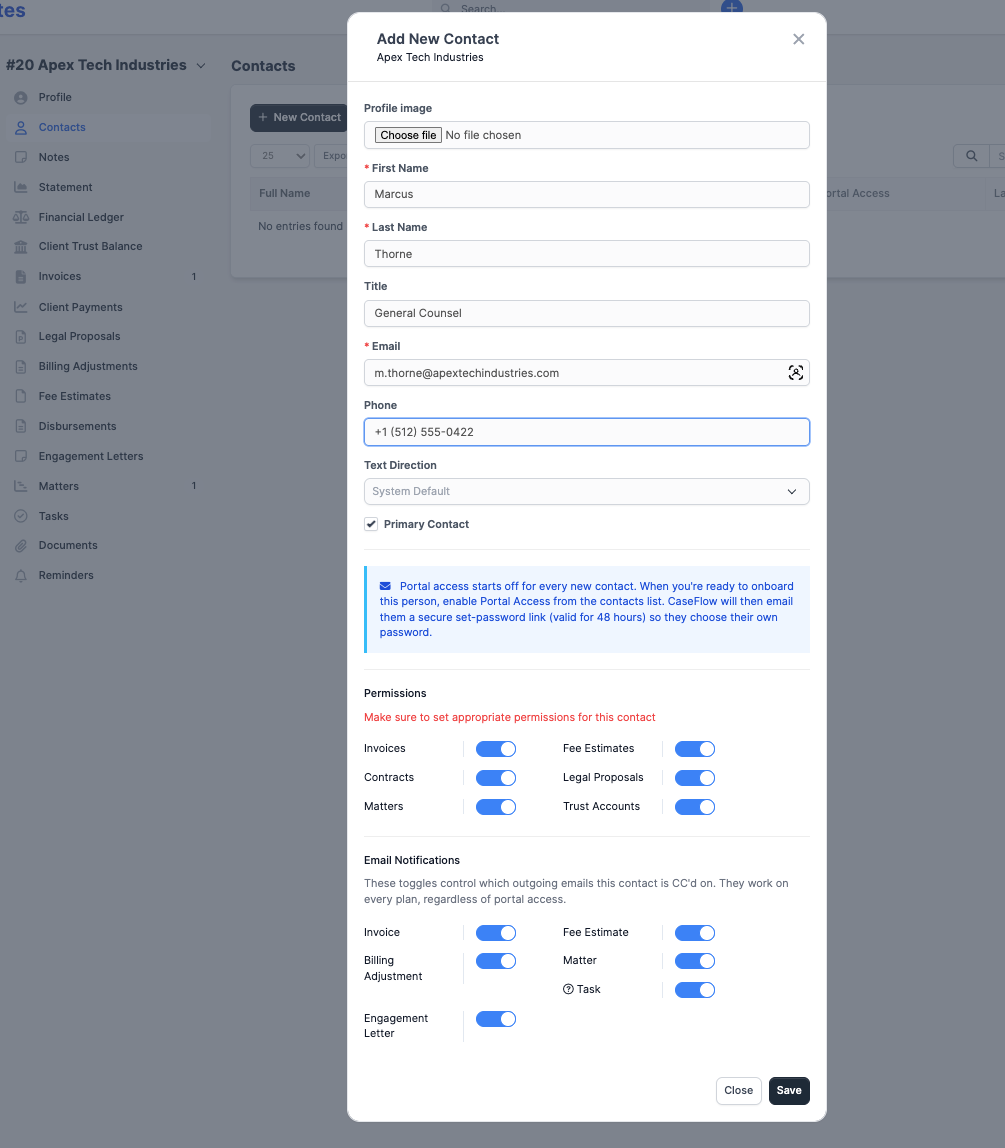
Primary contact
Tick Primary Contact to mark this person as the main contact for the client. The primary contact appears as the default name on the client list and is used as the default recipient when sending correspondence. Only one contact per client can be primary; marking a new contact as primary removes the flag from the previous one.
Passwords: why there is no password field
CaseFlow never asks you to type another person's password. When you save a new contact (on the Growth plan or higher), CaseFlow automatically emails them a secure "set your password" link. The contact clicks it, chooses their own password, and only they ever know it.
This matches standard practice in legal and financial software: your firm should not hold a copy of a client's portal password.
The link is valid for 48 hours. If it expires before the contact uses it, send them a new one from the contact record or ask them to use the "Forgot password" link on the sign-in page.
Permissions (Growth plan and above)
The Permissions section controls what the contact sees when they sign in to the client portal:
| Toggle | Gives the contact access to |
|---|---|
| Invoices | View and pay invoices issued to this client |
| Fee Estimates | Review and accept/decline estimates |
| Contracts | Review and e-sign contracts |
| Legal Proposals | Review and accept/decline engagement letters |
| Matters | View matter details shared with the client |
| Trust Accounts | View their trust ledger |
Permissions are stored per-contact, so you can have (for example) a CFO who sees invoices and trust, alongside a PA who sees only matter updates.
Plan requirement
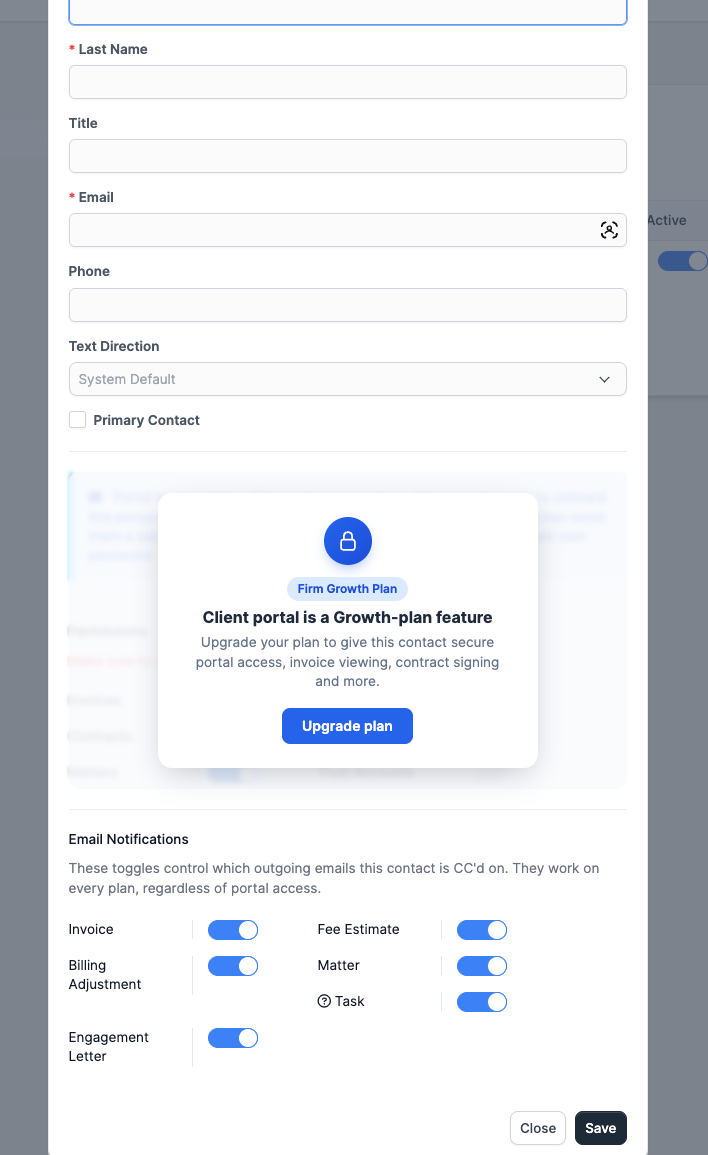
On Solo Practitioner plans, this section appears blurred out with a lock and an Upgrade plan link. The client portal is a Growth-plan feature. Upgrade to unlock portal access, e-signatures, and online invoice payments for your clients.
Email Notifications
The Email Notifications section controls which automatic transactional emails include this contact as a recipient:
| Toggle | Includes the contact on |
|---|---|
| Invoice | Invoice issued, payment received, reminders |
| Fee Estimate | Estimate issued, approval reminders |
| Billing Adjustment | Billing adjustment issued |
| Engagement Letter | Contract sent, signature reminders |
| Matter | Matter status changes |
| Task | Task assignments and updates for tasks visible to the client |
These toggles work on every plan, regardless of portal access. They control who gets CC'd on outgoing mail. A contact with only Invoice ticked is effectively your billing contact; one with Engagement Letter ticked handles contracts.
Editing an existing contact
Click a contact's name to edit. On the edit form you can:
- Toggle Portal Access on or off (Growth plan and above).
- Send a password email to the contact (see below).
- Change any of the permissions or email notification toggles at any time.
To delete a contact, click the trash icon. Deleting a contact does not delete any invoices or emails that were sent to them; those records stay in the system.
Sending a password email
When Portal Access is enabled, a password button appears below the toggle. The button label changes based on whether the contact has set a password yet:
- Resend set-password email: Shown when the contact has not yet chosen a password (the original onboarding link expired or was never used). Sends a fresh 48-hour set-password link.
- Send password-reset email: Shown when the contact has already set a password. Sends a reset link they can use to choose a new one. Use this when the contact is locked out and cannot use the forgot-password form themselves.
Below the button, a Set a password manually (not recommended) disclosure collapses the manual password field. Use the email flow whenever possible. Typing a password for someone else means you know their password, which violates the principle that the firm should not hold a copy of a client's portal password.
Managing portal access after creation
Portal Access starts off for every new contact. Enable it on a per-contact basis when you are ready to onboard that person.
How the onboarding email works
The first time you turn Portal Access on for a contact who has never set a password, CaseFlow automatically emails them a secure "set your password" link (valid 48 hours). They click the link, choose their own password, and can sign in from then on.
Later off/on toggles don't re-send the email. The contact's existing password stays valid.
Enabling portal access
Two ways:
- From the contact list grid: flip the Portal Access toggle next to the contact. On Solo plans this opens an upgrade modal explaining the feature requires the Growth plan.
- From the contact edit form: open the contact and toggle Portal Access on, then click Save.
Resending the set-password email
If the original link expired before the contact used it, open the contact's edit form and click the Resend set-password email button (described in the previous section). The new link is valid for another 48 hours.
Once the contact chooses their own password, the Resend set-password email button switches to Send password-reset email automatically.
Notes
Adding a note
On the client's profile, click the Notes tab, then New Note.
Type your note in the text area. Notes support basic formatting (bold, italic, bullet lists). Click Save.
Who can see notes
Notes are internal only. Clients never see them, even if they have portal access. All staff at your firm with access to the client record can read and edit notes.
Pinning a note
If you have a note that everyone should see first (e.g. "Always CC the general counsel on correspondence"), click the pin icon next to it. Pinned notes appear at the top of the list.