
Converting to a client
When a prospective client becomes a real client, you convert them. CaseFlow creates a client record and a primary contact populated from the prospective client's details. A built-in conflict check runs automatically before you submit.
Plan requirement
Prospective Clients is a Multi-Practice plan feature.
How to convert
- Open the prospective client from the List or the Kanban board.
- Click Convert to client at the top of the profile.
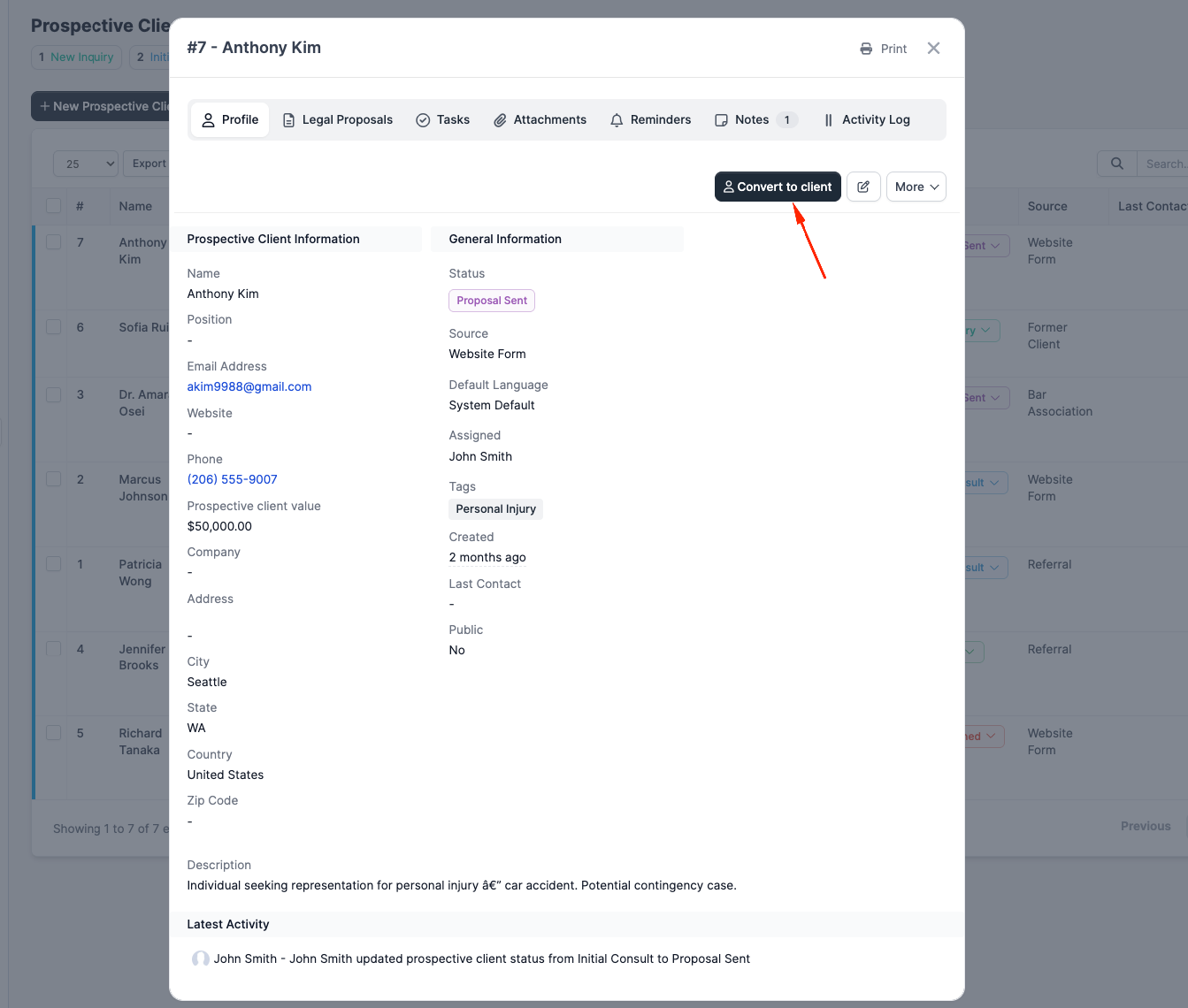
- A modal opens with the pre-filled client details.
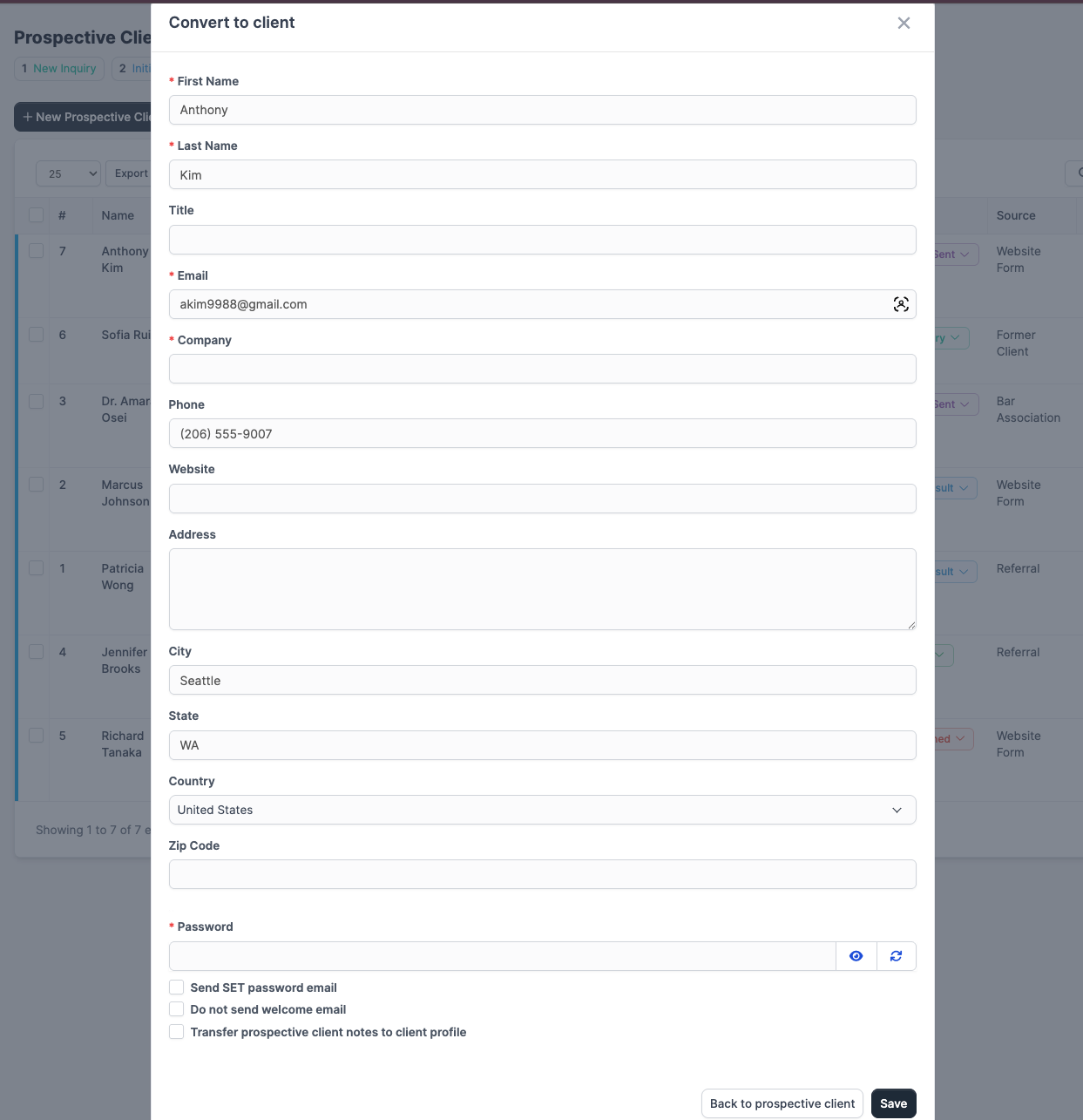
The modal pre-fills the following from the prospective client record (you can edit any of them):
- First Name and Last Name (split from the lead Name on the first space)
- Title
- Company
- Phone
- Website
- Address, City, State, Country, Zip
- Default language (passed through hidden)
You can also tick:
- Send set-password email - if the contact-set-password template is active, the new contact receives a link to set their own password.
- Do not send welcome email - suppress the standard welcome email.
- Transfer notes - copy notes from the prospective client onto the new client.
- Transfer consent - copy GDPR consent records (only shown when GDPR consent for contacts is enabled).
If the prospective client has custom fields with values, the modal asks per field where to copy them: as a custom field on the client or contact, into one of the standard client/contact fields, or skip.
Automatic conflict check
As soon as you blur away from the First Name, Last Name, or Company fields, CaseFlow queries the firm-wide conflict engine and shows the result inline:
- Clear - a green panel; you can submit.
- High risk / Review required / Informational - a red panel listing each match with risk level, relevance score, name, and relationship to your firm. Submission is blocked.
If you are an admin, an Admin override button appears on a blocked result. Clicking it lets the submission proceed and is recorded against the conversion.
The conflict check is the only conflict-check entry point on a prospective client. There is no separate "Run Conflict Check" button elsewhere on the record.
What happens on submit
- A new client record is created with the address and contact fields above.
- A primary contact is created with the first name, last name, title, email, phone, and (optional) password.
- If the welcome email was not suppressed, the contact receives it.
- Optional notes / consent / custom field copies happen.
- The prospective client's status is set to Customer (the seeded default-conversion status), the conversion date is stamped, and any Lost or Junk flags are cleared.
- The activity log records the conversion (and, if the email was changed during conversion, both the old and new addresses).
- You are redirected to the new client's profile.
The Prospective Client record stays in the system for historical tracking and is linked to the new client. If the firm has the GDPR option Delete prospective client after conversion enabled, the prospective client is deleted instead and any proposals attached to it are reassigned to the new client.
After conversion: read-only behaviour
By default, the firm setting Do not allow prospective clients to be edited after they are converted is on for non-admins. Admins can still edit a converted prospective client; everyone else sees the profile but its fields are disabled.
Converting without a matter
CaseFlow does not create a matter as part of conversion. The convert dialog has no "Create a matter" option. After you land on the new client's profile, open the Matters tab to add one.
Leads that do not convert
For prospective clients you decide not to take on, use the More menu on the profile:
- Mark as lost - keeps them in the system but flags them Lost. Add a note explaining why for your own reporting.
- Mark as junk - hides them from the pipeline.
Both actions are reversible.
Duplicate clients
CaseFlow does not auto-block conversion when a client with the same name already exists; the conflict check surfaces the existing record as a match but you can still submit (or admin-override). If the prospective client's email matches an existing contact, the convert button tooltip warns you ("Prospective client email already exists in clients data"). Check the matches in the conflict panel before submitting.