
Time reports
Timesheets overview
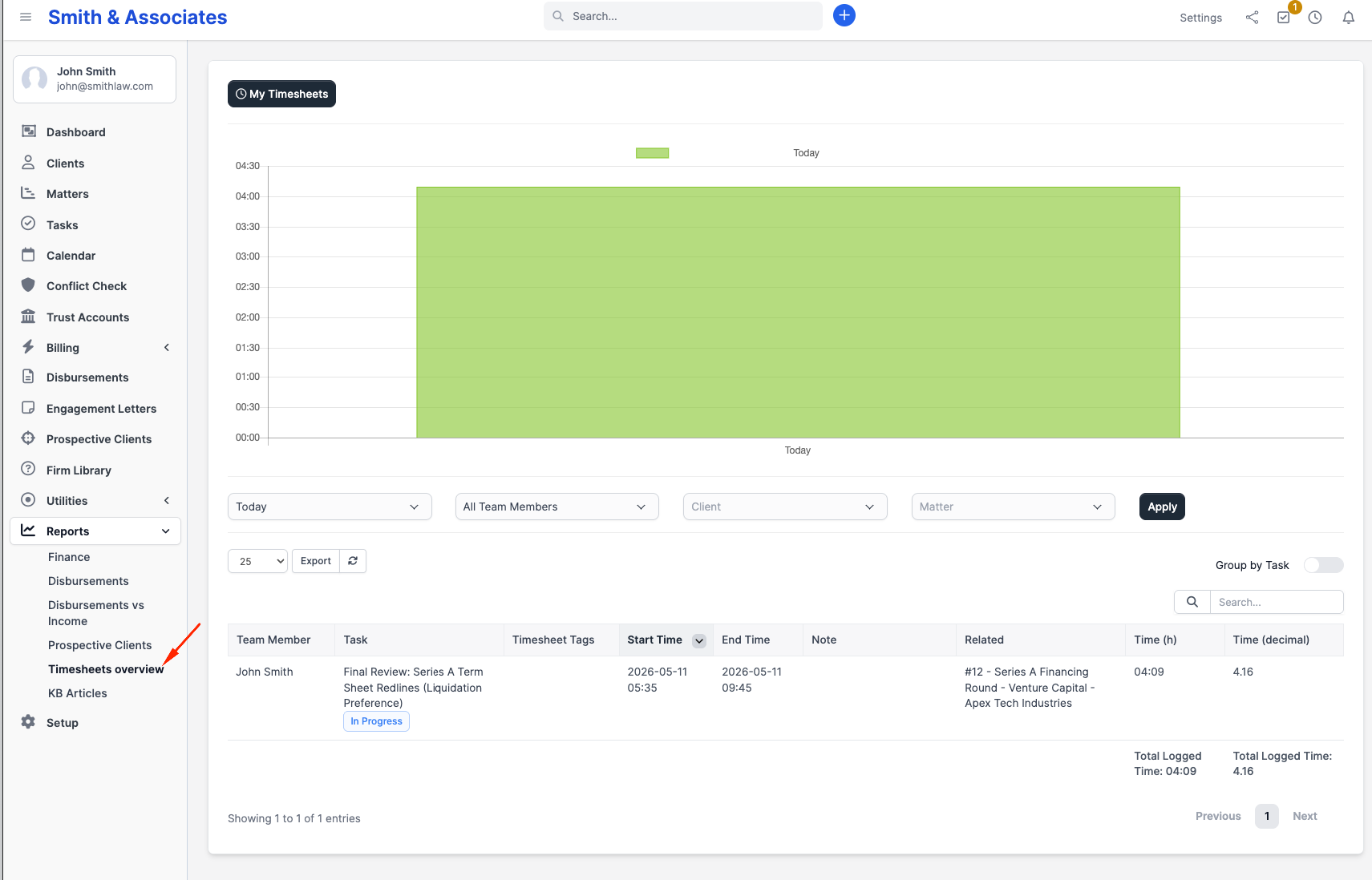
Go to Reports > Timesheets overview. The page shows time entries logged via task timers across the firm.
By default the page shows only your own time entries. To see every staff member's entries you need the View timesheets report capability; with that capability, click View team timesheets at the top of the page to switch to the firm-wide view. A reverse My timesheets button takes you back.
What you see
A bar chart of logged time over the selected period sits at the top of the page. Below it are filters; below the filters is the entries table.
The entries table has these columns:
| Column | When shown |
|---|---|
| Staff member | Only in team view |
| Task | Always |
| Tags | Always |
| Start time | When the firm's Round off task timer setting is off |
| End time | Same condition as Start time |
| Note | Always |
| Relation | The task's related record (matter, invoice, etc.) |
| Time (h) | Logged time in hh:mm:ss |
| Time (decimal) | Logged time as a decimal number of hours |
The table footer totals Time (h) and Time (decimal) across all currently displayed rows.
Filters
The filter row above the table includes:
| Filter | Notes |
|---|---|
| Period | Today, This month, Last month, This week, Last week, or a custom period (with start and end date pickers) |
| Staff member | Only in team view; lists yourself plus anyone who has any time entries |
| Client | Search-as-you-type over the client list |
| Project | Multi-select over matters; filters to entries on those matters' tasks |
| Group by task | A toggle that, when on, collapses multiple entries on the same task into one row with summed time |
Click Apply to re-run the report with the chosen filters. The chart and the table refresh together.
There is no "billable / non-billable" or "billed / unbilled" filter on this view. The report shows every entry that meets the filter criteria, regardless of billing status. Billable totals are visible per task on the matter's timesheet, not here.
Generating an invoice from time
There is no Bill button on the Timesheets overview. Invoicing time entries is done from the matter, not from this report:
- Open the matter.
- Click Invoice Matter.
- In the modal, pick Single line item per timer / Task per item / All timesheets individually; CaseFlow generates the invoice with the unbilled entries as line items.
See the Billing section's "Invoicing from time entries" for the detailed flow.
Personal timesheets
Each staff member can view their own time entries by going to Reports > Timesheets overview without the team-view toggle, or by opening their profile menu and selecting their timesheets entry. The page is identical apart from the staff filter being suppressed.
Export
The Timesheets overview does not ship with an export button. If you need a CSV or Excel file for payroll or external billing, export the per-matter timesheet from the matter instead.
Plan availability
The Timesheets overview is available on every plan. Visibility is controlled by per-staff capabilities (Setup > Roles > Reports > View timesheets), not by plan tier.