
Creating tasks
From the tasks list
Click Tasks in the sidebar, then New Task in the top left of the toolbar. A modal titled Add New Task opens.
Fields on the form
In the order they appear:
| Field | Required | Notes |
|---|---|---|
| Public | No | Checkbox at the top. If unchecked, the task is only visible to assignees, followers, the creator, and admins. |
| Billable | No | On by default if the global "Billable on creation" option is on. |
| Visible to client | No | Only shown when the task is related to a matter, and only when that matter has "Tasks visible to client" enabled. |
| Attach Files | No | Inline file picker on creation. After the task is saved, attachments are added by drag-and-drop onto the comment area instead. |
| Topic | Yes | The task name. Labeled "Topic" in CaseFlow's English locale. |
| Hourly Rate | No | Per-task rate override. Hidden unless the linked matter is on hourly billing. |
| Key Deadline | No | Only shown when the task is related to a matter; lets you tie the task to one of the matter's key deadlines. |
| Start Date | Yes | Defaults to today. Disabled on existing tasks once the recurrence has fired at least once. |
| Due Date | No | Optional. |
| Priority | No | Defaults to the firm-wide "Default Priority" option. |
| Repeat every | No | Recurring schedule. See Recurring tasks. |
| Total cycles | No | Only shown when "Repeat every" is set. 0 (or the No limit checkbox) means unlimited. |
| Related To / Item | No | Pick a relation type (Matter, Invoice, Client, Estimate, Contract, Expense, Lead, or Proposal) and the specific record. |
| Assignees | No | Multi-select of team members. The current user is auto-selected if the firm setting "Auto assign task creator" is on. |
| Followers | No | Multi-select. Followers get notifications but are not responsible for the work. The current user is auto-selected if the firm setting "Auto add task creator as follower" is on. |
| Insert checklist templates | No | Only shown if your firm has saved checklist templates. |
| Tags | No | Freeform tags input. |
| Custom fields | No | Whatever your firm has configured for tasks. |
| Task Description | No | Rich text. Supports merge fields and inline images. |
Only Topic and Start Date are required by the form-level validator. Everything else is optional.
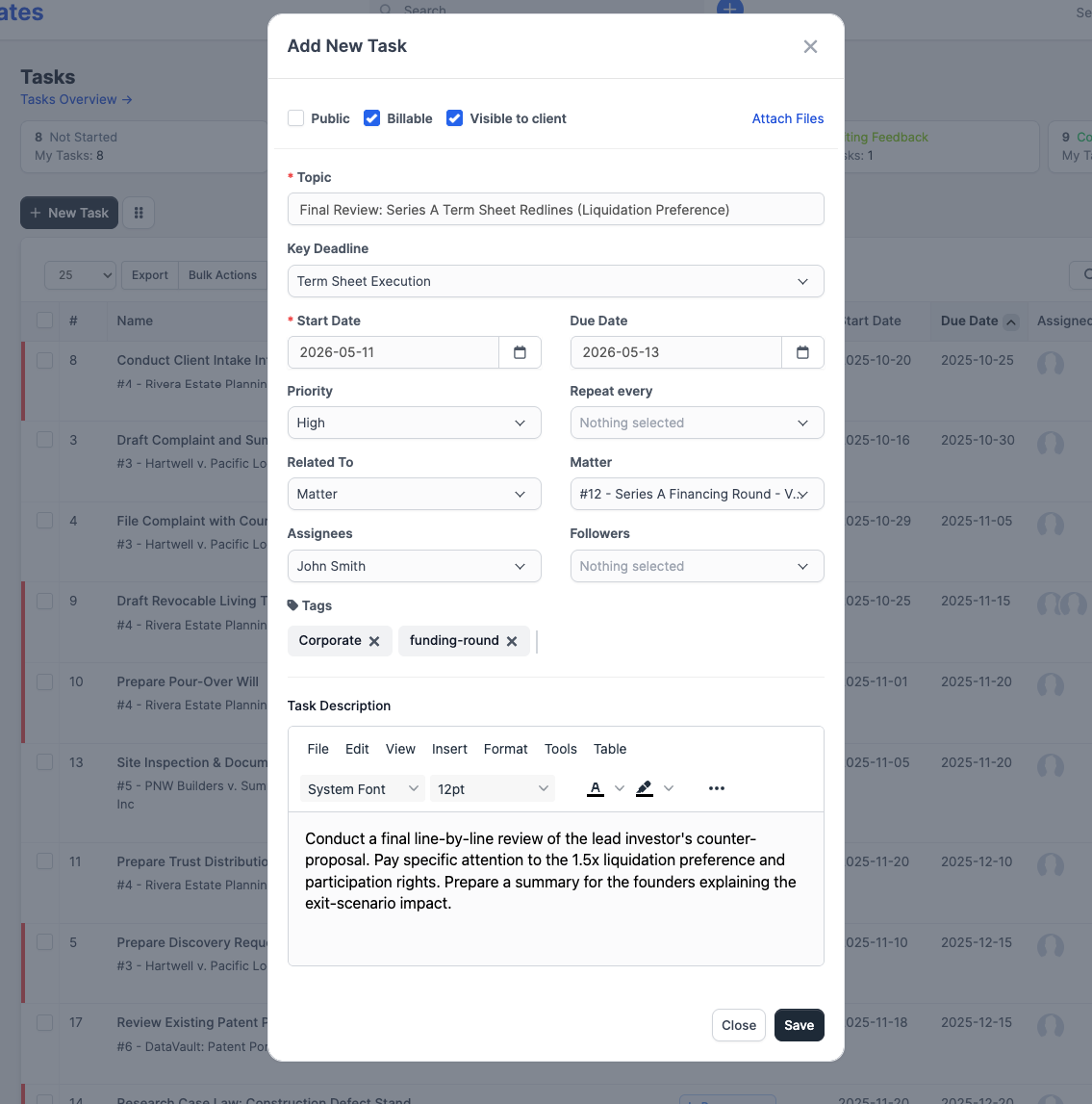
Click Save to save.
From a matter
Open the matter and go to the Tasks group. Click New Task. The relation is pre-filled to that matter, the matter's key deadlines populate the Key Deadline dropdown, and the assignee list is filtered to matter members.
Assigning tasks
You can assign a task to zero, one, or many team members. Assignees see the task in their personal task lists ("Tasks assigned to me") and receive notifications when the task is updated. 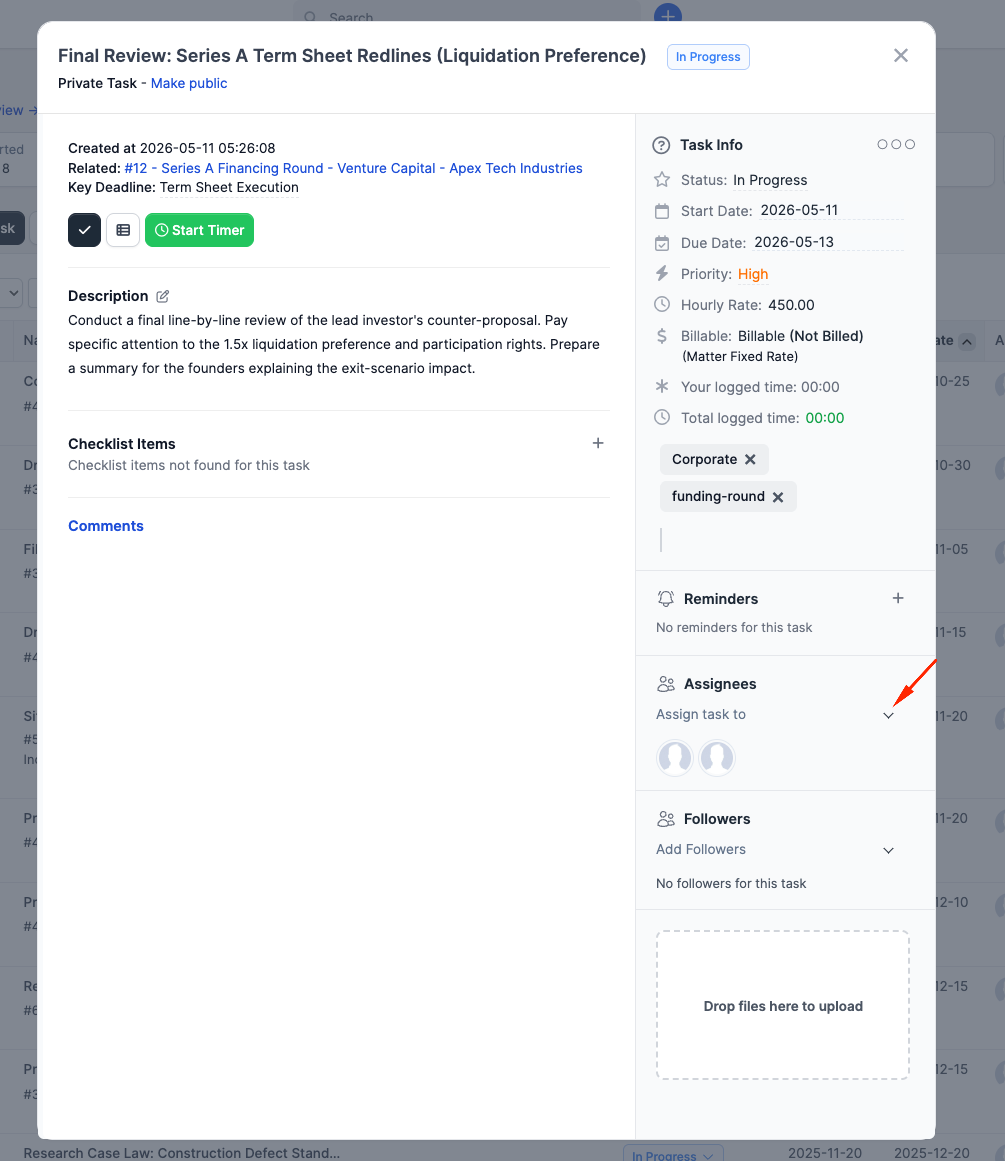
A task with no assignees still appears in the firm-wide task list. There is a built-in Not Assigned filter on the list view to surface them.
Followers
Followers are different from assignees. They are notified on activity (status changes, comments, attachments) but are not on the hook to do the work. Use this for partners supervising an associate or for paralegals tracking a matter without owning the task.
Checklists
Open a saved task. Below the task body is a Checklist Items section. Click the plus button to add an item; the items are simple text rows with a checkbox. 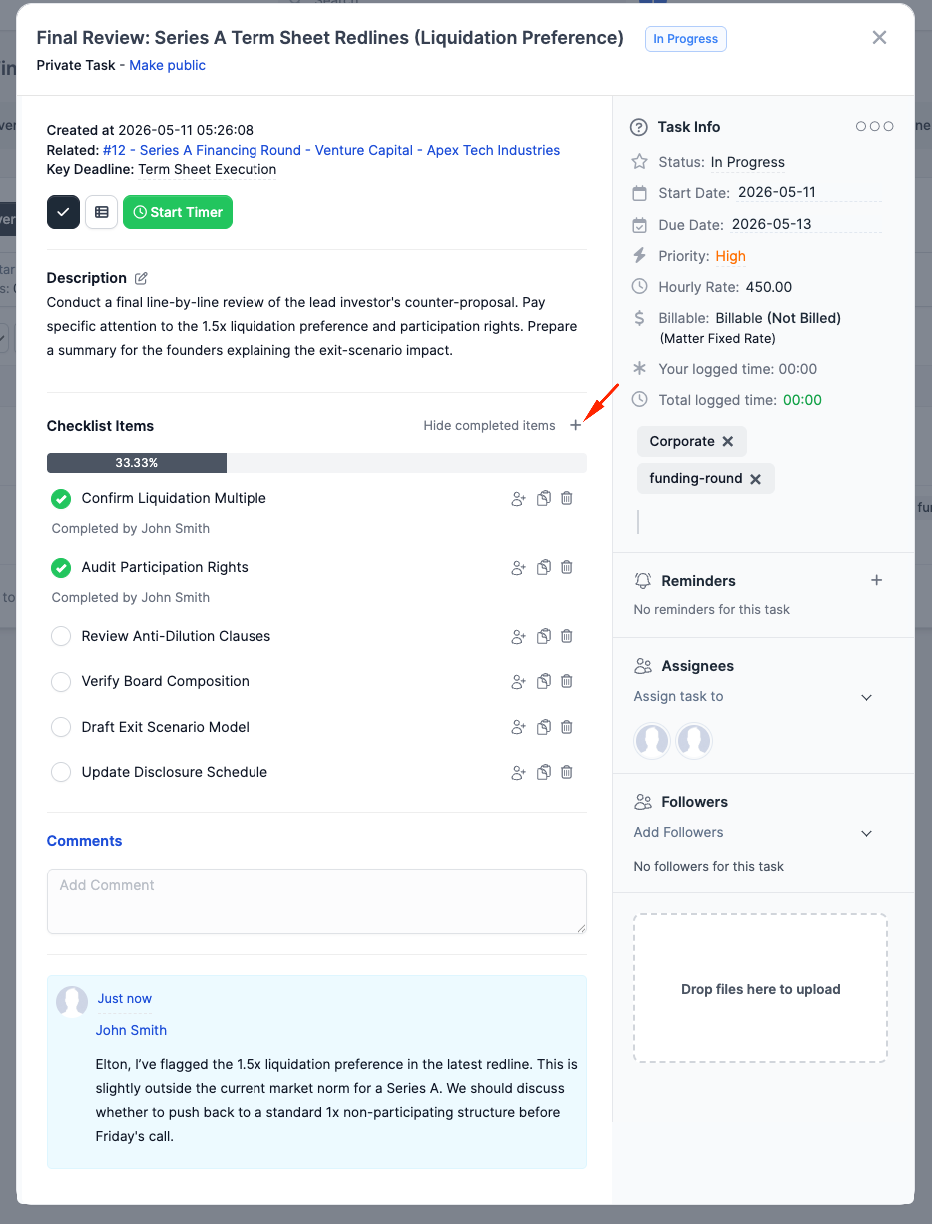
Each checklist item can be assigned to a specific team member via the small "person" dropdown next to the item. Items can also be saved as reusable templates (firm-wide) and inserted into future tasks via the Insert checklist templates dropdown.
The checklist progress shows on the task card as done/total.
Comments
Open a task and scroll to Comments. Type a message in the textarea and click Add Comment. To attach files to a comment, drag and drop them onto the comment area before posting; they upload to the task and are linked to the comment. 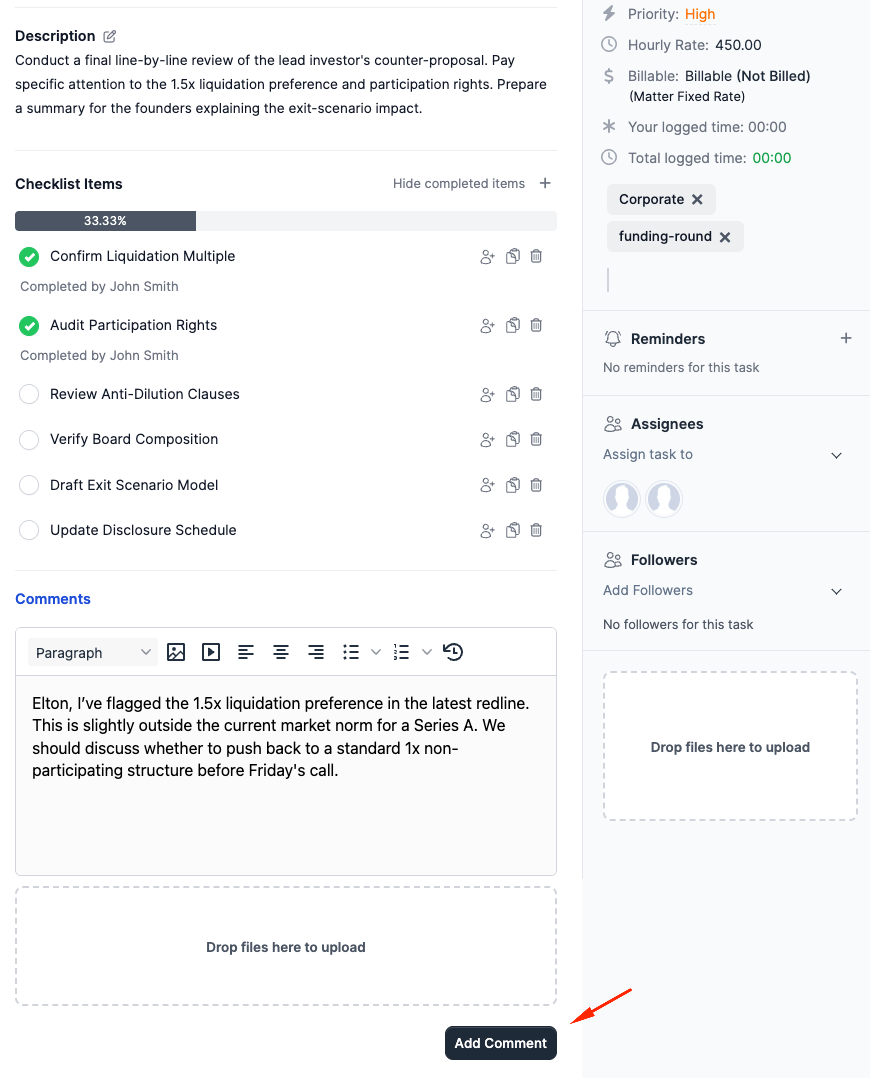
Comments support @mentions to tag a team member (mentioned staff get a separate notification) and rich text via the same editor used elsewhere.
Attachments
Two ways to add an attachment:
- On creation: click Attach Files at the top of the new-task modal and pick files from disk.
- After creation: drag and drop files onto the comment area on the task. Each upload is recorded as an attachment and (optionally) tied to a comment.
Attachments appear in the Attachments section. Download all (.zip) bundles every attachment.
Timer
Each task has a Start Timer button. Only assignees can start a timer (admins can stop a forgotten timer for a staff member). 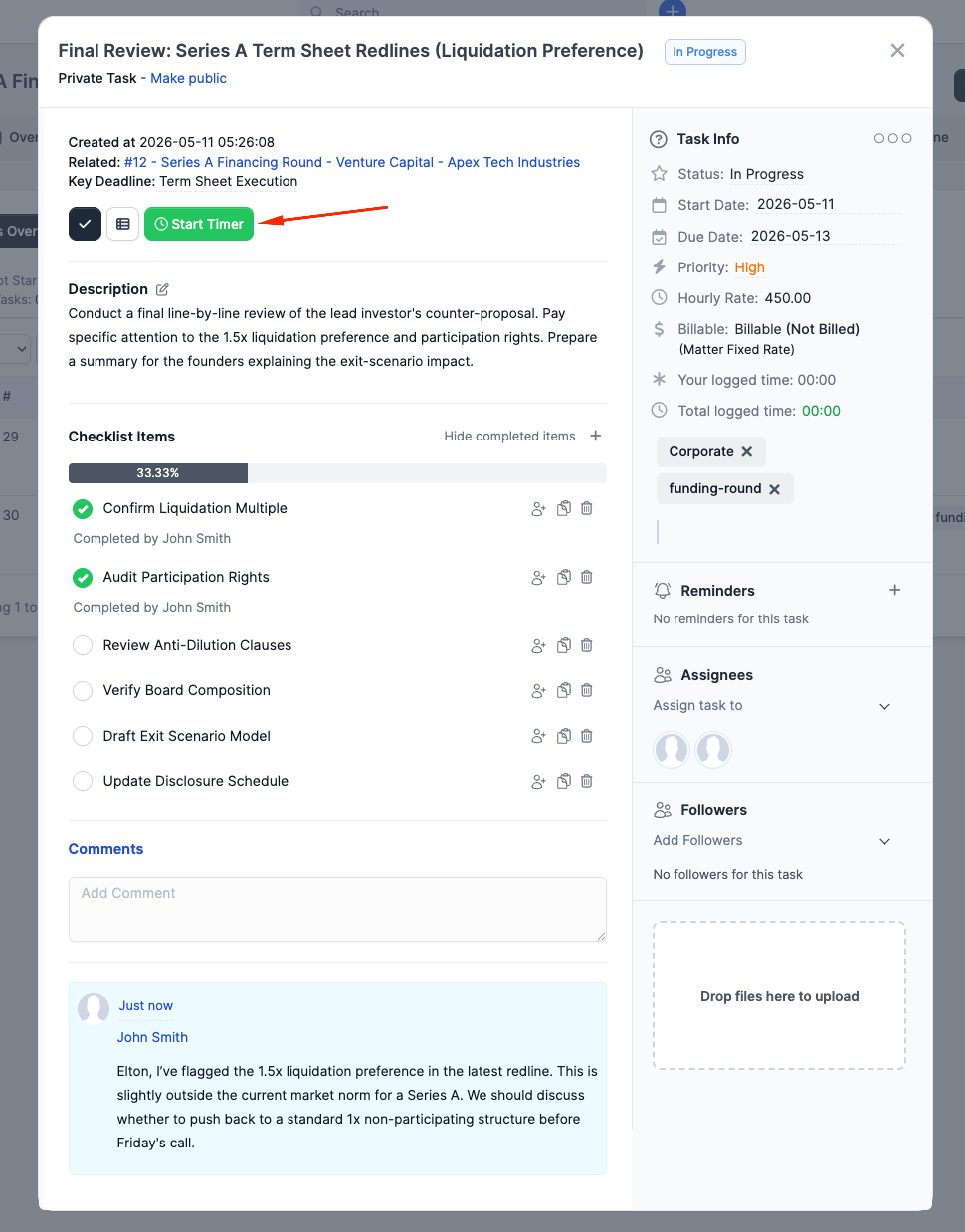
Stopping the timer prompts for an optional note, then logs the time entry against the task. Logged time aggregates into the matter's time-tracking totals when the task is related to a matter. 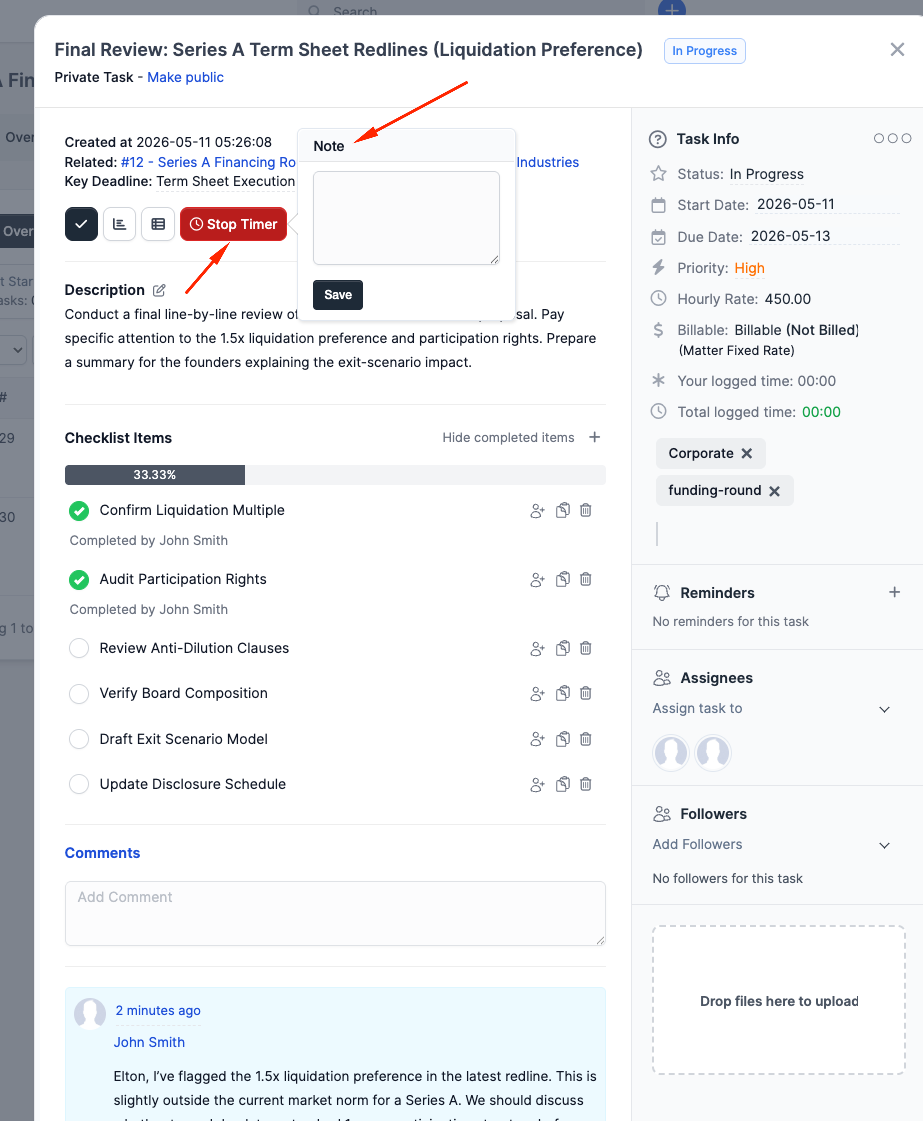
If a task is already billed on an invoice, the timer is locked.
Reminders
The Reminders section on a task lets you schedule a personal reminder for any team member at a specific date and time, with an optional description. Reminders fire as in-app notifications and emails. They are personal, not task-wide; each reminder belongs to one staff member.
Changing status
Click the status pill on a task and pick a new status, or drag the card on the Kanban board. There is no enforced workflow; tasks can move between any two statuses.
Marking a task Complete records the completion timestamp and automatically stops any timers that are still running on the task. Marking a complete task as anything else clears the completion timestamp. Reminders that have not yet fired are not auto-cancelled; remove them manually if you no longer need them.
Deleting tasks
Use the actions menu (top right of the task modal) and pick Delete. Deletion is permanent and cascades to:
- Followers and assignees
- Checklist items
- Custom field values
- Tags
- Reminders
- Comments
- Attachments and the upload directory
- Time entries logged against this task — the time is no longer counted on the matter timesheet
If the task is linked to a matter, the deletion is logged on that matter's activity feed.