
Creating a proposal
Starting a new proposal
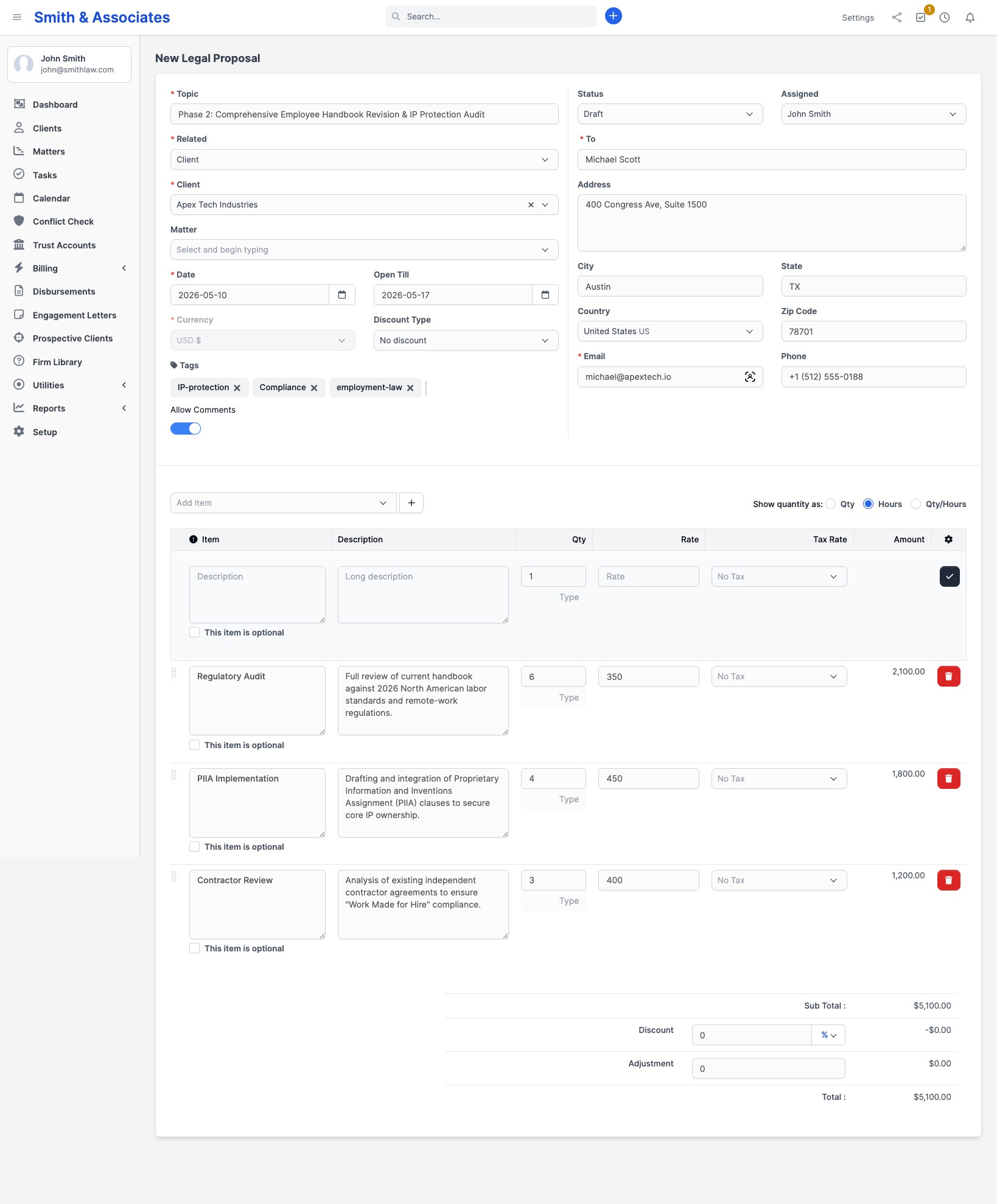
Go to Billing > Legal Proposals and click + New Legal Proposal in the top toolbar.
Header fields
| Field | Purpose |
|---|---|
| Topic | Title of the proposal (e.g. "Engagement Letter for Estate Planning"). Shown on the public view and in the email subject. |
| Related | Pick Client or Prospective Client (lead). The next field becomes a search dropdown over that list. |
| Matter | Optional. Only appears when Related is Client. Links the proposal to a specific matter. |
| Date | Proposal date. Defaults to today. |
| Open Till | Last day the recipient can accept. After this date the public view shows an "Expired" label and hides the accept/decline buttons. The status itself does not change. |
| Currency | Defaults to the client's currency when one is set, otherwise your firm's base currency. Locked once a client is selected. |
| Discount Type | None, Before Tax, or After Tax. |
| Tags | Free-form tags for filtering the proposal list. |
| Allow Comments | Toggle on to let the recipient post comments from the public view. On by default. |
| Status | Starts as Draft. Switches automatically to Sent when you email the proposal. |
| Assigned | Staff member responsible. Auto-fills with the current user if your firm has "automatically set logged-in staff sales agent" turned on. |
| Company / Name, Address, City, State, Country, ZIP, Email, Phone | Recipient details. Auto-populated from the client or lead record when you pick one — edit only if you want this proposal to use different details. |
Line items
The form has a line-items table where you build out the fees. Each item has:
- Description (and optional Long Description)
- Qty (or Hours, depending on your firm's quantity-as setting)
- Rate
- Unit (e.g. hours, flat fee, per page) — free-form label
- Tax — pick zero, one, or two tax rates from your tax list
The totals (Subtotal, Tax, Discount, Total, plus an optional Adjustment line) calculate automatically. If you do not want an itemised breakdown, leave the line items empty and describe the fee in the content body.
Save options
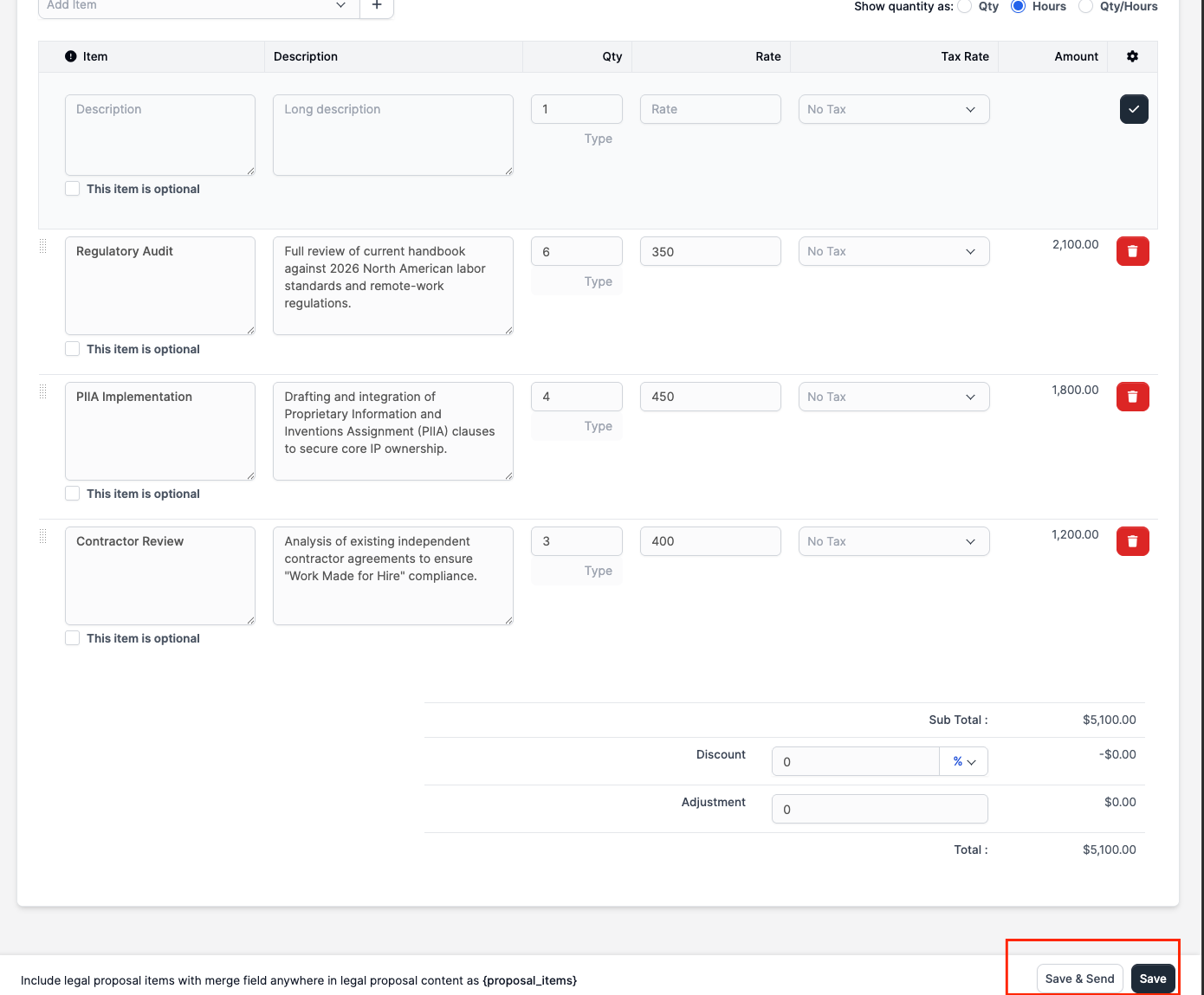
Two buttons sit at the bottom of the form:
- Save stores the proposal as a Draft and takes you to the preview page so you can write content and add attachments.
- Save & Send saves the proposal and immediately fires the email to the recipient (see Sending and tracking). Use this only when the line items are final and the email template will produce the message you want — there is no preview before the send goes out.
Writing the content
After Save, you land on the proposal preview page (status: Draft).
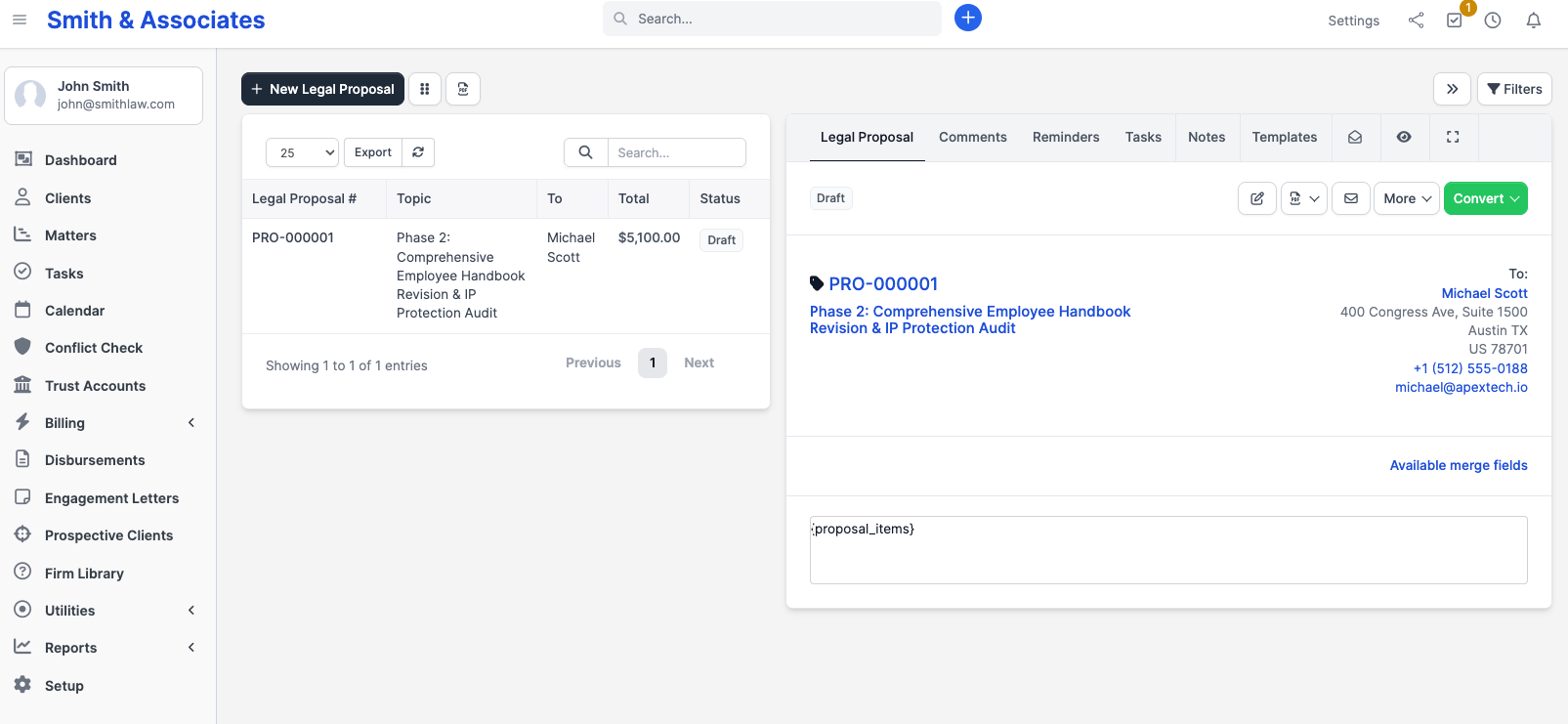
Click the content area to open the rich-text editor and write the engagement letter — headings, bold/italic, lists, tables, links, and images all work. The editor strips Microsoft Word formatting automatically when you paste from Word. Click outside the editor to save.
Use the placeholder {proposal_items} to control where the line-items table appears inside your content. New proposals default to {proposal_items} (so the table appears alone) until you replace it with your own copy.
Attachments
The preview page has an Attachments section where you can upload files. Each attachment has a "visible to customer" toggle — turn it off for internal documents the recipient should not see.
Merge fields
The content editor and the email template support merge fields that resolve when the proposal is rendered to the client. Common ones for proposal content:
{proposal_number}— formatted proposal number with your firm's prefix{proposal_subject}— the Topic field{proposal_total}and{proposal_subtotal}— formatted in the proposal's currency{proposal_open_till}and{proposal_date}{proposal_proposal_to},{proposal_email},{proposal_phone},{proposal_address}{proposal_assigned}— the staff member's full name{proposal_link}— public URL to the proposal{companyname},{logo_url}— your firm details- Any custom fields you have created on proposals
Type the merge field exactly as shown (with curly braces), or open the Available Merge Fields panel next to the editor to click any field and insert it at the cursor.
Reusing past proposals
There is no separate "template" library, but every proposal has a Copy action that duplicates content, items, attachments, tags, and recipient details into a new draft. Open an old proposal and click More > Copy to start from it.