
Client portal
The client portal is a secure area where your clients can log in to view their invoices, pay online, sign contracts, access shared documents, and see matter updates.
Plan requirement
Available on the Growth plan and above.
What clients can do in the portal
- View invoices and payment history
- Pay invoices online (if Stripe is configured)
- View and sign proposals
- View and sign contracts
- Access documents you have shared
- Submit estimate requests
- Read knowledge base articles you have published
- Access the document vault (encrypted secure storage)
How clients access the portal
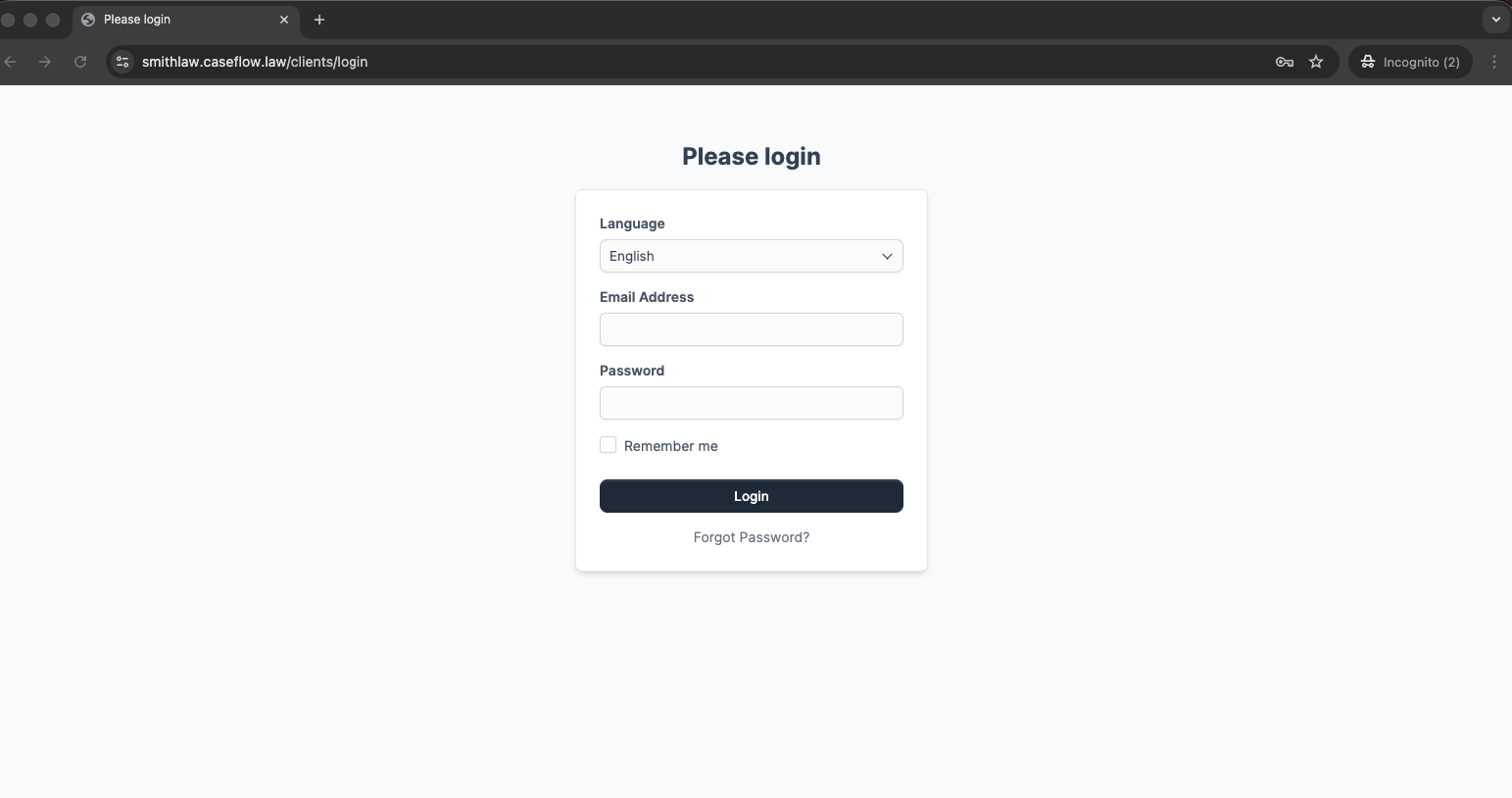
Each client contact with "Portal Access" enabled can log in at your firm's subdomain:
https://yourfirm.caseflow.law/clients/loginThey use the email and password set on their contact record.
Enabling portal access
Open the client's profile, go to the Contacts tab, and edit the contact. Toggle Portal Access on. Set a password, or click Send Welcome Email to let them create their own password.
Only contacts with portal access enabled can log in. You control who sees what.
What clients cannot see
Clients never see:
- Internal notes
- Matter threads (internal discussions)
- Other clients' data
- Staff information beyond names
- Financial reports
- Lead pipeline
- Conflict check results
The portal shows only their own invoices, their own matters (if you share updates), and documents you have explicitly shared.
Logging in as a client (admin preview)
If you want to see exactly what one of your clients sees in the portal — to troubleshoot a "I can't see my invoice" call, confirm that a shared file is visible, or preview the experience before onboarding — admins can sign in to the portal as the client.
Where it lives. Open the client's profile. Next to the client's title at the top of the page is a small dropdown caret (right after the client number and name). Click the caret and pick Login as client.
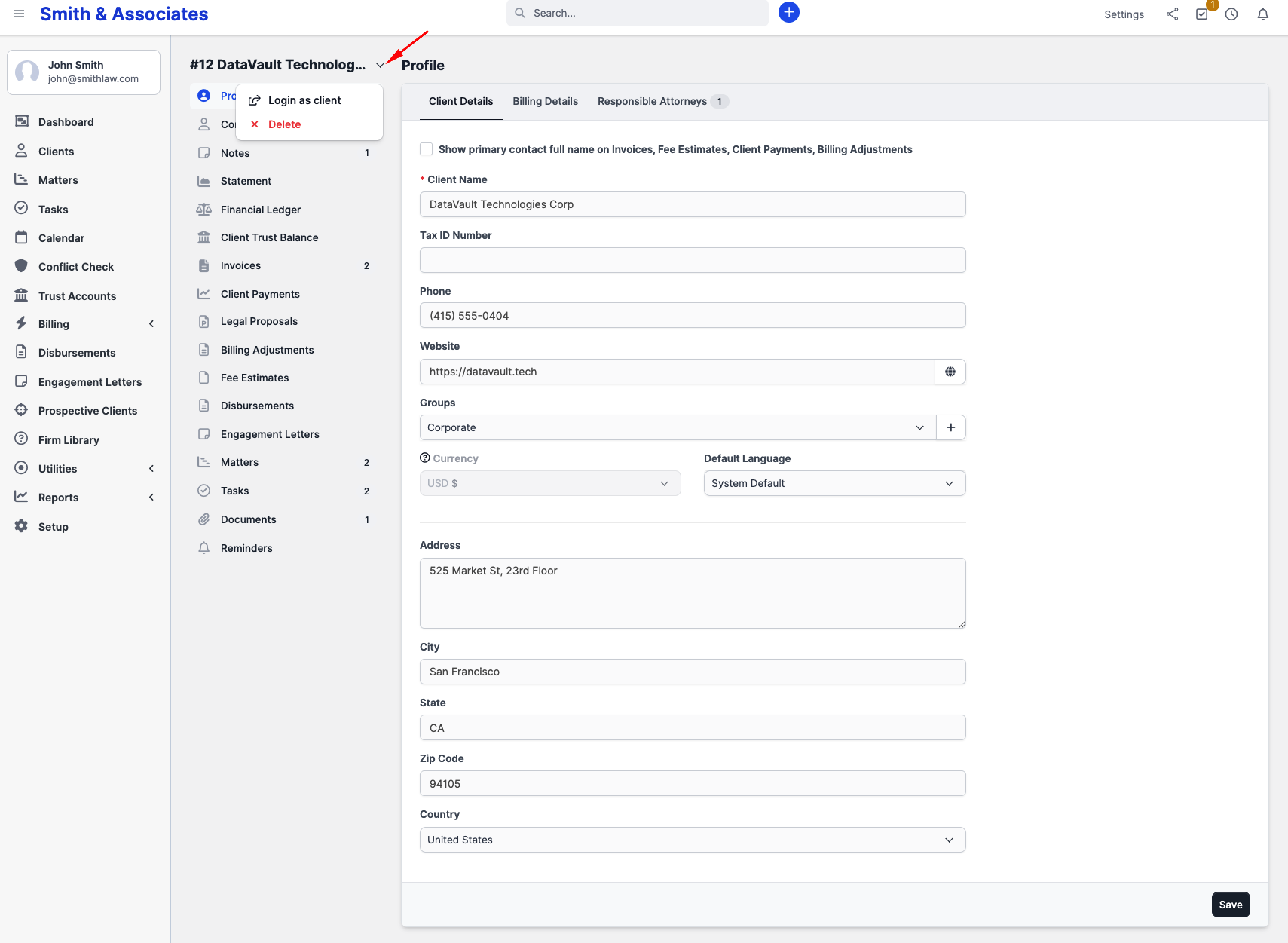
What happens. CaseFlow opens the client portal in a new tab, signed in as the client's primary contact. You see the portal exactly as that contact would — their invoices, their matters, the documents you have shared, and nothing else. Your admin session in the original tab is unaffected; to return to it, just switch tabs or close the new one.
Requirements.
- You must be an admin. Non-admin staff do not see the option, even with full client permissions.
- The client must have a primary contact set. If they don't, CaseFlow shows an error and sends you back; mark one of the contacts as primary first.
- The primary contact must be active. If they're deactivated, CaseFlow tells you and refuses to switch.
Caveats.
- Anything you do while signed in as the client is recorded as that contact's action, not yours. Don't accept proposals, sign engagement letters, or post comments while in preview mode unless you intend it. The audit trail will show the contact as the actor.
- Logging in as a client also marks the firm's portal announcements as read for that contact (so they don't see them again as "new").
- On the Solo plan, the impersonation session opens but the portal itself is locked behind the upgrade gate — most pages will show an upgrade prompt rather than real portal content. Move to Growth or above to make this feature useful.
- There is no separate "stop impersonating" button. Close the preview tab when you're done.
When to use it. Support troubleshooting, onboarding rehearsals, verifying file visibility, and showing a partner what a client will receive before going live. It is not meant for taking client actions on their behalf — for that, use the appropriate admin-side flow (Mark as Signed, manual payment record, etc.).
Plans and availability
The full client portal requires the Growth plan or above. This includes online invoice payment, document sharing, contract signing, and estimate approval.
The Login as client admin preview is available on every plan but is only meaningful where the portal itself is unlocked.