
Recurring tasks
A recurring task is just a regular task with a schedule attached. The task itself is the template; CaseFlow clones it on each scheduled date. Use this for work that repeats: weekly status calls, monthly billing reviews, quarterly compliance filings, annual bar renewals.
Setting up a recurring task
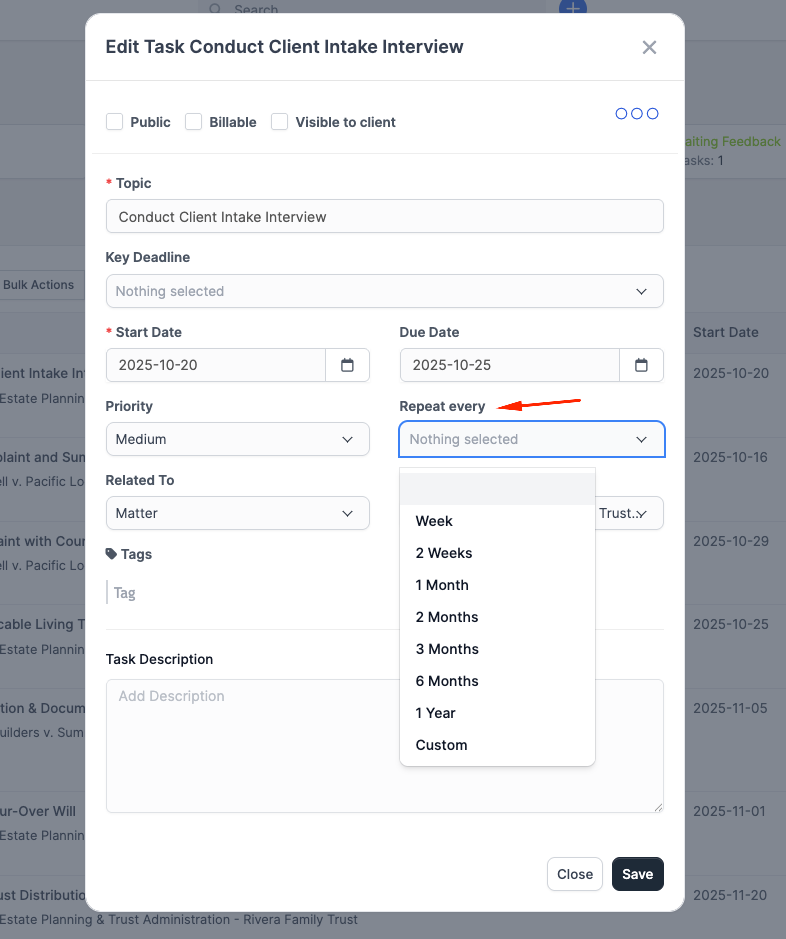
Create a task normally (from the Tasks page or from a matter). Inside the new-task modal, find the Repeat every dropdown and pick one of:
- 1 week
- 2 weeks
- 1 month
- 2 months
- 3 months
- 6 months
- 1 year
- Custom
Choosing Custom reveals a number input and a unit dropdown (days, weeks, months, years), so you can configure intervals like "every 3 weeks" or "every 45 days".
Once a recurrence is set, a Total cycles field appears. Enter the number of times to repeat. Tick the No limit checkbox (or leave the value at 0) to run indefinitely.
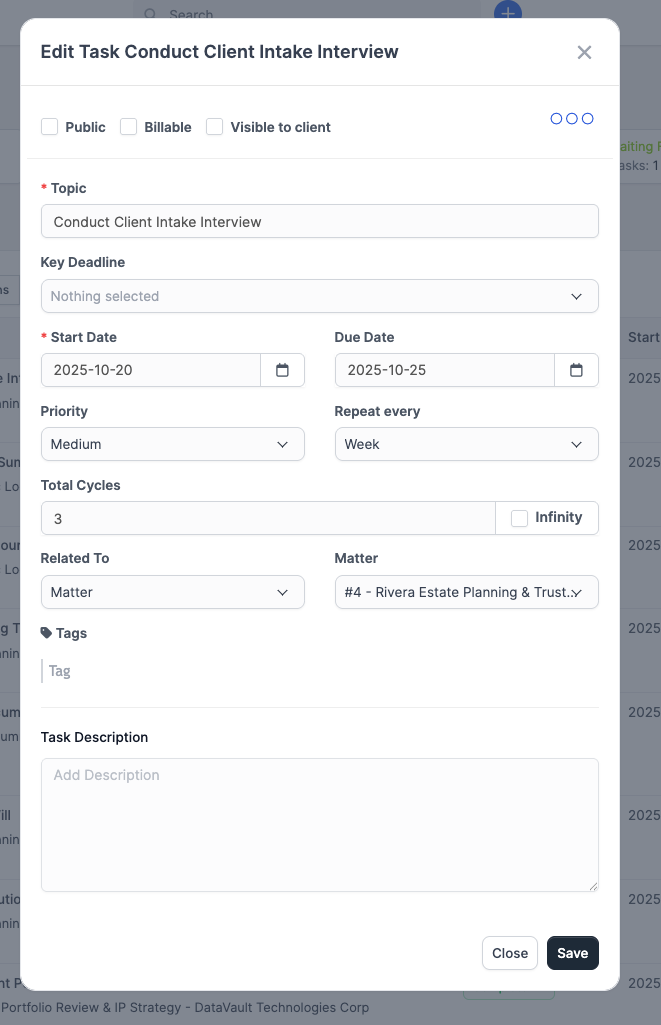
Click Save. The first task is the one you just created; CaseFlow does not create an extra "first instance" up front.
How instances are created
CaseFlow runs a daily check at the firm-wide hour configured under Setup → Settings → Cron Job ("Hour of day to perform auto operations" for tasks). On each run it:
- Finds every active recurring task that is due to spawn a new instance today.
- Copies the task into a new task with status Not Started, the new start date set to the recurrence date, and the due date offset by the same number of days as the original.
- The new task is independent. It carries over followers, checklist items, assignees, custom fields, and (optionally) attachments. The new task is not itself marked as recurring; it is a regular task.
- The cycles counter on the parent task ticks up by one.
Completing or deleting an instance does not affect the schedule; the next instance will still be created.
Editing the schedule
Open the recurring task and edit it. You can change interval, cycles, due date, assignees, checklist, description, etc.
Changes to the parent task affect future instances only. Already-created instances are not retroactively updated.
The Start Date field is locked once the recurrence has fired at least once.
Stopping a recurrence
To stop the recurrence, open the parent task and set Repeat every back to the empty option (the first item in the dropdown). Saving the task clears the recurrence and the schedule stops. Already-created instances stay where they are.
Setting Total cycles to 0 does not stop the recurrence. 0 means unlimited.
You can also let it expire naturally by setting Total cycles to a positive integer; once the cycle count reaches that number, no more instances are created.
Status of new instances
Every newly created instance lands in Not Started.
Cycles passed indicator
When editing a recurring task that has already run, the Total cycles label shows a small "X cycles passed" hint, and the field is bounded so you cannot accidentally set the limit below the count of instances already created.
Linking to matters
A recurring task can be related to a matter the same way any task can. Each new instance is created against the same matter, so it lands on that matter's task list.
If the matter closes, the recurring task keeps creating instances. Stop the recurrence manually (clear Repeat every) when the matter ends.
Common examples
| Task | Repeat every | Notes |
|---|---|---|
| Weekly team standup notes | 1 week | Assign to all staff |
| Monthly trust reconciliation | 1 month | Assign to the bookkeeper |
| Quarterly CLE tracking | 3 months | Assign to each attorney |
| Annual bar registration | 1 year | Per-attorney |
| Bi-weekly billing review | Custom: 2 weeks | Assign to billing manager |