
Ask CaseFlow
CaseFlow includes one assistant called "Ask CaseFlow" that you can open from anywhere in your firm's account. It provides two kinds of answers, and every answer is clearly labeled so you know exactly where the information came from.
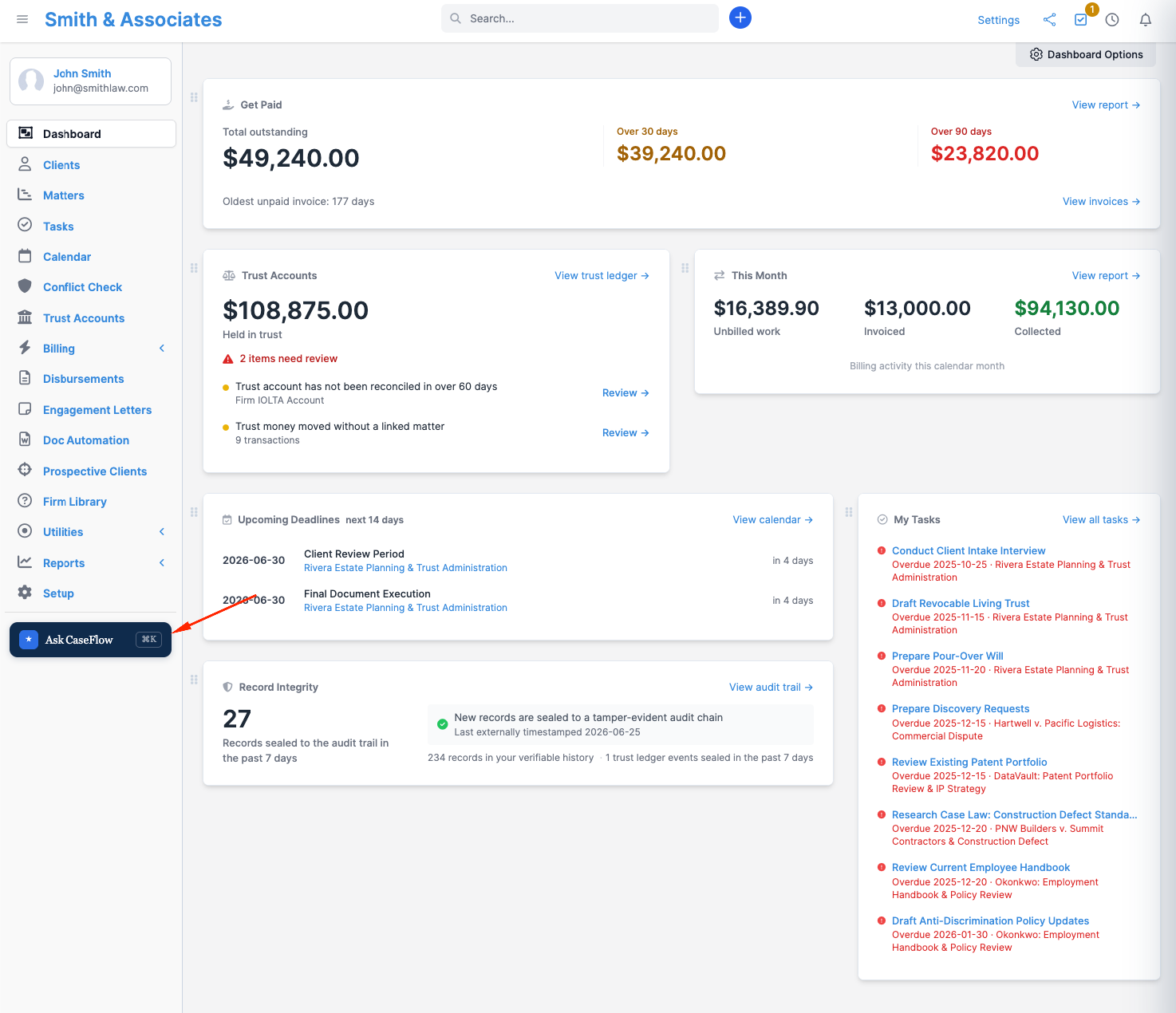
Opening the assistant
You can open "Ask CaseFlow" in three ways:
- On a computer, press Cmd-K (Mac) or Ctrl-K (Windows) at any time.
- Click the dark "Ask CaseFlow" button pinned at the foot of the left sidebar.
- On a phone, tap the floating "Ask CaseFlow" button.
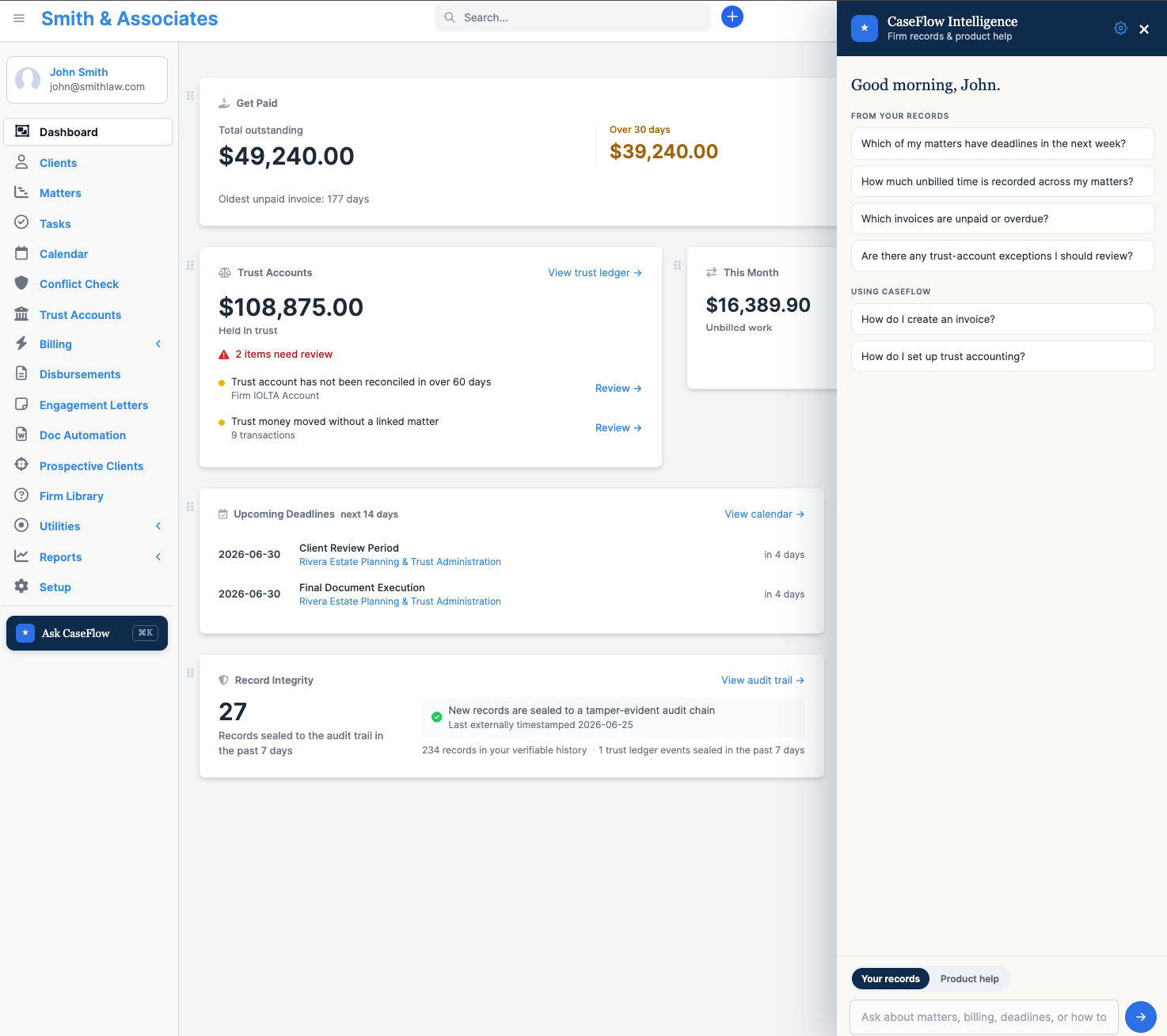
Close the assistant by clicking its close control or pressing Escape. It will not interfere with your work while it is open.
Two kinds of answers
Just below the "Ask CaseFlow" title, you will see "Firm records & product help". Below that is a toggle labeled "Answer scope" where you choose what kind of answer you want:
- "Your records" answers questions about your firm's own matters and the people working on them, deadlines and calendar events, unbilled time, invoices, estimates, expenses and payments, clients and leads, engagement letters and generated documents, and trust-account exceptions, always limited to what you are permitted to see. (Multi-Practice plan only.)
- "Product help" answers "how do I do this in CaseFlow" questions from CaseFlow's help documentation. (Every plan.)
Every answer is labeled with its source, so the basis is never ambiguous. If a question lands in the wrong scope, the assistant offers a one-tap switch to try the other scope.
Asking about your records
When the "Answer scope" toggle is set to "Your records", the assistant can answer plain-language questions about your firm's own information. For example:
- "Which of my matters have deadlines in the next week?"
- "Who is working on the Rivera matter?"
- "What is on my calendar over the next two weeks?"
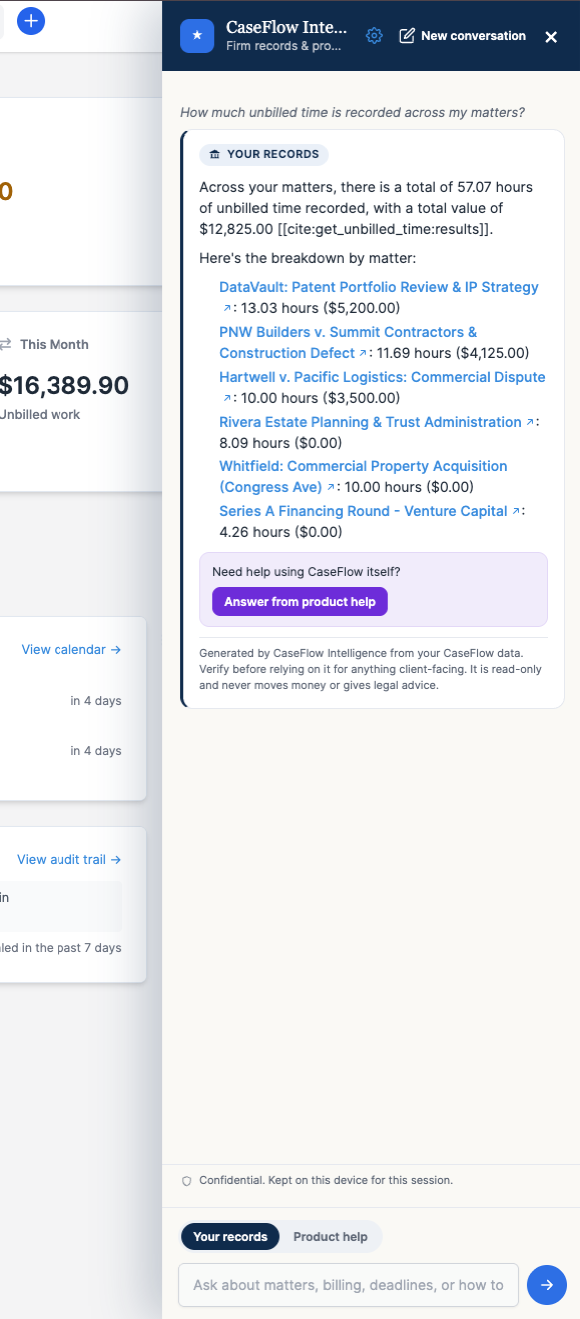
- "How much unbilled time is recorded across my matters?"
- "Which invoices are unpaid or overdue, and what estimates and expenses are on record?"
- "Show me our leads."
- "Are there any trust-account exceptions I should review?"
When a question turns up two or more records, the assistant presents them as a clear, clickable table; otherwise it answers in plain prose. Either way, every answer cites the exact records it used as links you can open directly from the chat, so you can verify the information and drill into the details yourself.
If your firm has turned on the document features, you can also ask the assistant to list the files on a matter and summarize one of them, so you can get the gist of a document without leaving the chat.
Plan requirement
The "Your records" scope is available only on the Multi-Practice plan. Your firm must also have turned on CaseFlow Intelligence and the "Ask CaseFlow" capability in settings.
The assistant is read-only: it only looks things up. It never creates, edits, moves, or sends anything, and never gives legal advice or moves money. You only ever see records you already have access to in CaseFlow. If a matter you are screened from would otherwise appear in an answer, the assistant treats it as "not found", even for administrators. This means the firm's conflict-of-interest and ethical-wall screening is fully respected.
Asking how to use CaseFlow
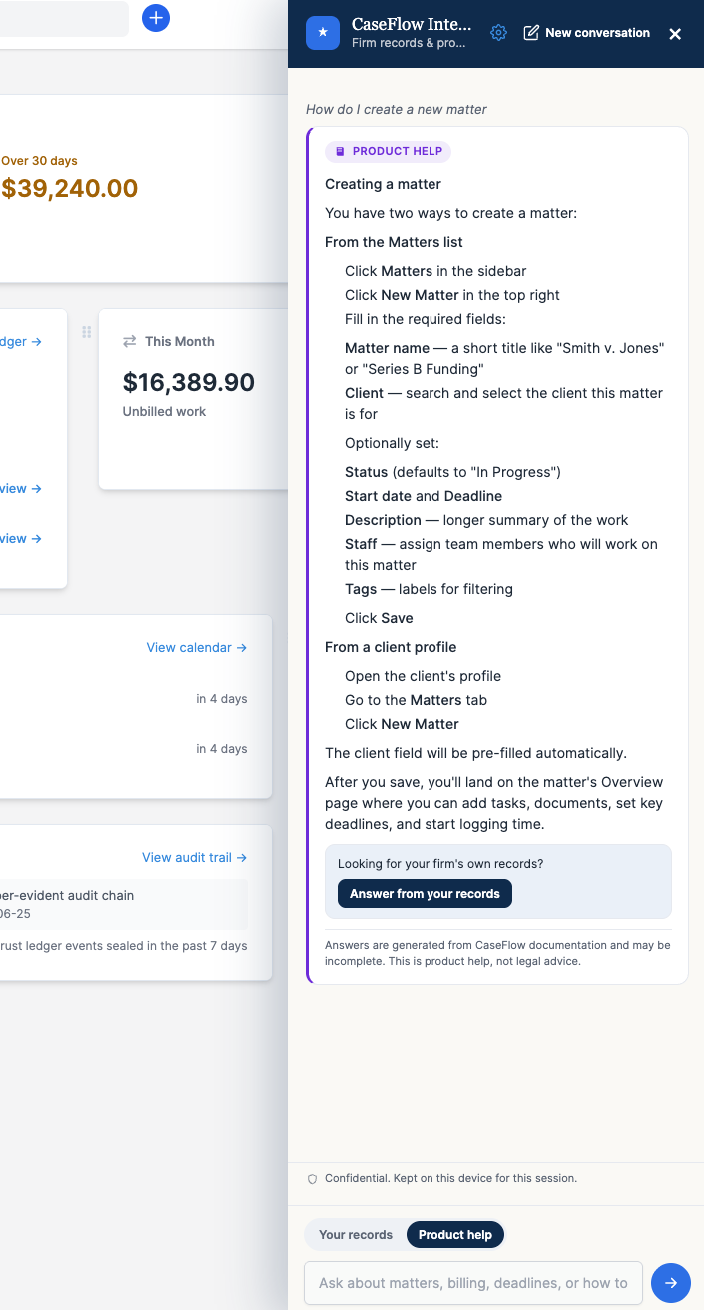
When the "Answer scope" toggle is set to "Product help", the assistant answers "how do I do this in CaseFlow" questions drawn from CaseFlow's help documentation. For example:
- "How do I create an invoice?"
- "How do I set up trust accounting?"
- "What is the difference between an estimate and a proposal?"
If the documentation does not cover your question, the assistant will tell you plainly rather than guess. When that happens, it offers a "Contact our team" button. Click it to send your conversation to the CaseFlow support team, who will follow up by email.
The "Product help" scope is available on every CaseFlow plan. It does not require any setup. The assistant explains how to use CaseFlow; it does not provide legal advice.
Starting over
At the top of the chat, a "New conversation" control lets you clear the on-screen chat and start fresh. When you click it, a confirmation reads "This clears the current chat from this device. Your firm's records are untouched." This only clears what is displayed on your screen right now. It never changes any of your firm's records or stored information. The chat is kept on your device for the current session only.
Good to know
- Product help is not legal advice. The assistant explains how to use CaseFlow. It does not provide legal advice and will not draft legal content. Always apply your own professional judgment to your matters.
- Your records answers are read-only and respect your access. The assistant looks things up and never creates or changes anything. You only see records you already have access to in CaseFlow, and conflict screening is fully respected.
- Your conversation stays with your firm. Questions you ask are handled for your account and not shared with other firms. Only when you click "Contact our team" is the conversation sent to CaseFlow support so they can help.