Matter and document tools
CaseFlow Intelligence can help you summarize matters and documents, draft replies, and extract deadlines. Each feature reads information from your matter or documents and shows you a suggestion for review. Nothing is saved, sent, or filed until you approve it.
To use any of these features, you must first turn on CaseFlow Intelligence and the specific capability.
Matter status digest
Plan requirement
Growth plan and above.
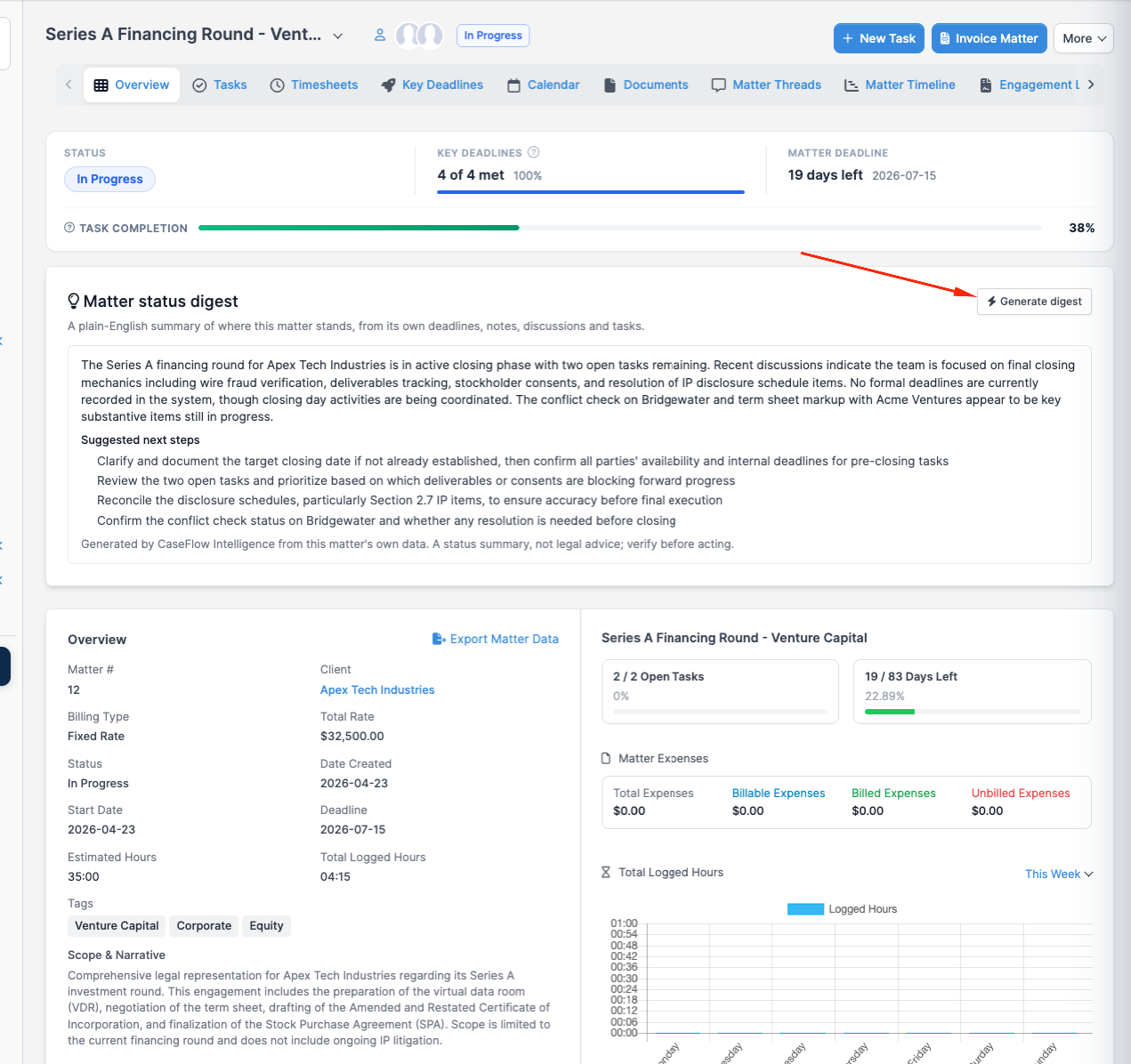
On a matter's overview page, you'll see a "Matter status digest" card. Click "Generate digest". CaseFlow Intelligence reads the matter's deadlines, notes, discussions, and tasks, then produces a plain-English summary of where the matter stands. It also suggests a list of potential next steps based on what it finds.
The digest is for your review only. It displays the summary but does not save anything to the matter. Use it to spot what may need attention without manually reviewing every deadline and note.
- Open the matter.
- Scroll to the "Matter status digest" card.
- Click "Generate digest".
- Review the summary and suggested next steps.
- Close the card or use the information to update your own notes.
Draft a reply
Plan requirement
Growth plan and above.
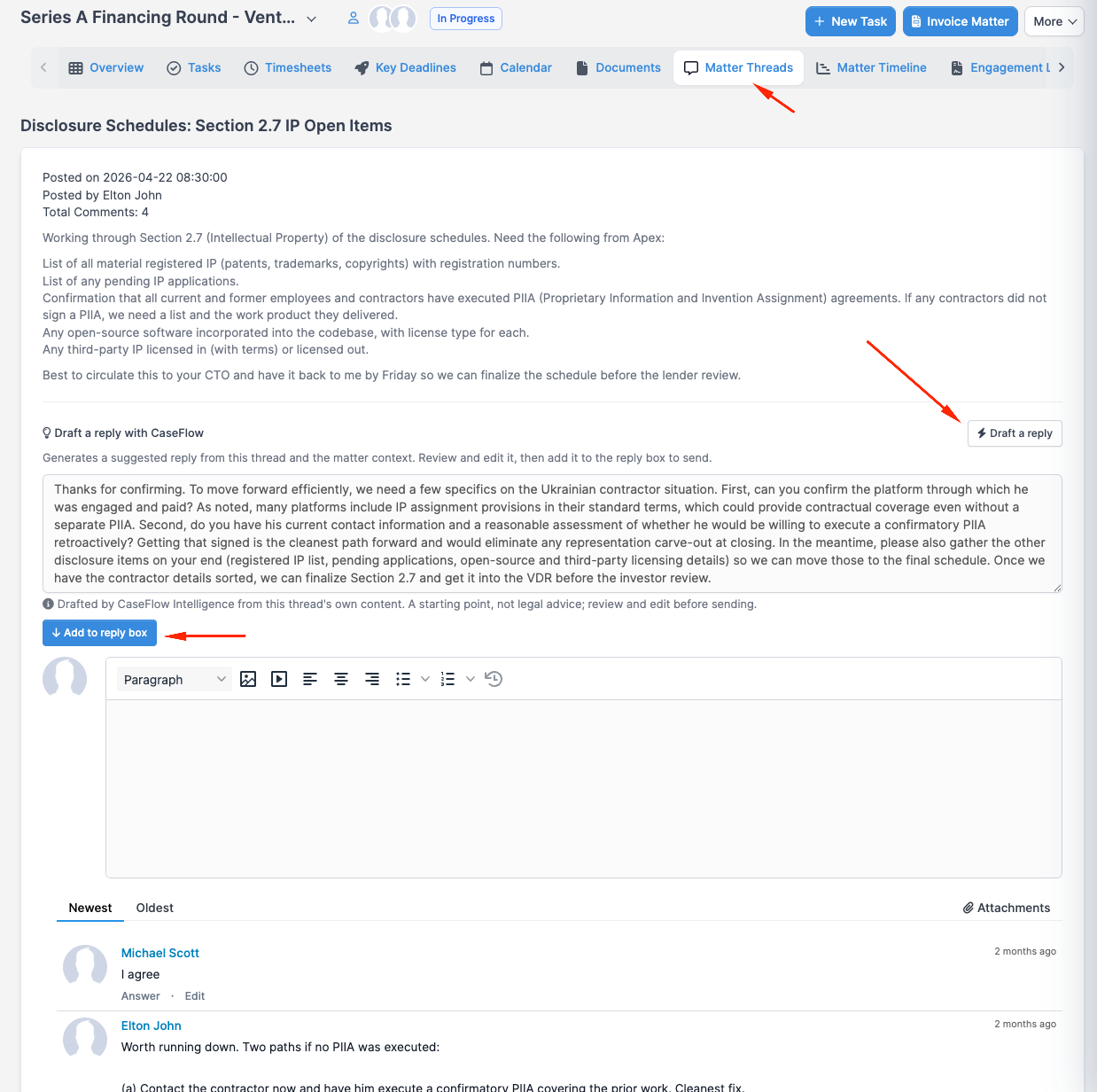
In a matter's discussion thread, you can ask CaseFlow Intelligence to suggest a reply based on the thread and the matter's context.
- Open a matter's discussion thread.
- Click "Draft a reply".
- Review the suggested reply text.
- Edit it if needed.
- Click "Add to reply box".
- Send the reply using the normal send button.
The suggested reply is never sent automatically. You review and send it yourself.
Document summary
Plan requirement
Growth plan and above.
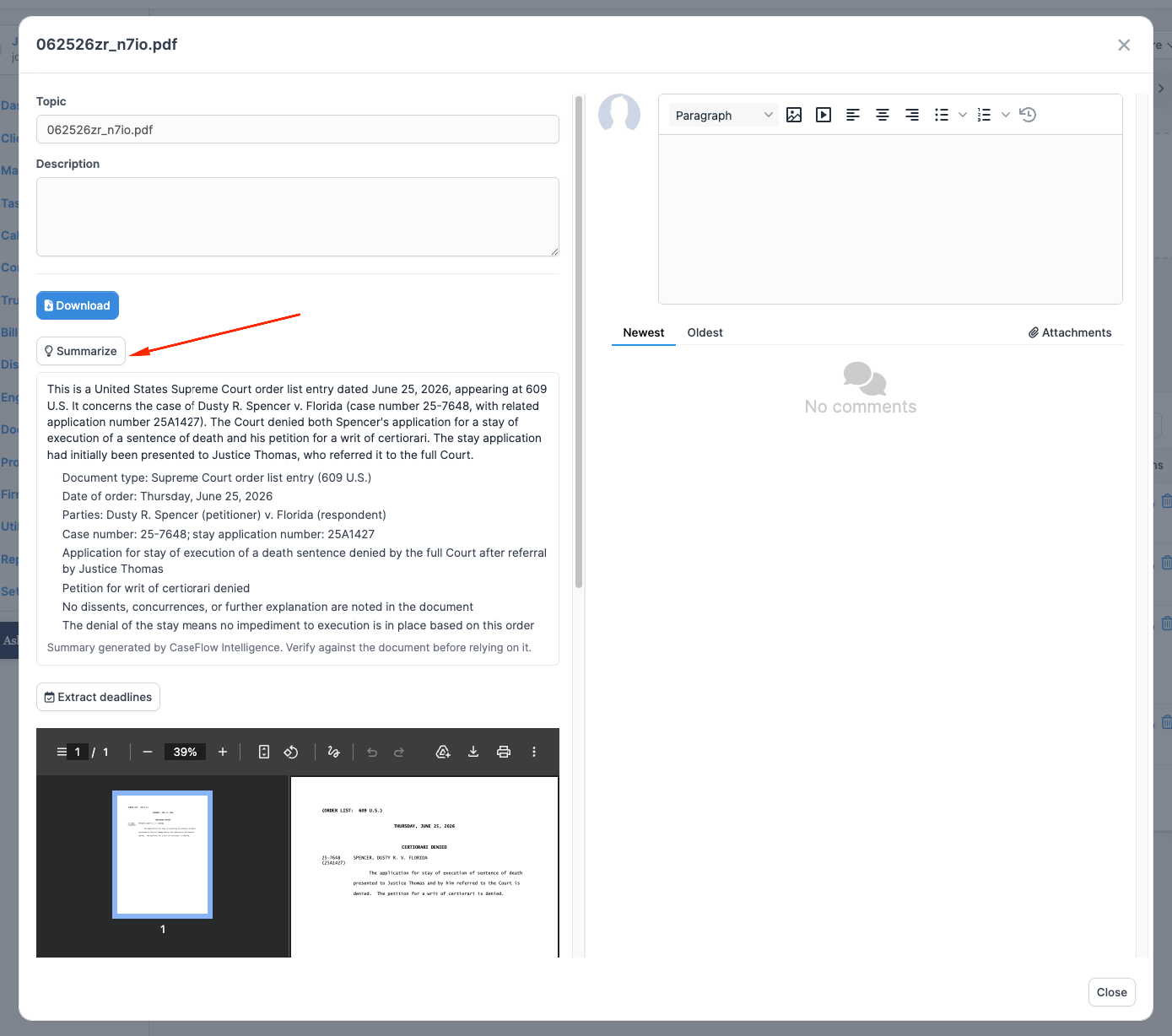
When you attach a file to a matter, you can ask CaseFlow Intelligence to read it and produce a summary. Because this feature reads the file's contents, you must first accept the document acknowledgement on the turning-it-on page.
- Open a matter.
- Locate the file you want to summarize.
- Click "Summarize".
- Review the summary and key points.
- Close the summary or use it to guide your review of the full file.
The summary displays on screen only. Nothing is written to the file or matter. Use it to quickly understand a long document.
You can also reach this from the Ask CaseFlow assistant: ask it to list a matter's files and summarize one of them, without opening the matter's Files tab. The same document acknowledgement applies.
Deadline extraction
Plan requirement
Multi-Practice plan.
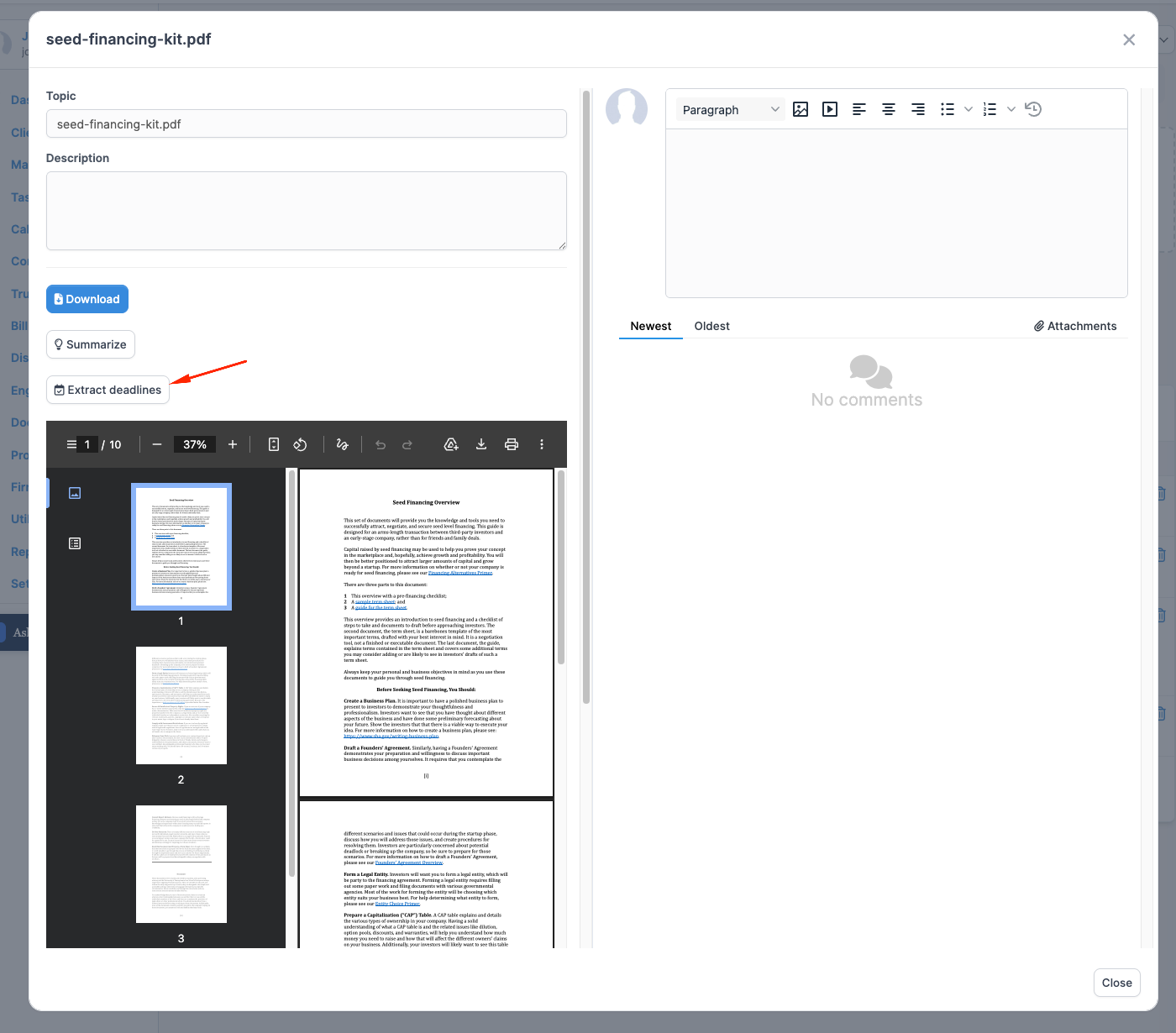
When you attach a file like a court order to a matter, you can ask CaseFlow Intelligence to scan it and propose any deadlines it finds. Because this feature reads the file's contents, you must first accept the document acknowledgement on the turning-it-on page.
- Open a matter.
- Locate the file (for example, a court order).
- Click "Extract deadlines".
- Review each proposed deadline and its date.
- Edit dates or descriptions if needed.
- For each deadline you want to add, click "Add as key deadline".
- Nothing is added to your calendar until you approve each deadline yourself.
Deadline extraction works alongside CaseFlow's court-rules feature. Use it to catch important dates and confirm they are correct before they become part of your matter timeline.