
Initial setup
Once you have logged in for the first time, there are a few things worth configuring before you start adding clients and matters.
Firm details
Go to Setup > Settings > General. Here you can set:
- Company name: Already filled from registration; change it if needed.
- Logo: Upload your firm's logo. It appears on invoices, proposals, and the client portal.
- Address: Your firm's mailing address. Printed on invoice PDFs.
- Phone: Firm phone number.
- Country and timezone: Controls date formatting and calendar behaviour.
- Default language: CaseFlow supports 11 languages.
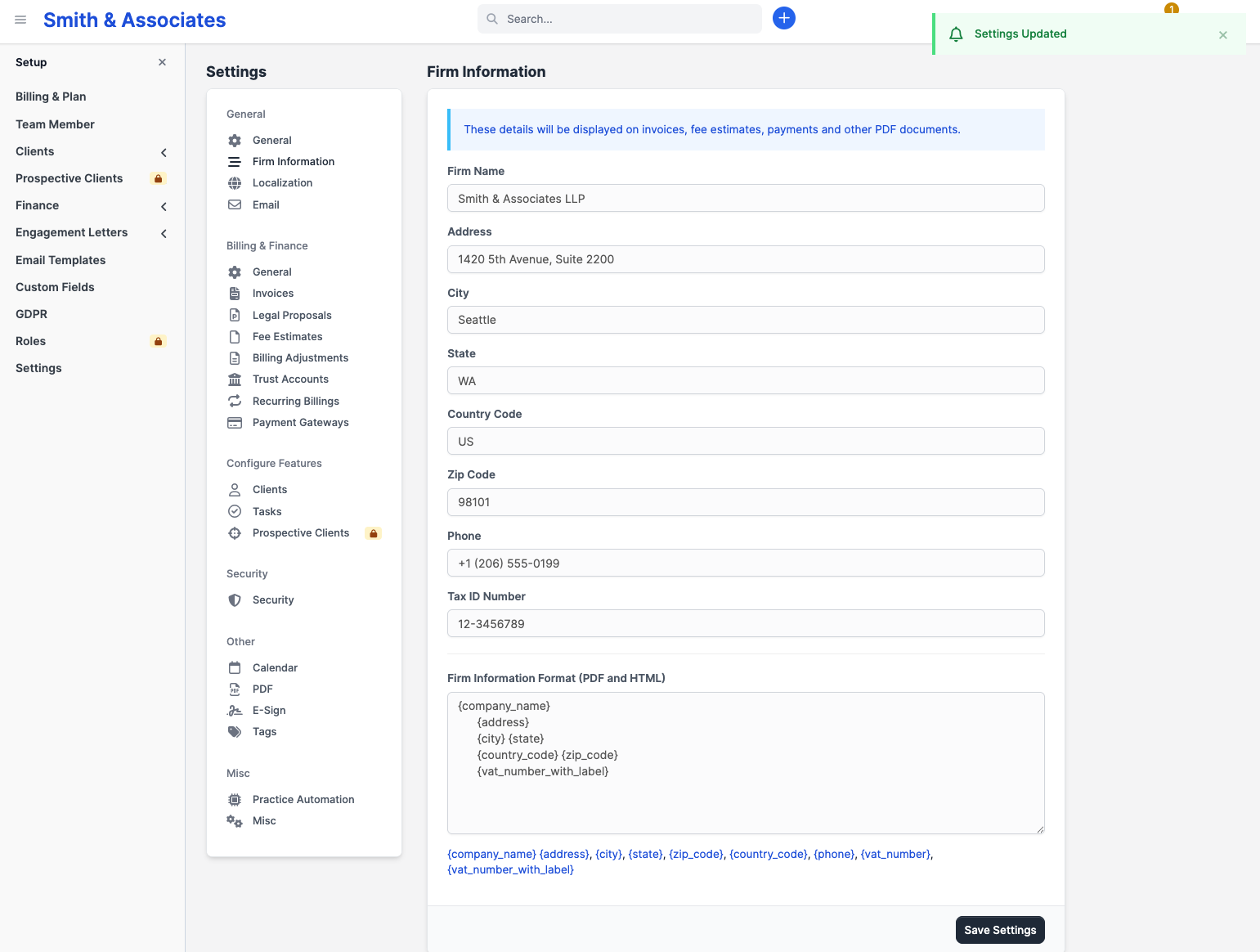
Click Save at the bottom when done.
Financial settings
Still in Setup > Settings, go to the Finance tab:
- Currency: Set your default currency. You can add more currencies later if you bill internationally (Growth plan and above).
- Tax rates: Go to Setup > Finance > Taxes to create your local tax rates (e.g. "GST 15%" or "VAT 20%"). These become available when creating invoices.
- Payment methods: Go to Setup > Finance > Payment Modes to configure how clients can pay. If you want online payments, set up Stripe under this section.
Email
CaseFlow sends emails through its built-in email service; no SMTP configuration is needed from you. Emails go out using your firm's name with a @caseflow.law sender address.
To customise email content, go to Setup > Email Templates. There are 87 templates covering invoices, reminders, contract notifications, and more. Each template has merge fields (like {client_name} or {invoice_number}) that get replaced automatically.
CaseFlow appends a legal confidentiality disclaimer to every outgoing email. The default text is sensible for most firms; you can edit it or clear it from Setup > Settings > Email > Confidentiality disclaimer.
Branding
Go to Setup > Theme Style to customise how CaseFlow looks for your team and your clients. You can adjust colours across several areas:
- Admin: Sidebar, header, and accent colours for the staff-facing app
- Customers: Colours used in the client portal
- Buttons, Modals, Tables, General: Fine-grained styling of individual UI elements
Use the Reset button at the top of the page to revert to CaseFlow's defaults at any time. These are cosmetic; set them or leave the defaults.
What to do next
With firm details and taxes configured, you are ready to: