
Matter Timeline
The Matter Timeline tab gives you a Gantt-style visual timeline of a matter's tasks and key deadlines, showing what needs to happen when and how work overlaps.
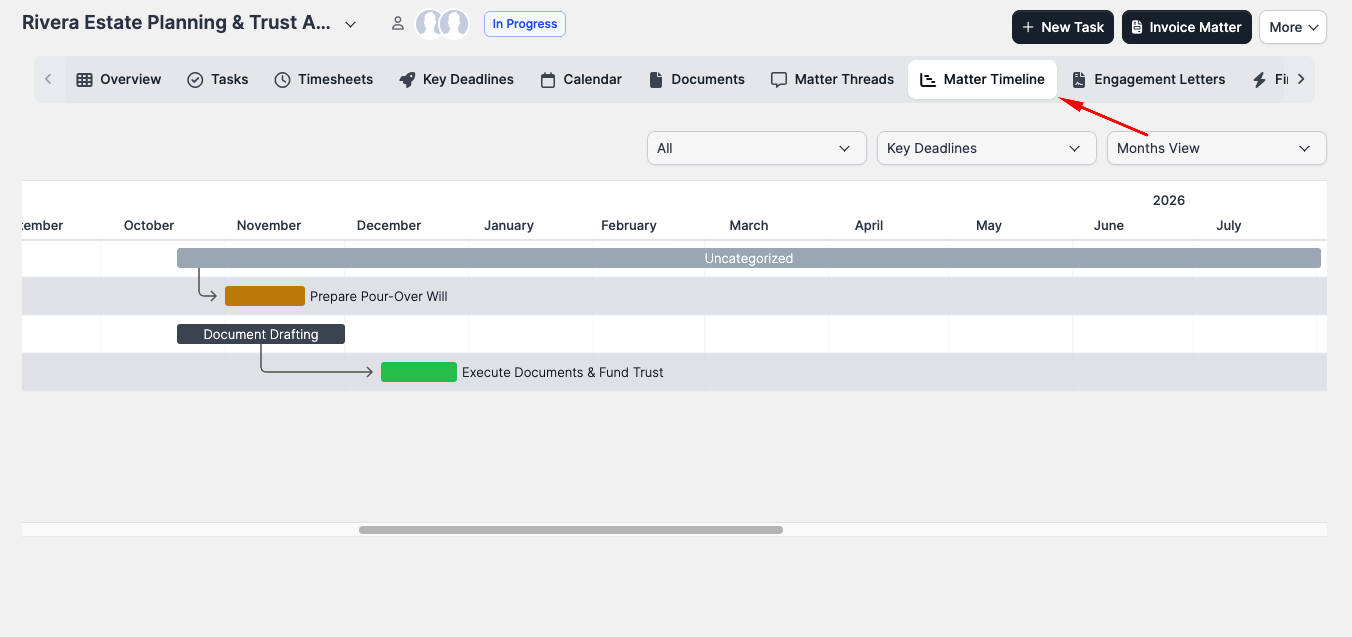
Opening it
Open a matter and click the Matter Timeline tab. The chart loads with three filter controls in the top-right corner:
- Status filter (left): show all tasks, or limit to a single task status.
- Group by (middle): group rows by Key Deadlines, Members (or My Tasks, for staff without the view-all-tasks permission), or Task Status.
- View (right): zoom level — Day, Week, Month, or Year.
The defaults are All statuses, grouped by Key Deadlines, in Month view.
Reading the chart
The left column lists rows. The right area is the timeline grid.
Each row is either a group row — named after the key deadline, member, or status, depending on the Group by setting — or a task row beneath it. Group rows hold their child tasks; an arrow connects each group to its tasks. The arrows are a grouping cue, not a task-to-task dependency.
Tasks render as bars from start date to due date. A task with no due date inherits the matter's deadline as the bar's end; a task with no start date inherits the matter's start date.
The colour of a task bar reflects its status:
| Bar appearance | Meaning |
|---|---|
| Default (orange) | Not started or in progress |
| Green | Complete |
| Red | Overdue (past the due date and not marked complete) |
Adjusting dates
Drag a task bar left or right to reschedule it. Drag the right edge of a bar to extend or shorten the duration. Changes save automatically.
Group rows (Key Deadline / Member / Task Status headers) cannot be dragged — they're computed from the underlying tasks and key deadlines.
Opening a task
Click any task bar to open that task in a modal. Group rows are not clickable.
Limitations
- Key-deadline rows are read-only on this tab. To change a deadline's date or other settings, use the matter's Key Deadlines tab.
- No real task-to-task dependencies. The arrows you see are grouping indicators (each task points to its parent group row). CaseFlow does not enforce ordering rules like "Task B cannot start until Task A finishes."
- Printing. Browser print does not render the chart cleanly. If you need a printable timeline, take a screenshot.
When to use it
The Matter Timeline is most useful when a matter has several tasks spread across multiple weeks or months, especially with key deadlines structuring the work. For short matters with a handful of tasks, the Tasks tab is usually enough.