
Creating an engagement letter
Starting a new letter
In the sidebar, click Engagement Letters and then + New Engagement Letter at the top of the list.
Information tab
| Field | Purpose |
|---|---|
| Trash | Hides the letter from clients, charts, and the default list. Use it instead of deleting when a record needs to be archived. |
| Hide from client | Stops expiry-reminder emails to the client and hides the letter from the client portal. The admin view is unaffected. |
| Client | Required. Search-as-you-type over your client list. Locks once the letter is signed. |
| Matter | Appears once a client is selected and the client has at least one matter. Optional. |
| Topic | The letter title (e.g. "Engagement Letter for Estate Planning"). Visible to the client on the public view, in the email subject, and in the PDF. |
| Contract Value | Numeric fee, formatted in your firm's base currency. |
| Contract type | Pick from your firm's contract-type list (set up under Setup > Engagement Letters > Engagement Letter Types). Admins — and any staff with the inline-create permission — can add a new type from the form via the small + button. |
| Start Date | Defaults to today. |
| End Date | Optional. If set, CaseFlow will send an expiry reminder when the letter is within the firm-configured window. Leave blank for an open-ended engagement. |
| Description | Internal note, not visible to the client. |
Custom fields you have configured for contracts also appear on this tab.
Click Save to store the record. CaseFlow opens the saved letter on its detail page. 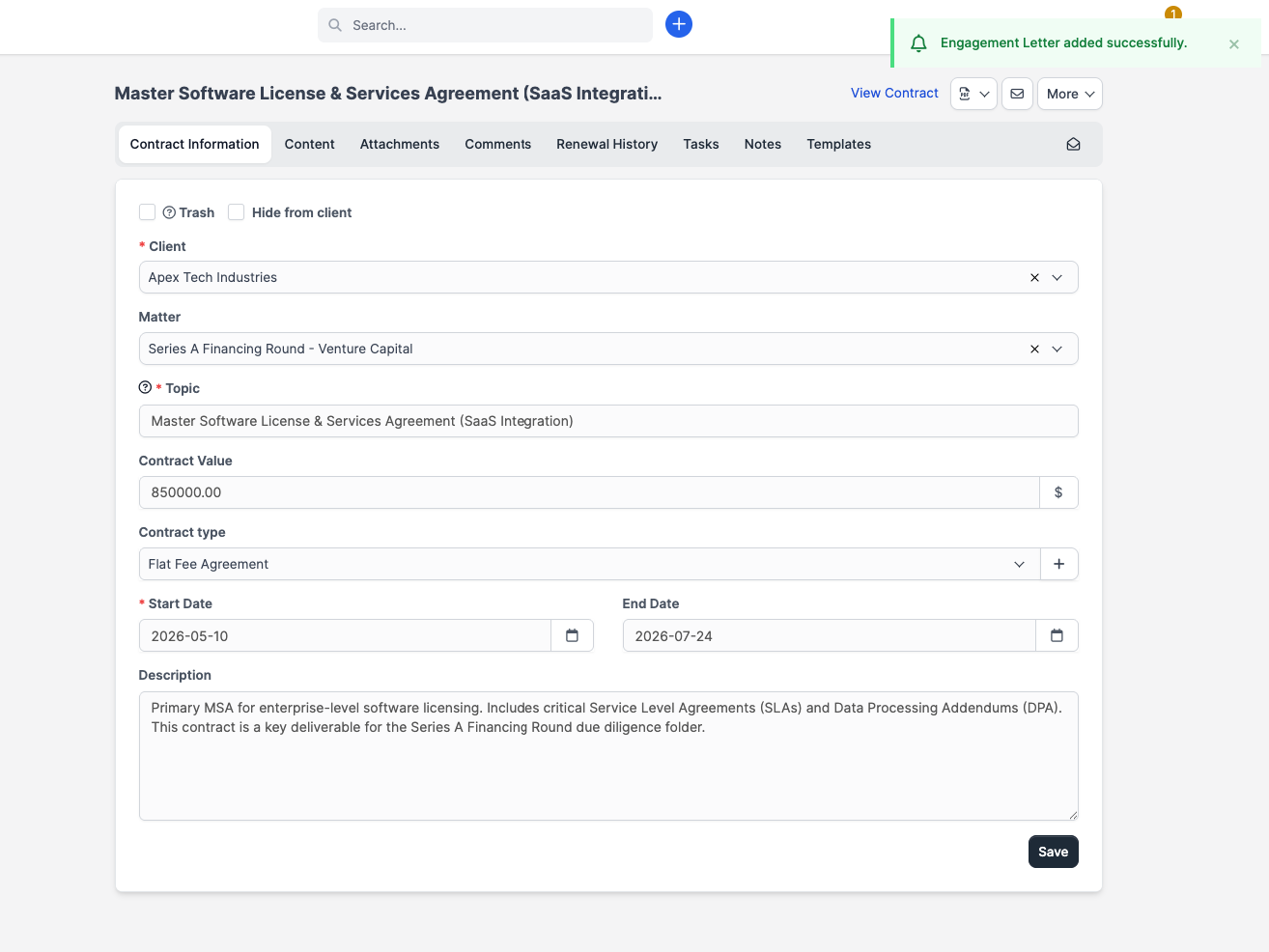
Content tab
After saving, switch to the Content tab to write the letter. The full-width area is a rich-text editor — click into it to edit. Use it for your engagement terms: scope of work, fee structure, billing cycle, confidentiality, conflicts, termination, governing law, etc. Headings, bold/italic, bullet and numbered lists, tables, links, and images all work. The editor also strips Microsoft Word formatting automatically when you paste from Word.
When the letter is signed (or marked as signed), the content area becomes read-only — you'll see an alert at the top explaining why. 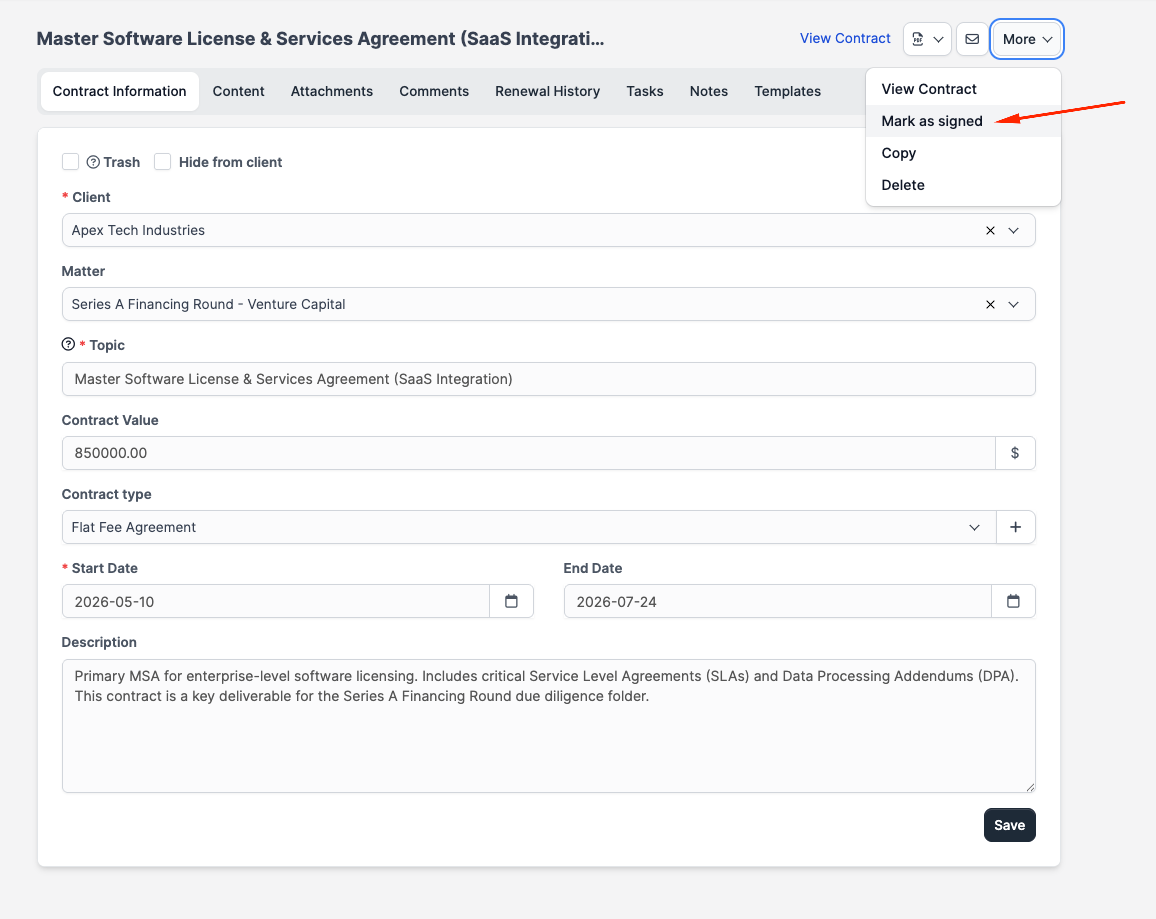
Merge fields
Click Available merge fields above the editor to expand the panel. Click any field's key to insert it at the cursor. You can use these for both the letter content and the email template.
Contract-specific fields:
{contract_subject}— the Topic field{contract_description}— the internal description (rarely useful in client-facing content){contract_datestart}and{contract_dateend}{contract_contract_value}— formatted with your firm's base-currency symbol{contract_type}— the type's name (e.g. "Retainer"){contract_link}— public URL the client uses to view and sign{contract_short_url}— shortened version of the link{contract_id}and{contract_created_at}{project_name}— name of the linked matter, if any- Any custom fields you have created on contracts
Client fields are also resolved on the letter content (because the letter is always tied to a client):
{client_company},{client_address},{client_phonenumber},{client_city},{client_state},{client_zip},{client_country},{client_vat_number}{contact_firstname},{contact_lastname},{contact_email}— populated when an email template renders for a specific contact
Plus the firm-level merge fields: {companyname}, {logo_url}, {crm_url}, {terms_and_conditions_url}, {privacy_policy_url}.
There is no {client_name} merge field — use {client_company} for the firm/company name and the {contact_*} fields for the individual.
Attachments tab
Upload supporting documents (rate sheets, conflict-check letters, prior agreements, etc.). Each attachment can be optionally included when emailing the letter from the Send to Email modal.
Renewals tab
When a fixed-term engagement is renewed for another period, click Renew Contract on this tab. CaseFlow records the new period in a renewal-history list and pushes the End Date forward to match. Renewal entries are immutable except for deletion (use sparingly — they are part of the audit trail).
Comments and notes
- Comments are visible to the client on the public view (they can post replies inline).
- Notes are admin-only and never leave CaseFlow.
Templates
Reuse a contract's content as a template for future engagement letters:
- Open the contract, switch to the Templates tab, and click Save as template. Give it a name.
- When creating a new engagement letter, open the Templates tab and click an existing template to load its content into the new letter.
Templates are managed per firm. Staff without the view all templates permission see only templates they created themselves.
Sending the letter
Click the envelope icon next to the More button. The send modal opens with:
- Send to — auto-populated with the client's active contacts that have the Engagement Letter email-notification toggle turned on (in the contact modal under Email Notifications). Adjust the list as needed.
- CC — extra email addresses copied on the first send only.
- Attach PDF — disabled if the letter has no content; otherwise on by default.
- The email body — pre-rendered from the Contract Send to Customer template under Setup > Email Templates, with merge fields already resolved. Edit inline for a one-off note.
- Include attachments to email — opt in to specific attachments uploaded on the letter.
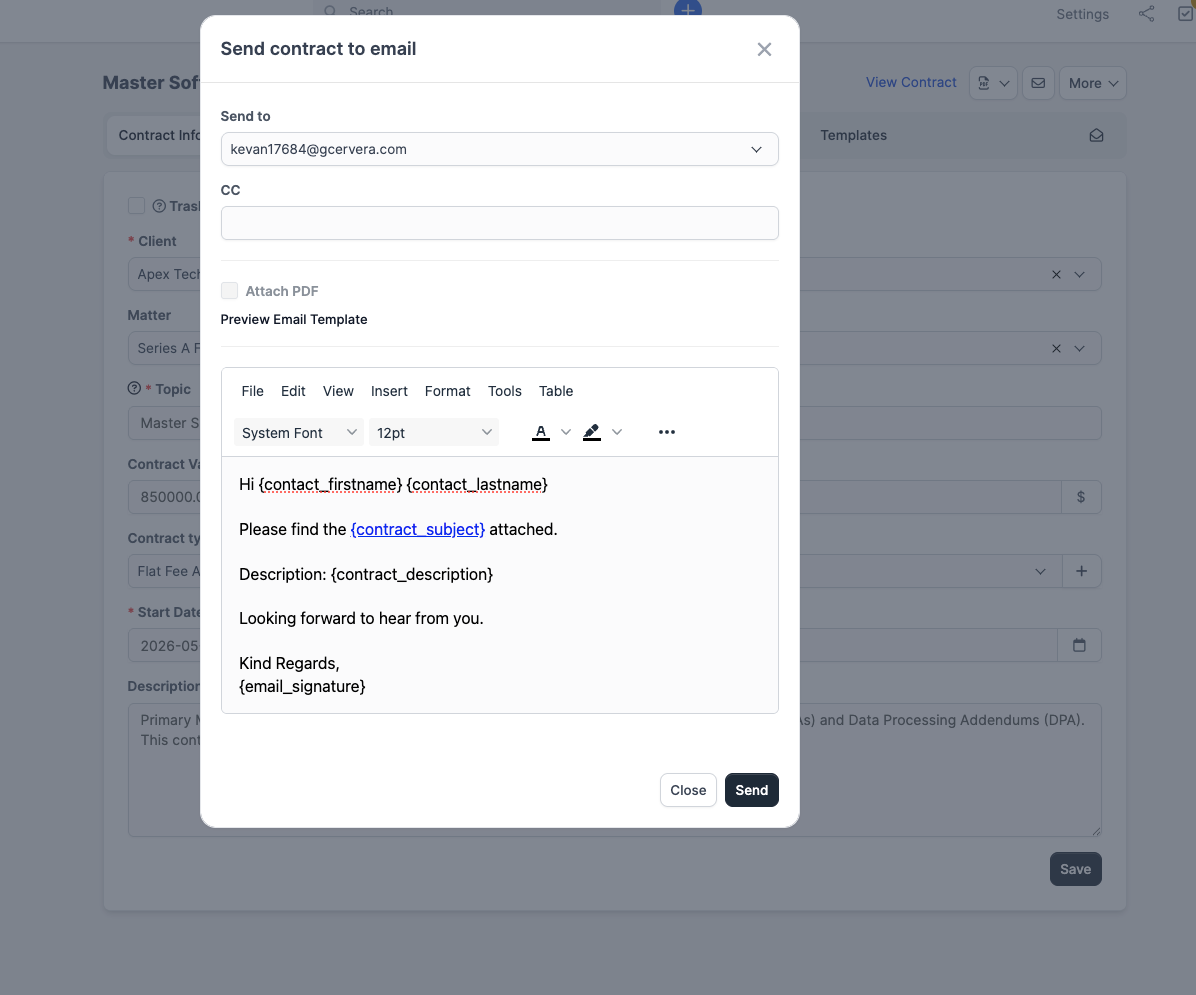
If no contacts have the Engagement Letter toggle on, CaseFlow shows a warning and the recipient list starts empty — you'll need to either tick the toggle on a contact or pick recipients manually.
Sending the letter does not flip a status flag (engagement letters have no "Sent" status). It logs the recipients on the Emails Tracking tab so you can see who received what and when.
Expiry reminders
CaseFlow checks every engagement letter daily. When the End Date is within the firm-configured window, it:
- Adds an in-app notification and an email to the letter creator and to every admin, using the staff-facing expiry-reminder email template.
- If Hide from client is off, also emails every client contact with the Engagement Letter notification toggle on, using the client-facing expiry-reminder email template.
- Records that the reminder went out, so the same letter is not notified again.
Expired contracts (End Date in the past) appear in the Expired summary card, but no automated action is taken — there's no auto-renew or auto-archive. The contract record itself is unchanged; "Expired" is purely a derived view.
Marking signed without e-signature
If you handle the signing outside CaseFlow (wet signature, an external provider), open the letter and click More > Mark as Signed. The letter shows a "manually marked as signed" notice and locks for editing the same way an e-signed letter does. Use More > Unmark as Signed to reverse it before any further changes.