
Uploading files
To a matter
Open the matter and switch to the Documents tab. The top of the panel is a drag-and-drop upload area: drag files onto it, or click anywhere in the area to open a file picker. Multi-file uploads are supported (drop several files at once).
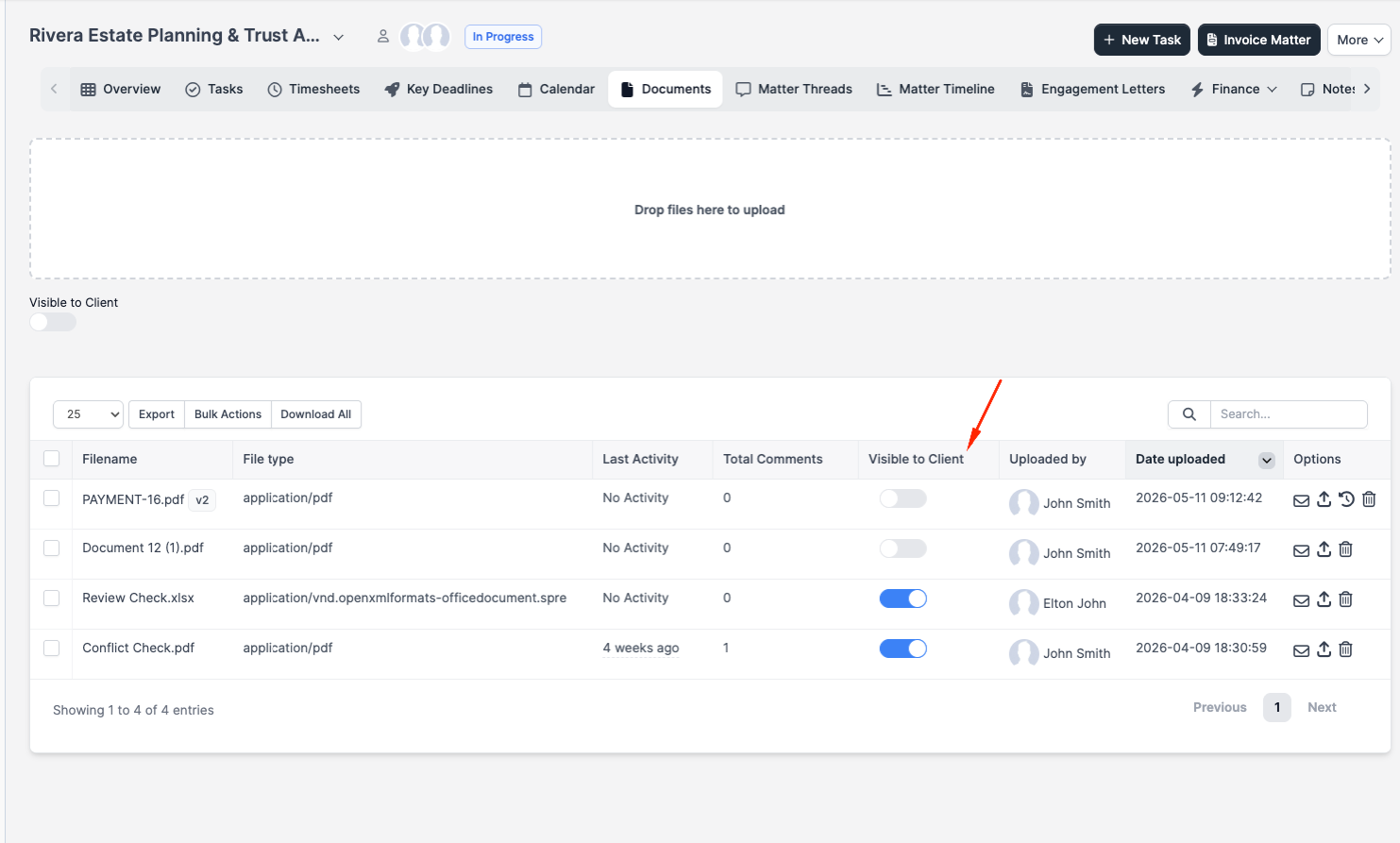
Each upload also has a Visible to client toggle directly below the drop zone. Tick it before you upload to make the file visible to client contacts via the portal; leave it off and the file stays internal. 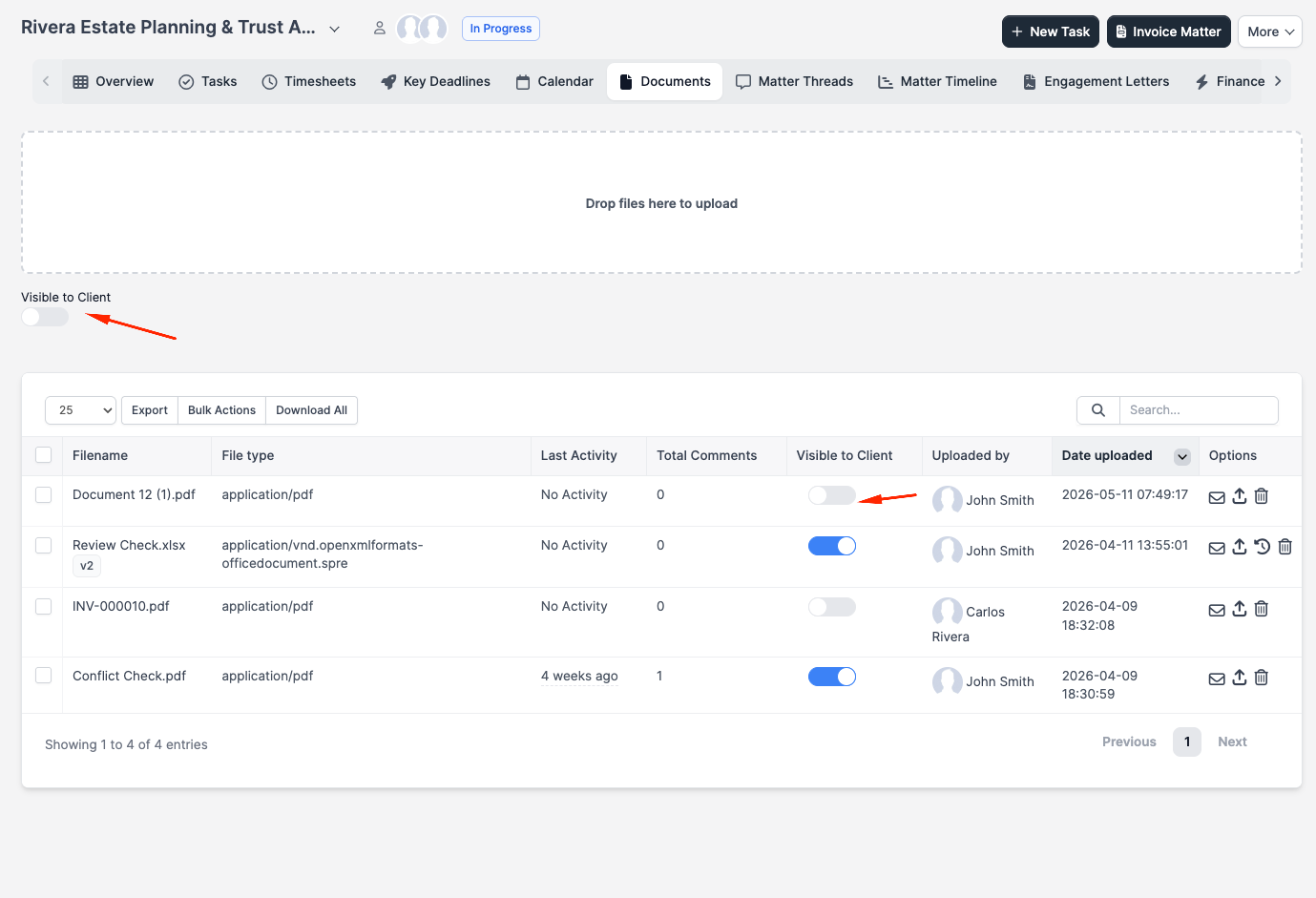
After upload, each file appears in the document list with its name, file type, last activity, comment count, visible-to-client toggle, the uploader (staff or contact), and the upload date.
To a client
Open the client profile and switch to the Documents group. The upload mechanism is the same: drag onto the upload area or click to pick files.
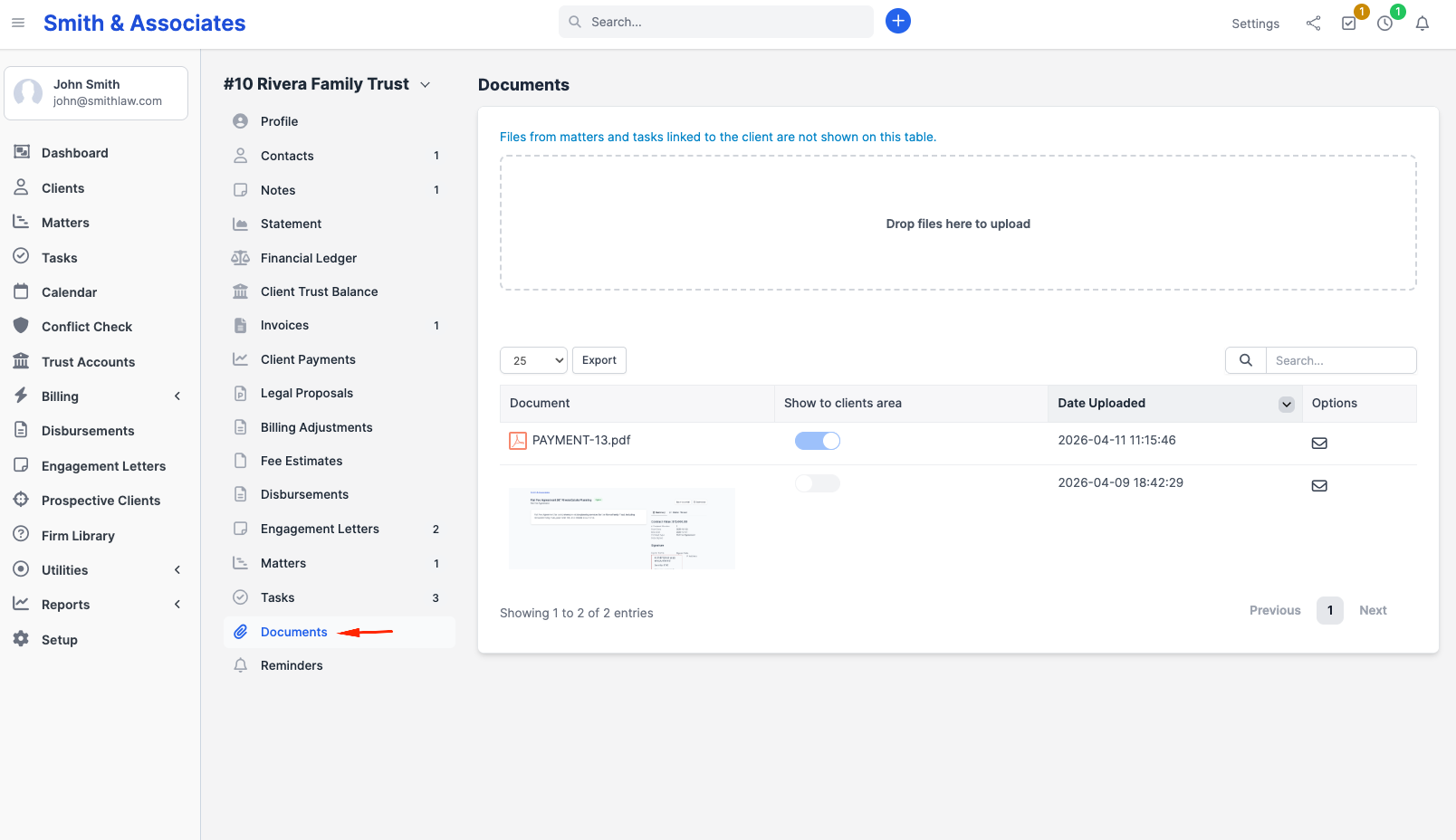
Each upload has a per-file Show in clients area toggle, and a separate Share file with... modal lets you pick the specific contacts on the client who should see the file (defaults to the primary contact).
To a task
Open the task. Two ways to add files:
- On creation: the Attach Files control is in the new-task modal.
- After creation: drag files onto the task's comment area at the bottom of the modal. Each upload is recorded against the task and optionally linked to the comment you post with it.
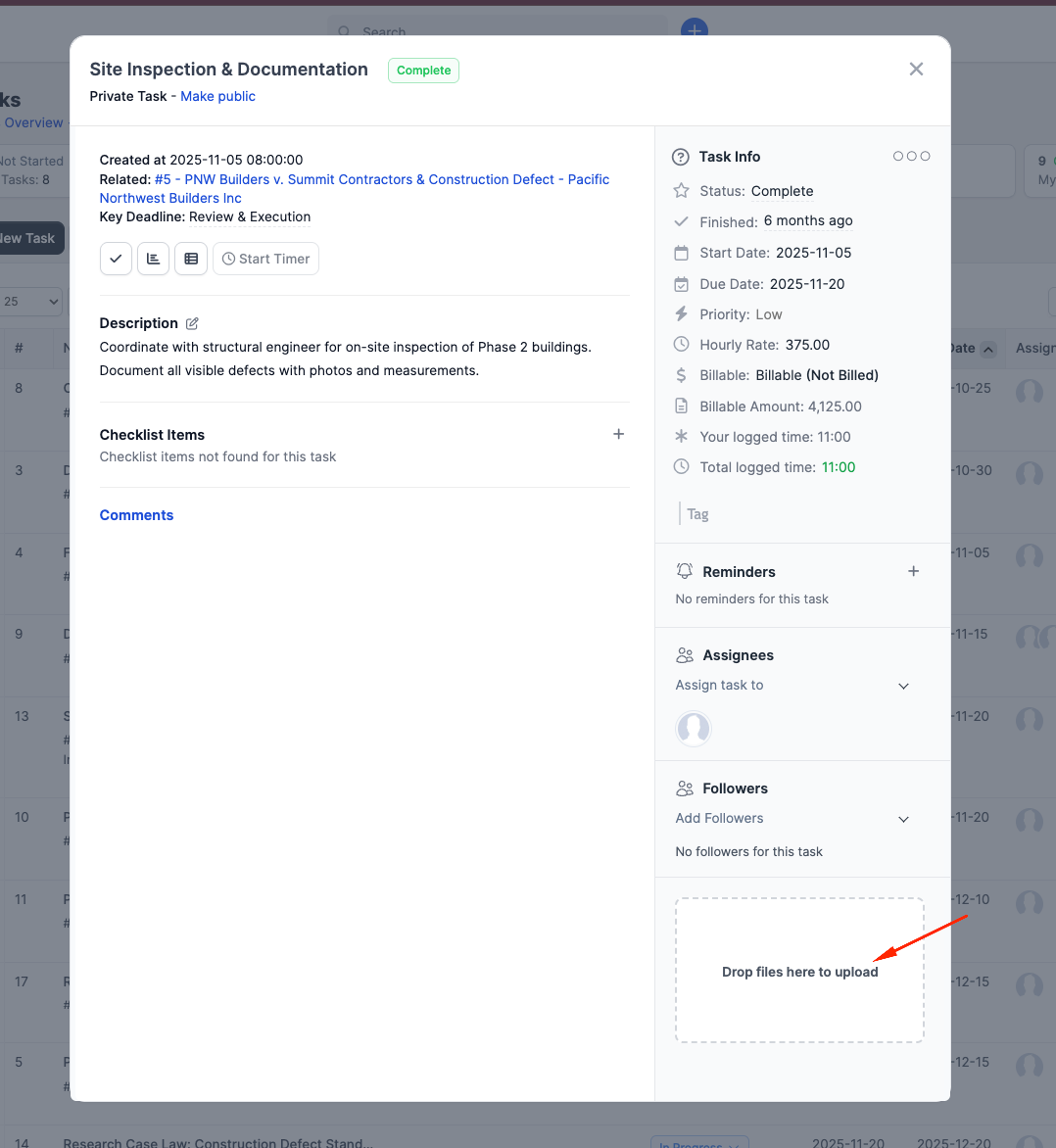 The Attachments section of the saved task lists every file.
Opening a matter document
Click the filename in the documents table. CaseFlow opens a full-screen file modal split into two panes:
- Left pane — the file itself: a Subject input (defaults to the filename), a Description textarea, a Download button, and an inline preview. The Subject and Description are editable by the uploader and by staff with create permission on matters; both auto-save on blur. If you imported the file from Google Drive or Dropbox, an Open in Google Drive / Open in Dropbox button appears so you can jump back to the source.
- Right pane — a discussion thread tied to this specific file (see "Comments on a file" below).
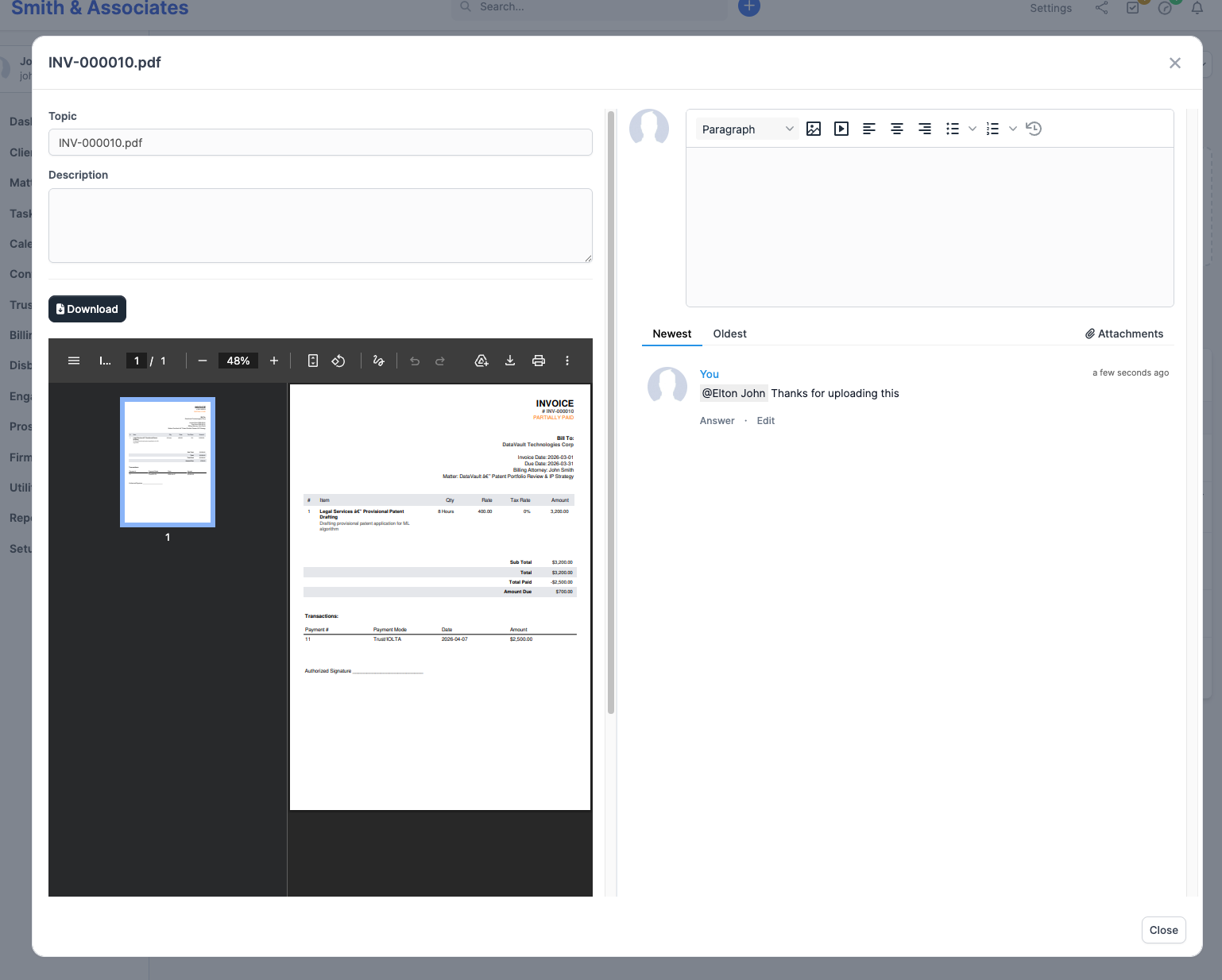
Inline preview
The preview area renders the following formats directly in the browser:
- Images (JPG, PNG, GIF, SVG, and similar) - shown at full width.
- PDF - opened in the browser's built-in PDF viewer.
- Video (MP4, WebM) - played with a standard video player.
- Markdown (
.md) - rendered as formatted text.
For everything else (Word, Excel, PowerPoint, Pages, plain text, etc.) the preview pane shows a "No preview available" message with a download link. Use the Download button to open the file in its native application.
Downloading
Use the download icon next to each file in the documents table to save it locally. To bulk-download every file on a matter, click Download all above the documents table; CaseFlow streams them into a single ZIP.
Comments on a file
Each matter document has its own discussion thread, separate from the matter-wide thread. Open the file modal and use the right pane to:
- Post a new comment (rich-text editor; @-mentions of staff are supported).
- Reply to an existing comment (threaded; one level of nesting).
- Drag a file onto the comment area to attach it - the attachment is stored against the comment, not against the matter's main documents list.
- Edit or delete your own comments (admins can edit or delete any comment).
A comment count is shown in the Comments column on the documents table, and the Last activity column is updated when a new comment is posted on a file. Clients with portal access and permission to view files can also post and reply if the file is visible to them.
This per-file thread is useful for keeping document-specific feedback (redlines, signature requests, partner review notes) attached to the document itself instead of scattered across the matter's general activity feed.
Sending a file by email
Each matter document row has an envelope icon in the action area. Clicking it opens a modal where you can pick recipient contacts, attach the file directly to the email, add a note, and send. 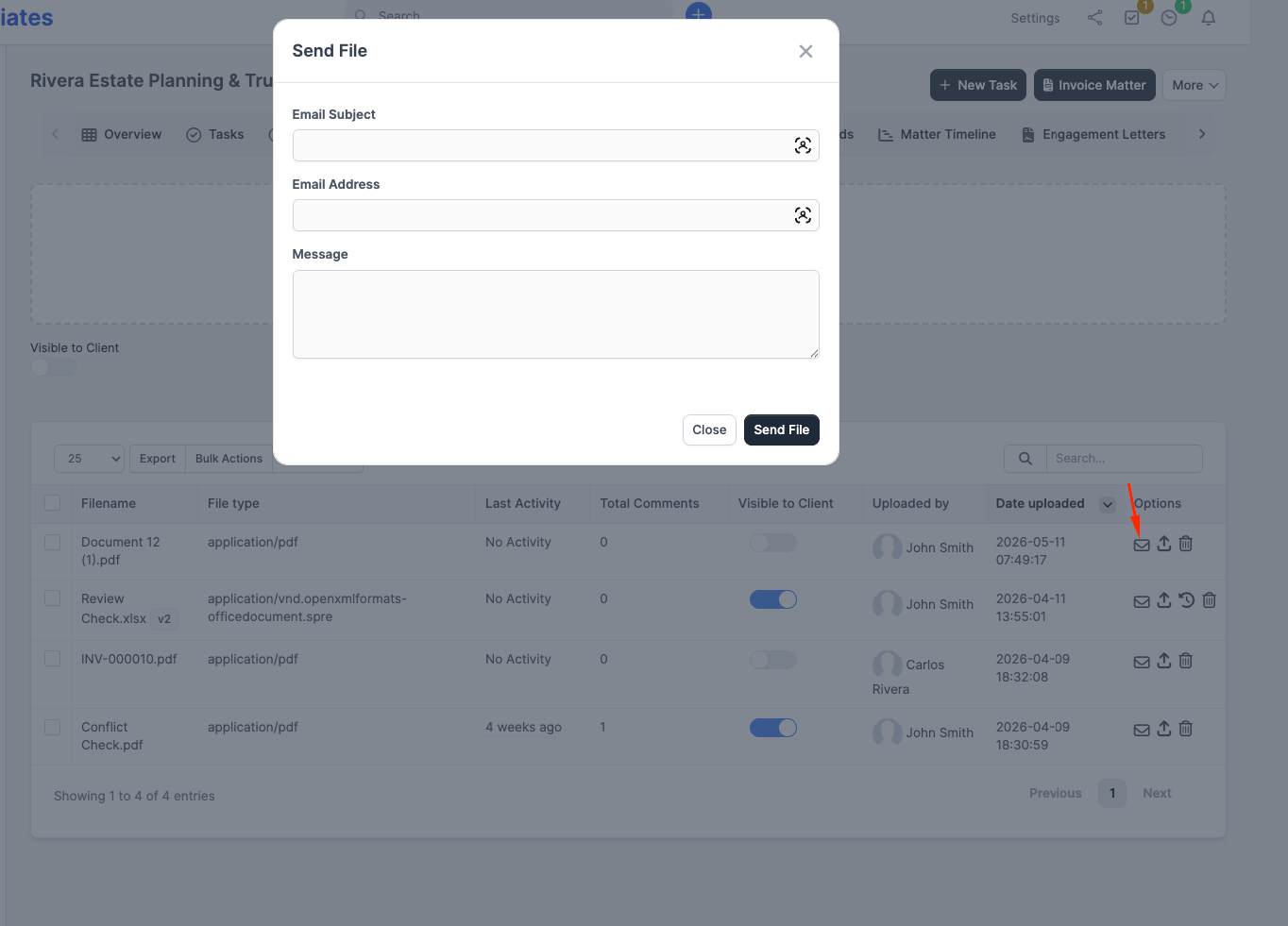
The send is recorded on the file so you can see who you sent it to and when.
Versioning (matter documents)
Matter documents support an explicit version chain. Each file row has an Upload new version icon (an upload arrow); clicking it opens a small modal where you choose the new file and optionally enter version notes (e.g. "Incorporated client comments on section 3"). 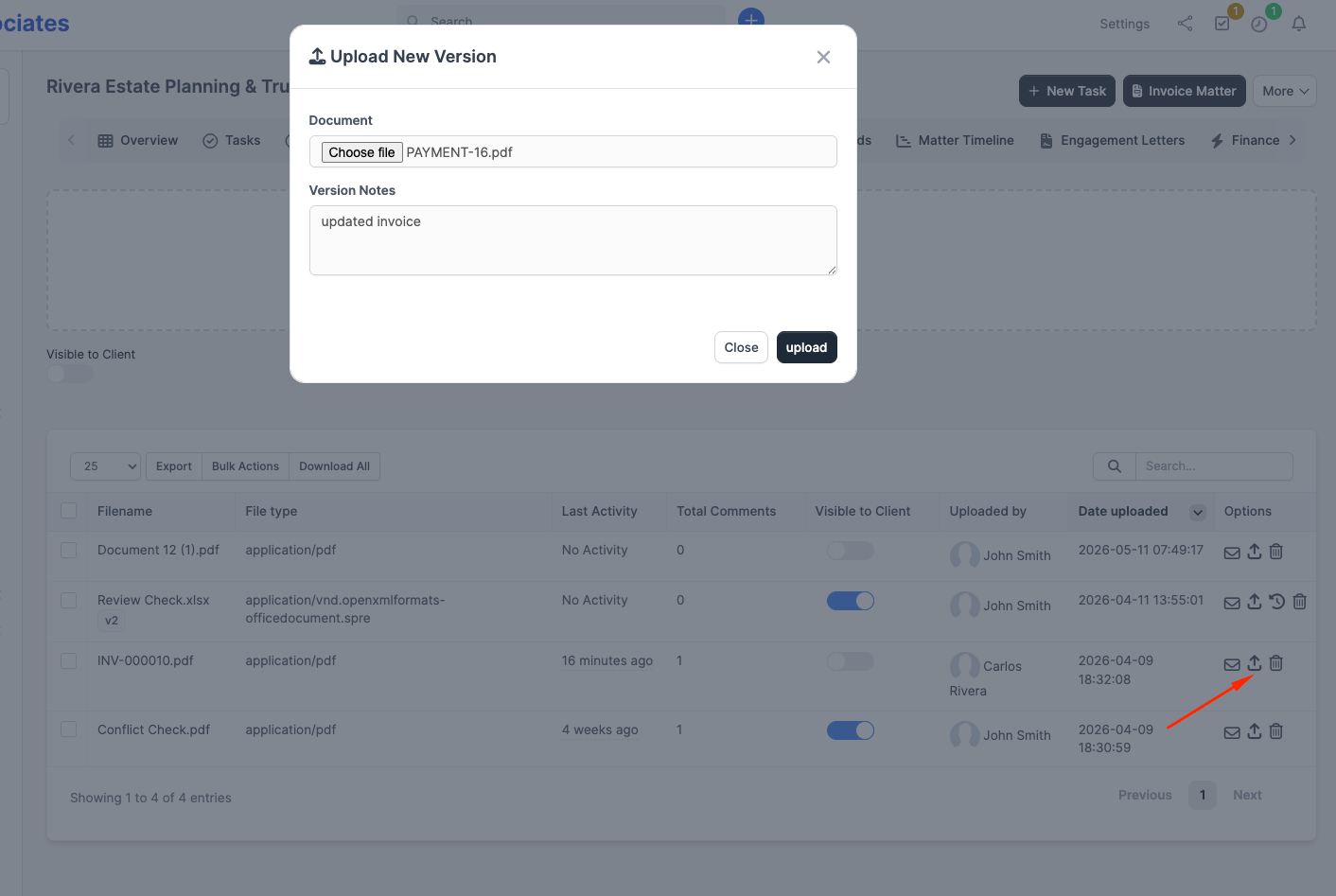
What happens on upload:
- The new file is added to the chain alongside the original; the previous version is kept so you can refer back to it.
- The new upload becomes the current version. The earlier current version is moved into the history.
- The filename in the table gets a small v2, v3, ... label so you can see at a glance which entries have been revised.
- A clock icon appears next to any file that has more than one version.
Viewing version history
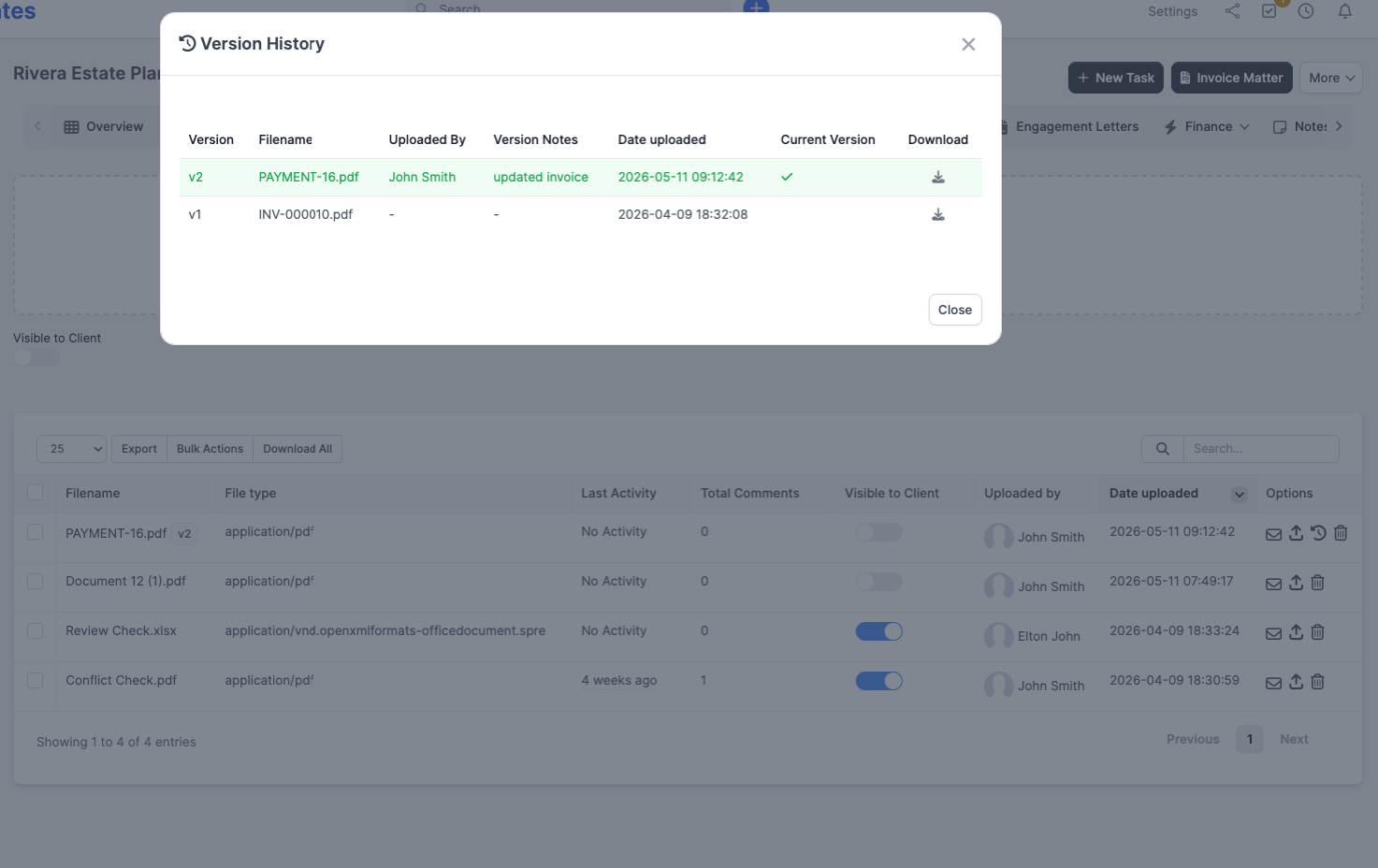
Click the clock icon next to the filename to open the File version history modal. 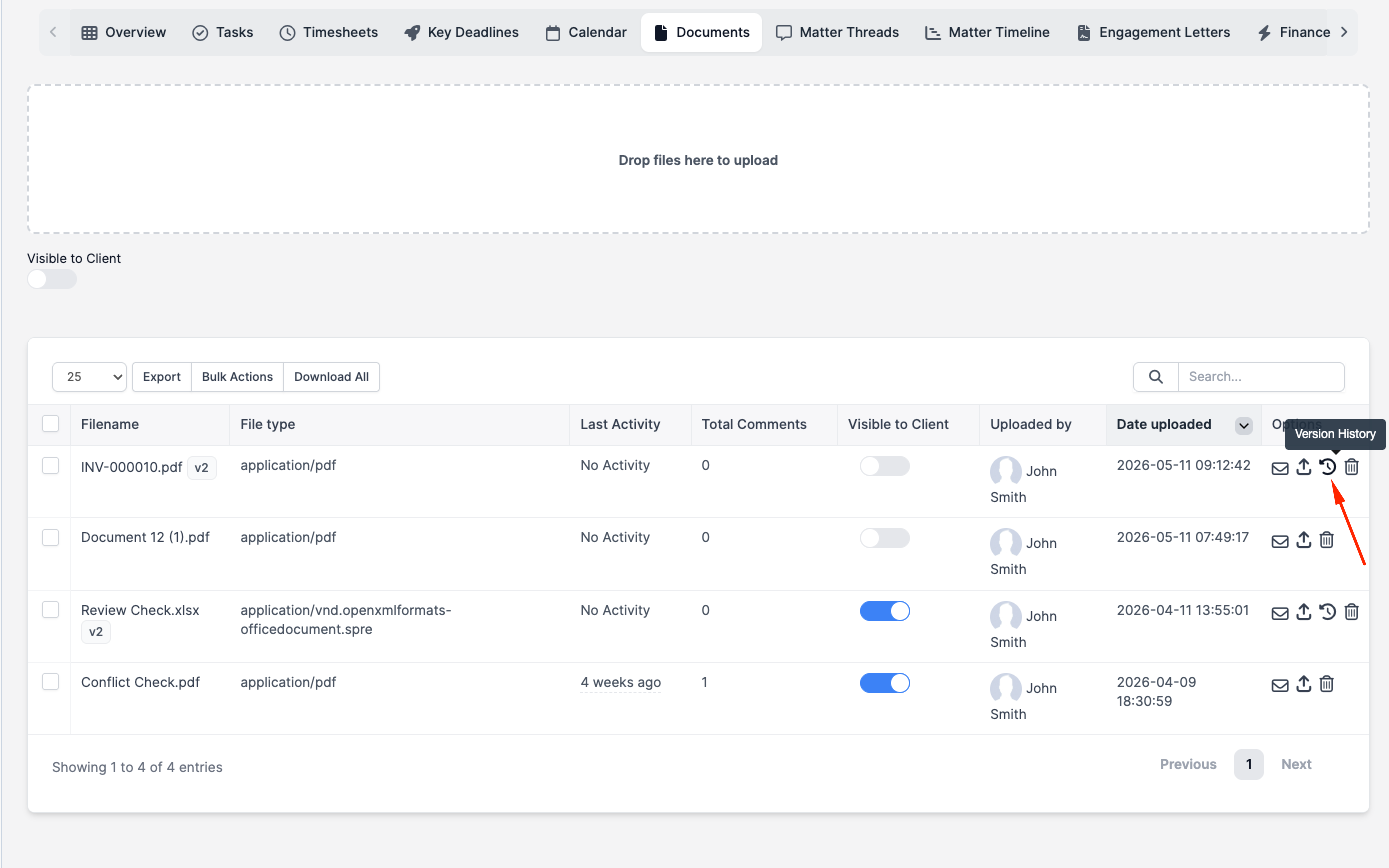
The modal lists every version with:
- Version number (v1, v2, ...)
- Filename of that version's upload (filenames can change between drafts)
- Who uploaded it
- The version notes typed at the time of upload
- Upload date
- A check mark next to the current version
Older versions stay downloadable from the matter even though the table itself is read-only.
Deleting a version
If you delete a single version from the chain (via the trash icon on the file row when you have access to that version):
- If you delete the current version, CaseFlow automatically promotes the previous version to current. The chain stays intact and the next-highest version becomes the visible row.
- If you delete the original (v1), the next version in line takes its place and the remaining versions stay attached. The version numbering is preserved.
The version chain only fully disappears when every version in it has been deleted.
Same-name uploads are not versions
Uploading a new file with the same filename as an existing file does not automatically create a new version. Each upload creates a separate row unless you use the Upload new version icon to chain it to an existing file. If you regularly want versioning, train your team to use the version icon instead of re-uploading.
Where versioning is available
Version chains exist only on matter documents. Files uploaded to a client's Attachments group, to a task, to a disbursement (as a receipt), or to a proposal/engagement letter as an attachment do not have a version history. For those records, re-upload the file and (where possible) delete the older copy.
Bulk actions on matter documents
Tick the checkboxes on the document table and use the Bulk Actions button:
- Admins can mass-delete the selected files.
- Anyone with edit rights can bulk-toggle the Visible to client flag across the selected files.
Deleting a file
Click the trash icon on the file row. Only the uploader or staff with delete permission on the parent record can delete. There is no recycle bin; deletion is immediate and permanent. Per-file comments and version notes are removed along with the file.
If the file is part of a version chain, see "Deleting a version" above; the chain re-shuffles around the gap rather than collapsing entirely.
Sharing with clients (portal)
Sharing a file with a client is the Visible to client toggle on the file row (matter documents) or the per-contact share modal (client attachments).
The toggle exists on every plan, but for clients to actually log in and see the file you need the Growth plan or above. On Solo, toggling the switch on has no end-user effect.
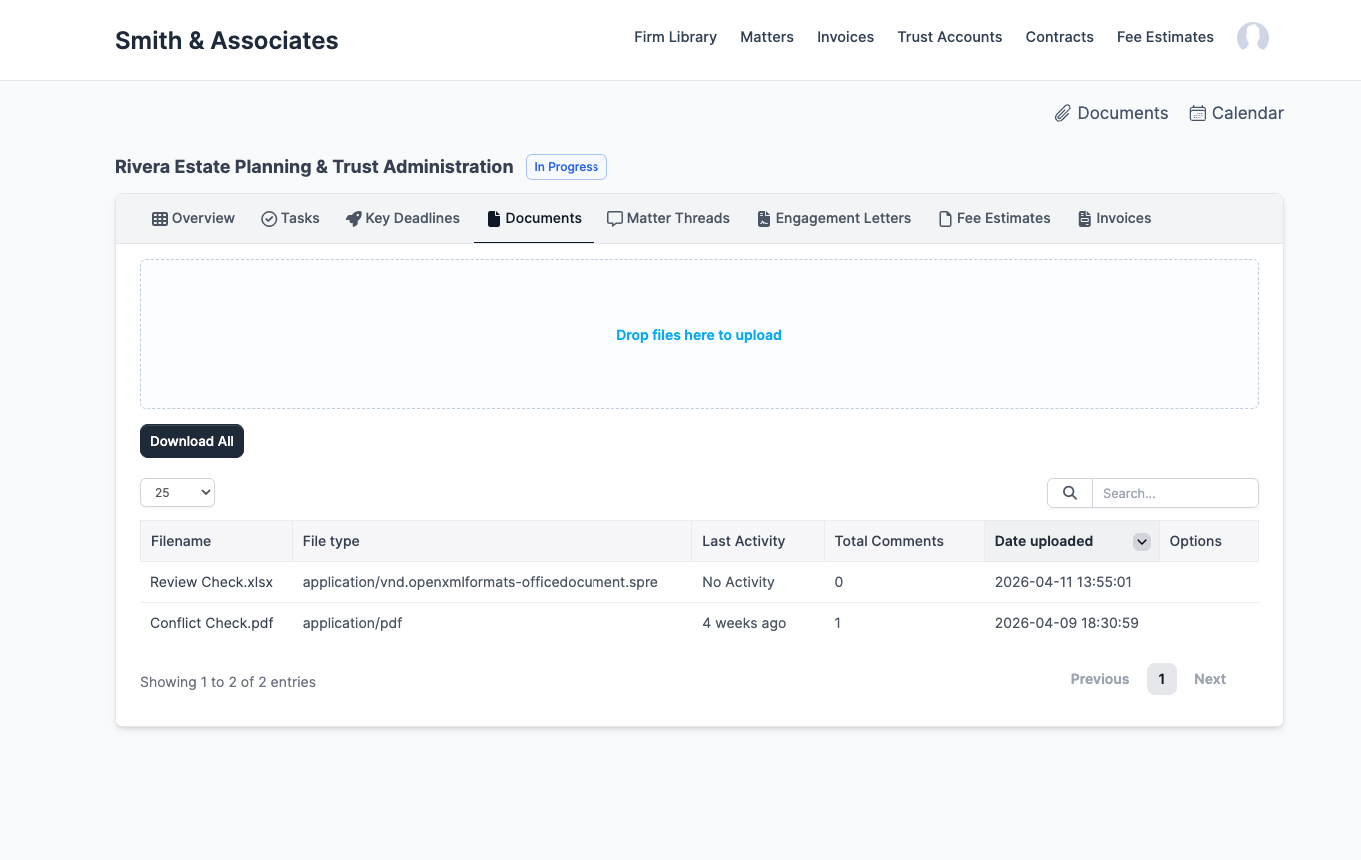
Files are private by default. You have to explicitly toggle each file on for the client.