
Billing reports
Finance report
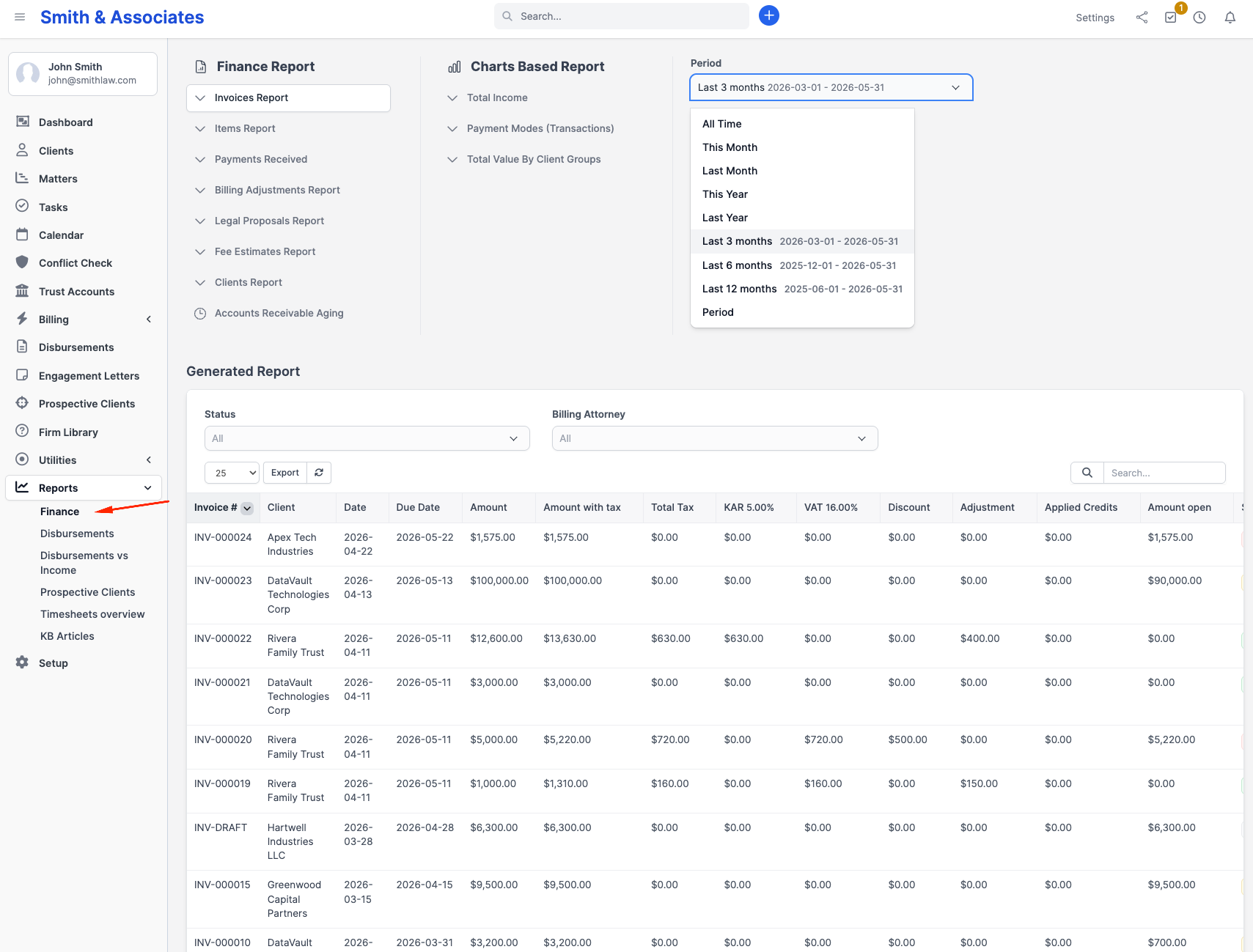
Go to Reports > Finance. The page is split into three vertical panels:
- A Detailed reports menu on the left
- A Charts-based reports menu in the middle
- Filter controls on the right (period, year, currency)
Pick a sub-report on either of the left menus; the table or chart renders in the panel below the filter bar.
Detailed sub-reports
Each of these opens a filterable, exportable data view in the main panel. The list (in the order they appear in the left menu):
| Sub-report | What it shows |
|---|---|
| Invoice report | One row per invoice in the selected period; filterable by status |
| Items report | Most-billed line items aggregated across invoices |
| Payments received | One row per payment; useful for bank reconciliation |
| Billing adjustments report | One row per billing adjustment (formerly known as credit notes) |
| Proposals report | One row per legal proposal with status and value |
| Fee Estimates report | One row per fee estimate with status and value |
| Customer report | Per-client totals - billed, paid, outstanding |
| AR Aging report | Standalone page (link); see below |
Click any sub-report once and it loads in place. Switching to another sub-report swaps the data without leaving the page.
Chart-based sub-reports
These render a chart instead of a table:
| Chart | What it plots |
|---|---|
| Total income | Monthly received-payment totals for the selected year, as a bar chart |
| Payment modes | Distribution of payments across payment methods (card, cheque, transfer, etc.) |
| By client groups | Distribution of income across the firm's client groups |
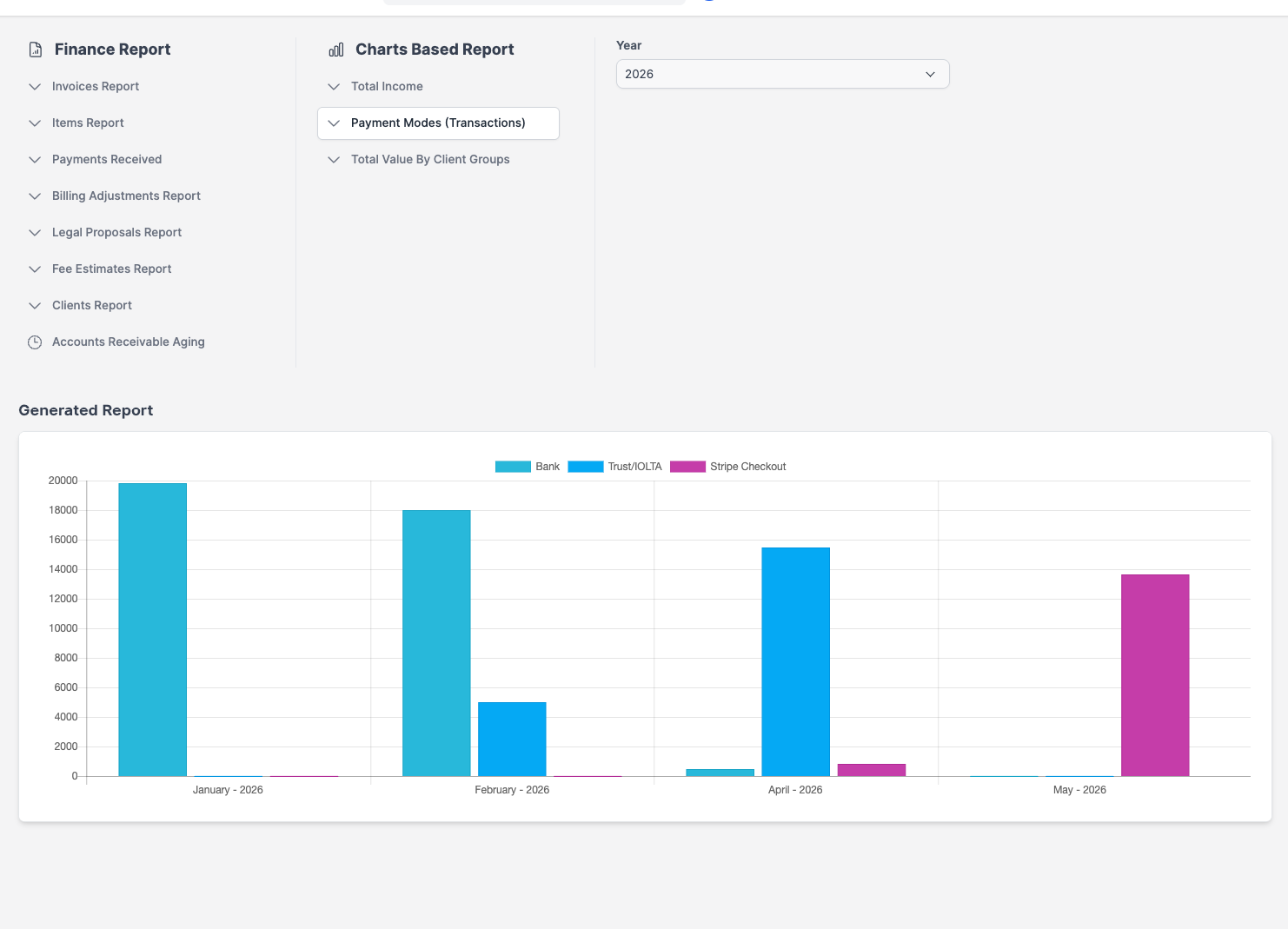
Period filter
When a sub-report is active, the right-hand filter panel exposes a Period selector with these presets: All time, This month, Last month, This year, Last year, Last 3 months, Last 6 months, Last 12 months, plus Custom which reveals start/end date pickers.
If the firm has invoices in more than one currency, a Currency selector also appears; the sub-report aggregates only the rows in the chosen currency.
Export
Each detailed sub-report exposes Excel and PDF download icons above its table when it renders. Exports include whatever rows are currently visible, so they respect the period and currency filter. 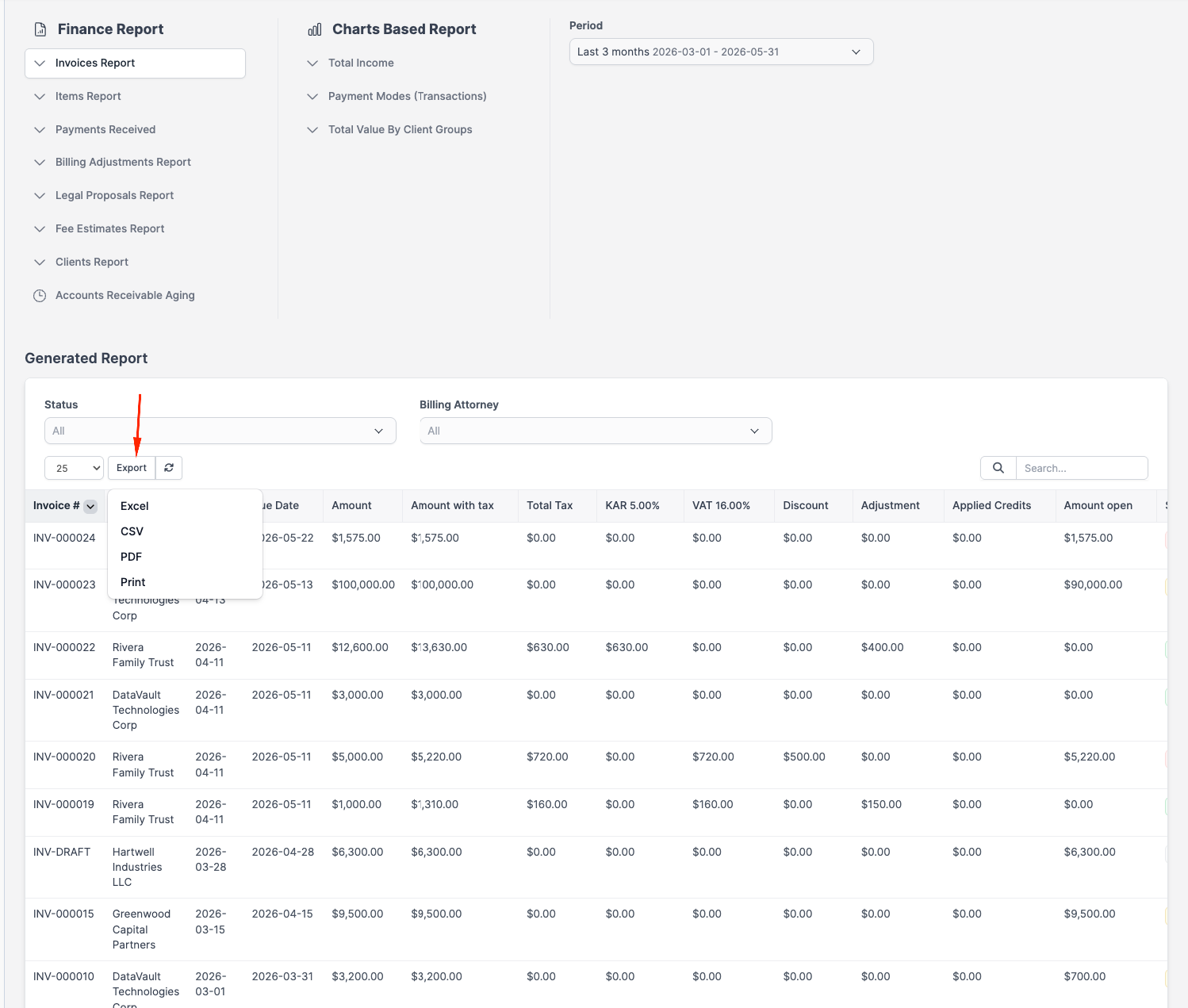
Cancelled invoices
A red banner appears at the top of the Finance page when the firm has any invoices with status Cancelled: "Cancelled invoices are not included in this report." Cancelled invoices are excluded from every aggregation here.
Accounts Receivable (AR) Aging report
Open it by clicking the AR Aging link inside the Finance menu shown below. 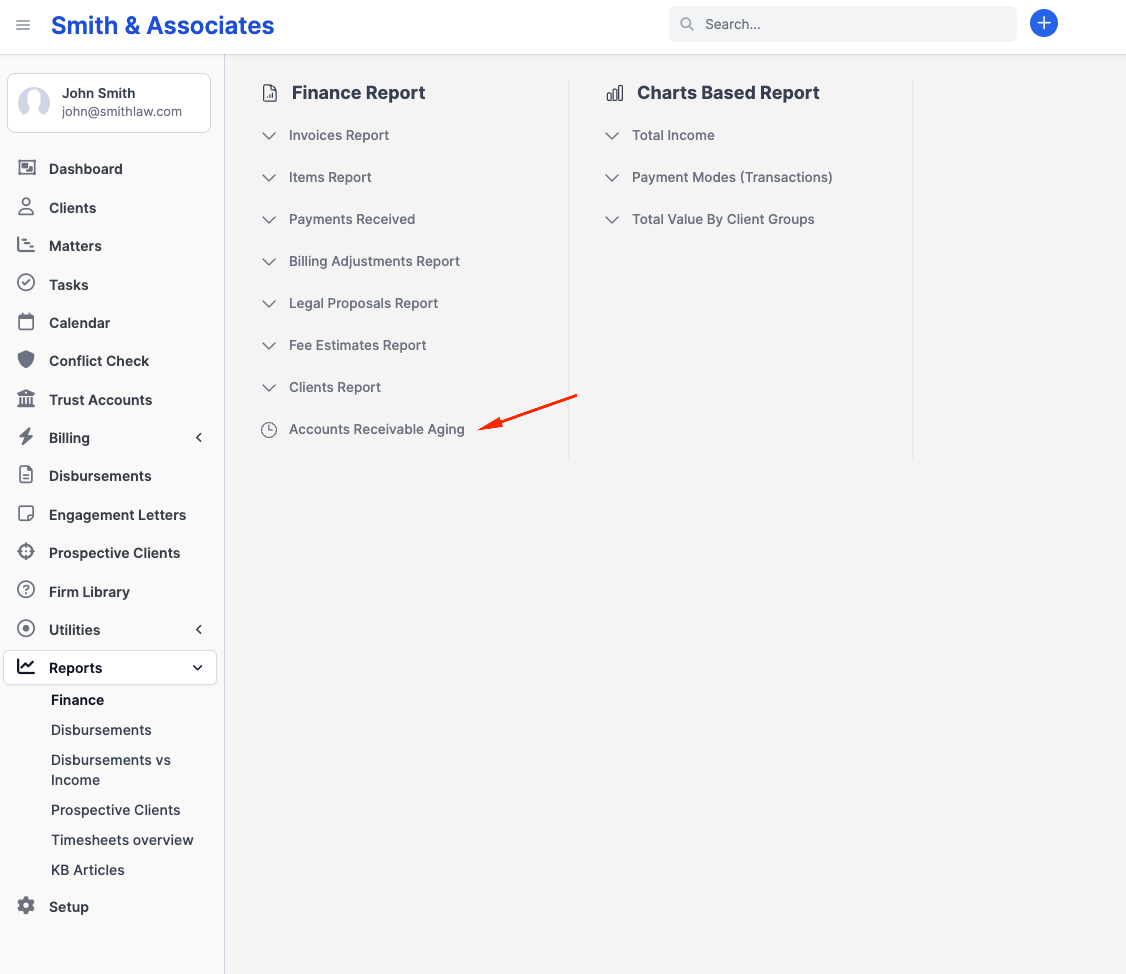
The report lists every client with at least one unpaid invoice, bucketed by how overdue each invoice is. The buckets are fixed:
| Bucket | Definition |
|---|---|
| Not Due | Invoice still within its due date |
| 1-30 days | Overdue by up to 30 days |
| 31-60 days | Overdue by 31 to 60 days |
| 61-90 days | Overdue by 61 to 90 days |
| 90+ days | Overdue by more than 90 days |
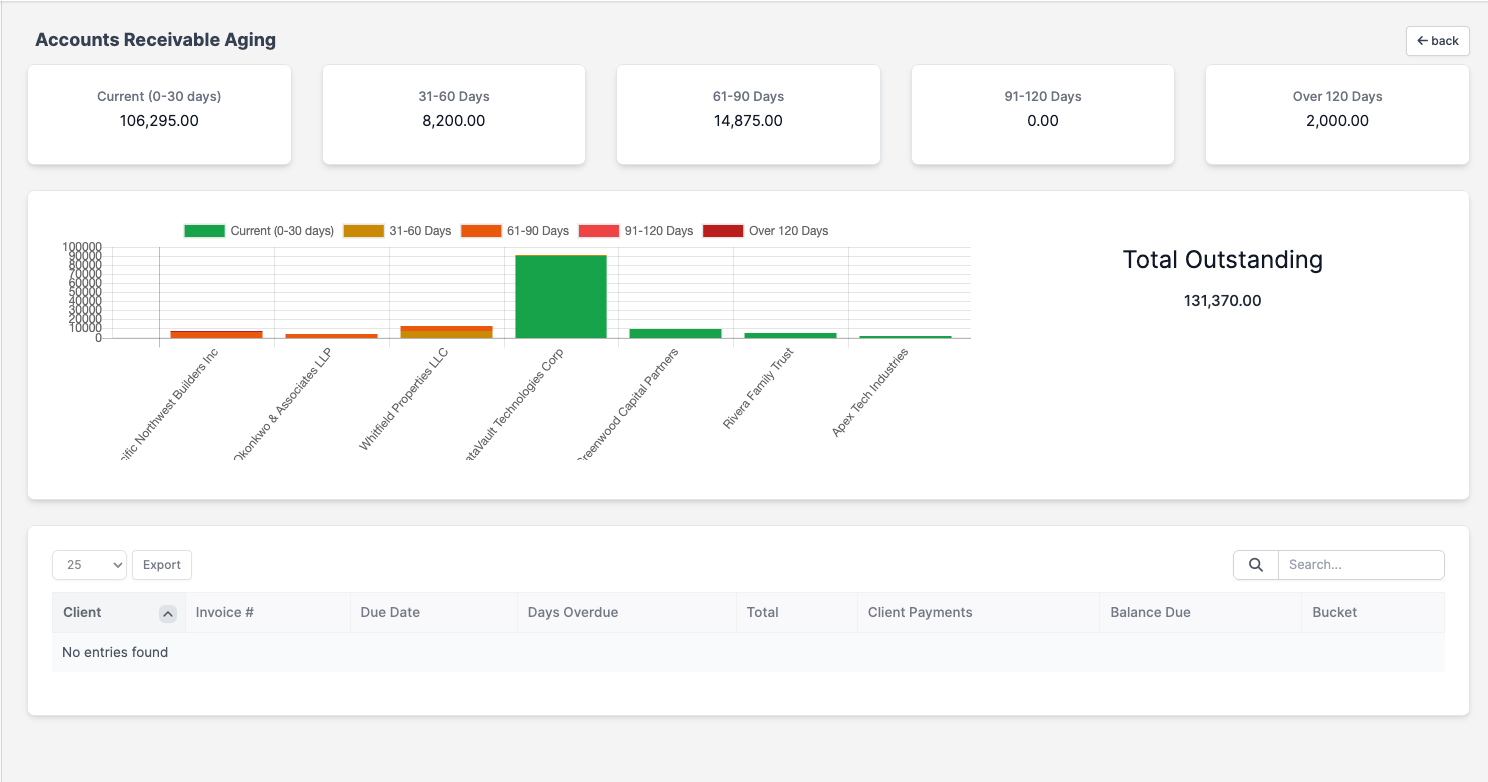
Each client row totals the outstanding amount per bucket plus a grand total. Use this to identify accounts that need collection action.
The page is currency-aware: if the firm has multiple currencies in use, a currency selector at the top swaps the entire table to the chosen currency.
Plan availability
All Finance sub-reports, the chart-based sub-reports, and the AR Aging report are available on every plan (Solo, Growth, Multi-Practice). There is no separate "advanced reports" tier.