
Matters
A matter is a case, project, or piece of work you are doing for a client. It is the central organising unit in CaseFlow; tasks, documents, time entries, invoices, and notes all attach to a specific matter.
What you can do
- Create matters and link them to clients
- Track matter status through configurable stages
- Assign staff members to a matter
- Set key deadlines (milestones) with dates
- Upload and organise documents per matter
- Use matter threads for internal team discussion
- View the Matter Timeline (a Gantt-style chart) of deadlines and progress
- Log time directly against a matter
The matter list
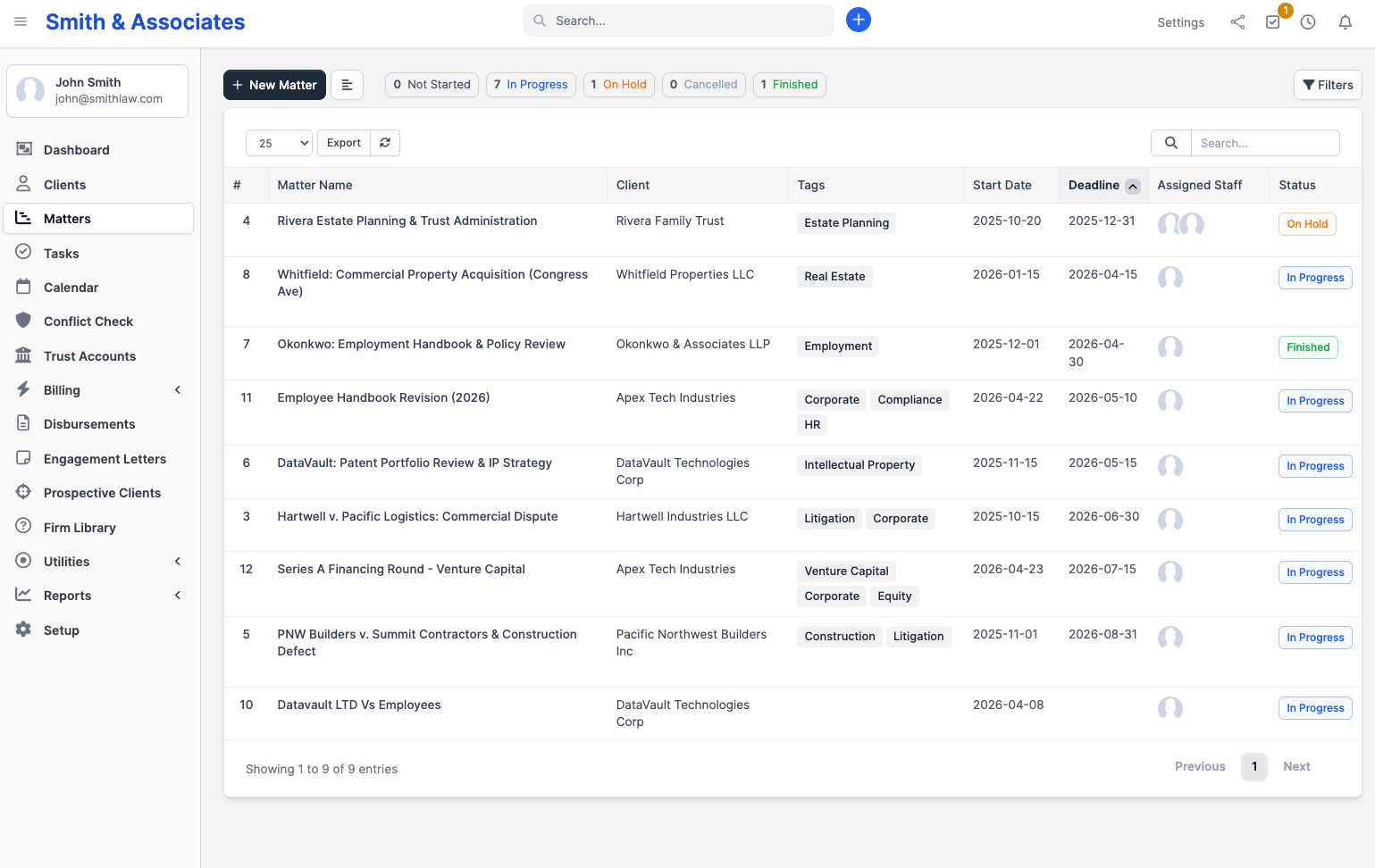
Click Matters in the sidebar. You see all matters across the firm (or only yours, depending on permissions).
The list shows:
- Matter name
- Client name
- Status (In Progress, On Hold, Closed, etc.)
- Start and deadline dates
- Assigned staff (avatars)
- Tags and group
Use filters at the top to narrow by status, assigned member, or date range.
Matter profile
Click a matter name to open it. The matter page has these tabs:
| Tab | Contents |
|---|---|
| Overview | Summary, description, dates, assigned staff, matter-health indicator |
| Tasks | All tasks for this matter; can switch to Kanban view |
| Timesheets | Time entries logged against this matter |
| Calendar | Events, key deadlines, and tasks with due dates for this matter, on a calendar grid |
| Key Deadlines | Date-based milestones (e.g. "Filing deadline", "Hearing date") |
| Matter Threads | Threaded discussions between assigned staff |
| Documents | Files uploaded to this matter |
| Invoices | Invoices issued for work on this matter |
| Expenses | Expenses linked to this matter |
| Notes | Internal notes |
| Matter Updates | Client-visible narrative timeline; entries can be toggled visible or hidden from the client portal |
| Audit Trail | Tamper-evident compliance record of every change to this matter (Growth and Multi-Practice); never visible to clients |
| Gantt | Visual timeline of tasks and deadlines |
Matter-health indicator
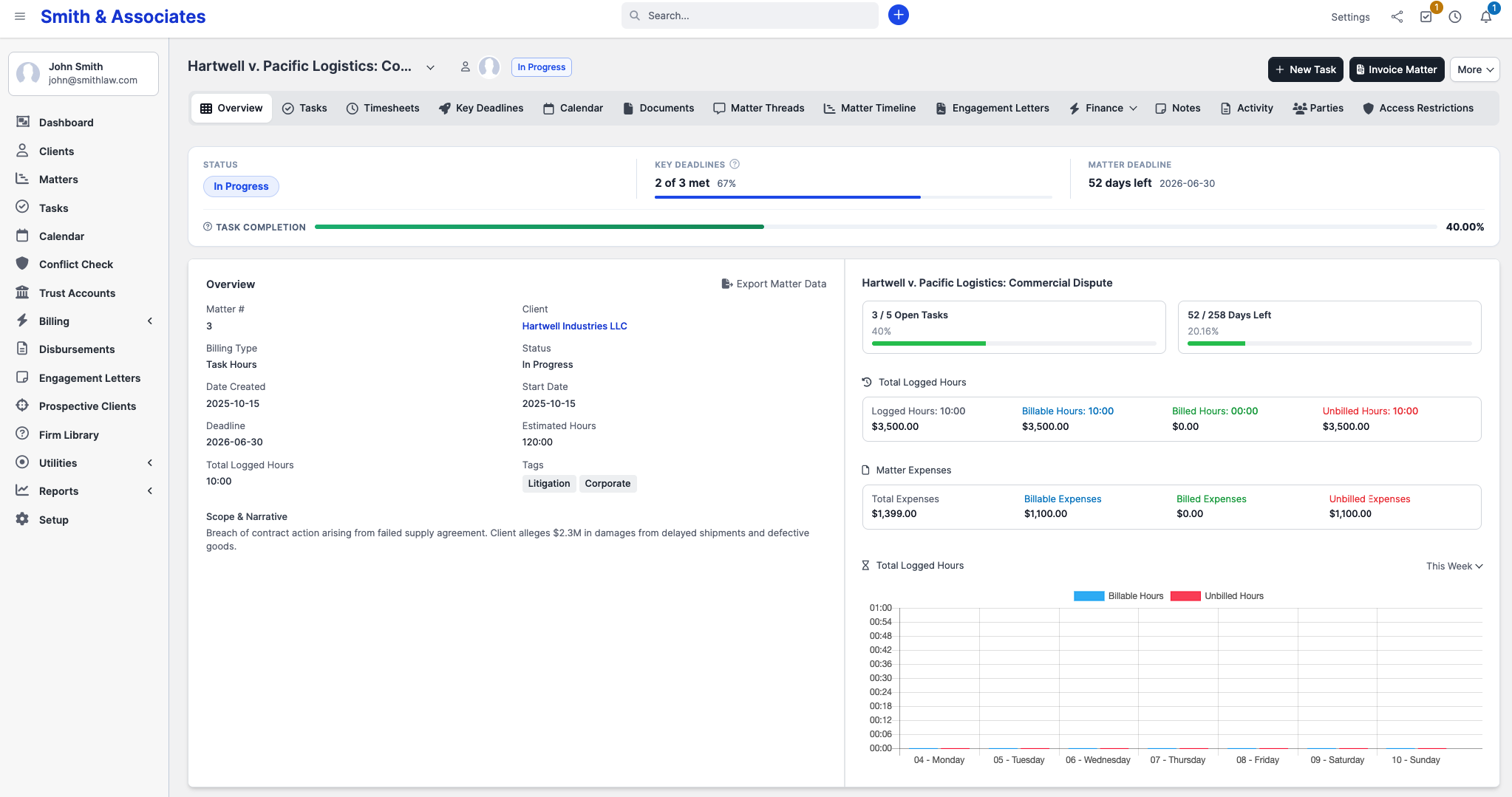
At the top of the Overview tab, CaseFlow shows three signals that together tell you how a matter is tracking:
- Status pill: Not Started, In Progress, On Hold, Finished, or Cancelled. Colour-coded. Change it from the status dropdown in the matter header. This is the primary signal; most firms use status as their main view of matter progress, the same way Clio, MyCase, and PracticePanther do.
- Key Deadlines met: e.g. "3 of 5 met". Counts deadlines whose date has passed (the matter kept going, so the firm implicitly hit or waived them). Only shows when the matter has key deadlines defined. Add them on the Key Deadlines tab.
- Matter deadline countdown: how the matter sits relative to its overall deadline. Shows N days left when there is time remaining, Due today in amber on the deadline date itself, and Overdue by N days in red when the deadline has passed without the matter being closed.
CaseFlow does not show a single all-up "matter progress" percentage by default. A percentage drawn from task completion misleads on legal work (a matter with no tasks is not "100% done"; a matter with one outstanding task is not "50% done").
If your firm does want a task-completion bar, edit the matter and tick Show task-completion bar. 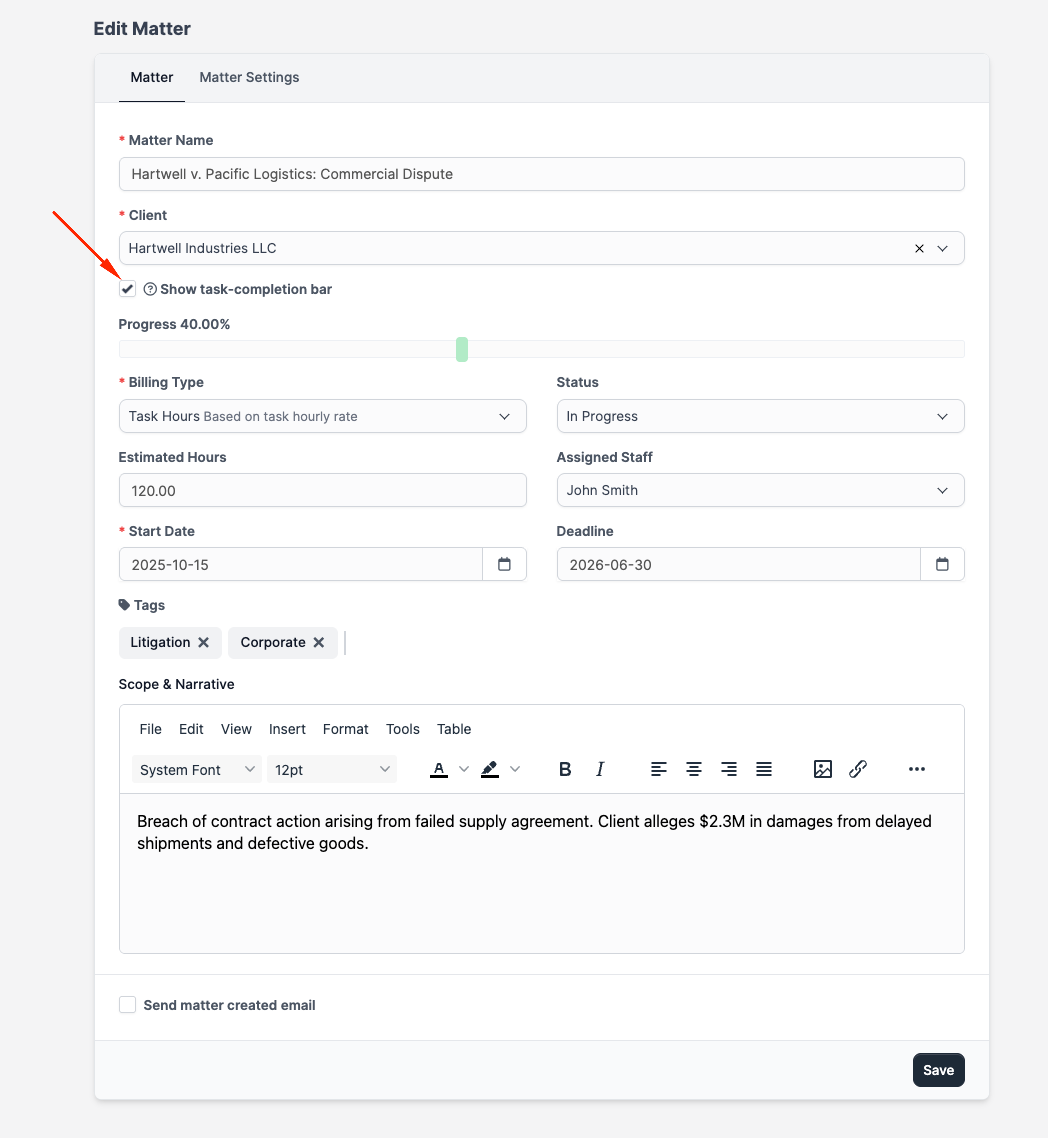
When enabled, a secondary bar appears below the three main signals showing the percentage of this matter's tasks marked complete.
Plans and availability
Matters are available on all plans. The Matter Updates tab is available on every plan. The Audit Trail tab (the tamper-evident compliance record) requires the Growth or Multi-Practice plan.