
Sending invoices
Once an invoice is saved, you can send it to the client by email or share its public link.
Sending by email
Open the invoice and click the envelope icon at the top of the invoice. 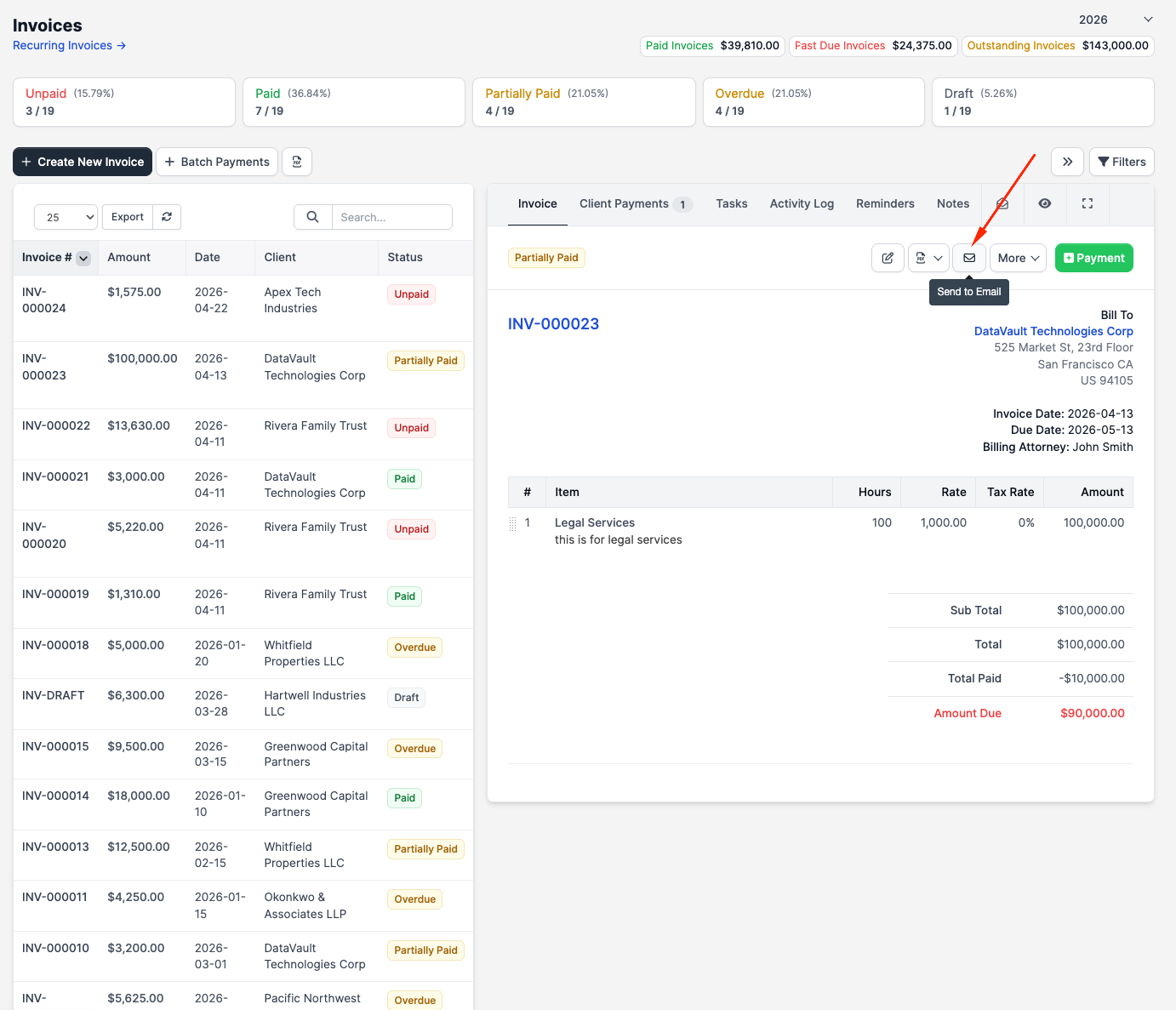
A dialog opens showing a preview of the email that will be sent. 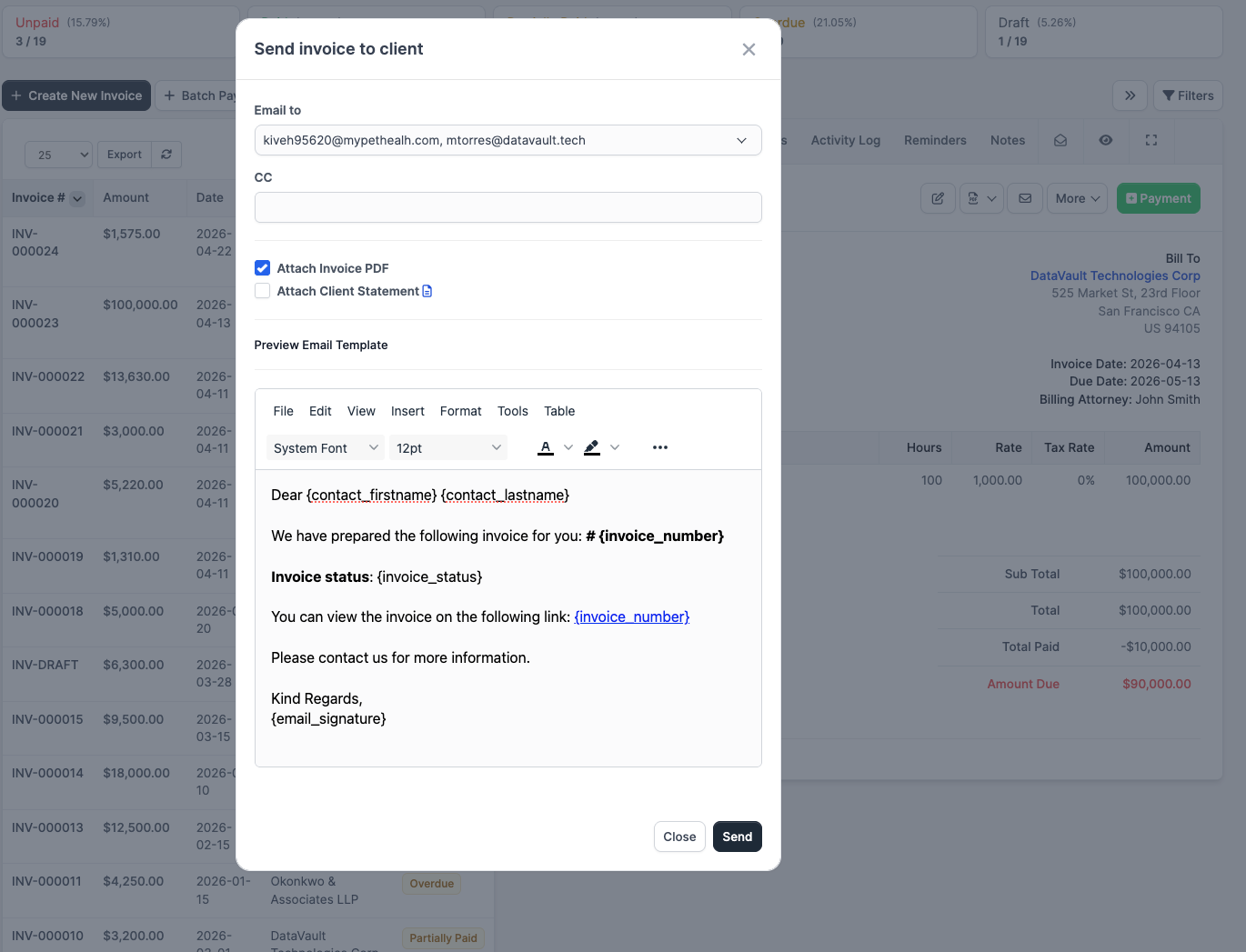
Recipients. The To field is a multi-select pre-populated with every active contact on the client who has the Receive invoice emails permission. Untick any contact you do not want to email. Add ad-hoc addresses in the CC field.
Attachments. Attach invoice PDF is ticked by default and produces a PDF attachment with your firm logo, address, line items, taxes, and totals. Attach client statement is also offered but is opt-in.
The email body. Includes your firm's name as the sender, the invoice number and amount due, and a link the client can use to view and (if online payments are enabled) pay the invoice. The body is rendered from the Invoice Send to Customer email template; you can edit the per-send copy inline before sending.
Click Send to confirm. The invoice is flagged as sent (a Last sent timestamp appears at the top), and the status moves from Draft to Unpaid if it was a draft. There is no "Sent" status — sent is a separate flag, tracked alongside the lifecycle status.
Resending
If you need to send the invoice again (e.g. the client lost the email), open the invoice and click the envelope icon a second time. CaseFlow sends a fresh email; the status does not change.
Sharing the public link
Every invoice has a public URL of the form /invoice/{id}/{hash}. The hash makes the link unguessable, and the page does not require the viewer to log in.
To get the link, open the invoice, click More, and choose View invoice as client. The link opens in a new tab; copy it from the address bar to share through any channel. 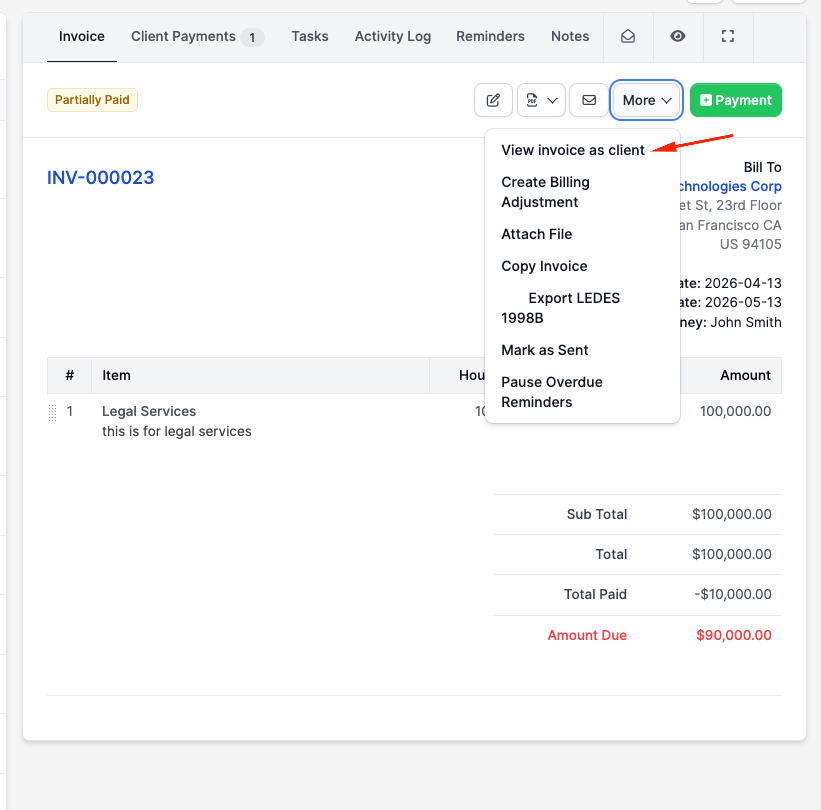
Invoice PDF
The same dropdown also offers View PDF, Download, and Print. The PDF includes your firm logo, address, line items, taxes, and totals — the same document that gets attached to the send email when Attach invoice PDF is ticked.
What the client sees
When a client opens the public link, they see the invoice in a clean web view with:
- Line items, taxes, totals
- Payment status
- A Pay Now button (if Stripe is configured for the firm)
- Option to download the PDF
Email delivery
CaseFlow sends invoice emails through its built-in email service. Delivery is usually instant but can take up to a minute. Send/bounce events are logged on the invoice's activity log.