
Portal features
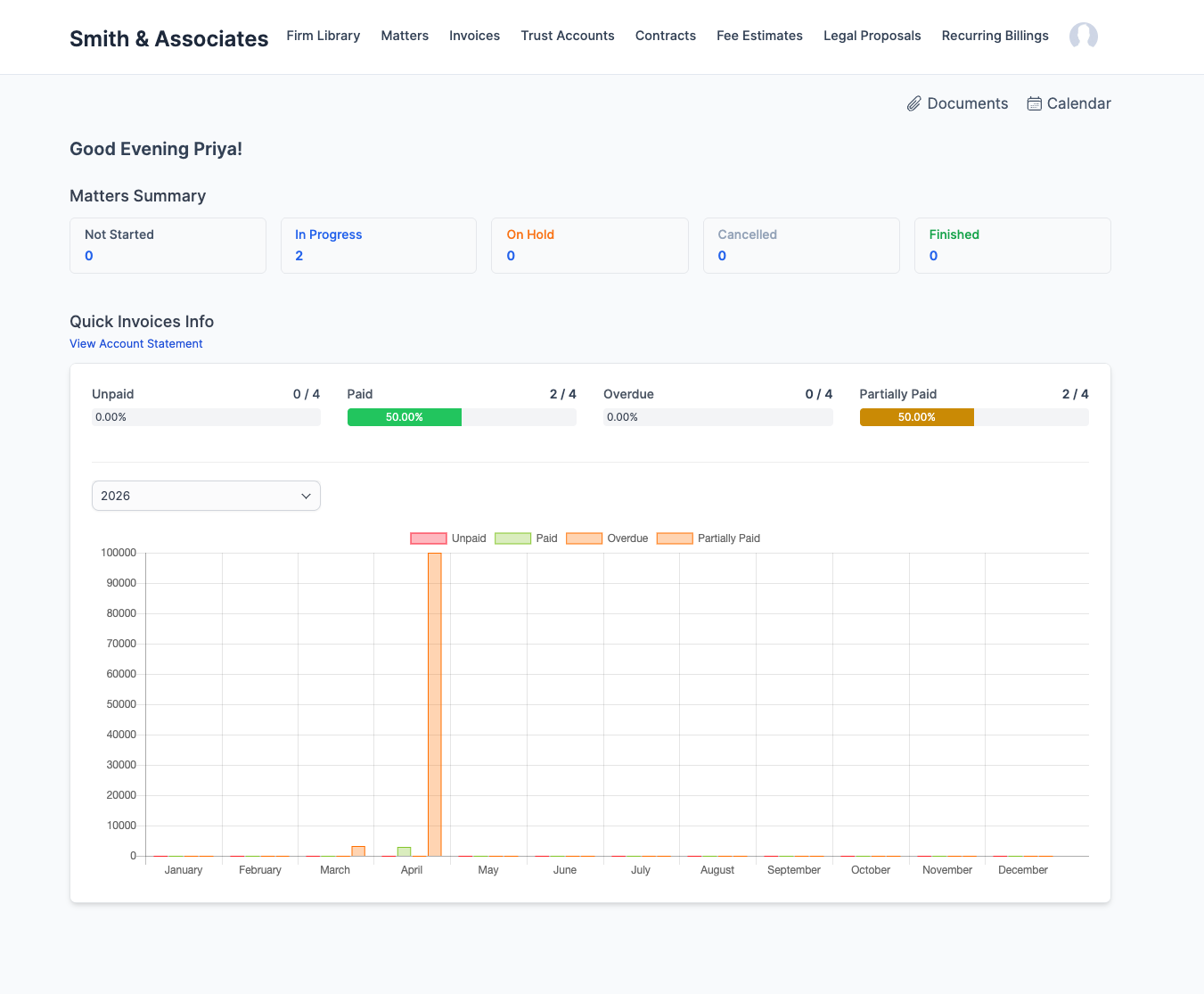
When a client logs into the portal, they see a dashboard with their activity and links to each section available to them.
Portal navigation
The client portal sidebar shows:
| Section | What the client sees |
|---|---|
| Dashboard | Summary of open invoices, recent activity, announcements |
| Invoices | All invoices with status; pay button for unpaid ones |
| Proposals | Proposals awaiting their response; accepted/declined history |
| Contracts | Contracts to sign; signed history |
| Estimates | Fee estimates to approve or reject |
| Documents | Files you have shared with them |
| Firm Library | Published help articles |
| Profile | Their contact details and password change |
Invoices and payments
Clients see every invoice issued to them with its status (Unpaid, Partially Paid, Paid, Overdue).
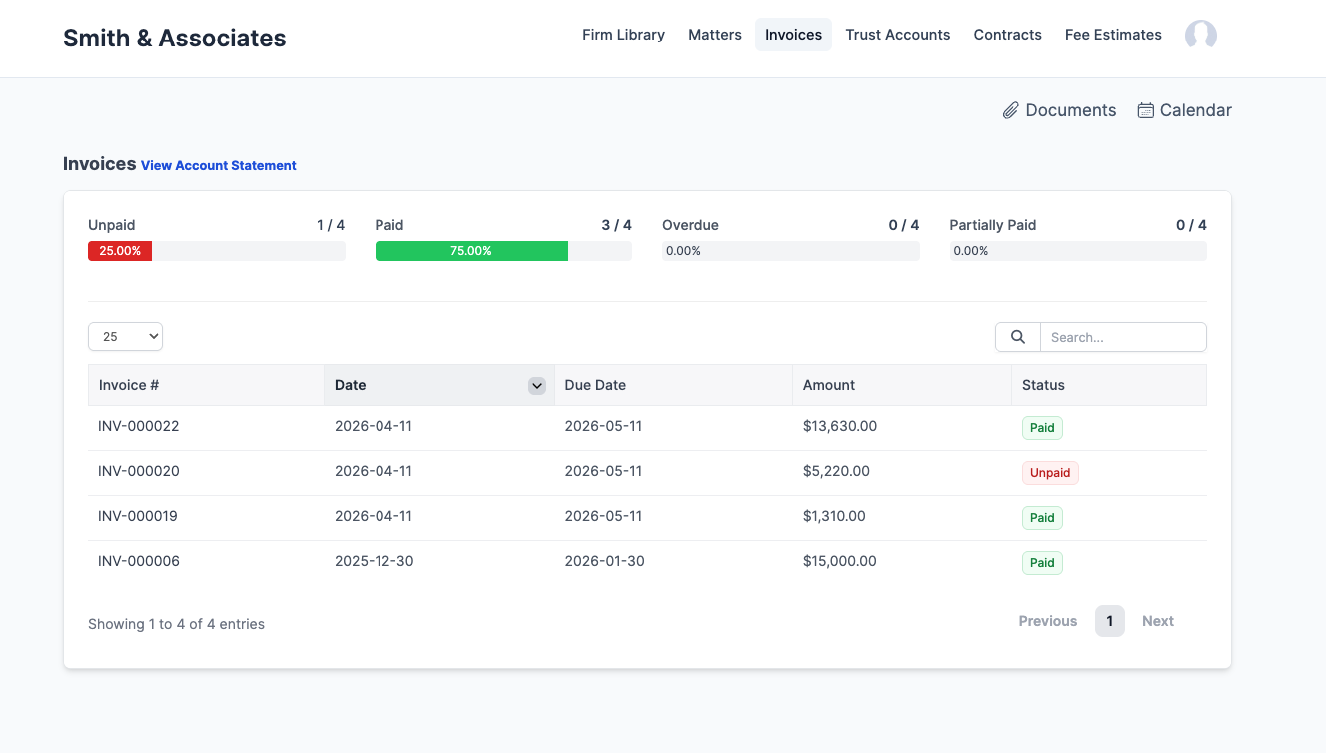
For unpaid invoices, a Pay Now button appears if Stripe is configured.
Clicking Pay Now opens the payment form. The client enters card details and pays. The payment records automatically in CaseFlow.
Clients can also download invoice PDFs from this section.
Proposals
When you send a proposal, the client can view it in the portal (in addition to the email link). They can accept or decline from either place. The portal shows a history of all proposals with their status.
Contracts and e-signatures
Contracts appear in the portal with a Sign button if unsigned. The client reads the contract, types their name in the signature field, and submits. The signed contract is then available for download. 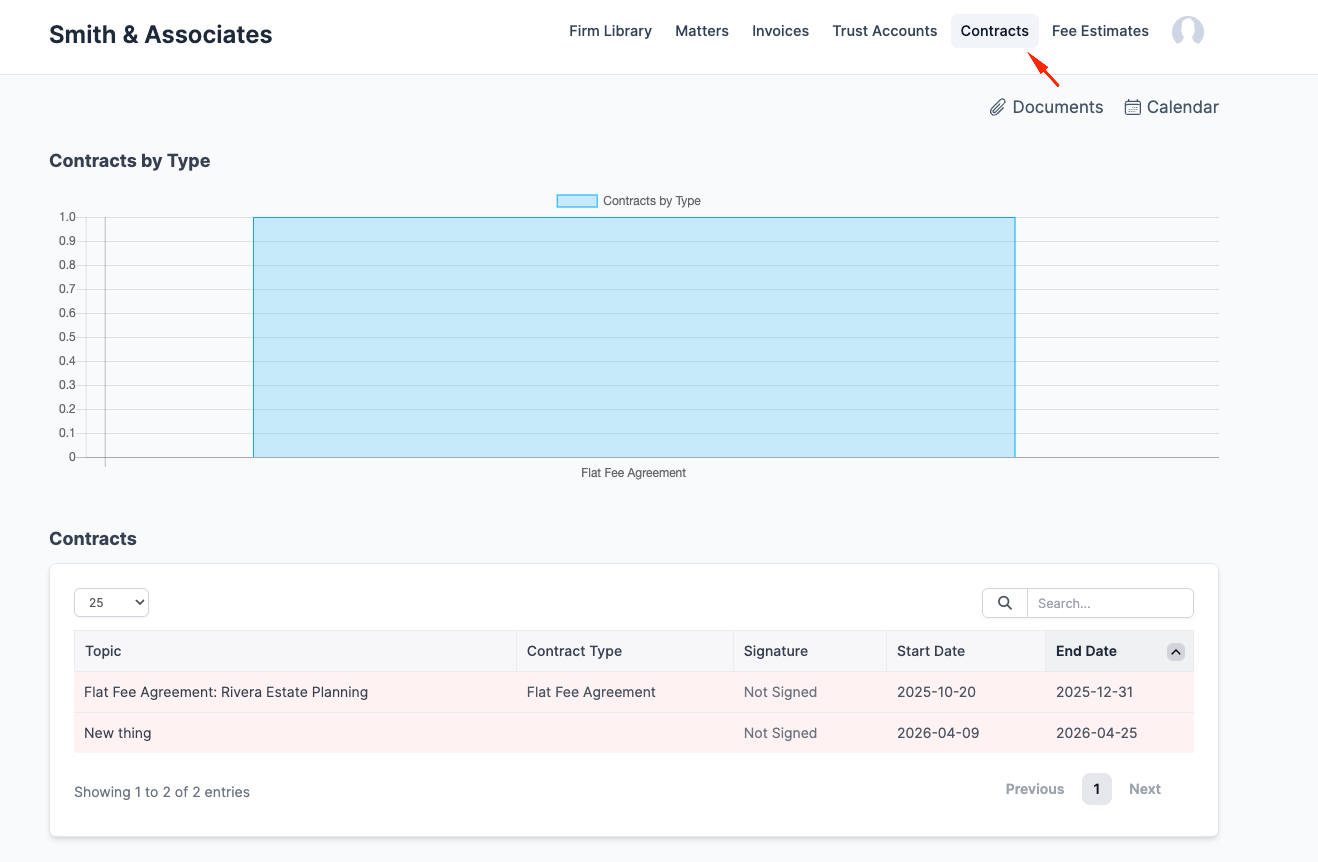
Estimates
If you send a fee estimate, the client sees it in the portal with Accept and Reject buttons. Accepting an estimate does not create an invoice; it tells your firm the client agrees to proceed at that price. 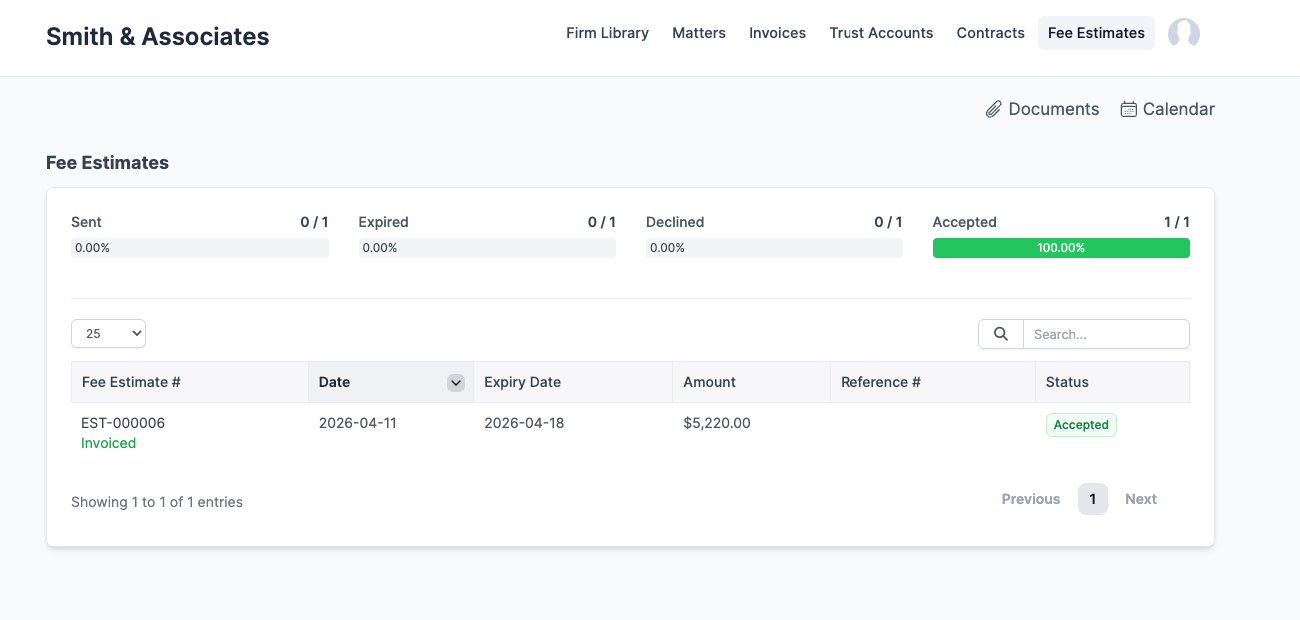
Firm Library
If you have published knowledge base articles (internal articles are separate from published ones), clients can read them in the portal. Useful for FAQs like "How do I pay my invoice?" or "What are your office hours?"
Document vault
The vault is encrypted storage for sensitive documents. You upload files to a client's vault, and they can access them through the portal. This is separate from regular document sharing; vault documents have an extra encryption layer.
Common uses: storing login credentials, confidential financial records, or sensitive personal documents on behalf of the client.
Client self-service
From the portal, clients can:
- Update their own contact details (name, phone, email)
- Change their password
- View their payment history
- Download invoices and receipts
They cannot create matters, upload documents to your system, or contact you through the portal (there is no built-in messaging). For communication, continue using email.