
E-signatures
Clients can sign engagement letters electronically by drawing their signature in the public web view. No login is required and nothing is printed, scanned, or mailed.
Plan requirement
E-signature is on the Growth plan and above. On Solo, the Sign action is blocked and the client sees "Electronic signatures are not available on this firm's current plan." Use More > Mark as Signed for paper or external signatures regardless of plan.
How it works
- You email the engagement letter from the admin (envelope icon → recipient list → Send).
- The recipient gets an email with a link to
/contract/{id}/{hash}. - They open the link and read the letter in the public web view.
- They click the green Sign button at the top of the page.
- CaseFlow opens an Identity Confirmation modal that captures:
- First name
- Last name
- A drawn signature on a canvas (clear/undo controls included)
- The legal-text disclaimer the firm has configured under Setup > Settings > E-Sign
- They click Sign in the modal. CaseFlow saves the signature image, writes the acceptance record, flags the letter as Signed, and notifies the letter creator by email.
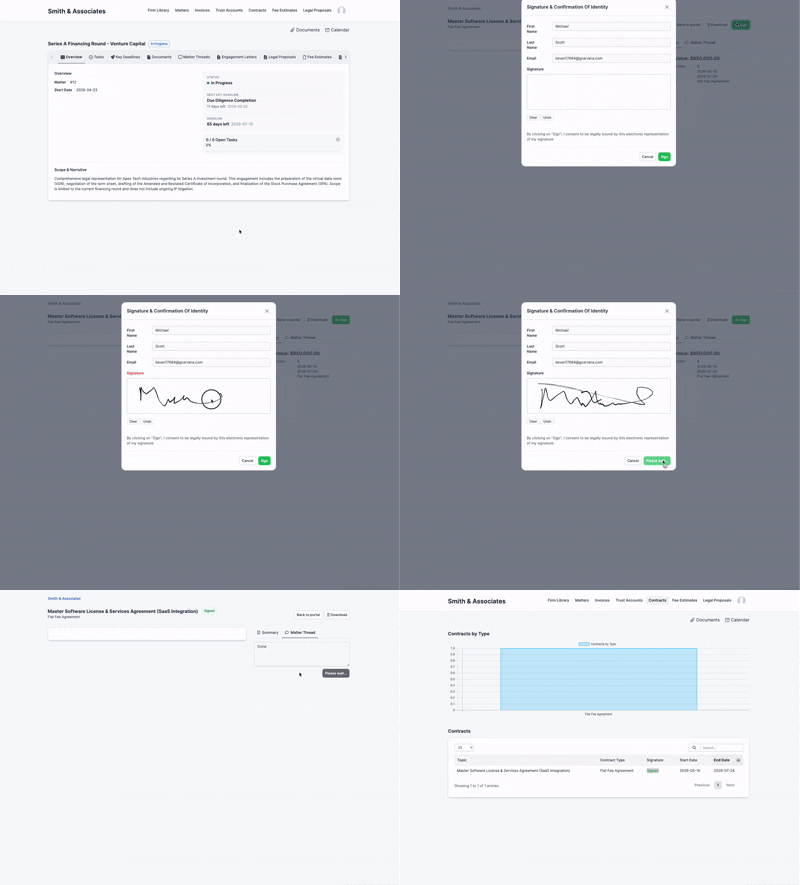
The contract is then locked: client, project, contract value, and start/end dates can no longer be edited until an admin clears the signature. The Content tab also becomes read-only.
What gets recorded
For every signed contract, CaseFlow stores:
- Drawn signature image — saved as a PNG file under the contract's upload folder
- First name and last name typed in the modal
- Email typed in the modal
- Acceptance date and time — server-side timestamp at the moment of signing
- IP address of the request
These fields appear on the Content tab (a green "This document is signed by … on … from IP address …" notice), in the right-rail panel of the public view (Signed by / Date / IP), and at the bottom of the generated PDF. 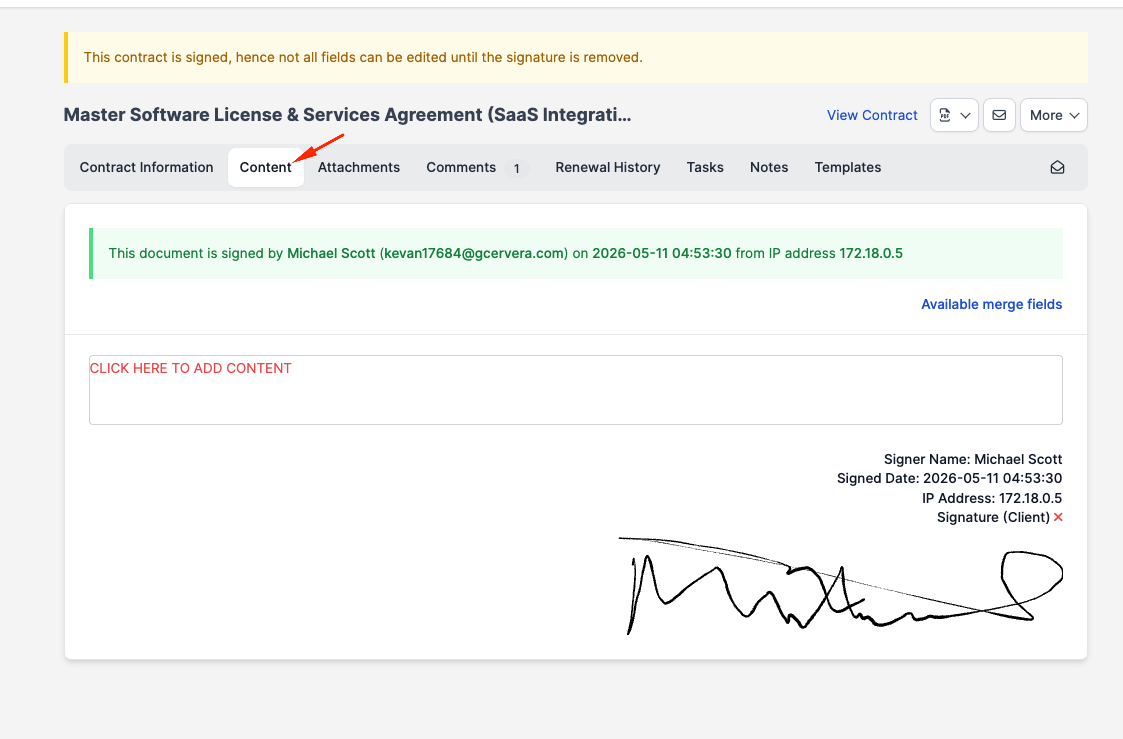
Drawn signature, not typed
Unlike some e-signature tools that ask the client to type their name in cursive, CaseFlow uses a drawn signature: the client draws on an HTML5 canvas using a mouse, trackpad, or finger. The drawn image becomes the signature of record.
If you need a pre-drawn cursive signature, an audit-trail certificate, or a notarised flow, use a dedicated provider (DocuSign, HelloSign, Adobe Sign, etc.) and then mark the contract as signed in CaseFlow once the external signing is complete.
Legal validity
A drawn electronic signature is legally binding in most jurisdictions under laws like ESIGN (US), UETA (US states), and eIDAS (EU). However, some document types — real-property transfers, wills, certain affidavits — may require a wet signature or a heightened e-signature standard depending on local rules. Check your jurisdiction.
CaseFlow records first name, last name, email, IP, and timestamp alongside the signature image. It does not generate a third-party audit certificate the way DocuSign or Adobe Sign do; if you need that level of proof, use one of those providers for the documents that demand it.
Who can sign
Anyone with the unique link can sign — the contract is signed by whoever opens the email (or the admin's "View as client" link) and completes the modal. There is no account or login requirement.
You typically email the link to the client contacts who have the Engagement Letter email-notification toggle on. Only one acceptance record exists per contract, so the first contact to sign locks the letter; later visitors see a "This document is signed by …" notice in place of the Sign button.
Multiple signers
Engagement letters store one acceptance record per contract. They do not support a workflow where two distinct people each sign their own block on the same letter.
Workarounds:
- Co-counsel or co-signer required — handle the second signature outside CaseFlow (e.g. wet signature, DocuSign envelope) and use More > Mark as Signed in CaseFlow once both are signed.
- Witness required — same approach.
If true multi-party e-signature is a recurring need, use a dedicated provider for those letters.
Removing a signature
If a signature was captured in error, an admin with delete permission on engagement letters can open More > Clear Signature on the letter page. This:
- Deletes the saved signature image
- Clears both the Signed and Marked as Signed flags
- Re-opens all the locked form fields
The action writes to the activity log so it is auditable. 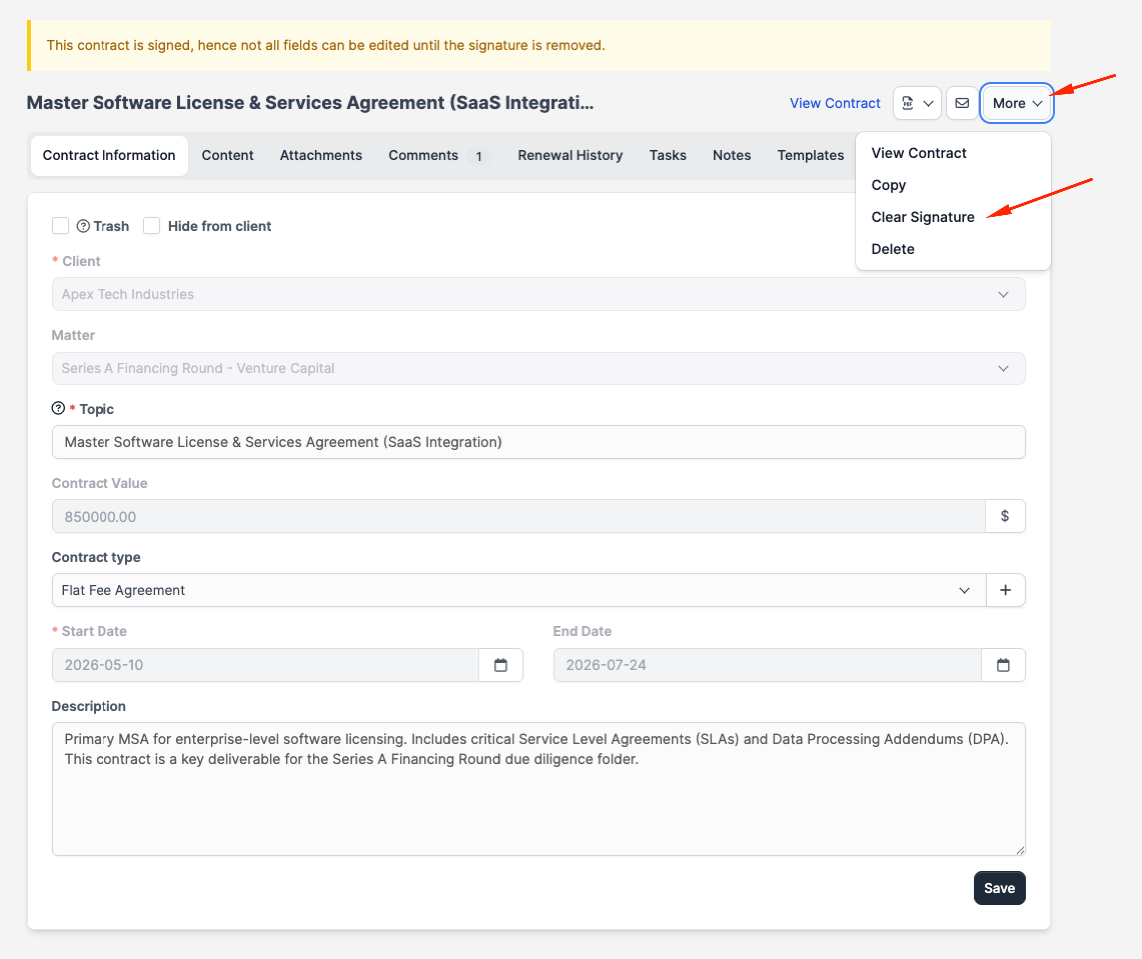
Verifying the signature on a PDF
Generate a PDF copy of the signed letter from PDF > Download on the contract page. The signature image, signed-by name, signed date, and IP address are appended at the bottom of the PDF, after the body content.
Settings that affect e-signature
Under Setup > Settings > E-Sign:
- Legal-bound text — the disclaimer shown above the Sign button in the modal. Edit it to match what your firm wants the client to acknowledge.
For engagement letters the identity-confirmation modal is always required when the client signs — there is no firm setting to skip it. (Proposals and fee estimates have their own per-document-type identity-confirmation toggles on the same settings page; those toggles do not affect engagement letters.)