
Creating invoices
Starting a new invoice
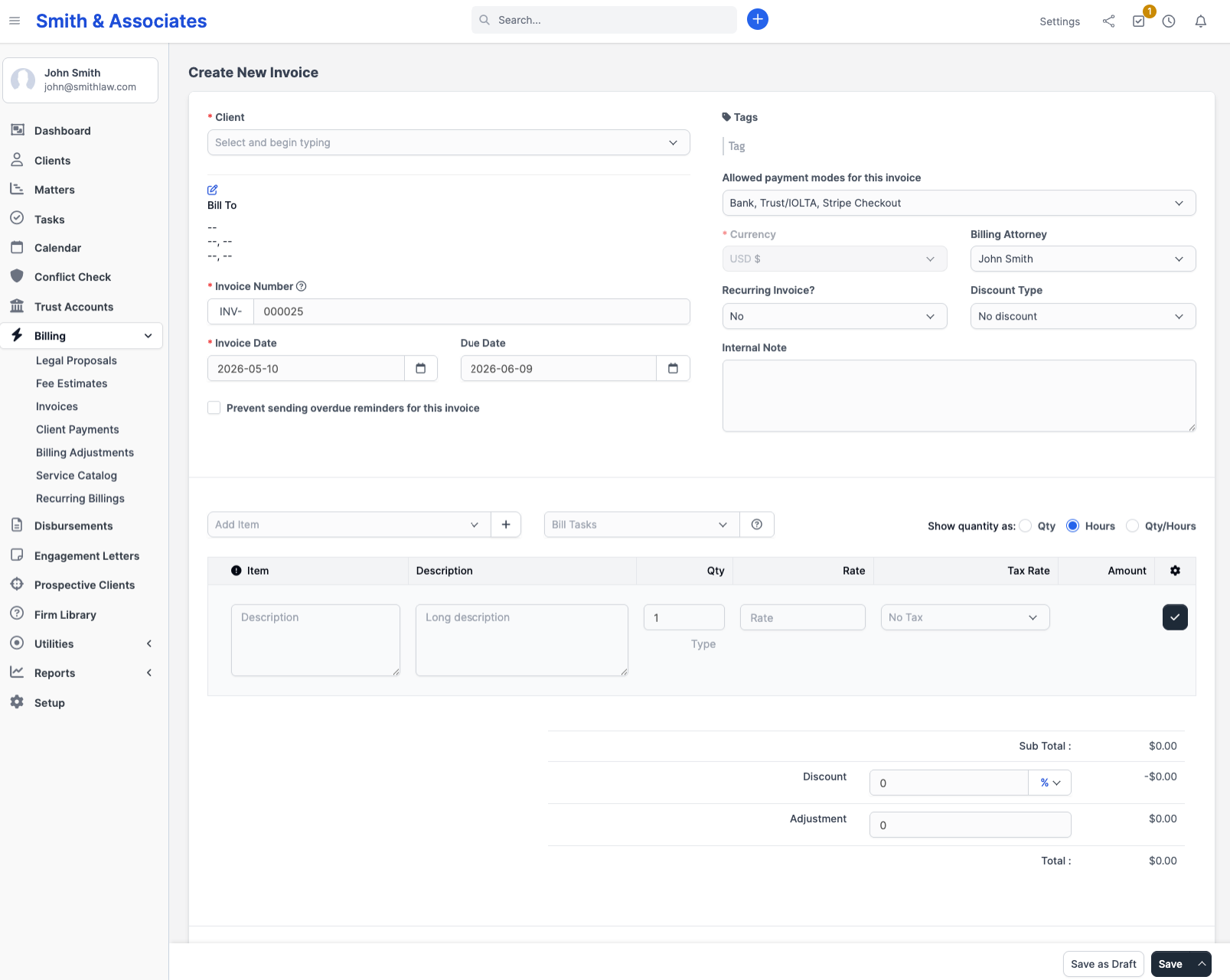
Go to Billing > Invoices in the sidebar and click New Invoice.
Header fields
| Field | What to enter |
|---|---|
| Client | Select the client this invoice is for |
| Invoice number | Auto-generated; you can change the format in Settings |
| Date | Invoice date (defaults to today) |
| Due date | When payment is expected |
| Currency | Defaults to the client's currency or your firm's default |
| Matter | Optionally link the invoice to a specific matter |
| Tags | Freeform labels for filtering |
Line items
Click Add Item to add a line. Each line has:
- Description: What you are billing for (e.g. "Legal research, contract review")
- Quantity: Number of units (hours, items, etc.)
- Rate: Price per unit
- Tax: Select a tax rate if applicable (or leave blank for no tax)
- Amount: Calculated automatically (quantity x rate)
You can add as many lines as needed.
Using predefined items
If you have items saved in Billing > Items (e.g. "Court filing fee, $350"), click the item picker to insert them. This saves retyping common charges.
Discount
Below the line items, you can add a discount. Choose either a fixed amount or a percentage. The discount applies to the subtotal before tax.
Notes
The Client Note field appears on the invoice PDF (use it for payment instructions or context). The Internal Note is visible only to your team and never appears on the PDF sent to the client.
Saving
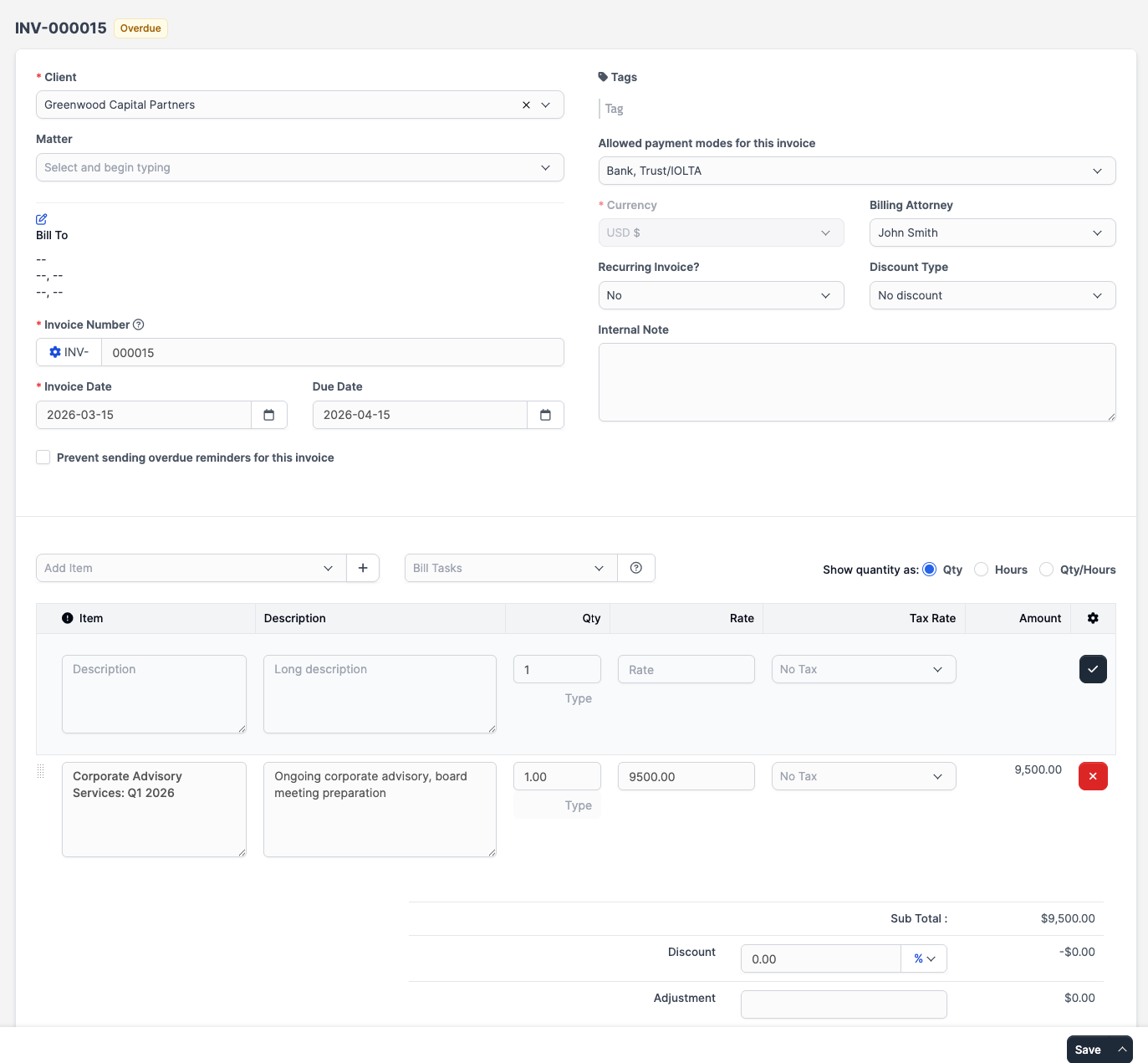
Click Save to create the invoice as a draft. It is not sent to the client yet. You can come back and edit it any time while it is in Draft status.
Invoicing from time entries
If you have billable time logged against a matter, you can generate an invoice from those entries. Open the matter and click the Invoice Matter button at the top right of the page. A modal opens with three options for how to lay out the invoice:
- Single line — One line item summarising all billable tasks and their total logged time.
- Task per item — One line item per task, with the total logged time for that task.
- All timesheets individually — One line item per timesheet entry.
Pick which billable tasks (and, if applicable, billable expenses) to include, then submit. CaseFlow creates a draft invoice with the line items.
Invoice numbering
By default, invoices are numbered sequentially (INV-001, INV-002, etc.). To change the format or starting number, go to Setup > Settings > Billing & Finance > Invoices and edit the Invoice Number Format and Next Invoice Number fields.