
Setting up trust accounts
Creating a trust account
Only the firm administrator can create or edit trust accounts. Other staff with the trust capability can record transactions and view ledgers, but cannot add new accounts.
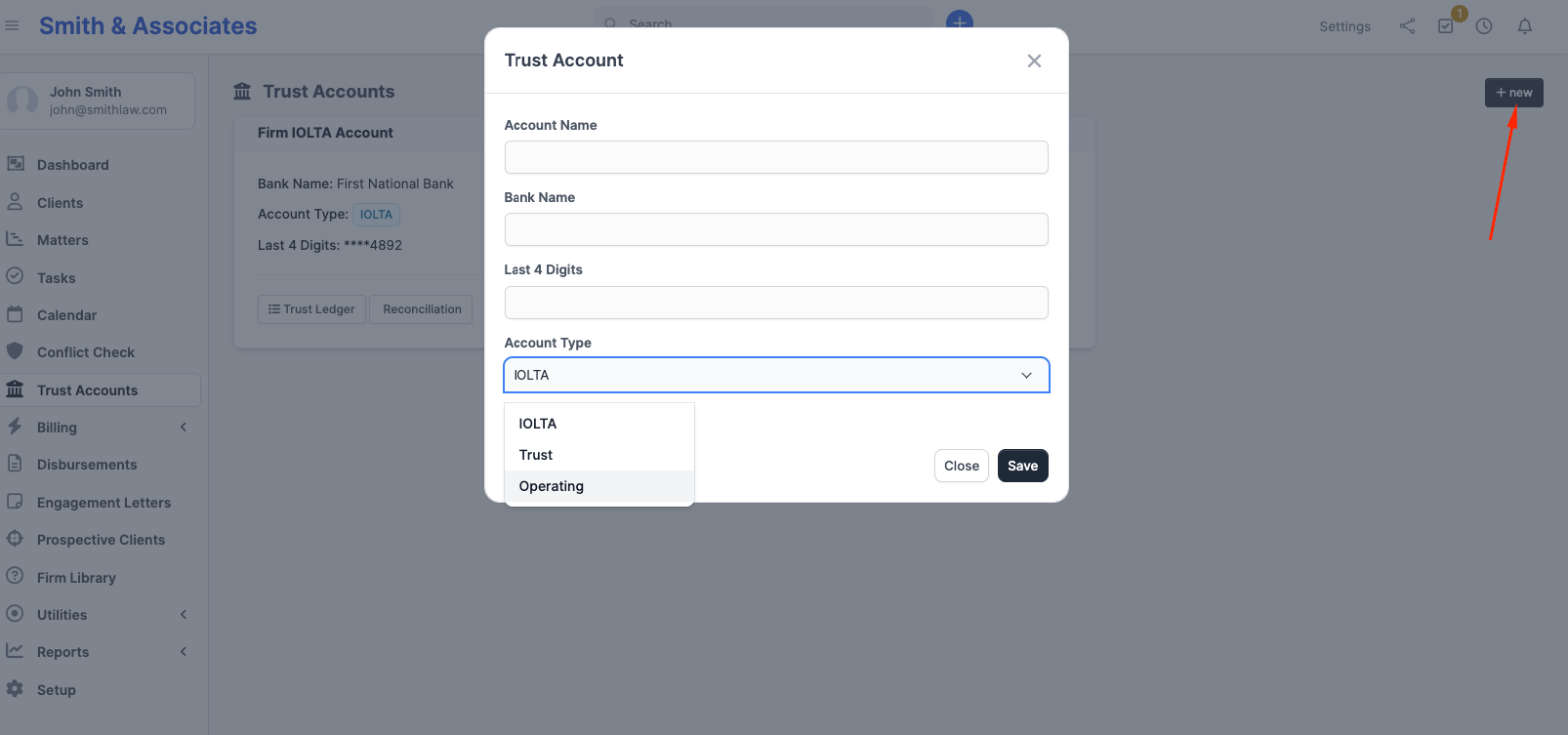
Go to Trust Accounts in the sidebar and click + New at the top right of the page.
Fill in:
- Account Name: A label for your internal reference (e.g. "Firm IOLTA Account", "Real Estate Escrow")
- Bank Name: The financial institution (optional)
- Last 4 Digits: The final four digits of the bank account number; CaseFlow never stores the full number
- Account Type: Choose IOLTA, Trust, or Operating
Click Save.
Editing an account
Only the firm administrator can edit a trust account. The pencil icon on each account card opens the edit form, where the Account Name, Bank Name, Last 4 Digits, and Account Type can all be corrected. An account can also be deactivated or reactivated from the same form.
Every edit writes a row in the trust audit trail capturing the field that changed, the value before, the value after, who made the change, and when. ABA Model Rule 1.15 and the equivalent state-bar rules require firms to keep complete records of trust activity with any corrections documented inside the record itself. The audit row is that documentation. The edit is not silent: it is a forensic event that the firm administrator and any future bar examiner can inspect.
The currency on an account cannot be changed once the account exists, because every transaction already on the account is denominated in that currency. If you need to move to a different currency, create a new account and migrate balances with deposit and disbursement transactions so the trail stays continuous.
Hard deletion of trust accounts is not available, and never will be. The bar requires seven years of retained records; deleting an account would orphan its transaction and audit history. To retire an account, untick Active on the edit form. Deactivated accounts remain visible in the audit log and statement PDFs for any past period, and their transactions stay on the books.
Double-check the Account Name, Bank Name, Last 4 Digits, and Account Type when you create or edit an account.
Multiple accounts
Some firms have more than one trust account (e.g. a general IOLTA and a separate real estate escrow account). Create one trust account in CaseFlow for each real bank account you maintain.
Linking clients
You do not need to "link" clients to a trust account upfront. When you record a deposit, you specify the client at that time. The per-client ledger builds automatically as transactions come in.
Migrating from another system
There is no "opening balance" field on the trust account form. Instead, the account balance is calculated from the deposits and disbursements you record.
If you are migrating from spreadsheets or another system, enter each client's current trust balance as an initial deposit dated the day you start using CaseFlow. The sum of those deposits becomes the account's starting balance.
For example: if your IOLTA has $15,000 total ($8,000 belonging to Client A and $7,000 to Client B), create the account, then record two initial deposits of $8,000 and $7,000. The account balance and per-client ledgers will both add up correctly.
Trust transaction settings
Under Setup > Settings > Billing & Finance > Trust Accounts you can configure firm-wide behavior for every trust transaction:
- Trust Transaction Prefix — the prefix on auto-generated reference numbers (default
TRUST-) - Trust Transaction Number Format — number-based, year-based, short year-based, or year/month-based, identical in shape to invoice numbering
- Require reference on trust transactions — yes/no; if yes, deposits and disbursements without a manually-entered reference are blocked
- Require description on trust transactions — yes/no; if yes, the description field becomes mandatory
- Auto-send notification email to client on trust transactions — yes/no; when on, every deposit or disbursement triggers an email to client contacts who have Receive invoice emails turned on
- Show client trust balance on invoice — yes/no
- Minimum trust balance warning threshold — set a dollar amount; CaseFlow flags clients whose balance dips below it. Set to
0to disable.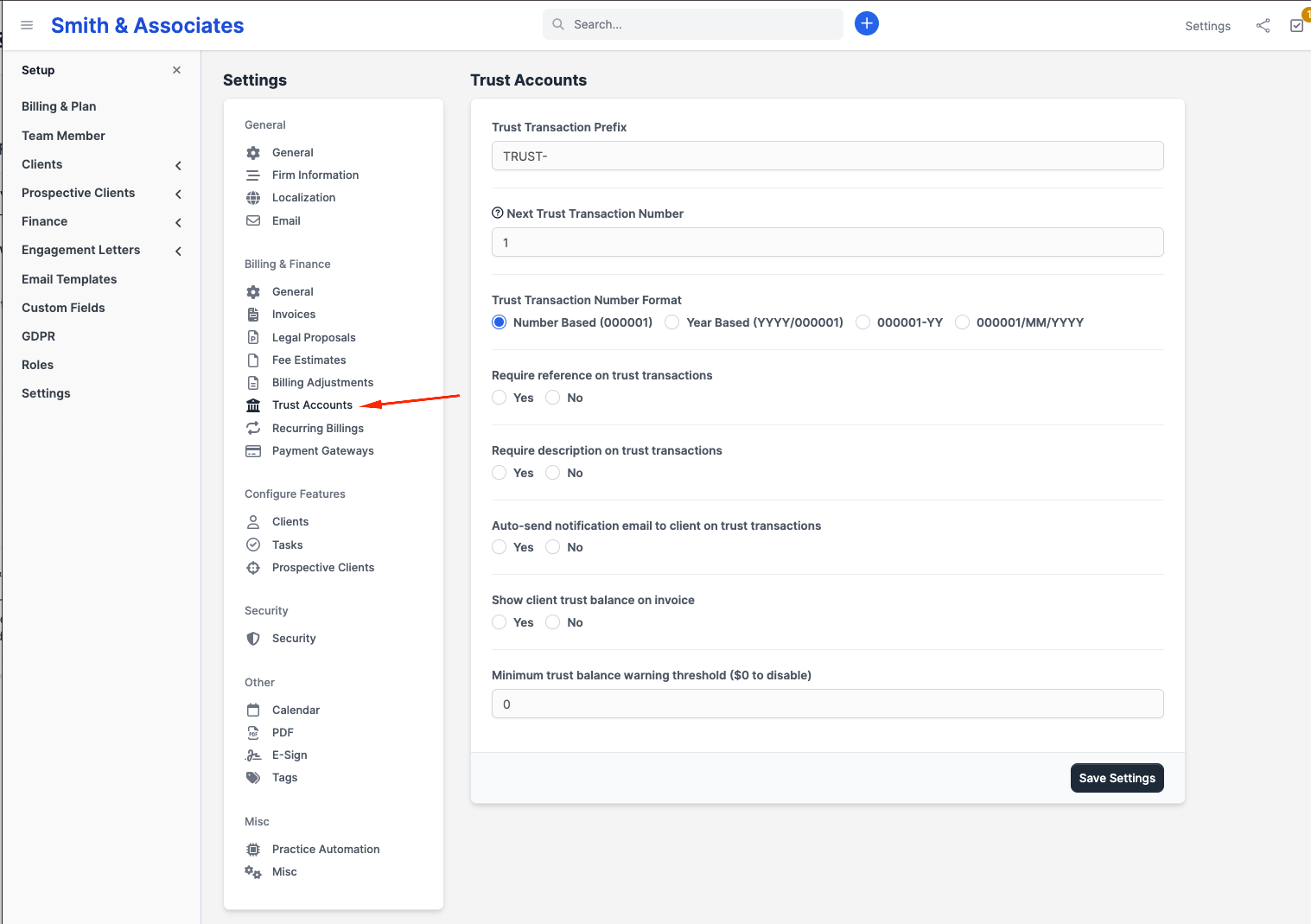
If reference is not required and you leave the field blank, CaseFlow auto-generates one using the prefix and number format above.
Permissions
Trust accounting is available on all plans (Solo, Growth, Multi-Practice).
Trust access is controlled by the per-staff trust capability (View, Create, Edit, Delete), set on the staff member's profile. Granting View lets a staff member see trust accounts and ledgers; Create lets them record deposits and disbursements; Edit lets them mark transactions as reconciled.
On the Multi-Practice plan you can manage these capabilities through reusable roles (Setup > Roles). On Solo and Growth, you grant capabilities directly to each staff member.
The firm administrator always has full trust access regardless of plan or role assignment, and is the only role that can create, edit, or deactivate a trust account, and the only role that can correct the reference, description, check number, or payee on an existing trust transaction.