
Documents
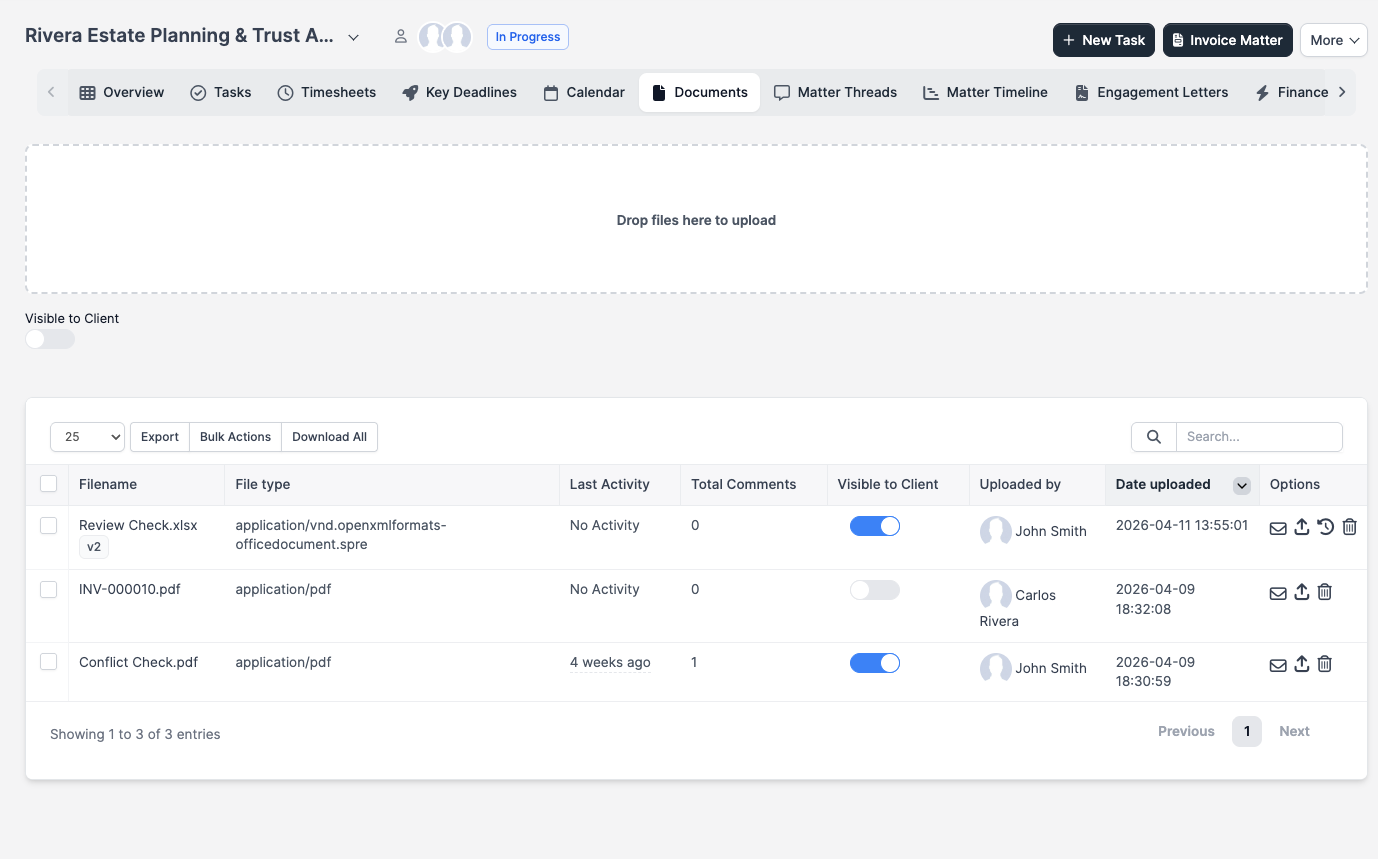
CaseFlow stores files alongside the records they relate to: clients, matters, tasks, disbursements, proposals, and engagement letters. There is no central "all files" view; you find a file by opening the record it was uploaded against.
What you can do
- Upload files to a client, matter, task, proposal, engagement letter, or disbursement
- Upload from your computer, Google Drive, or Dropbox
- Preview images directly in the file viewer; download other formats to open them
- Hold an inline discussion on a file (comments per file on matter documents)
- Track file versions on matter documents with an "Upload new version" action
- Toggle whether a file is visible to the client when they log in to the portal
- Email a file out from the matter document list with a tracked email-history entry
- Bulk-download every file on a matter as a ZIP
Where files live
Files attach to the record they belong to. There is no global file browser.
| Record | Where to find files |
|---|---|
| Client | Open the client profile and switch to the Attachments group |
| Matter | Open the matter and switch to the Documents tab |
| Task | Open the task and look in the Attachments section |
| Disbursement | The receipt is on the disbursement detail page |
| Proposal / Engagement letter | The Attachments tab on the proposal or letter |
File types and size
CaseFlow accepts any file type. Common uploads are PDFs, Word documents, Excel spreadsheets, image scans, and emails. There is no per-extension allow-list.
Folders
CaseFlow does not have folders or subfolders. Every file lives in the flat list under its parent record. To keep things findable in matters that accumulate a lot of files, rely on consistent filename conventions and the search box above the file list. If a matter's file list becomes unmanageable, consider splitting it into sub-matters by phase or workstream.
Plans and availability
Uploading, previewing, and downloading files is on every plan. The toggle that controls whether a file is visible to the client is on every plan too, but it only has an effect when the client can log in to the portal, and the client portal itself requires the Growth plan and above.
The Vault tab on a client profile (for storing usernames, passwords, and other secrets distinct from documents) is a separate feature also gated to Growth and above.