
Task timers
Every task in CaseFlow has a built-in timer. Open the task, click Start Timer, do the work, click stop. CaseFlow logs the duration as a time entry on that task automatically.
Starting a timer
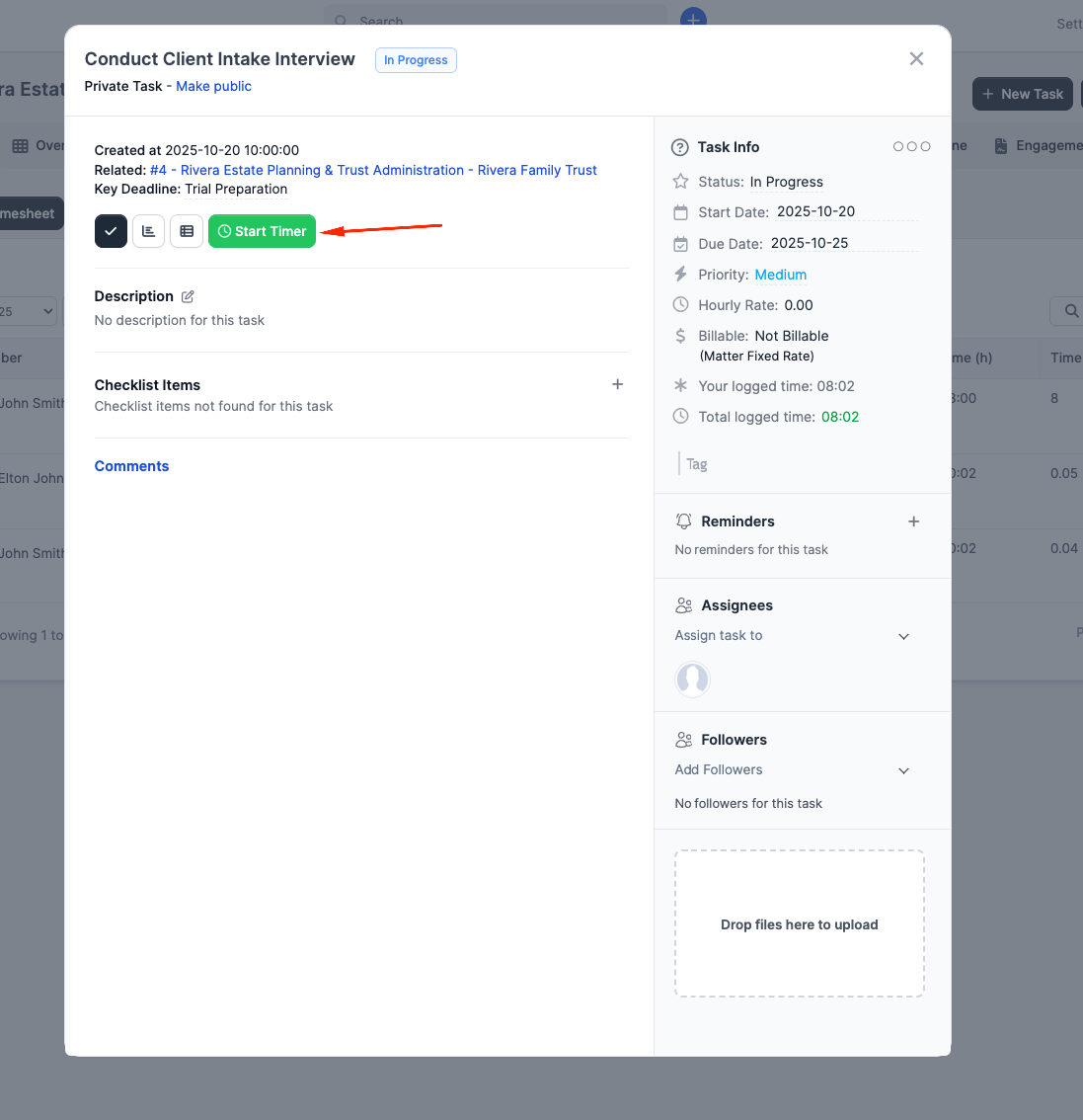
Open the task (from the Tasks sidebar section, the matter's Tasks tab, or the Kanban board). The task detail modal has a green Start Timer button. Click it.
The timer starts counting against that task. You can navigate away or close the modal; the timer keeps running in the background.
Stopping a timer
Open the same task and click the timer button again to stop it. CaseFlow creates a time entry with:
- Start and end times based on when you clicked play and stop
- Duration calculated automatically
- The hourly rate captured from your staff profile at the moment the timer is saved
- Whatever note you optionally enter when stopping
The timer prompts you for a note when you stop. It is optional but recommended; "Reviewed contract clauses 4-7" is more useful on an invoice than blank space.
The entry's billable status is not set when you stop the timer. It comes from the task itself: if the task is marked Billable, every minute you logged is billable; if not, none of it is. Change a task's Billable checkbox to flip the status of every entry on it.
Only one timer at a time
You can only have one timer running at any moment. If you start a new timer while another is running, CaseFlow stops the first one and starts the second. The first timer's time still gets logged as a completed entry.
Auto-stop
If you forget to stop a timer (e.g. you leave for the day), CaseFlow has an auto-stop feature. Timers that run past a configured threshold (default: 8 hours) are stopped automatically and logged with a note indicating they were auto-stopped.
This prevents accidental 24-hour time entries from inflating your records.
Timer visibility
Other staff at your firm cannot see that your timer is running. Timers are personal. The resulting time entry, once the timer stops, is visible to anyone who can view the matter's timesheets.
Tips
- Use timers for focused work sessions. For scattered tasks (5 minutes here, 10 minutes there), manual time entries are easier.
- Get in the habit of adding a description when you stop. "Reviewed contract clauses 4-7" is more useful on an invoice than blank space.
- If you accidentally start a timer, stop it immediately and delete the resulting 0-minute entry.