
Custom fields
Custom fields let you track data that CaseFlow does not have built-in fields for. Add them to clients, matters, invoices, estimates, expenses, leads, or contracts.
Creating a custom field
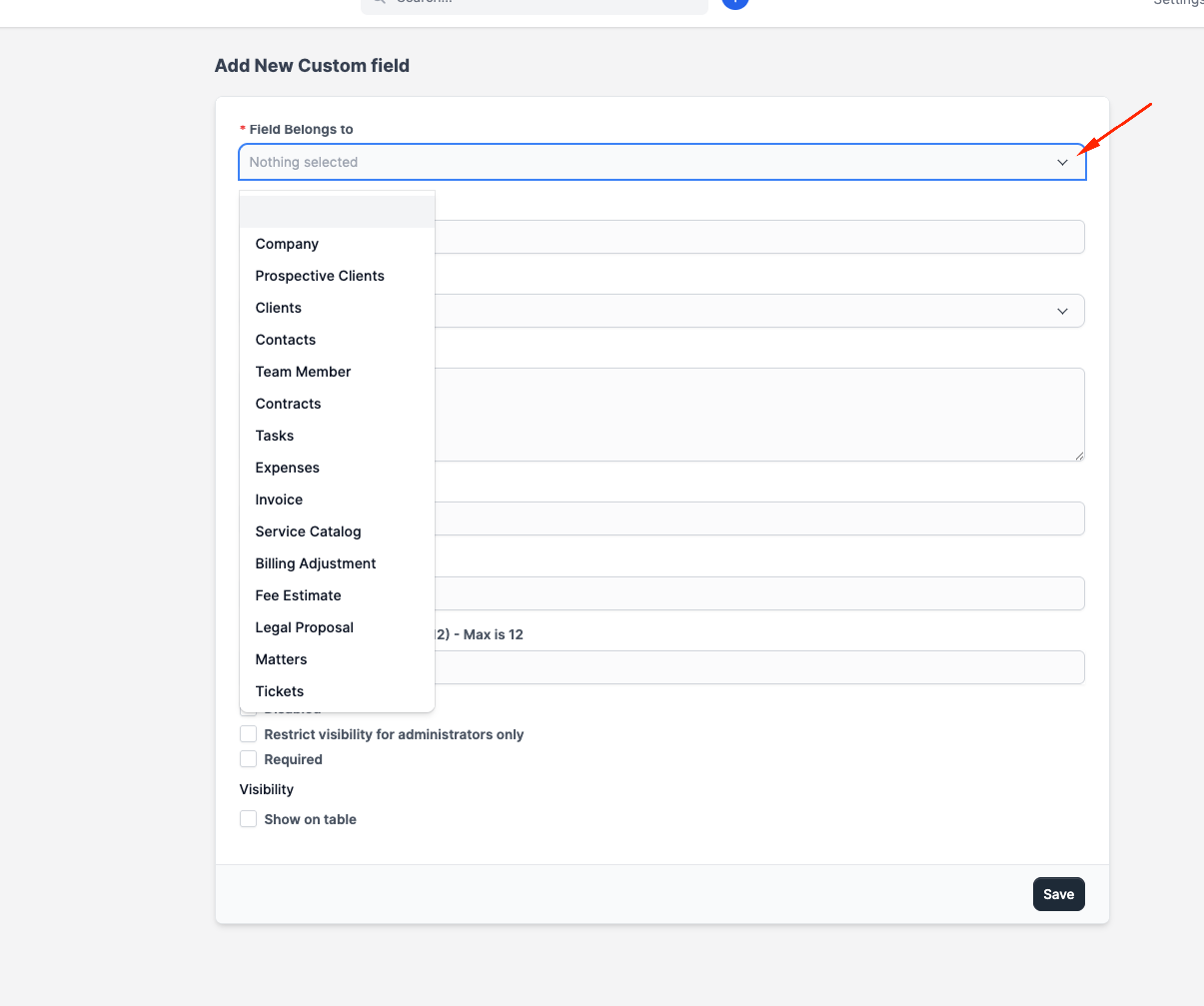
Go to Setup > Custom Fields. Select the module you want to add the field to (e.g. "Customers" for clients, "Projects" for matters).
Click New Custom Field and configure:
| Setting | Purpose |
|---|---|
| Field name | Label shown on the form (e.g. "Referral Source", "Bar Number") |
| Field type | The input type (see below) |
| Required | Whether the field must be filled in |
| Show on table | Whether the field appears as a column in the list view |
| Default value | Pre-filled value for new records |
| Order | Display position relative to other custom fields |
Field types
| Type | Description |
|---|---|
| Text | Single-line text input |
| Textarea | Multi-line text |
| Number | Numeric input |
| Select | Dropdown with predefined options |
| Multi-select | Dropdown allowing multiple selections |
| Date | Date picker |
| Checkbox | Yes/no toggle |
| Colour picker | Colour selection |
| Link | URL field |
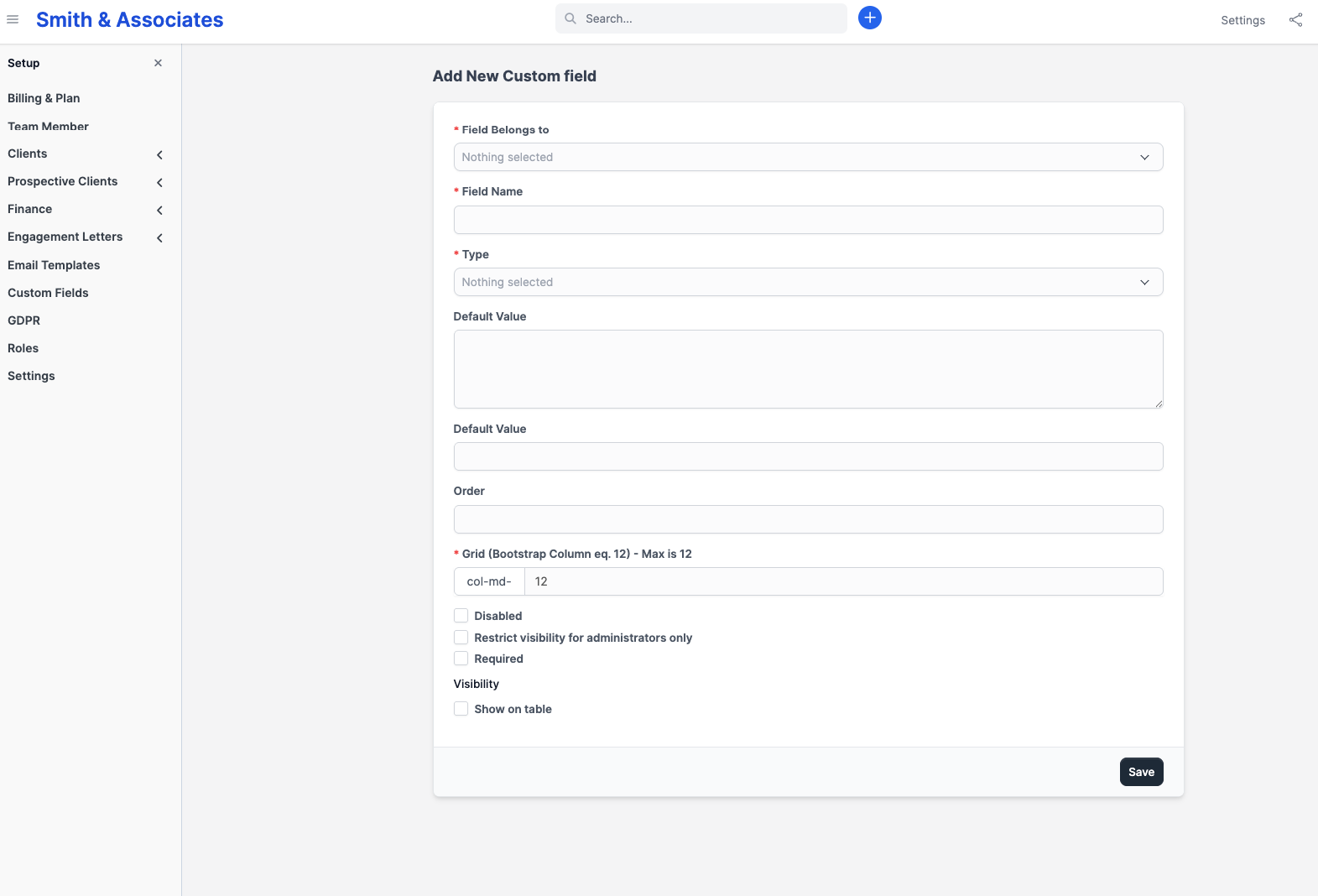
Click Save. The field now appears on all forms for that module.
Where custom fields appear
Custom fields show up:
- On the create/edit form for the record type
- On the record's detail/profile page
- In the list view (if "Show on table" is enabled)
- In CSV exports
- In search results (text fields are searchable)
Editing and deleting
Click a custom field in the list to edit its settings. You can change the name, type, and options at any time.
Deleting a custom field removes the field and all data stored in it across all records. This is permanent. CaseFlow warns you before deletion.
Custom fields on different modules
| Module name in settings | Where it appears |
|---|---|
| Customers | Client profiles |
| Projects | Matters |
| Invoices | Invoice forms |
| Estimates | Estimate forms |
| Expenses | Expense records |
| Leads | Lead profiles |
| Contracts | Contract forms |
Example use cases
- Client "Referral Source" (Select): Track how each client found your firm. Options: "Word of mouth", "Google", "Bar referral", "Conference."
- Matter "Case Number" (Text): Store the court-assigned case number.
- Matter "Jurisdiction" (Select): Track which court or jurisdiction a matter is in.
- Invoice "PO Number" (Text): Some corporate clients require a purchase order number on invoices.
- Lead "Practice Area" (Select): Categorise intake by area of law before conversion.