
Waivers
When a conflict exists but the firm decides it can still take the engagement, record a waiver on the offending result. The waiver becomes part of the conflict-check history and stays attached to that specific match.
CaseFlow supports two waiver modes:
- Per-result waiver on each high-risk or review-required match (the typical case).
- Waive all remaining on the result page (covers every still-unwaived actionable result on the same check in one shot).
Informational and no-conflict results do not get a Waive button - they are below the actionable threshold.
When to use a waiver
Use a waiver when, after partner review, the firm has decided that the conflict does not bar representation. Common scenarios:
- Both clients have provided informed written consent.
- The matter is substantially unrelated to a former-client representation.
- The matched party is the same legal entity but a different real-world person.
- An ethical wall is being put in place to screen the conflicted attorneys.
Not all conflicts are waivable. The waiver record in CaseFlow does not run an ethics check for you; it documents the decision your firm has made. Apply your jurisdiction's rules before clicking Waive.
Per-result waiver
On the results page, every high-risk or review-required row has a yellow Waive button (gavel icon) in the Options column. Clicking it opens a modal with two fields:
| Field | Notes |
|---|---|
| Waiver reason | Required. Pick from a fixed list: Same entity, No adverse interest, Informed consent, Former client unrelated, Ethical wall in place, Other. |
| Waiver notes | Required. Free-text field. Use it to capture who approved the waiver, the date of any consent letter, and any conditions attached. |
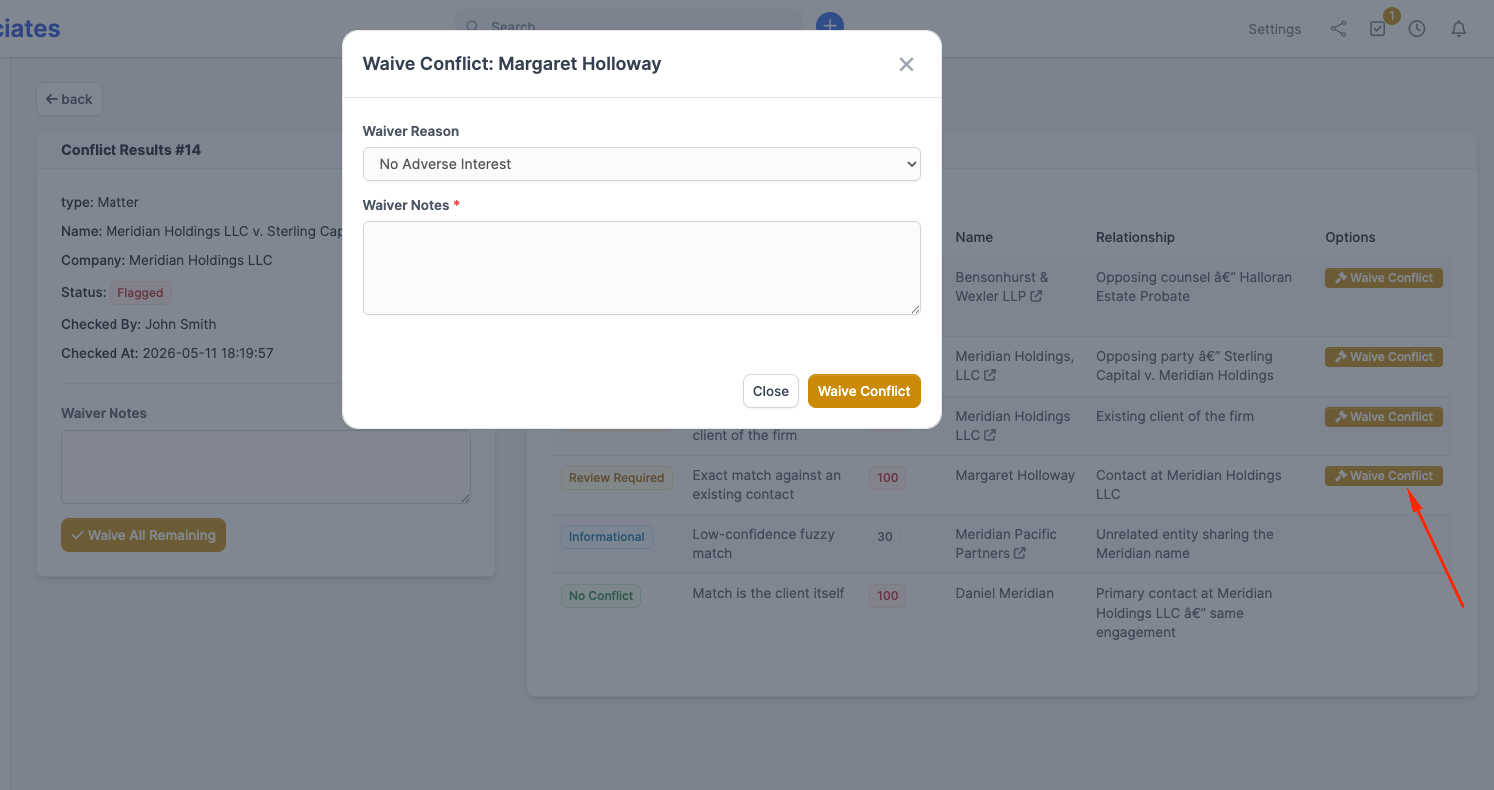
Click Waive Conflict to save. The row gains a green "Waived" badge with the reason; subsequent visitors see the badge instead of a Waive button. 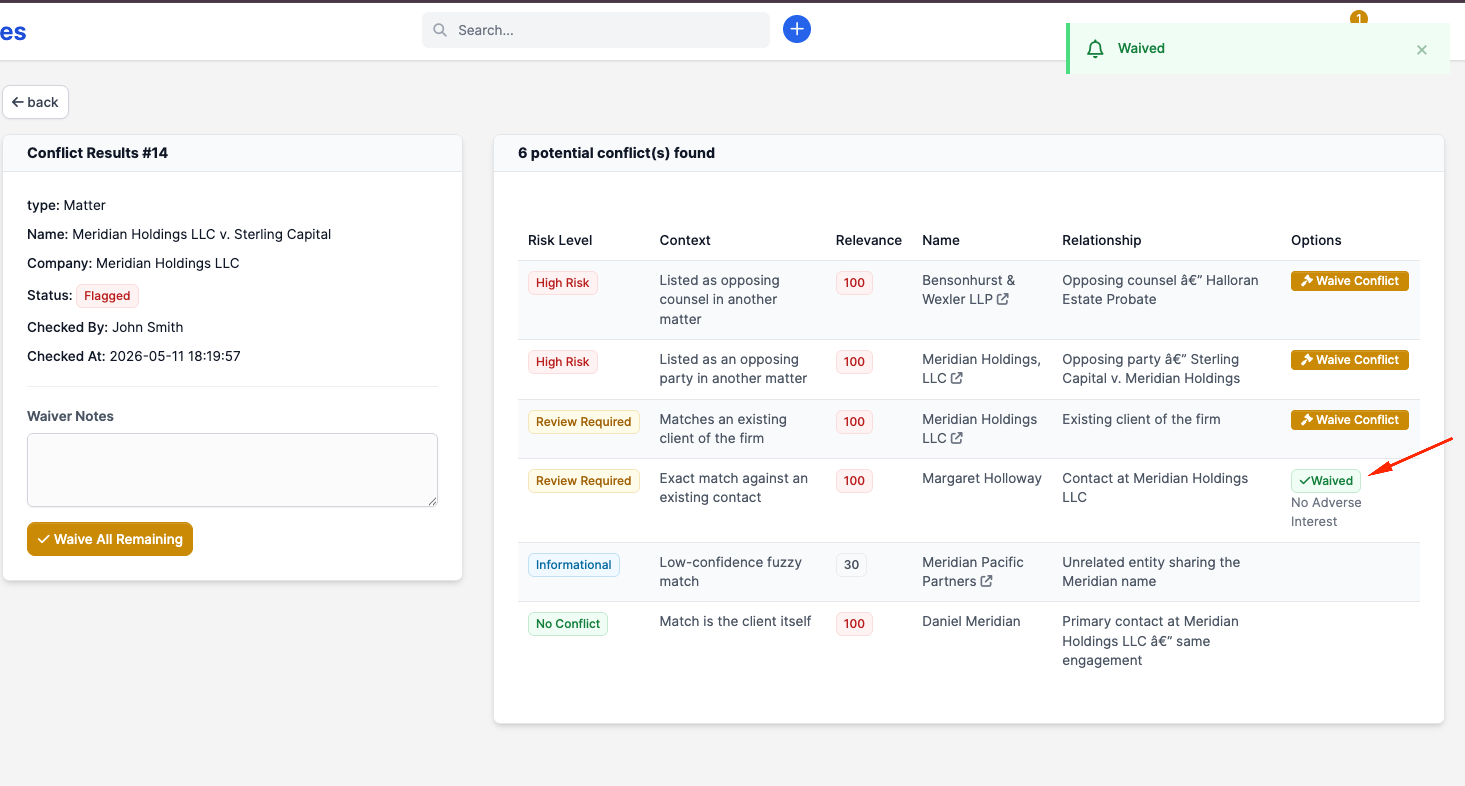
Every waiver is stamped with who recorded it and the date and time the system received it. CaseFlow ties the waiver to the exact match row you were looking at, so a waiver cannot be redirected to a different result by accident or by editing the page.
Waive all remaining
The left sidebar of the results page shows a "Waive all remaining" panel when the check is still flagged. It has a single Waiver notes field and a button.
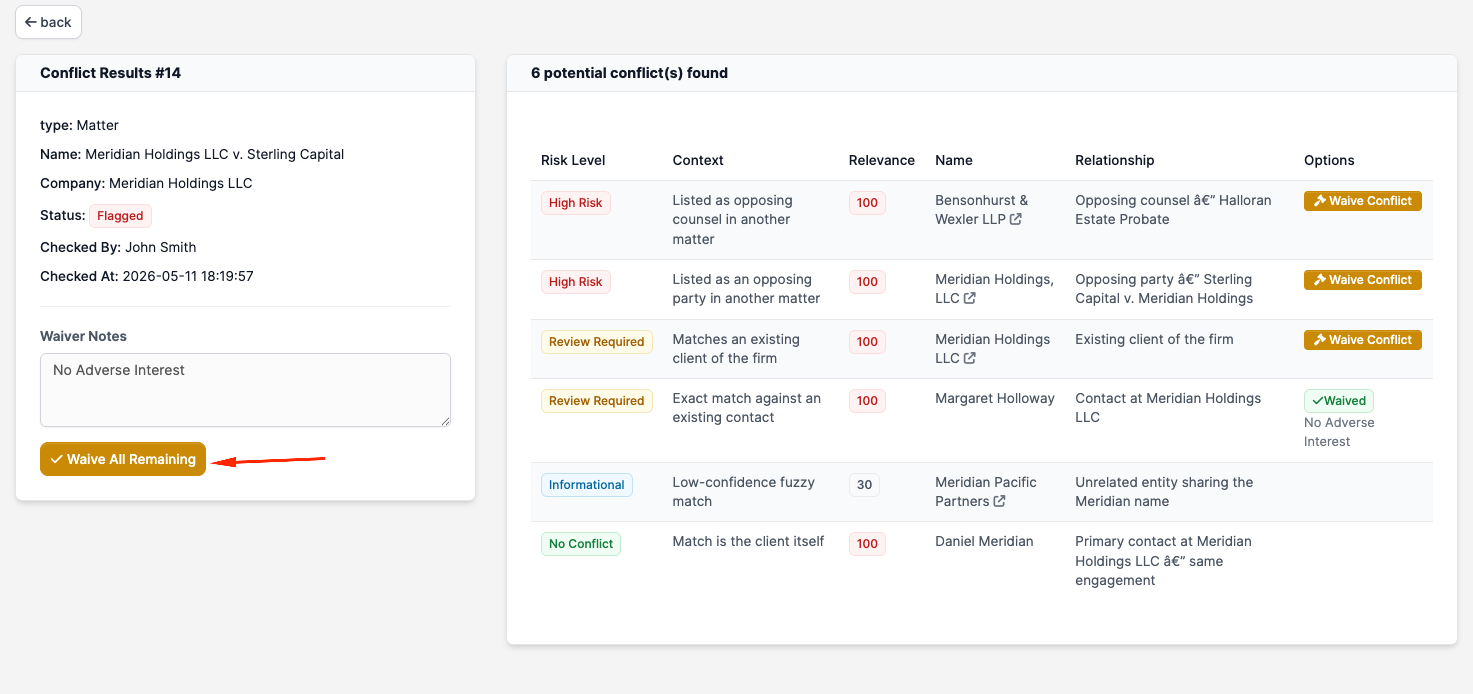
Submitting it applies the same waiver text to every actionable result that has not yet been individually waived.
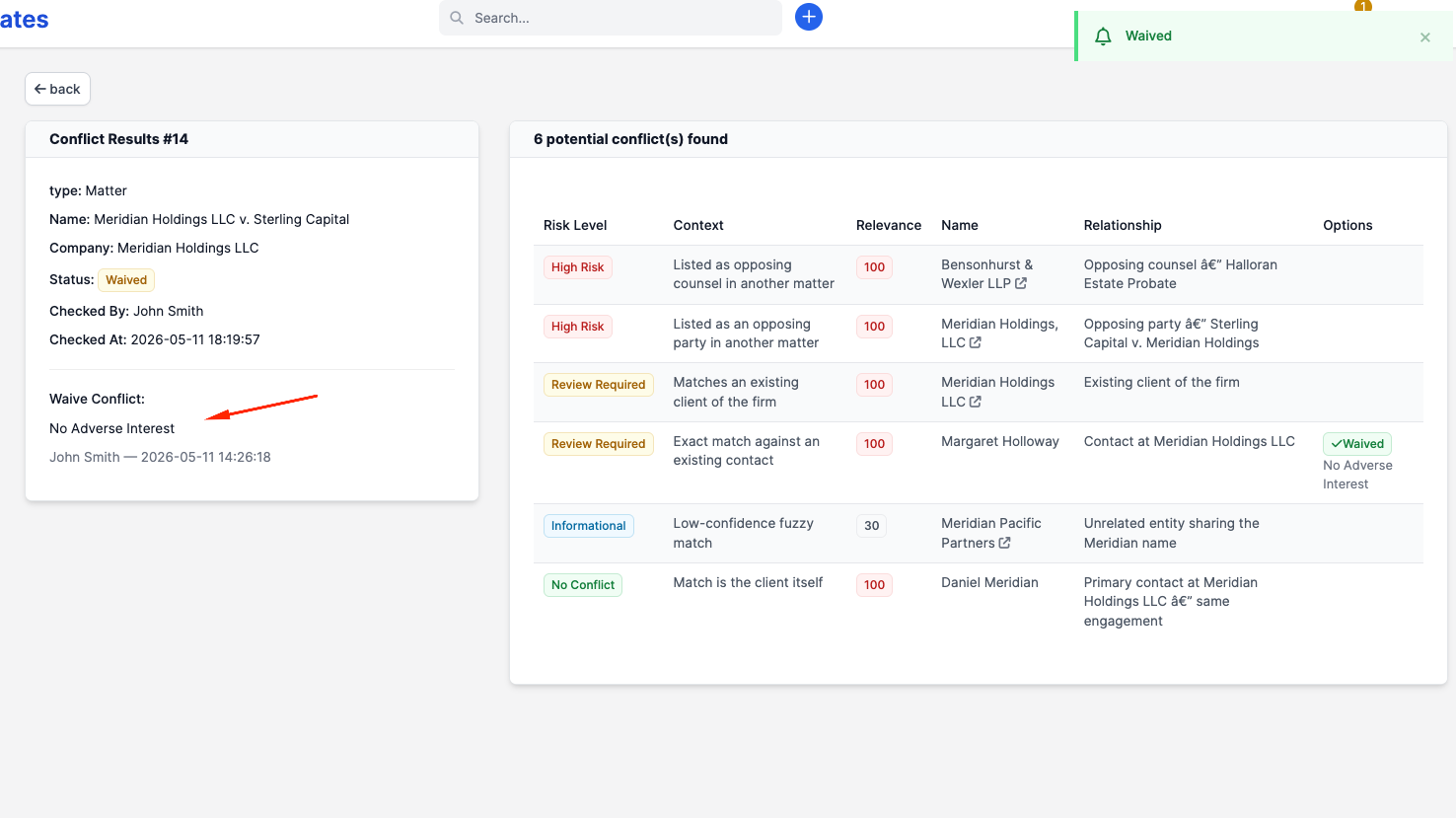
Use this for batch dispositions (e.g. one consent letter covers a dozen related matches). For granular control, prefer the per-result modal.
If every actionable result has been waived (individually or in bulk), the parent check's status flips from Flagged to Waived automatically.
Waivers are not reversible
CaseFlow does not have a "Revoke waiver" or "Unwaive" action. Once a waiver is saved it stays on the result row permanently.
If the underlying facts change and the firm needs to revisit the engagement, the standard workflow is:
- Re-run the conflict check (the search history makes the new check easy to compare against the original).
- Document the new decision in a fresh waiver on the new check, or in the matter's notes/comments.
- If the engagement should not proceed, withdraw following your jurisdiction's rules - the original waiver record stays as part of the audit trail.
Permanence is deliberate. The conflict log is an ethics-grade audit trail, and editing or deleting waivers would defeat the purpose.
Where to view waivers
There is no separate "Waivers" page. Open any check from the Conflict Check history table and look at the result rows: any waived row shows the green badge with the reason. The notes are stored against the row and visible when you expand it.
There is no firm-wide register of waiver activity today; reviewing waivers means stepping through the relevant entries in the check history.
Access restrictions (ethical walls) on a matter
Some waivers depend on a screen: "we accept the conflict on condition that Attorney X is walled off from this matter." Set that up on the matter itself, not in the waiver record.
Open the matter and switch to the Access Restrictions tab. Click Add access restriction, pick a staff member, and write a short reason. While the restriction is active, that staff member cannot see the matter (the rest of the firm still can). Click Remove access restriction to lift the wall; removed restrictions stay in the history list with their original reason, so the audit trail is preserved.
Access restrictions are a separate Multi-Practice plan feature. They are enforced firm-wide: a walled staff member sees a "You do not have access to this matter due to an access restriction" message if they try to open the matter directly. They also cannot see the matter's documents, time entries, or related records via global lists.
What a waiver does not do
- It does not hide the matched record from future conflict searches. A re-run of the same name returns the same match. Only the waived row's badge tells future readers that the firm has already reviewed it.
- It does not impose an access restriction or other technical control. Pair the waiver with an Access Restriction on the matter if a screen is required.
- It does not notify anyone outside the firm. The client consent letter (if any) lives outside CaseFlow; reference it in the waiver notes.