
Calendar
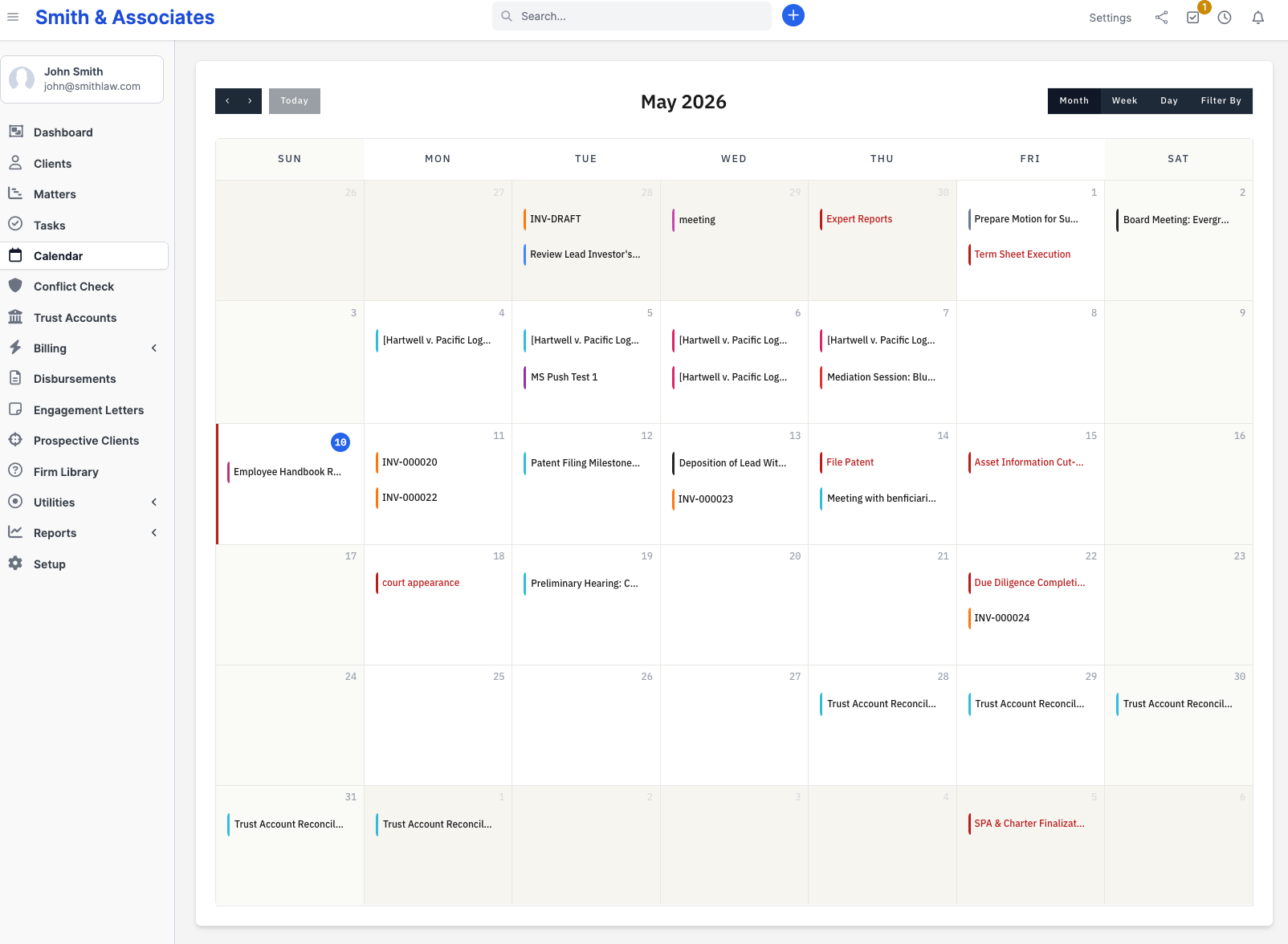
Your calendar gives you a unified view of all time-sensitive events in your firm: hearings, filing deadlines, key milestones, billing activity, and more. Every staff member sees their own calendar with the same layout and filter controls, but the events are filtered by their access level.
What you can see
The calendar displays multiple types of entries, all in one month or week view:
- Events (always visible): Court hearings, depositions, appointments, and other calendar entries you create
- Key Deadlines: Milestone dates set within each matter (filing deadlines, discovery cutoffs, trial dates)
- Tasks: Tasks with a due date in the visible range
- Matters: Each matter's deadline date, or its start date if no deadline is set. Cancelled and finished matters are excluded.
- Invoices, Estimates, Proposals, Contracts: The document's primary date (sale, expiration, signing)
- Reminders: Reminders set on customers, expenses, leads, estimates, invoices, billing adjustments, proposals, and tickets
Which of these entries appear on your calendar depends on your firm's settings and your personal filters.
Opening the calendar
Click Calendar in the left sidebar to open the full calendar.
The dashboard also shows a compact calendar widget. Click the expand button on the widget to jump to the full calendar.
The full calendar header has these controls:
- Top left: previous, next, and today buttons
- Top center: the current month or date range
- Top right: view switcher (Month, Week, Day) and the filter by button
Click any empty date cell to open the Add new event modal pre-filled with that date.
Filtering what appears
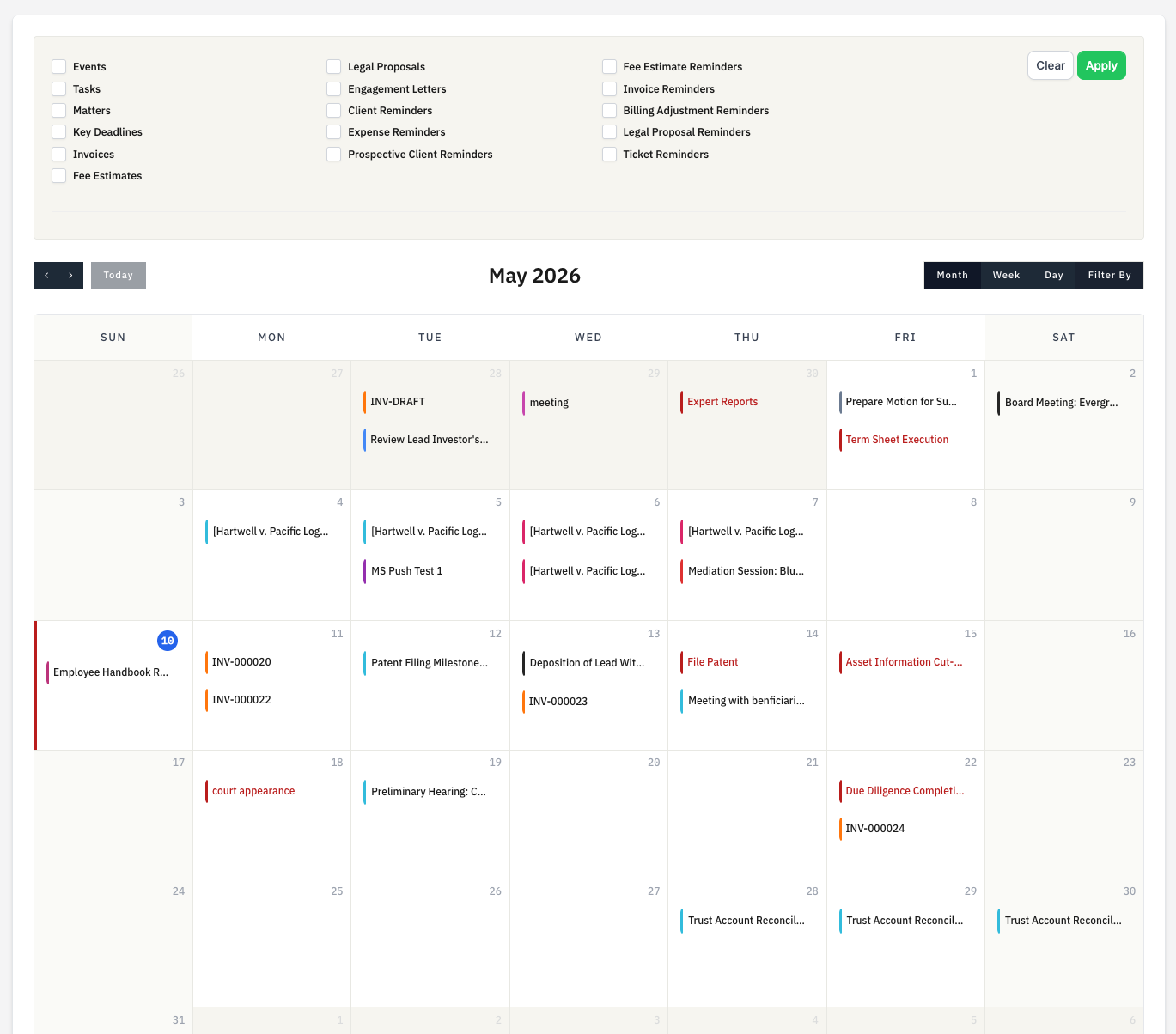
Click filter by in the calendar header to expand a filter panel. The panel only shows checkboxes for entry types your firm has enabled in calendar settings. If invoices are disabled firm-wide, no Invoices checkbox appears at all.
Tick the entry types you want to see, then click Apply. The grid reloads with only those types showing. Click Clear to reset.
The filter applies to the current page view. Reloading the calendar from the sidebar resets to the firm defaults.
Sync status banners
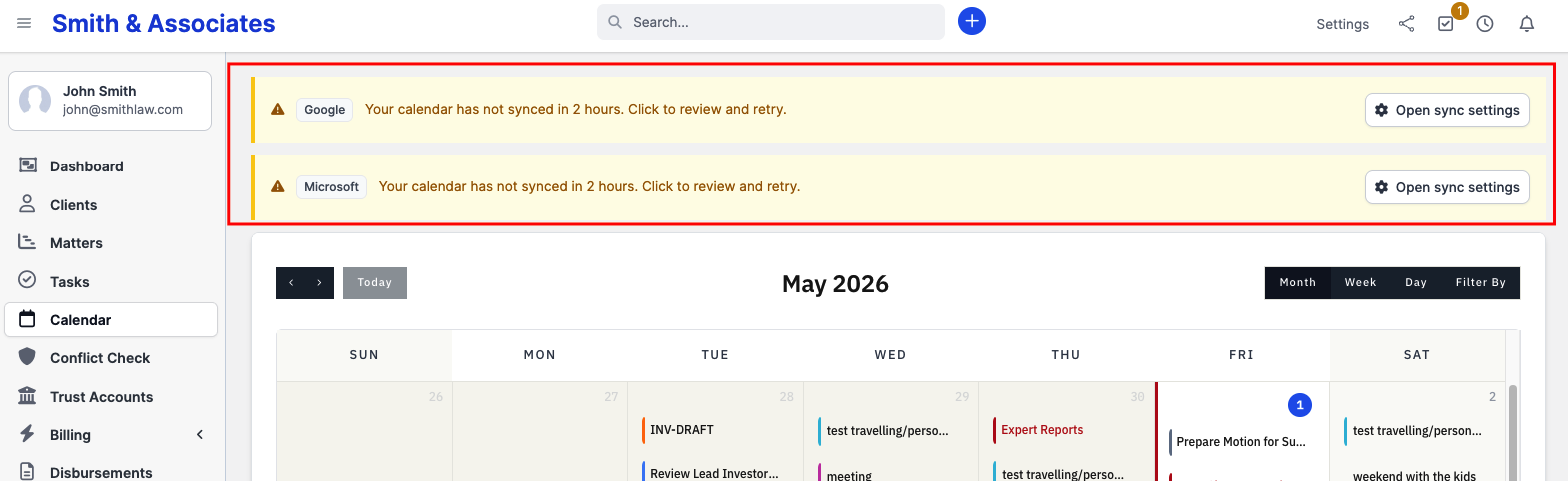
If your firm uses Google Calendar or Outlook integration, a banner may appear at the top of the calendar page.
Stale sync: Your calendar has not synced from the external service in the last hour. The next scheduled sync usually clears the banner. If it persists, click Open sync settings to review and retry manually.
Sync error: A specific error occurred during the last sync attempt. The banner shows the error message. Click Open sync settings to view details and re-authenticate if needed.
The banners appear once per integration (Google and Outlook are independent). Dismissing one does not dismiss the other.
Calendar settings
Firm-wide calendar behavior is configured at Setup > Settings > Calendar. Admins control:
- Calendar Events Limit: Maximum events per day cell in the Month and Week views before a "+more" popover appears (defaults to 3)
- Default View: Which view loads first. Options: Month, Week, Day, Agenda Week, Agenda Day
- First Day: Which weekday appears in the leftmost column
- Show on calendar: Per-type toggles for tasks, matters, key deadlines, invoices, estimates, proposals, contracts, and the various reminder types. Events are always on. There are also two refinements: Hide notified reminders from calendar and Calendar only assigned tasks (limit task entries to tasks assigned to the current staff member).
- Styling (the Styling tab): Per-type colors for invoices, estimates, proposals, reminders, contracts, matters, and key deadlines
Changes apply to all staff members immediately.
Plan availability
The Calendar is available on all CaseFlow plans (Solo, Growth, and Multi-Practice).
Plan requirement
The calendar works the same way for all users, but integrations (two-way sync with Google Calendar or Outlook) and court rules are available on higher tiers. See Google Calendar sync, Outlook sync, and Court rules for details.
Next steps
- Creating events - Add hearings and appointments to the calendar
- Key deadlines - Set important dates within each matter
- Google Calendar sync - Keep your firm calendar in sync with Google Calendar
- Outlook sync - Keep your firm calendar in sync with Microsoft Outlook
- Court rules - Automatic deadlines based on court filing rules