
Pipeline and statuses
The Prospective Clients module ships with a List view (default) and a Kanban board view. Each column on the Kanban board is a pipeline status. You can drag cards between columns to change a record's status.
Plan requirement
Prospective Clients is a Multi-Practice plan feature.
Switching between List and Kanban
On the Prospective Clients page, use the toggle button next to New Prospective Client:
- Grid icon: switch to Kanban
- Table icon: switch to List
Your choice is remembered in your session.
Setting up pipeline statuses
A new firm starts with a single seeded status named Customer (id 1). This is the status that CaseFlow automatically assigns to a Prospective Client after you convert them to a client; it is not a stage you usually move records into manually. Before using the pipeline you need to add your own intake stages.
Go to Setup > Prospective Clients > Statuses and add the stages that fit your firm's intake process. Each status has a name, a colour, and an order. Drag the rows on the Statuses page to reorder them, or drag the column headers on the Kanban board.
Examples firms commonly add:
- New inquiry
- Contacted
- Consultation booked
- Qualified
- Engagement letter sent
- Won
- Lost
You can pick which status is the default for new records at Setup > Settings > Leads. New prospective clients created from web forms, email integration, or the New Prospective Client button will land in that status.
Creating a prospective client manually
On the Prospective Clients page click New Prospective Client. A modal opens with these fields:
General
- Status (defaults to the firm's configured default status)
- Source
- Assigned (defaults to you)
- Tags
Contact details (only Name is required by the system; firms typically also require Email)
- Name
- Title
- Website
- Phone
- Lead Value (numeric, in your base currency)
- Company
Address
- Address, City, State, Country, Zip
- Default language
Other
- Description (rich text)
- Date contacted / "Contacted today" checkbox
- Public (visible to all team members regardless of assignment)
- Custom fields (configured at Setup > Custom Fields)
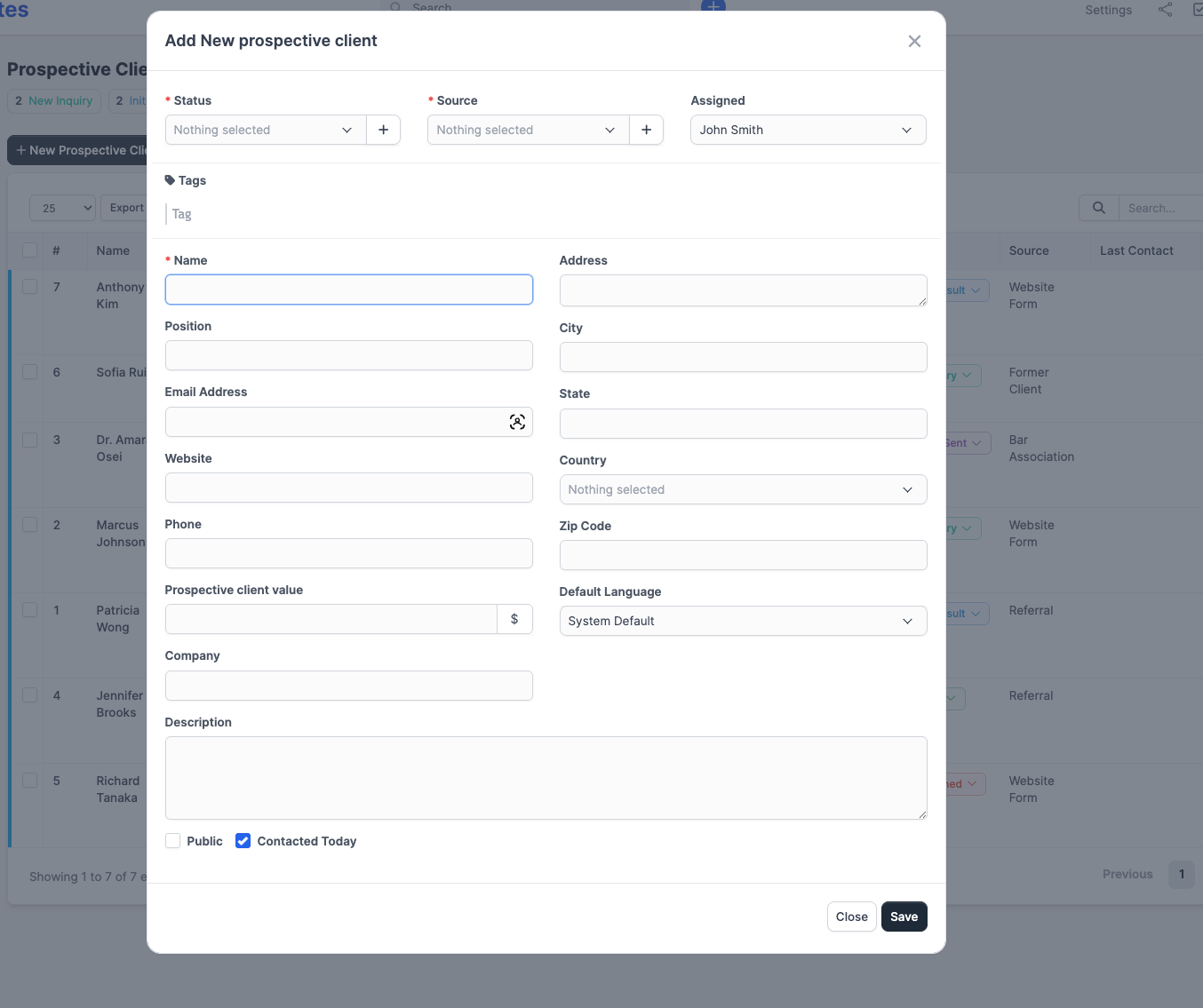 Click Save to save. The new record opens in its profile view.
Moving prospective clients through the pipeline
On the Kanban board, drag a card from one column to another to update its status. On the List view (or inside the record), use the Status dropdown. 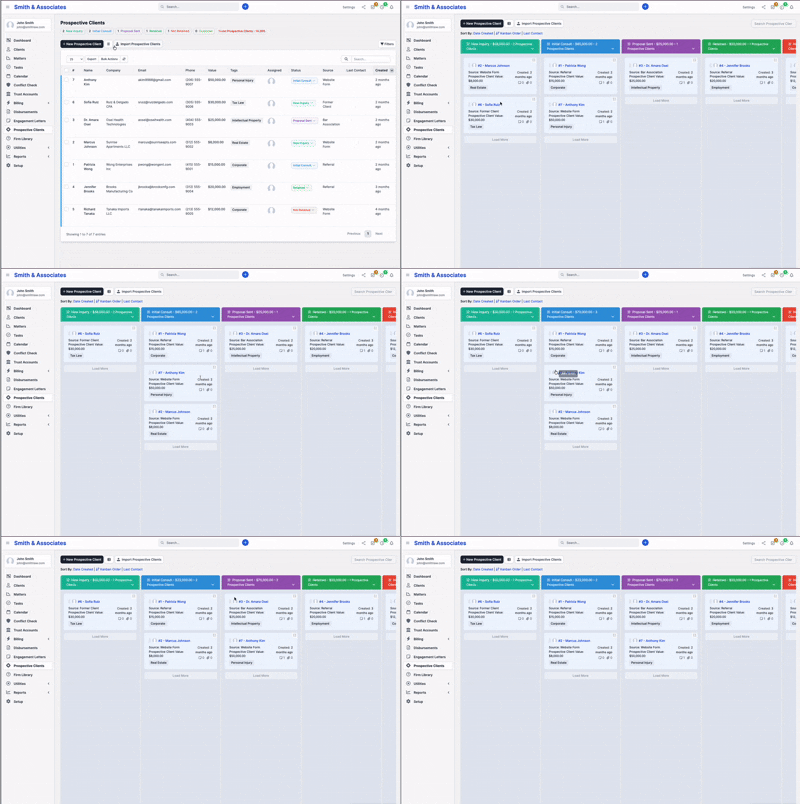
Sources
Sources record where the inquiry came from. Configure them at Setup > Prospective Clients > Sources. A new firm starts with two seeded sources (Google and Facebook); add or remove sources as needed.
Tracking sources gives you channel-level reporting at Reports > Prospective Clients (Multi-Practice plan, admin only).
Assignment and visibility
Each record has one Assigned team member. By default, non-admin staff only see records they own, created, or that are marked Public. To make a record visible firm-wide, tick Public on the record or use bulk actions.
Activity, notes, attachments, reminders, tasks, proposals
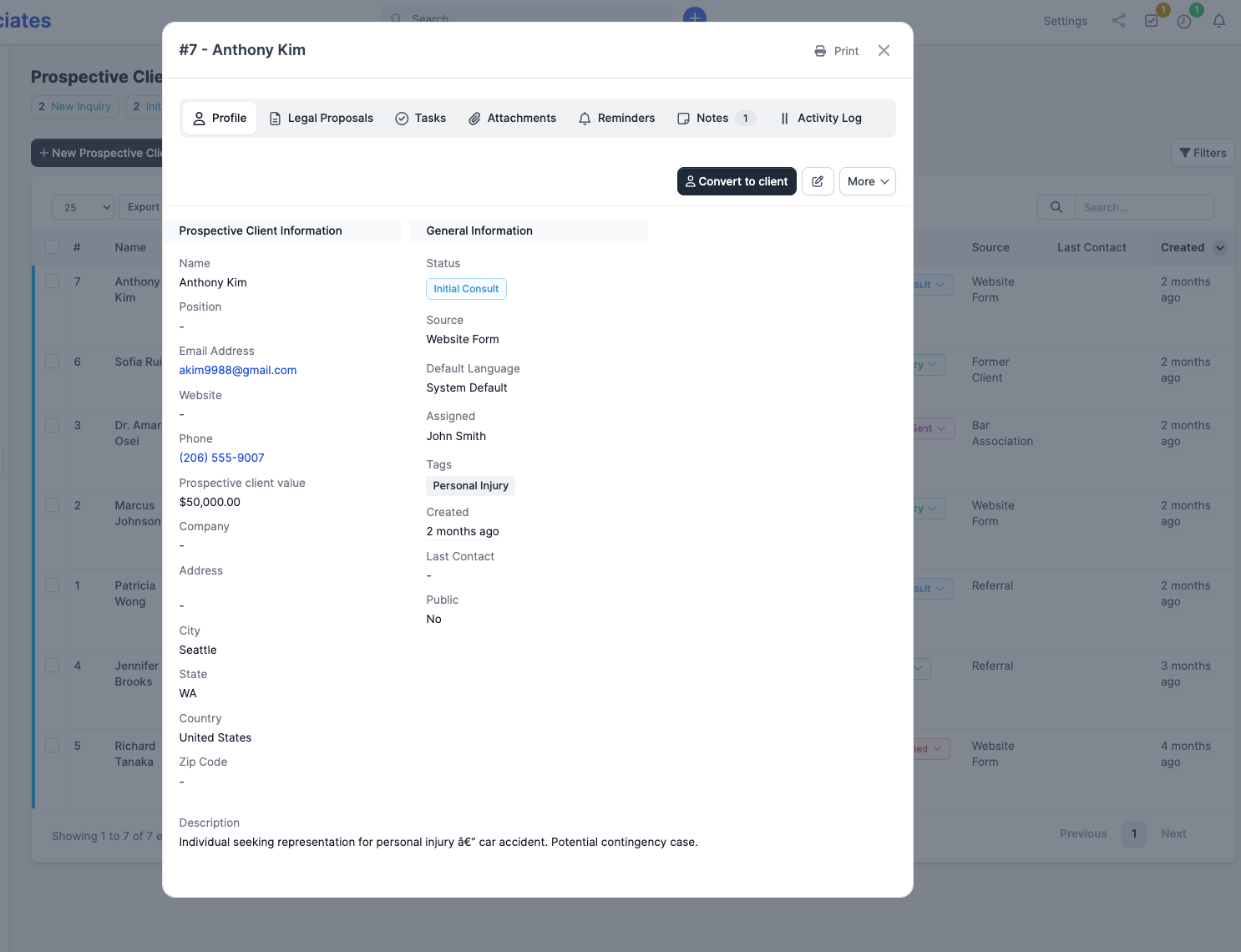
Open any prospective client to access tabs for:
- Profile - the fields above
- Email Activity - emails sent from IMAP integration or matched by email
- Proposals - draft and send proposals linked to this record (no client yet required)
- Tasks - tasks scoped to this prospective client
- Attachments - drag and drop files; Google Drive / Dropbox supported when configured
- Reminders - set reminders for yourself or another team member
- Notes - timestamped notes with an optional "I contacted them on..." date stamp
- Activity Log - automatic and manual entries
Marking as Lost or Junk
From the record's More menu:
- Mark as lost - the record stays in the pipeline but is flagged Lost and removed from active counts.
- Mark as junk - hides the record from the main pipeline. Use this for spam and accidental submissions.
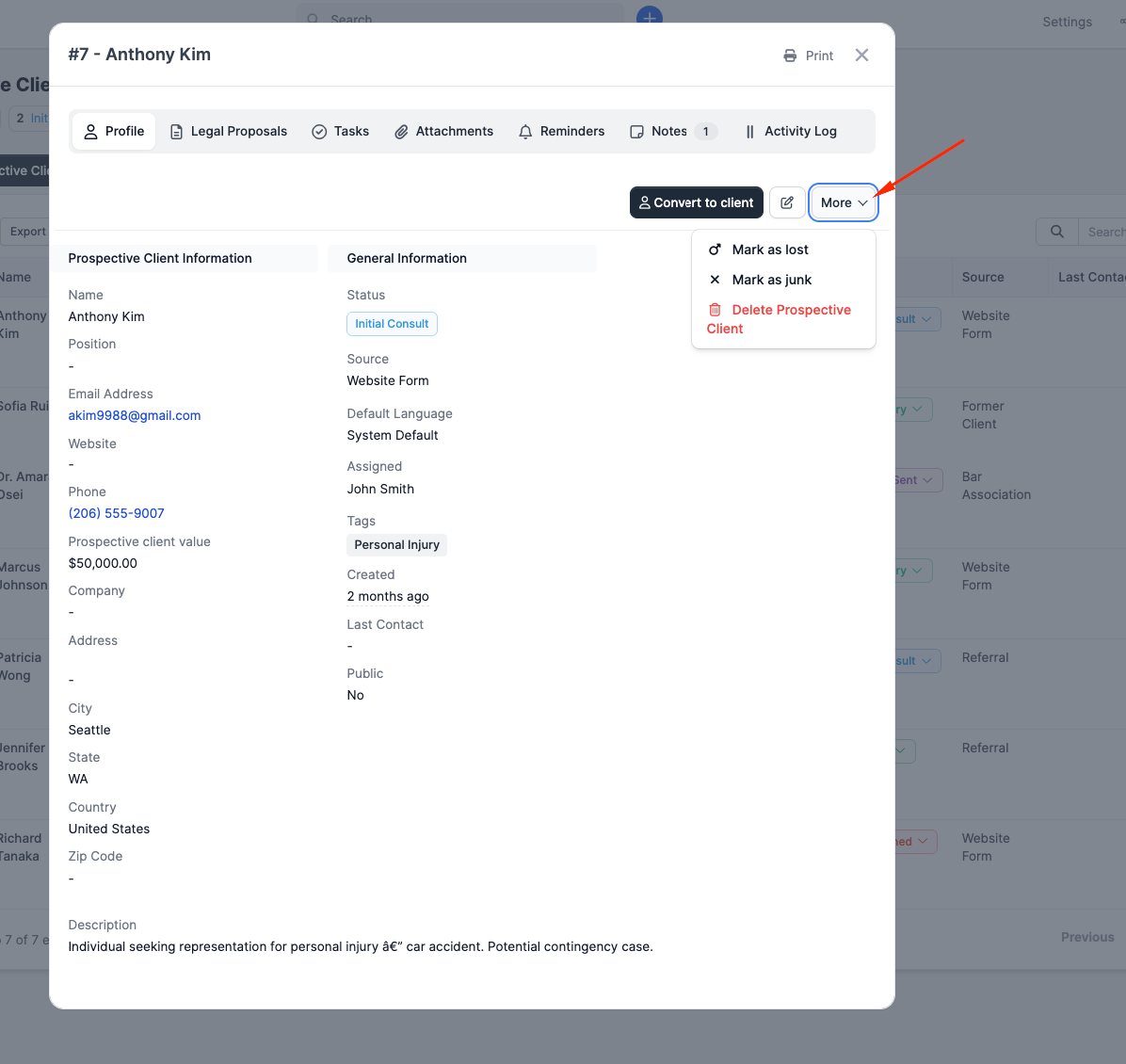
Both are reversible from the same menu (Unmark).
Spam handling
CaseFlow does not have an automatic spam classifier on web-form submissions. To keep junk out of your pipeline, mark records as junk manually, or add reCAPTCHA to your web-to-lead forms (see Web-to-lead forms).