
Timesheets
The timesheets view collects all time entries across the firm into one place. Use it to review who worked on what, how many hours were billable, and what has not been invoiced yet.
Accessing timesheets
Go to Reports > Timesheets Overview in the sidebar. You can also view timesheets scoped to a single matter from the matter's Timesheets tab.
The timesheets view
The page shows a table of time entries with these columns:
| Column | Shows |
|---|---|
| Staff member | Who logged the time |
| Task | The task the entry is linked to (every entry has one) |
| Matter | Which matter the task belongs to |
| Start / End | Date and time |
| Hours | Duration |
| Billable | Yes or no, inherited from the task |
| Billed | Whether the entry has been added to an invoice |
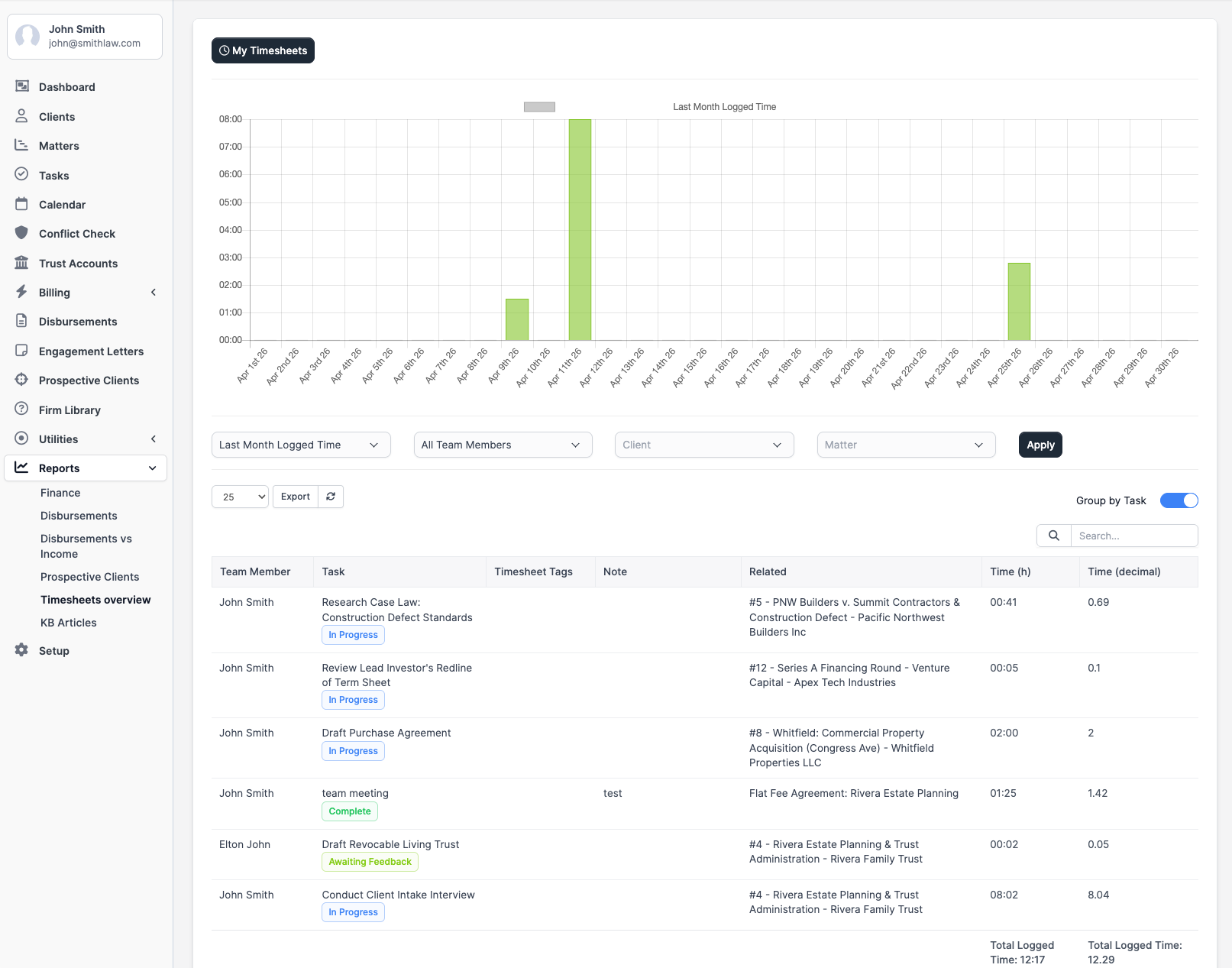
Filtering
Use the filters at the top to narrow the list:
- Staff member: See one person's entries
- Matter: Time for a specific matter
- Date range: A specific week, month, or custom range
- Billable: Only billable or only non-billable
- Billed: Only invoiced or only uninvoiced
My timesheets
Each staff member can view their own timesheets from the profile dropdown (top right) > My Timesheets. This shows only their entries and is the fastest way to check your own logged hours for the week.
Exporting
Click the Export button above the table to download the timesheets as a CSV file. This includes all columns and respects whatever filters you have applied. Useful for month-end billing reviews or importing into external accounting software.
Billing from timesheets
If you see unbilled time entries that should go on an invoice, select them using the checkboxes and click Bill. CaseFlow creates a new invoice (or lets you add to an existing draft) with line items generated from the selected time entries. Each line shows the description, hours, and amount based on the staff member's hourly rate.