
Time tracking
CaseFlow lets you record how long you spend on work. Time entries can be linked to tasks and matters, marked as billable or non-billable, and pulled into invoices.
What you can do
- Start and stop timers on tasks
- Log time manually against a task with start/end times or a duration
- View timesheets for yourself or your team
- Pull billable time (inherited from the task) into invoices
- Get alerts for unbilled time entries
Where time can be logged
Time entries are always tied to a task. There are two ways to create one:
- Start a timer on a task. Open the task and click the green Start Timer button. The timer counts in the background. Click it again to stop. CaseFlow saves the duration as a time entry on that task.
- Add a manual entry from the matter's Timesheets tab. Click + Timesheet. The form asks for Start Time and End Time (or a duration), the Task it belongs to, the staff member, and an optional note. Save to record it.
There is no global "log time" button outside of a task or a matter. Every entry is linked to a specific task on a specific matter.
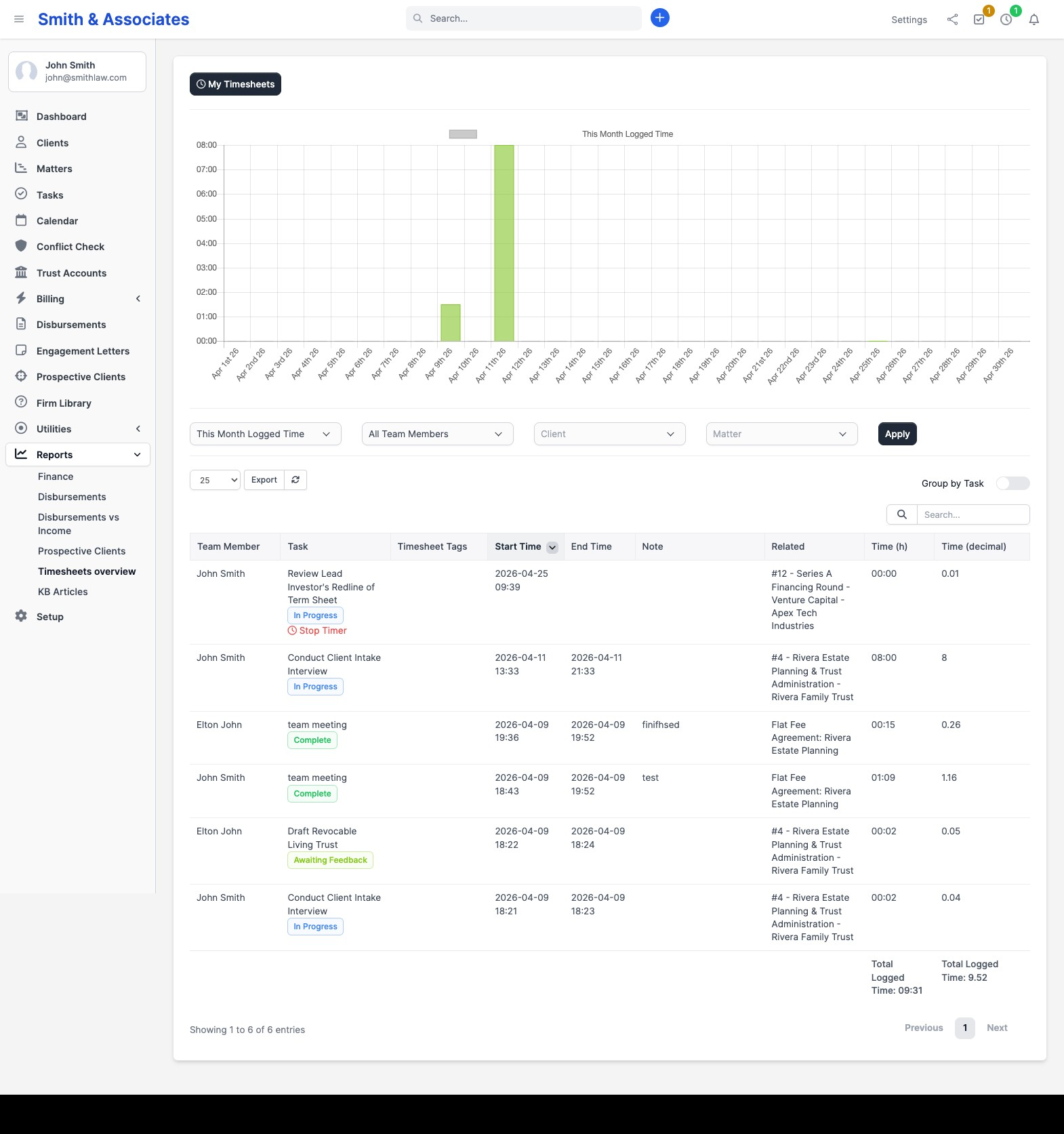
To review all entries across the firm in one place, use Reports > Timesheets Overview.
Billable vs. non-billable
Billable status is set on the task, not the time entry. When you create a task, you tick whether it is billable. Every minute logged against that task inherits its billable status. There is no per-entry billable toggle, and changing a task's billable flag will affect entries already logged against it.
This keeps the rule simple: a billable matter has billable tasks; the hours your staff log against those tasks are billable by definition.
If you need to record work that should not be billed (internal meetings, admin time, professional development), create a non-billable task on the matter (or on a dedicated internal matter) and log against that. Non-billable time still shows in timesheets and reports; it just never reaches an invoice.
Plans and availability
Time tracking is available on all plans. Timesheets overview (across all staff) is under Reports, which requires report-viewing permission.