
Outlook sync
Private beta
Outlook sync is available on the Multi-Practice plan and is currently in private beta. Contact support to enable it for your firm.
Connect your Microsoft 365 (Outlook) account so CaseFlow events stay in step with your work calendar in both directions. Hearings, depositions, and meetings you create in either system land in the other automatically. Sync is per-staff (each member connects their own account), not per-firm.
How sync works
- Bidirectional. Events created or edited in CaseFlow are pushed to Outlook. Events created or edited in Outlook are pulled into CaseFlow.
- Cron-driven. Sync runs every few minutes in the background. Expect a short delay; there is no live push the moment you save an event.
- Per-staff. Each staff member connects their own Outlook account. CaseFlow only syncs to that user's primary Outlook calendar; secondary calendars under the same account are not touched.
- Future-only by default. When you connect for the first time, only events from today forward sync. Past events stay in Outlook unless you import them (see below).
- Confidentiality preserved. Events linked to a matter, or assigned to a protected category (Court Date, Hearing, Deposition, Filing Deadline, Statute of Limitations), are pushed to Outlook with sensitivity = confidential and their descriptions stripped. Delegated assistants who can see your calendar see only the title and time, not the matter detail.
Connecting your account
Open your profile (click your name in the top-right corner of the page, then My Profile) and click the Outlook Calendar Sync card. You can also reach the page from the Open sync settings button on a calendar warning banner.
Click Connect Outlook. You will be redirected to Microsoft to grant CaseFlow access to your calendar. The permission requested is the least-privilege scope CaseFlow needs to read, edit, and delete events. Approve, and Microsoft sends you back to CaseFlow.
Once connected, the page shows your Microsoft account email with a green Connected label and a Disconnect button. 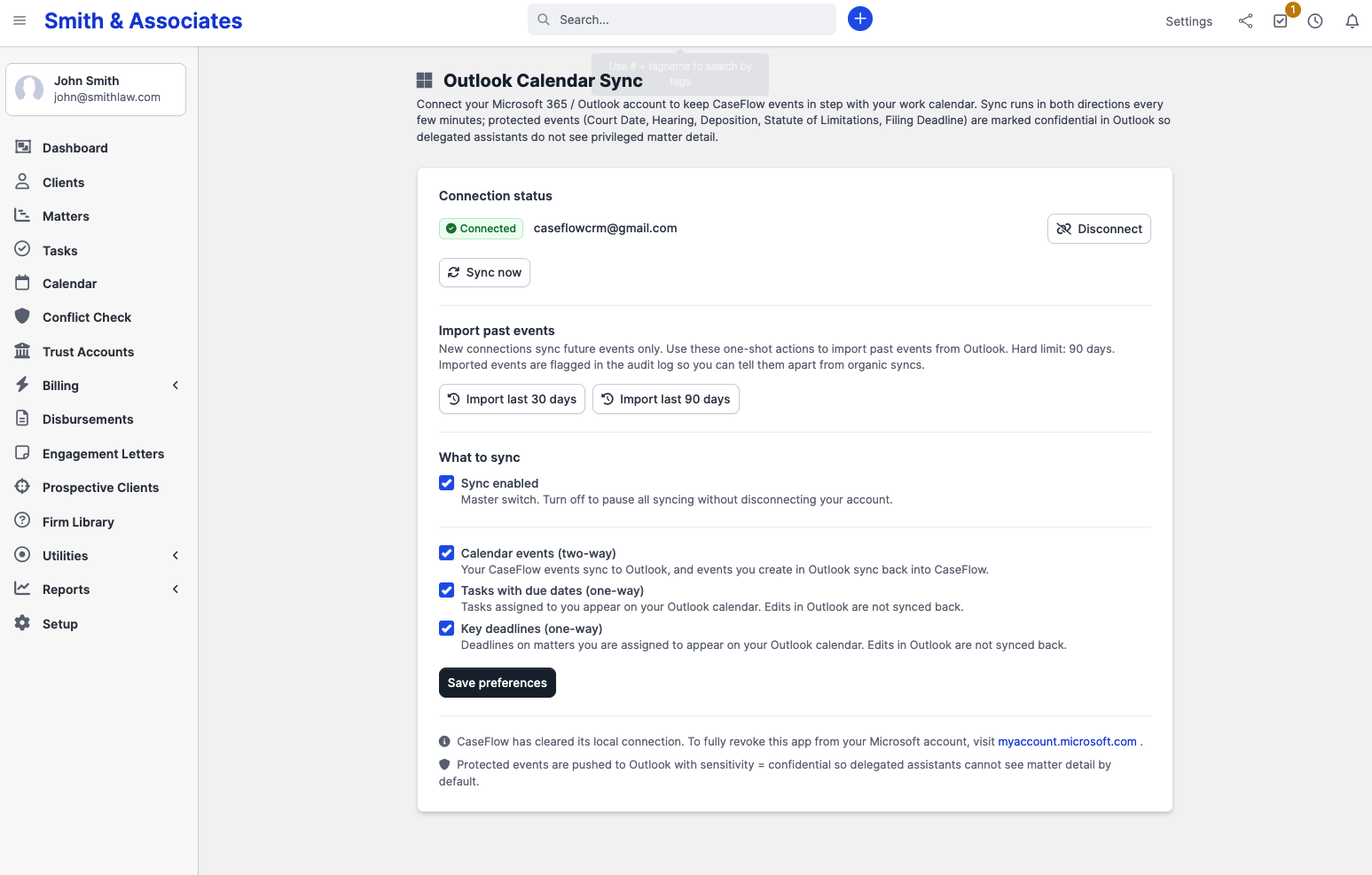
What syncs
Below the connection status, a What to sync form lets you fine-tune what flows between CaseFlow and Outlook. There are four toggles, identical in shape to the Google integration:
| Toggle | Direction | Description |
|---|---|---|
| Sync enabled | (master switch) | Turn off to pause all syncing without disconnecting your account. |
| Calendar events (two-way) | both ways | Your CaseFlow events sync to Outlook. Events you create in Outlook sync back into CaseFlow. |
| Tasks with due dates (one-way) | CaseFlow to Outlook | Tasks assigned to you with a due date appear on your Outlook calendar. Edits in Outlook are not synced back. |
| Key deadlines (one-way) | CaseFlow to Outlook | Deadlines on matters you are assigned to appear on your Outlook calendar. Edits in Outlook are not synced back. |
Click Save preferences to apply.
Importing past events
When you first connect, only future events sync. To pull older events from Outlook into CaseFlow, click one of the import buttons on the settings page:
- Import last 30 days
- Import last 90 days
Both actions are idempotent. Running an import twice does not duplicate events.
The 90-day cap is a hard limit. For older events, contact support.
Imported events are stamped in the event audit log so a later admin can tell them apart from organic syncs.
Manual sync
Click Sync now at the top of the settings page to pull the latest changes from Outlook without waiting for the next scheduled sync. CaseFlow fetches fresh changes from Outlook immediately. Any CaseFlow-side events you created or edited since the last sync still go out on the next regular run, not in this manual pull.
If something has gone wrong, an error banner appears with the underlying message. Click Retry now in the banner; transient errors usually clear on the second attempt.
Disconnecting
Click Disconnect on the settings page to revoke CaseFlow's access to your Outlook account. Sync stops immediately. Events that have already synced stay where they are.
Privacy in detail
Outlook sync follows the same ABA Model Rule 1.6 default as Google sync: matter information is presumed confidential.
When CaseFlow pushes an event to Outlook, it strips the description and sets sensitivity to confidential if either of these is true:
- The event is linked to a matter (any matter, any client)
- The event uses a protected category (Court Date, Hearing, Deposition, Filing Deadline, or Statute of Limitations by default; firms can edit the list in event categories settings)
The event title and start/end times still go through, but the body text is replaced with "Confidential" before it leaves CaseFlow. Delegated assistants and other people with access to your Outlook calendar see the appointment exists but cannot read what it is about.
For the reverse direction (Outlook pull into CaseFlow), CaseFlow respects sync conflicts on protected-category events. If you edit a Court Date event in both Outlook and CaseFlow within the same sync window, the conflict is logged for human review rather than silently overwriting either side.
Plan availability
Plan requirement
Outlook sync is available on the Multi-Practice plan only and is currently in private beta. Contact support to enable it for your firm.
Next steps
- Google Calendar sync - The Google equivalent on the Growth plan
- Creating events - The CaseFlow side of what gets synced
- Calendar overview - Sync banners and global calendar settings