
Tracking disbursements
Recording a disbursement
In the sidebar, click Disbursements and then + Record Disbursement.
Form fields
The form is opinionated about what's required vs. optional. The required fields are always visible; optional fields appear collapsed under "+ Add …" links so the form stays short for routine entries.
Always visible
| Field | Purpose |
|---|---|
| Receipt | Drag-and-drop area for the receipt file (JPG, PNG, PDF). Click the area to open a file picker. |
| Category | Required. Set up your categories under Setup > Finance > Disbursement Categories. Admins (or staff with the inline-create permission) can add a new category from the form via the small + button. |
| Date | Required. Defaults to today. |
| Amount | Required. Numeric input next to a currency selector. |
| Currency | Locked to the firm's base currency by default; switches to the client's currency once you select a client and tick Billable. |
| Customer | Required if you want the disbursement to be billable. Search-as-you-type. |
Collapsed (click the "+" link to expand)
- Recurring — turn the disbursement into a recurring schedule (see below)
- Name — short label that shows on the list and on the invoice line if you tick the include-name option
- Reference # — your own audit identifier (cheque number, vendor invoice number, etc.)
- Note — longer description; can be appended to the invoice line
- Tax — up to two tax rates (Tax 1 and Tax 2). Picking a tax exposes a "Subtract tax total from amount" helper in case you entered an inclusive amount.
- Payment Mode — Cash / Card / Transfer / etc. Drawn from your firm's payment-mode list.
Conditional
- Billable — appears only after you pick a client. Locks if the disbursement has already been added to an invoice.
- Matter — appears once you pick a client and the client has at least one matter.
- Custom fields — any disbursement custom fields configured for the firm.
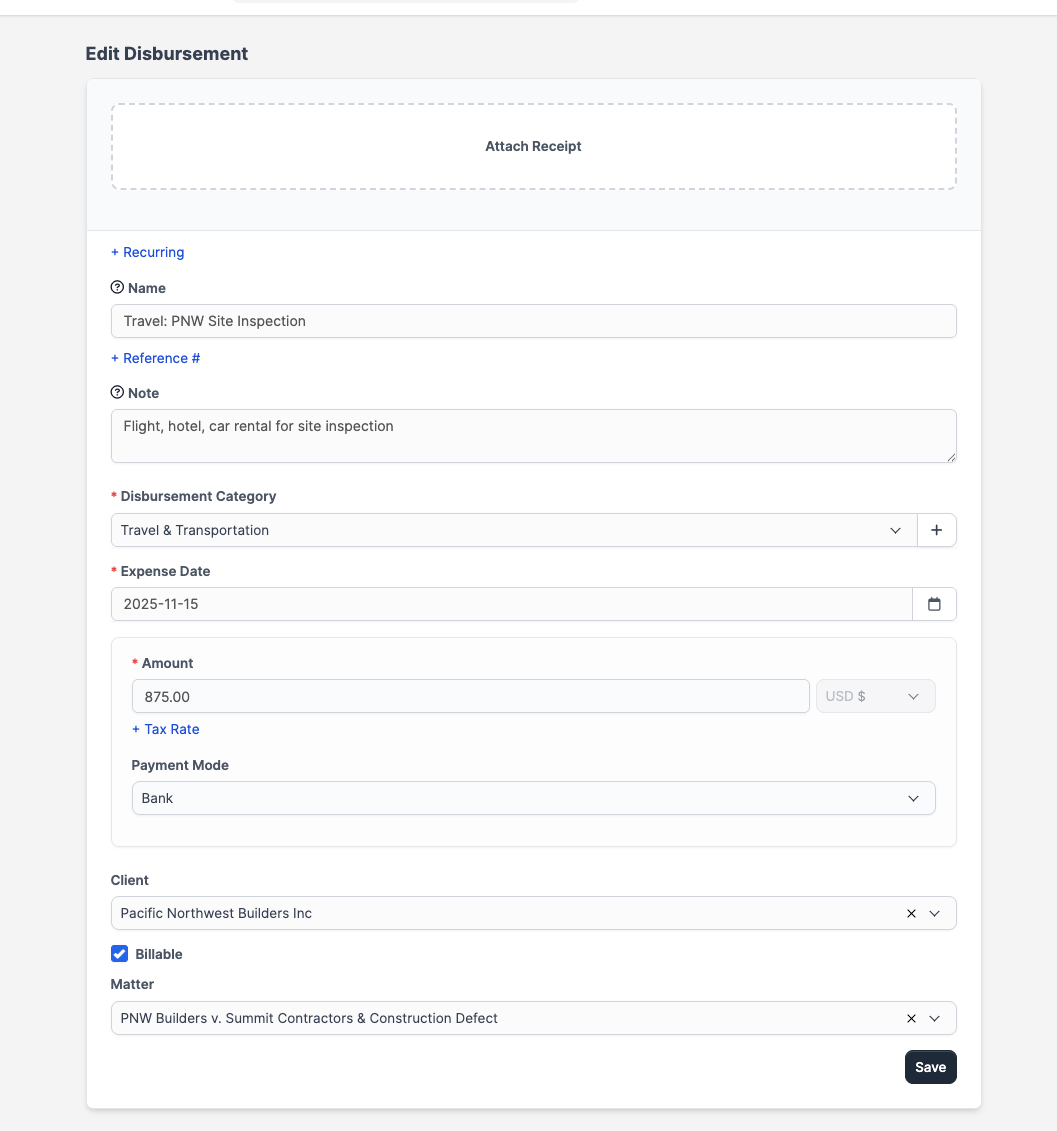
Click Save at the bottom of the panel. CaseFlow uploads the receipt, saves the record, and returns you to the disbursement detail page. 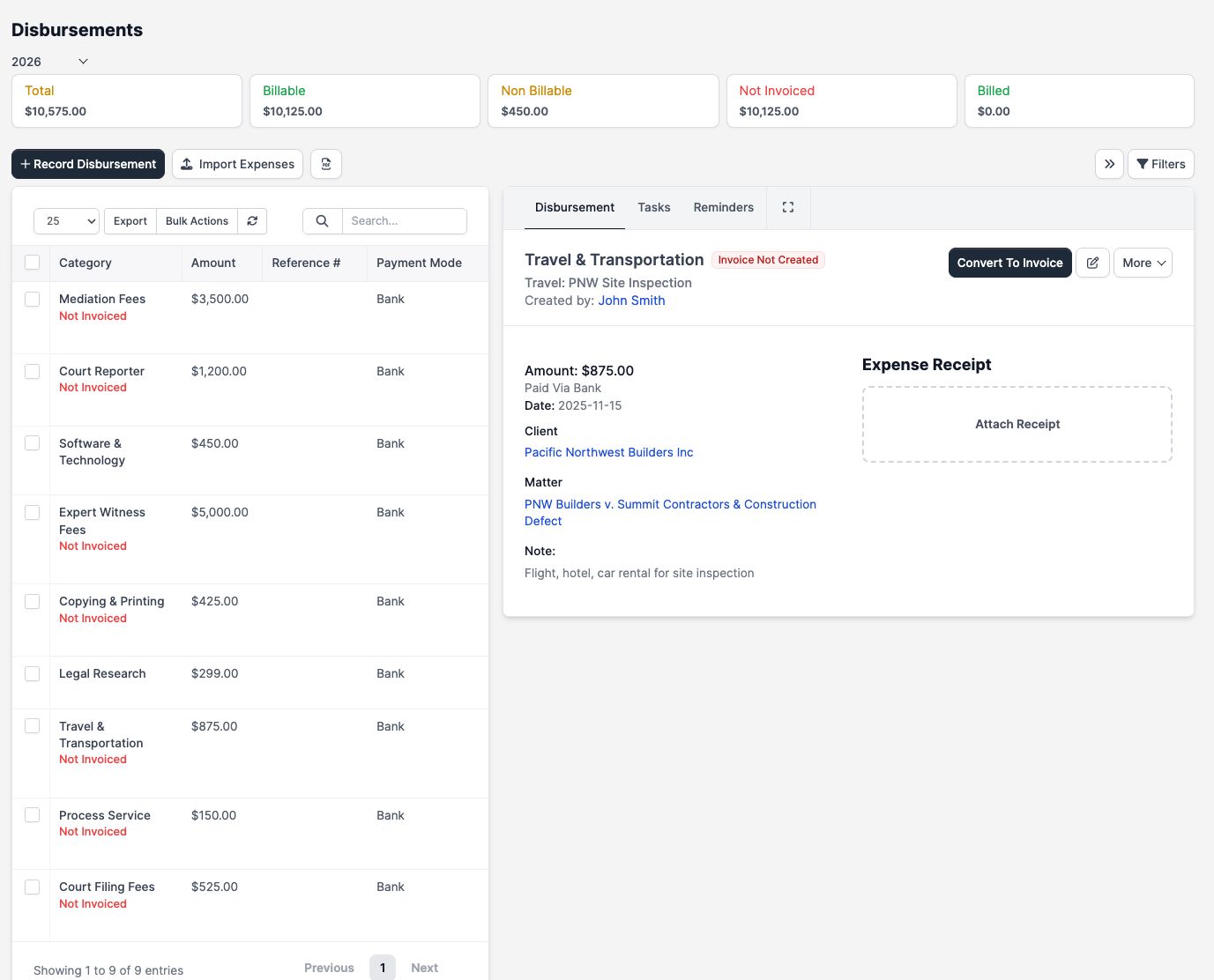
Disbursement categories
Categories are required. Set them up under Setup > Finance > Disbursement Categories. Common law-firm categories:
- Court filing fees
- Process server fees
- Expert witness fees
- Deposition transcripts
- Travel and lodging
- Courier and postage
- Online research (Westlaw, LexisNexis, PACER)
- Copying and printing
- Pro hac vice fees
Categories drive reports — Reports > Disbursements breaks totals down by category, client, and period.
Attaching a receipt
The receipt area at the top of the form accepts a single file (image or PDF). Drag a file onto the area or click it to open a file picker. After saving, the receipt link shows on the disbursement detail page; admins and the original uploader can replace or delete it. 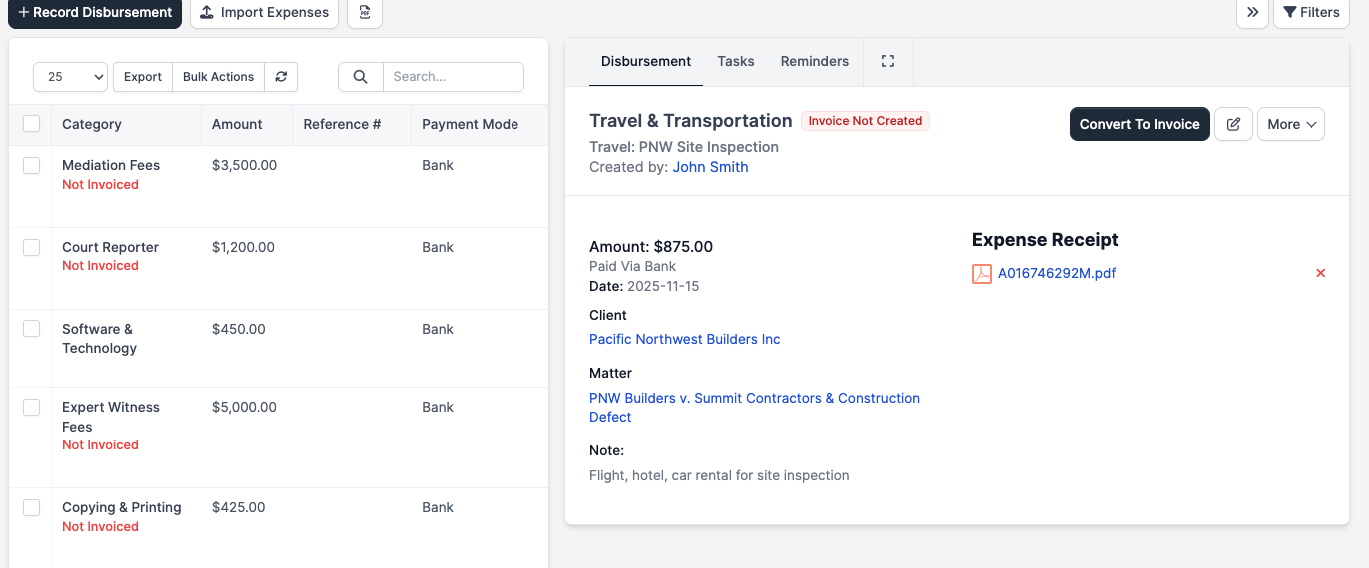
Recurring disbursements
Click + Recurring at the top of the form to expand the recurring panel. Set:
- Repeat every — Week, 2 Weeks, 1/2/3/6 Months, 1 Year, or Custom (every N days/weeks/months/years)
- Total cycles — number of times the schedule should run. Tick the infinity checkbox to repeat indefinitely.
If the parent disbursement is also marked Billable, two extra options appear:
- Auto-create invoice on renew — at each cycle CaseFlow generates a draft invoice for the client with this disbursement as the line item.
- Send invoice to customer on renew — emails the auto-created invoice to the client immediately. Off by default; only used when the auto-create option is on.
Each child disbursement created by CaseFlow carries a banner pointing back to the parent. The parent's Date is locked once the first child has spawned (changing it would corrupt the cycle math).
Editing and deleting
Click any row in the list to open it; click the pencil icon to edit. Two rules to know:
- The Billable checkbox is locked once the disbursement has been added to an invoice. CaseFlow shows a tooltip explaining why.
- A disbursement that has been invoiced cannot be deleted until you first remove it from the invoice. Attempting to delete returns "This disbursement is invoiced" and the record stays put.
Deleting an un-invoiced disbursement is permanent — there is no soft-delete or trash. 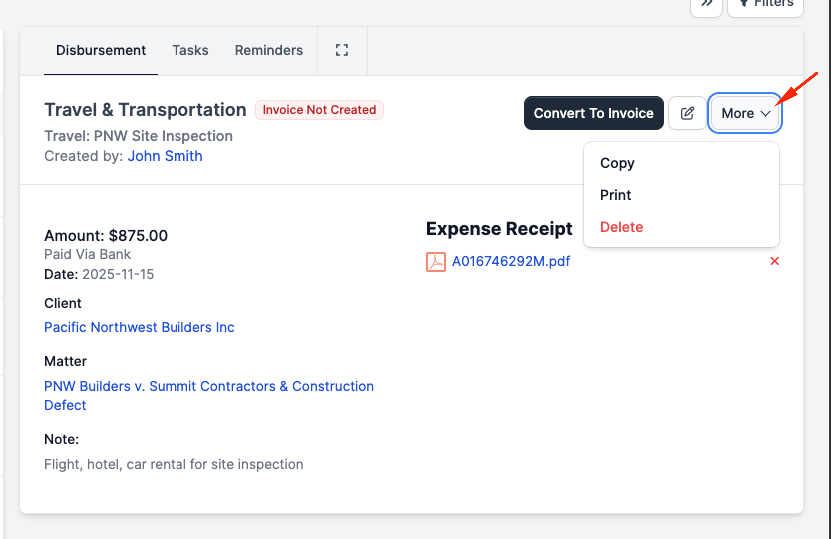
The recurring Date field locks once a child has been spawned, as noted above.
Bulk actions
Tick the checkboxes on the list and use the bulk-action toolbar to:
- Mass-update the category, date, amount, or payment mode across the selected rows
- Mass-delete the selected rows (subject to the invoiced-cannot-delete rule above)
There is no bulk "convert to invoice" action — billing is done from the invoice form, not from the disbursements list. See Billable expenses.
Filtering
The Disbursements list ships with these filters:
- Category
- Client
- Project / Matter
- Payment mode
- Date range (start–end, plus quick presets)
- Billable / non-billable
- Reference #
- Includes filters for recurring records
Save a filter combination as a custom view from the toolbar so you can return to it later.